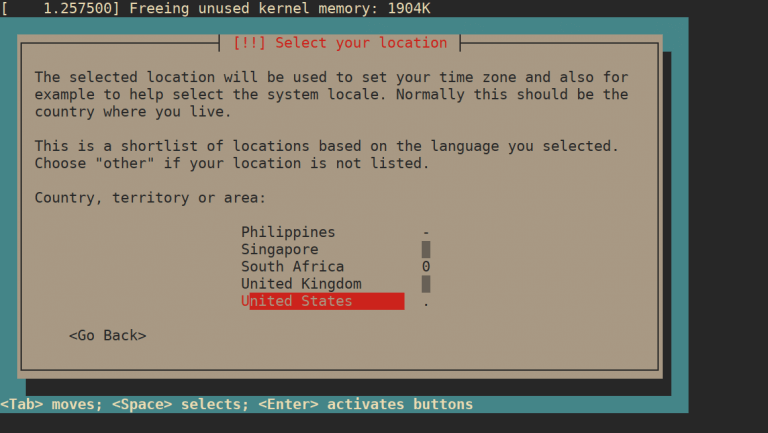
Picking a mini PC for Proxmox and a homelab is really seven choices, not one. A single low-power node to learn Proxmox on is a different machine from a box that runs a dozen production-ish VMs, and a cluster head with 10GbE storage networking is different again. The mistake most buyers make is shopping on Cinebench scores and core counts, when a homelab lives or dies on RAM ceiling, NIC stability, idle power, and whether the board can pass a device through to a VM at all.
This guide ranks the best mini PCs for a Proxmox homelab and self-hosting through that lens: virtualization density, networking, storage layout, and the watts they pull running 24/7. We cover the Minisforum MS-01 and MS-A2, the Beelink SER8 and MINI S13, the Minisforum UM890 Pro, the ZimaBoard 2 single board server, and the used Lenovo ThinkCentre Tiny that still beats most new boxes on value. If your goal is running large language models locally rather than virtualization, the boxes are different and we cover those separately in our best mini PC for local AI guide. New to the platform? Start with installing Proxmox VE first. Prices and stock for every pick below move with the ongoing DRAM shortage, so we cross-checked the CPU-class price bands against our mini PC price tracker in November 2026.
Quick picks
The whole comparison in one table. Prices are approximate for November 2026 and move with the ongoing DRAM and NAND shortage, so treat them as a guide, not a quote. Two of the picks (the MS-A2 and the SER8) showed only single-digit stock on Amazon when we checked, so don’t plan a three-node build around either without checking stock first. If you’re buying in November, our Black Friday mini PC deals page tracks price history and a buy-below target for these boxes.
| Mini PC | Best for | CPU | RAM ceiling | Networking | Reported idle | Approx price |
|---|---|---|---|---|---|---|
| Minisforum MS-01 | Best overall | Core i9-13900H, 14C/20T | 96GB | 2x 10G SFP+, 2x 2.5G | ~18-28W | ~$1,180-1,280 |
| Minisforum MS-A2 | Most compute / cluster head | Ryzen 9 9955HX, 16C/32T | 96GB | 2x 10G SFP+, 2x 2.5G | ~22-30W | ~$1,300-1,340 (scarce) |
| Beelink SER8 | Best value node | Ryzen 7 8745HS, 8C/16T | 96GB | 1x 2.5G | ~12-15W | ~$800-860 (scarce) |
| Minisforum UM890 Pro | Value with dual 2.5G | Ryzen 9 8945HS, 8C/16T | 96GB | 2x 2.5G | ~13-16W | ~$975-1,015 |
| Beelink MINI S13 | Budget / first node | Intel N150, 4C/4T | 12GB | 1x 2.5G | ~6-9W | ~$339 |
| ZimaBoard 2 | Dual 2.5G router / NAS node | Intel N150, 4C/4T | 16GB (soldered) | 2x 2.5G | ~2W CPU package (ours), ~7-8W wall (reported) | ~$360-420 |
| Lenovo ThinkCentre M920q | Cheapest capable node | Core i5/i7 8th-9th gen | 64GB | 1x 1G | ~7-11W | ~$150-300 |
If you only buy one and want it to last, the MS-01 is the pick. If you’re learning and want near-zero running cost, start with the MINI S13. Everything else fills the gap between those two. The rest of this guide explains why, and what each box gives up.
What actually matters in a homelab mini PC
A homelab box is a server that happens to be small. The specs that matter for a server aren’t the ones marketing pushes, so weigh these five before you look at the brand.
RAM is the real ceiling, not the CPU. Virtual machines reserve memory whether or not they use the cores. A Home Assistant VM, a couple of database containers, an Nginx proxy, and a small Kubernetes node will exhaust 16GB long before they trouble eight cores. Two SO-DIMM slots that take 2x48GB modules is the one feature that buys you the most headroom on this list, which is why the memory-limited N150 boxes sit at the entry tier and the dual-slot Ryzen and Core boxes carry the real workloads.
Networking is where homelab boxes separate. Dual 2.5GbE is the 2026 baseline and runs over the Cat5e you already have. It’s enough for one node serving VMs and a network share. The moment you want shared storage, live migration between nodes, or a Ceph cluster, you want 10GbE, and that is why the SFP+ ports on the MS-01 and MS-A2 matter so much. One caveat that bites people: the Intel i226-V 2.5G controller in many recent Intel mini PCs has a history of link drops under sustained load on some kernel and BIOS combinations. The fix is usually an ASPM change in the BIOS (set it to Auto or disable it) plus staying on a known-good kernel. Still, it’s the reason a rock-solid SFP+ uplink is worth paying for on a box you never want to babysit.
You want at least two M.2 slots. Proxmox best practice is to mirror the boot and VM storage so a single SSD failure doesn’t take the node down. That needs two NVMe drives, which rules out a lot of single-slot machines for anything you care about. Three slots, as on the MS-01 and MS-A2, lets you run a boot mirror plus a separate fast pool. Our ZFS RAID levels guide covers how to lay that out, and our roundup of the best NVMe drives for Proxmox covers the endurance and power-loss protection those constant small writes reward.
Idle power decides the running cost. A homelab node runs every hour of the year, so a 10W difference is real money. The N150 boxes idle around 6 to 9W. The 8-core Ryzen boxes land near 12 to 16W. The MS-01 sits higher, roughly 18 to 28W with SFP+ populated, because enterprise networking and a 14-core chip aren’t free. None of these are wasteful, but if you plan a three-node cluster the watts add up.
The ECC question. None of these consumer mini PCs take ECC memory. That sounds alarming for a ZFS box, but ECC is a recommendation for ZFS, not a requirement. ZFS runs fine on non-ECC RAM and is what the vast majority of homelabs use. If bit-perfect integrity on a 24/7 array is non-negotiable, you’re shopping for a different class of machine, not a mini PC. For a homelab, treat the lack of ECC as a known trade-off and move on.
1. Minisforum MS-01
The MS-01 is the box the homelab community settled on, and it earns it. In a 1.8-liter chassis you get dual 10GbE SFP+, dual 2.5GbE, three M.2 NVMe slots, a PCIe 4.0 x16 mechanical slot wired at x8, and a Core i9-13900H with 14 cores and 20 threads. That combination of enterprise networking and a real expansion slot in a mini PC simply did not exist before it shipped, and nothing has matched it at the price since.
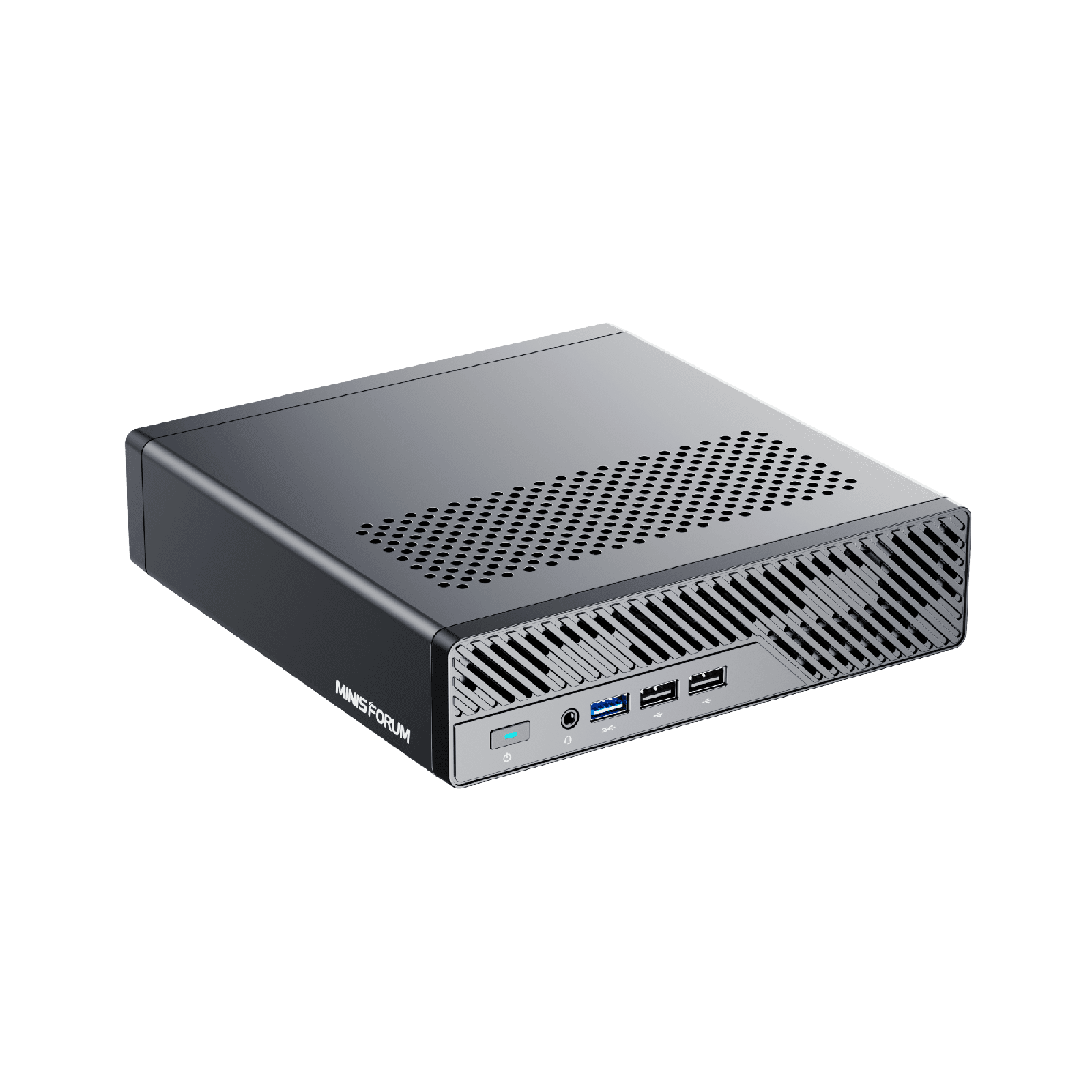
For Proxmox specifically, two things make it shine. The SFP+ ports use an Intel X710 class controller, which is an enterprise NIC with mature drivers and none of the consumer flakiness, so your storage and migration network is the part you never think about again. And the PCIe slot means you can drop in a real GPU for transcoding or an HBA for a disk shelf later, which no Beelink can do. The i9 variant ships with vPro, useful for out-of-band management if you tuck the box in a closet.
Where it falls short: it idles higher than the Ryzen boxes, the fans are audible under load, and the official memory spec is 64GB even though the community runs 2x48GB for 96GB without drama. The 2.5G ports are i226-V, so if you lean on those instead of the SFP+ uplinks, apply the ASPM fix. For most people building a homelab they want to keep for years, the Minisforum MS-01 is still the right machine, but check the live price before you commit. The DRAM shortage keeps moving it: at the end of October 2026 Amazon listed the i9 with 32GB and a 1TB SSD at about $1,280, a $100 jump inside the same month and roughly $450 more than when we first ranked this field. The MS-02 Ultra (Core Ultra 275HX and 285HX) has also arrived as its official successor, so run-out deals on the MS-01 are worth watching for. At today’s money, weigh it against the MS-A2 barebone below before you buy, because the barebone plus your own RAM and SSD can come close to a configured MS-01’s price with more cores.
2. Minisforum MS-A2
The MS-A2 is the MS-01 formula with the brakes off. It keeps the dual 10GbE SFP+, dual 2.5GbE, three M.2 slots, and PCIe x16 slot, then drops in a desktop-class Ryzen 9 9955HX: 16 Zen 5 cores, 32 threads, up to 5.4GHz. For raw virtualization throughput, nothing else on this list is close. It’s the box you buy when one node has to do the work of three, or when it is the head of a cluster running the heaviest VMs.
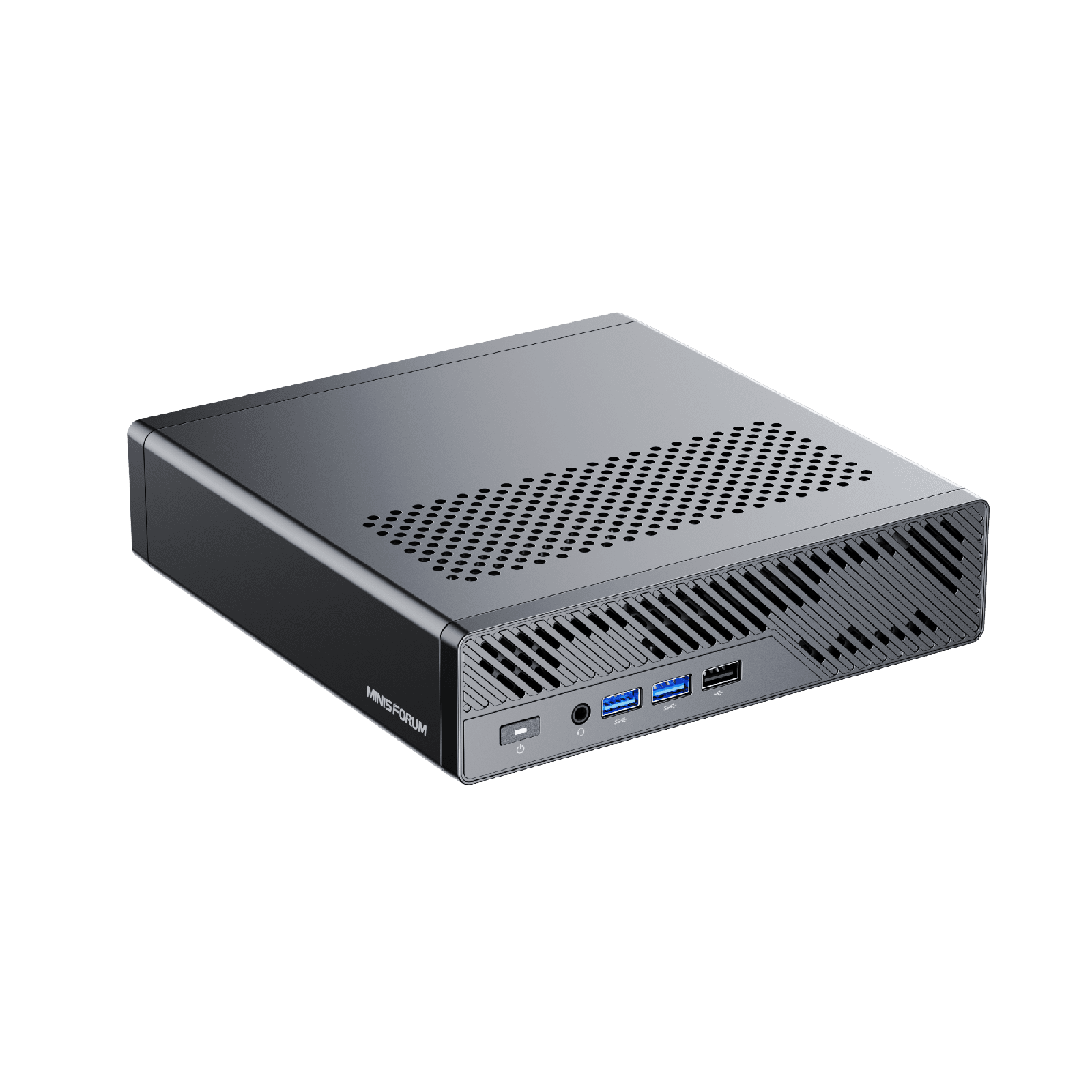
The trade-off is the iGPU. The 9955HX carries a token Radeon 610M with two compute units, which is fine for a console and a Proxmox web session but useless for media transcoding. If you want this box to run Plex or Jellyfin with hardware transcode, plan on the PCIe slot and a discrete card, because the integrated graphics won’t do it. It also idles higher than the 8-core Ryzen boxes, as a 16-core HX chip should.
Pricing starts around $799 for the barebone and climbs to roughly $1,330 with 32GB and 1TB (Amazon showed single-digit stock of those at the end of October), or around $2,000 fully loaded with 96GB and 2TB. For most homelabs that is more machine than the workload justifies, which is exactly why it is not the top pick. But if you’re consolidating several old servers into one quiet box, the Minisforum MS-A2 is the most compute you can buy in this form factor. The barebone version is the smart buy if you already own DDR5 SO-DIMMs and an NVMe drive, though at shortage prices buying both new narrows that gap.
3. Beelink SER8
The SER8 is the value pick, the box we point most first-time homelabbers at once they have outgrown an N150. The Ryzen 7 8745HS gives you eight Zen 4 cores and 16 threads, it ships with 32GB of DDR5 and a 1TB Gen4 SSD, and the Radeon 780M is a genuinely capable iGPU that handles Jellyfin and Plex hardware transcoding without a discrete card. It idles around 12 to 15W and stays quiet doing it.
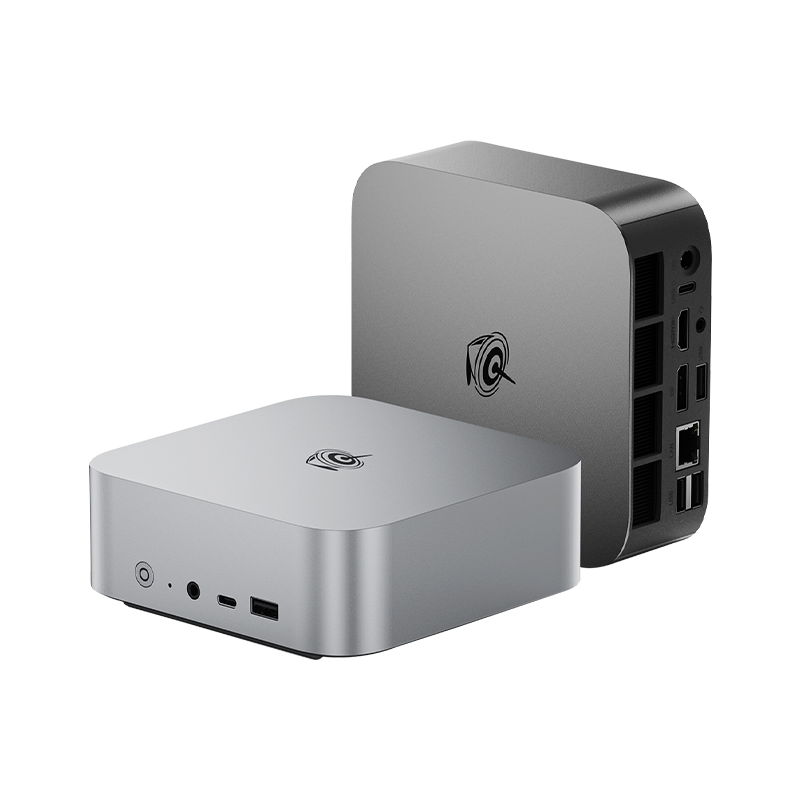
For a single capable node it does almost everything the bigger boxes do for less money. Two SO-DIMM slots take you to 96GB with 2x48GB, and two M.2 slots let you mirror your storage. For what to put in those M.2 slots, see our guide to the best SSDs and NVMe drives for a homelab. The 780M with its dozen RDNA3 compute units means this is the box to buy if media serving is part of the plan, which is a real edge over the MS-A2.
Where it falls short is networking and expansion. You get a single 2.5GbE port and no SFP+, so this is a standalone node or a cluster member on a 2.5G backbone, not a 10GbE storage host. There is no PCIe slot, so what you buy is what you get. At $819 with 32GB and 1TB when we rechecked in November 2026, with stock coming and going, the Beelink SER8 is still strong single-node value. The DRAM shortage (it sold near $500 before it) has narrowed its lead over the MS-A2 barebone and the UM890 Pro. For a lot of people it is all the machine they will ever need.
4. Minisforum UM890 Pro
The UM890 Pro is the SER8’s main rival and wins on two points: it has dual 2.5GbE instead of one, and it adds dual USB4 ports plus an OCuLink port for fast external storage, networking adapters, or even an external GPU. The Ryzen 9 8945HS is an eight-core, 16-thread Zen 4 chip a notch above the 8745HS, paired with the same Radeon 780M, so transcoding is covered here too. It ships configured with 32GB and 1TB.
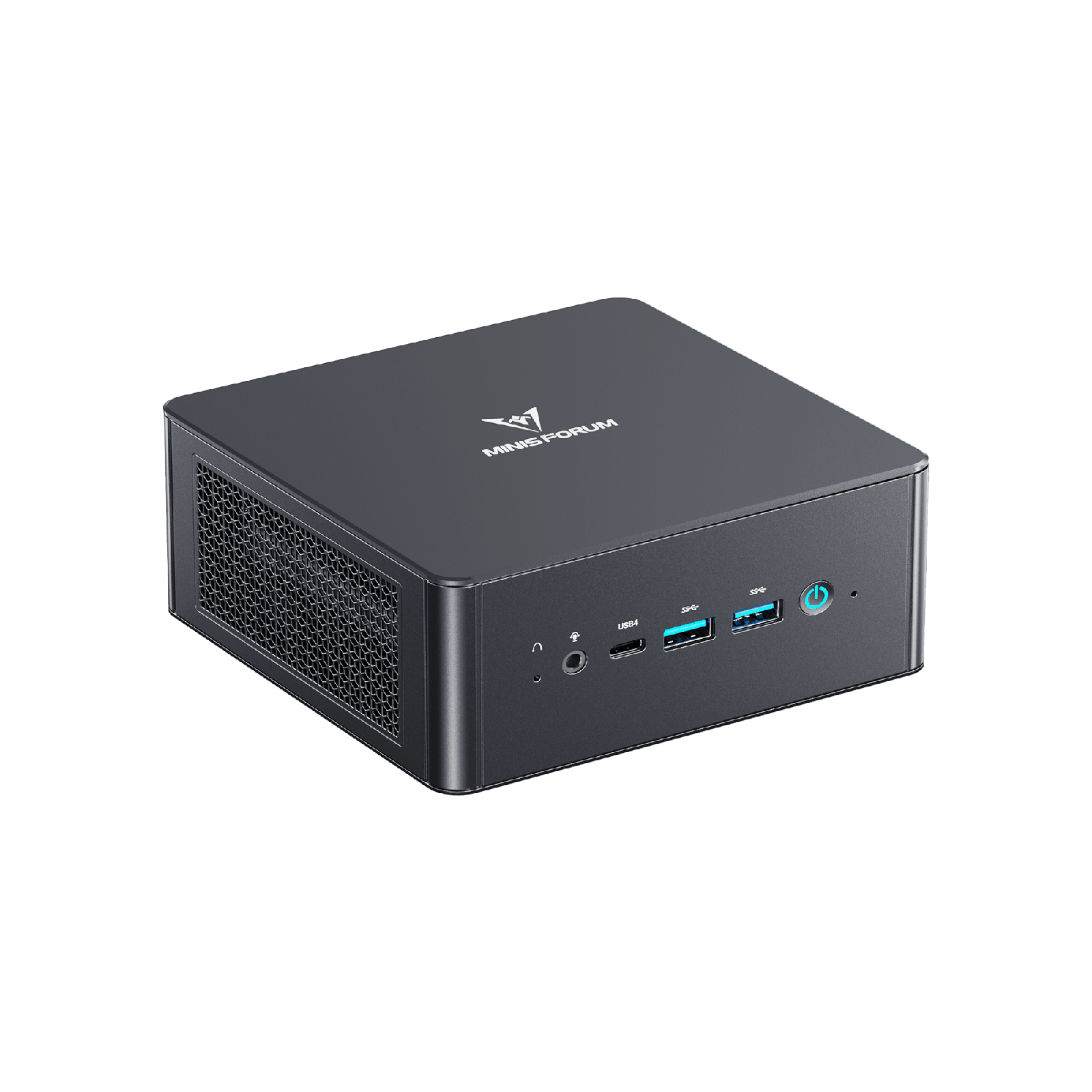
The second 2.5G NIC is the reason to pick it over the SER8. Two physical ports let you separate a management or storage network from VM traffic, or bond them, which matters more in a cluster than a single node. Dual USB4 and the OCuLink port (PCIe 4.0 x4) give it more expansion headroom than the SER8’s single USB4: a path to 10GbE over an adapter, an external GPU, or a Thunderbolt storage enclosure. OCuLink in particular is an escape hatch the SER8 has no answer for.
The catch is price. This box sold for around $649 configured when we first tested the field; the DRAM shortage pushed Minisforum’s own store to $975 for the same 32GB and 1TB config (barebone $463), and the configured Amazon listing sits at $1,015 as we rechecked it in November 2026. The shortage lifted the SER8 too, so the premium over it sits at about $196 for the same eight Zen 4 cores, plus dual 2.5GbE, USB4, and OCuLink. If dual 2.5GbE, USB4, and OCuLink genuinely fit your plan, the Minisforum UM890 Pro is still a solid box, but compare the Amazon price against Minisforum direct before ordering, and buy the SER8 if you just want the cores.
5. Beelink MINI S13
Everyone should learn Proxmox on a box this cheap before spending real money. The MINI S13 runs an Intel N150, a four-core Twin Lake chip that idles around 6 to 9W and includes a single 2.5GbE port. Boxes in this class sat near $189 with 16GB and a 1TB SSD when we first tested the field, but the DRAM shortage pushed the going rate to roughly $329 to $399; the 12GB, 500GB listing we link sat at $339 when we rechecked in November 2026, right around the $349 median for N150 boxes our price tracker logs. The RAM and storage also vary between listings, so check the live price and which configuration you’re getting before ordering. For a first node, a backup target, a Pi-hole and a couple of light containers, it is genuinely all you need, and it sips power doing it.

The 2.5GbE port is the detail that makes this more than a toy. A stack of these on a cheap 2.5G switch is a legitimate two or three node learning cluster for the price of one mid-range box, and a real way to practice live migration and high availability cheaply. The built-in power supply means one cable, no brick, which is tidy in a stack.
Be honest about the limits. Four cores and 12GB of memory is the hard ceiling on the configuration we link, and because that memory is soldered LPDDR5 there is no slot to upgrade later; this is not the box for a heavy database or a Kubernetes lab. Confirm the listing specifies the 2.5GbE model, since some N150 boxes at this price still ship with a 1G NIC, and check whether you’re getting the 12GB soldered version or a 16GB DDR4 model with a SO-DIMM slot. With those caveats, the Beelink MINI S13 is the lowest-risk way to start, and cheap enough that it stays useful as a dedicated backup or DNS node after you upgrade.
6. ZimaBoard 2
The ZimaBoard 2 is the oddball on this list, and the one to look at if the job is a router, a firewall or a small NAS rather than a pile of VMs. It uses the same Intel N150 as the MINI S13, but IceWhale builds it as a bare single board server: two Intel i226-V 2.5GbE ports, a real PCIe 3.0 slot on the side, two SATA ports with power, and a fanless aluminium body that doubles as the heatsink. IceWhale sent us an 832 unit (8GB) for review, and the numbers below come from that board on our bench, not from the spec sheet. On Amazon the 832 lists at about $360 and the 16GB 1664 at about $420, figures we rechecked in November 2026. With only about $60 between them, the 1664 is the one to buy for anything beyond a firewall, but check the live price before ordering.

Two things stood out in testing. Idle is low: the N150 package drew 2.1W averaged over a minute (RAPL, so CPU package only). We haven’t metered it at the wall yet; CNX Software reported roughly 7 to 8W at the wall, in line with the other N150 boxes here. And it doesn’t throttle without the fan. A ten minute all-core stress run held 12W package power at 2.7 to 2.9 GHz and reached 74°C, well short of the 95 to 97°C where CNX saw launch-firmware boards throttle (the N150 is rated to 105°C). The temperature was still creeping up when the run ended, though, so fit the included clip-on fan if the board lives in a closed cabinet. Both NICs are Intel i226-V on their own PCIe lanes, which is exactly what pfSense, OPNsense and Proxmox want to see. Our ZimaBoard 2 setup guide covers the first boot and SSH.
The limits are the memory and the storage. RAM is soldered LPDDR5 (the shop page says LPDDR5x; our board reports LPDDR5), 8GB on the 832 and 16GB on the 1664, with no slot to add more, so buy the 16GB 1664 if Proxmox is the plan and you want more than two or three guests. There is no M.2 slot either: the board boots ZimaOS from eMMC (32GB on the 832, 64GB on the 1664), which is too small and too wear-prone for Proxmox, so plan on a SATA SSD or an NVMe drive on a PCIe adapter. The adapter uses up the slot you might have wanted for a 10GbE card. We haven’t installed Proxmox on ours yet, so treat the hardware notes above as the evidence and not a finished Proxmox test. If you want a quiet box with two good NICs for a firewall or a CasaOS personal cloud, the ZimaBoard 2 is a better fit than the MINI S13. IceWhale also sells it direct from its own store, where the code josphat15 takes $15 off. For VM density, the S13’s NVMe slot and case are the better deal.
7. Lenovo ThinkCentre M920q (used)
The value play that never quite dies is a used enterprise Tiny. A Lenovo ThinkCentre M920q gives you a Core i5 or i7 of the 8th or 9th generation, two DDR4 slots good for 64GB, an M.2 slot plus a 2.5-inch bay, and a socketed CPU you can swap. Refurbished, it sells for roughly $150 to $300 depending on the CPU and RAM it comes loaded with. For light to moderate virtualization that is more capable hardware per dollar than anything new at the same price, and these machines were built to run in offices for years.
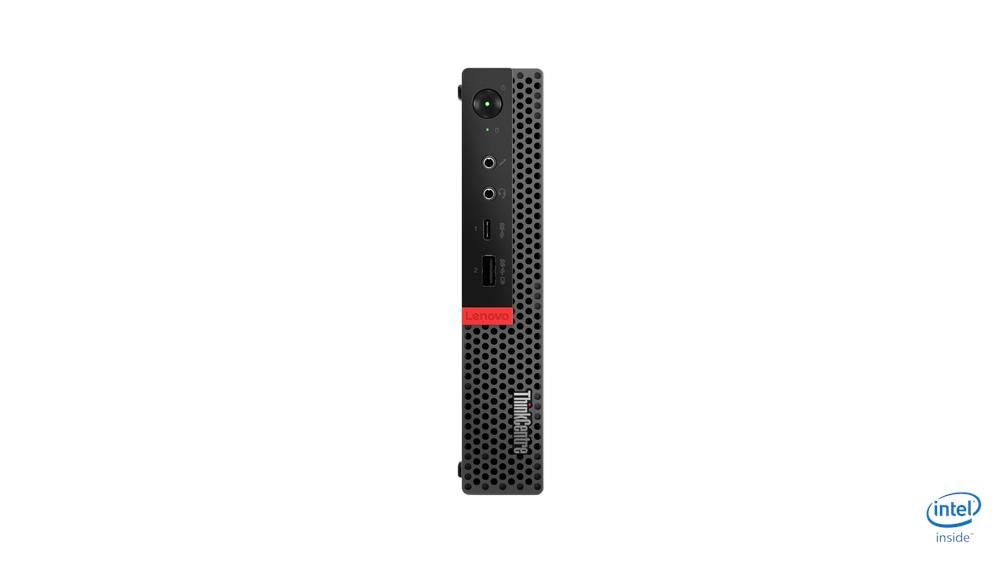
The catches are real, which is why it is last rather than a headline pick. You get a single 1GbE NIC unless you add a card through the optional PCIe riser, the platform is several years old so it idles efficiently but performs like the older Core chip it is, and condition varies because these are used. The Amazon listing we link carries a (Renewed) title, though the offer we checked reported its condition as New at about $244 when we rechecked in November 2026, so verify the exact CPU, RAM and warranty on the offer you buy. A reputable reseller or the used market works too, and either way inspect what you get.
If your budget is tight and you don’t mind buying used, this is the most homelab you can get for the money, and the socketed CPU and 64GB ceiling give it more headroom than a new N150 box. For most readers who want a warranty and current efficiency, one of the new boxes above is the easier call.
Lenovo Tiny, HP Mini, or Dell Micro for a Proxmox node?
Buy the Lenovo. It’s the only one of the three that takes a PCIe riser, and on a Proxmox node that slot is the difference between living with one gigabit port and adding a quad-port NIC. The HP EliteDesk Mini is the better pick when storage matters more than networking, because it holds three SSDs internally where the others hold one or two. The Dell OptiPlex Micro earns its place on price, and it is frequently the cheapest of the three on the used market. Underneath they are the same bargain: an ex-office 1-liter desktop with a socketed CPU and two SODIMM slots, sold for a fraction of what new silicon costs.
| Family | RAM official / actual | Internal drives | Expansion | Watch for |
|---|---|---|---|---|
| Lenovo ThinkCentre M920q Tiny | 32GB / 64GB | 1x M.2 | Optional PCIe riser | Riser rarely included |
| HP EliteDesk 800 G4 Mini | 32GB / 64GB | Up to 3 SSDs | None on the G4 | 65W models vent upward |
| Dell OptiPlex 7060 Micro | 32GB / 64GB | 1x M.2 plus 2.5in | None | Fewest network options |
One column there is worth more than the others. All three families are specified for 32GB, and all three run 64GB. ServeTheHome fitted a pair of 32GB SODIMMs to an M920q and found they worked, and HP and Dell owners report the same on their boards. RAM is the ceiling that decides how many VMs a node carries, so a used Tiny at $200 that quietly accepts 64GB competes with new boxes costing three times that. Treat the 64GB figure as community-verified rather than vendor-supported, because none of the three will honour it on a spec sheet.
The T in the CPU name decides whether it runs quiet
Look for a T suffix on the processor: i5-8500T, not i5-8500. The 35W and 65W parts ship in the same chassis, but the 65W machines come with a perforated top panel that vents heat straight up into whatever you stacked on top of them. The 35W units pull air front to rear the way a rack server does, which is what you want when three nodes sit in a column on a shelf. On a cluster that idles most of the day, the lower-wattage chip costs you very little.
What the PCIe riser actually gets you
The riser turns the M920q’s single 1GbE port into a real network stack. It’s a low-profile slot fed off the board, and it will carry a quad-port gigabit NIC or a Thunderbolt 3 card, which covers dedicated cluster and Ceph links without resorting to USB adapters. Availability is the catch. The riser is a separate part (Lenovo part numbers 01AJ929 and 01AJ940 turn up on eBay) and used listings almost never include it, so price one in and confirm what is actually in the box before you buy. Single-port 10GbE cards physically fit and are still a poor match, since their heat and power draw undo the reason you chose a 1-liter machine.
How many VMs and containers each tier runs
The most common question is the one the spec sheets never answer: what will it actually run? These are realistic, conservative numbers for typical homelab services on Proxmox, assuming you keep some headroom rather than packing memory to the limit. LXC containers are far lighter than full VMs, which is why the counts diverge so much. Our guide to LXC containers on Proxmox explains why you should reach for them first.
| Tier | Example | RAM as configured | Comfortable VMs | LXC containers | Typical role |
|---|---|---|---|---|---|
| Entry | Beelink MINI S13 (N150) | 12GB | 2-3 small | 6-10 | Learning, DNS, backup, light services |
| Mainstream | SER8 / UM890 Pro | 32GB | 6-10 | 20-30 | One do-everything node, media, databases |
| Performance | MS-01 | 64-96GB | 12-20 | 40+ | Cluster head, 10GbE storage, passthrough |
| Heavy | MS-A2 | 96GB | 20+ | 60+ | Consolidating several servers into one |
The pattern is clear: cores rarely run out first, memory does. An entry box stops at a handful of VMs not because four cores cannot schedule more, but because 12GB fills up. That is why the advice throughout this guide keeps coming back to RAM ceiling over CPU benchmarks.
IOMMU, passthrough, and the NIC that actually matters
If you plan to pass a GPU, a NIC, or an HBA straight through to a VM, the spec sheet won’t tell you whether it works. Two things decide it: whether the board supports IOMMU at all, and how cleanly it groups devices. On a badly designed board the entire PCIe complex lands in one IOMMU group, which means passing through any single device drags the whole group along and breaks the setup. This is the question to research before you buy, not after.
On a running Proxmox host you can confirm the kernel enabled IOMMU and count how many independent groups the board exposes:
dmesg | grep -e DMAR -e IOMMU | grep -i enabled
ls -d /sys/kernel/iommu_groups/*/ | wc -l
The first line proves the kernel turned IOMMU on; the number is how many separate groups exist, and more groups means finer-grained passthrough:
DMAR-IR: Enabled IRQ remapping in x2apic mode
18
The MS-01 and MS-A2 both expose workable IOMMU grouping, which is part of why they are the passthrough picks. The N150 and the cheaper boxes will run VMs and containers happily but aren’t the machines to plan PCIe passthrough around. If you want the full walkthrough of enabling it, the post-install Proxmox checklist covers the kernel flags.
The NIC point is worth repeating because it is the single most reported homelab headache. The Intel i226-V 2.5G controller shows up everywhere, and under sustained throughput on some kernel and firmware combinations it drops the link. It isn’t a reason to avoid these boxes. It’s a reason to prefer the SFP+ uplinks on the MS-01 and MS-A2 for anything load-bearing, and to change the i226 ASPM setting, to Auto or disabled, if you do rely on it. An enterprise X710 SFP+ link is the part of the build you want to forget about, and that reliability is most of what you pay the Minisforum premium for.
Running Home Assistant as a Proxmox VM
Home Assistant is usually the first service a new Proxmox node gets, and it’s the lightest thing you’ll run on any box in this guide. The project ships Home Assistant OS as a ready KVM/Proxmox disk image (.qcow2), and its alternative install page sets the VM minimum at 2GB of RAM and 2 vCPUs. That means the hardware question isn’t about power at all. Even the 12GB MINI S13 carries a Home Assistant VM with room for a DNS container and a backup job next to it. What actually decides whether a box suits Home Assistant is the plumbing around the VM:
- Memory and firmware: 2GB and 2 vCPUs is the floor, and 4GB (what Home Assistant’s own virt-install example allocates) leaves headroom for add-ons. The image needs UEFI to boot, so create the VM with OVMF firmware and leave the pre-enrolled Secure Boot keys unticked, since the docs call for a non-Secure Boot OVMF.
- A free USB port for the radio stick: Zigbee, Z-Wave and Thread coordinators are USB devices passed through to the VM. Proxmox assigns them by vendor and product ID (the
usb0: host=option in the VM config), so the stick survives a replug, and by physical port when you run two identical sticks. Every pick here has a USB-A port to spare for it. - A second NIC, if you segment IoT traffic: two ports let you hang the Home Assistant VM on an IoT network while the Proxmox management interface stays on its own. That favours the MS-01, MS-A2, UM890 Pro and ZimaBoard 2. On the single-port SER8, S13 or M920q, a VLAN-aware bridge on the one port does the same job with a managed switch.
Two things go wrong in practice, and neither is the hardware’s fault. The first is clustering: a VM with a USB stick passed through is tied to the node the stick is plugged into. Proxmox won’t live-migrate a VM with a USB device passed through, so moving it means a shutdown and an offline migration. If Proxmox HA restarts the VM on another node after a failure, the stick stays behind and Home Assistant loses its Zigbee radio, which is why people running Home Assistant on a cluster often switch to a network-attached coordinator. The second is swapping the virtual NIC model after install. Home Assistant’s docs warn that a new adapter lands on a different PCI slot and the interface name changes. The VM then comes back with no network until you clear its saved NetworkManager connections, so pick VirtIO when you create the VM and leave it. If Home Assistant is the main job and Proxmox is optional, a smaller fanless box often makes more sense than anything here. Our best mini PC for Home Assistant guide compares those, from the appliance route to a small Proxmox box with Home Assistant as one VM.
Wiring three nodes into a Proxmox cluster
Mini PCs are at their best as cluster members, because three small boxes give you high availability for the price of one real server. Proxmox needs an odd number of nodes to hold quorum, so three is the natural target: if one node dies, the other two keep the cluster voting and your VMs can fail over. This is the homelab move that turns a pile of mini PCs into something that actually survives a reboot.
You don’t have to buy three identical boxes. A common and cheap pattern is two capable nodes plus a tiny third vote, even a Raspberry Pi running a QDevice, purely to break ties. Three MINI S13s make a genuine learning cluster, and three SER8s or UM890 Pros make a capable production-ish one on a 2.5G backbone. A pair of MS-01s with their SFP+ ports linked make a fast two-node setup that a small QDevice turns into a quorum-safe three.
Shared storage is where the 10GbE boxes pull ahead. If you want VMs to live-migrate or run on a replicated pool, the storage network becomes the bottleneck, and 2.5G starts to hurt. That is the case for the MS-01 or MS-A2 and their SFP+ ports, and it is exactly the scenario our 3-node hyperconverged Ceph guide walks through. For simpler shared setups, the Proxmox storage backends comparison lays out the options. Many homelabbers skip clustered storage and put bulk data on a dedicated box instead; the best NAS for home and self-hosting roundup covers the turnkey options that pair with a node like these. To turn one of these mini PCs into the NAS itself, the DIY NAS with TrueNAS or Unraid guide walks through the whole build.
Which mini PC should you buy
Match the box to where you are, not to the spec sheet:
- Learning Proxmox or building a backup or DNS node? The Beelink MINI S13. Cheap, sips power, and stays useful after you upgrade.
- Want one capable node that does everything, including media? The Beelink SER8, or the UM890 Pro if you need the second 2.5G port and USB4.
- Building something to keep for years, with 10GbE, passthrough, and room to grow? The Minisforum MS-01. It’s the best overall homelab mini PC and the one most people should buy.
- Want a dual 2.5GbE firewall, router or small NAS on an N150? The ZimaBoard 2, ideally the 16GB 1664 if Proxmox is in the plan.
- Consolidating several servers into one quiet box? The Minisforum MS-A2, the most compute in this form factor.
- On the tightest budget and fine buying used? A refurbished Lenovo ThinkCentre M920q Tiny.
Whatever you pick, the homelab is the point, not the hardware. The cheapest box on this list runs Proxmox just as well as the most expensive one; it simply runs fewer things at once. Buy at the tier your workload actually needs today, leave room in the RAM slots, and you will get years out of it. Once the box arrives, our things to do after installing Proxmox VE guide is the fastest way to a node you can trust.