

Nu shell hands the next command a table instead of text, so ls | where size > 10MB works without a single awk or cut. That one idea is why people try Nushell. It is also why half the snippets you find online break, because the project ships a release about every six weeks, and commands such as fetch and let-env have been gone for years.
This guide installs Nushell from the project’s own package repositories on Ubuntu, Debian and Fedora, or from the release tarball on any Linux box, then puts it to work on files, processes and CSV, JSON and YAML data. It also covers the config file, making Nu your login shell, and the old commands that now fail. We ran the steps in October 2026 with Nushell 0.116.1 on Ubuntu 26.04, Ubuntu 24.04 and Fedora 45, and the macOS notes at the end come from the Nushell docs rather than our lab.
Choose an install method
Neither Ubuntu nor Debian packages Nushell, and Fedora’s own nushell package was still at 0.99.1 on Fedora 45, from before the 0.101 config rework. That gap matters because the current docs and every example below assume a recent release, so a distro build would fail on half of them. Install from one of these instead:
- Ubuntu and Debian: the official Gemfury apt repository
- Fedora, Rocky Linux and AlmaLinux: the official Gemfury yum repository
- Any Linux distribution: the static musl tarball from GitHub releases
- macOS: Homebrew, covered in the macOS notes near the end
A package repository is the better choice on a machine you keep, because apt upgrade or dnf upgrade then picks up each new release. With a release roughly every six weeks, a manual install falls several versions behind within a few months, and that is exactly how readers end up following docs that no longer match their binary. The tarball suits a container, a jump host or any box where you don’t want a third-party repository. A snap also exists, but it comes from a community publisher rather than the Nushell project, so we left it out.
Install Nu Shell on Ubuntu and Debian
The repository signs its InRelease file, so add its key to a keyring of its own and point the source at that keyring. Scoping the key with signed-by means it can only vouch for this one repository, not for the Ubuntu archive. The /etc/apt/keyrings directory already exists on Ubuntu 26.04 and 24.04. On a minimal Debian image, which we did not test, run sudo apt install -y wget gpg and sudo install -d -m 0755 /etc/apt/keyrings first:
wget -qO- https://apt.fury.io/nushell/gpg.key | sudo gpg --dearmor -o /etc/apt/keyrings/fury-nushell.gpg
echo "deb [signed-by=/etc/apt/keyrings/fury-nushell.gpg] https://apt.fury.io/nushell/ /" | sudo tee /etc/apt/sources.list.d/fury-nushell.list
Refresh the index and install the package.
sudo apt update
sudo apt install -y nushell
It is one package with no dependencies, but it is not small. Apt reported 249 MB on both Ubuntu releases, and 114 MB of that is the Polars dataframe plugin. The package also adds /usr/bin/nu to /etc/shells, which matters later if you make Nu your login shell. Confirm the version:
nu --versionIt prints the bare version number.
0.116.1On the day we tested, that matched the latest release on GitHub, so the apt repository was not lagging behind upstream.
Install Nushell on Fedora, Rocky Linux and AlmaLinux
Skip dnf install nushell on a stock Fedora system, because it pulls Fedora’s 0.99.1 build. EPEL carries the same 0.99.1 build for Rocky and AlmaLinux. The repository below is the one the Nushell docs give for the whole Red Hat family; we tested it on Fedora 45, whose dnf5 output is quoted here, and Rocky or AlmaLinux with dnf4 print slightly different messages. Add the project’s repository instead. The upstream instructions set gpgcheck=0, and that’s needed: when we checked, the RPMs carried no signature at all (rpm -K reported SIGNATURES NOT OK). The repository metadata is signed, though, so we added repo_gpgcheck=1 to make dnf verify the metadata against the published key. Create the file (on a minimal server, sudo dnf install -y vim-enhanced first, because vim-minimal only ships vi):
sudo vim /etc/yum.repos.d/fury-nushell.repoAdd the repository definition, then save the file.
[gemfury-nushell]
name=Gemfury Nushell Repo
baseurl=https://yum.fury.io/nushell/
enabled=1
gpgcheck=0
repo_gpgcheck=1
gpgkey=https://yum.fury.io/nushell/gpg.key
Build the metadata cache for the new repository first. Leave out -y if you want dnf to stop and ask before it trusts the key; with -y it imports the key straight away and prints the fingerprint, which should read F7939B750FA1789832D67A809E755FC365BF00D5:
sudo dnf makecache -y --repo gemfury-nushellWith the key in place, install the package:
sudo dnf install -y nushellExpect the line Warning: skipped OpenPGP checks for 1 package from repository: gemfury-nushell at the end. That warning is about the unsigned RPM again, and the signed metadata is what protects you here, since it pins the checksum of every package dnf downloads. Check which build you got:
rpm -q nushellOn our Fedora 45 VM with SELinux enforcing, it reported the Gemfury build:
nushell-0.116.1-0.x86_64Unlike the .deb, the RPM doesn’t add /usr/bin/nu to /etc/shells. That only matters if you plan to make Nu your login shell, so the login shell section below covers the step for Fedora readers.
Install Nushell from the release tarball
The GitHub release ships static musl builds, so one tarball runs on any glibc or musl distribution without extra libraries. The Gemfury packages use the same musl build, which is why version reports x86_64-unknown-linux-musl either way. Look up the latest tag first, so the commands keep working when the next release lands:
NU_VER=$(curl -s https://api.github.com/repos/nushell/nushell/releases/latest | grep -Po '"tag_name": *"\K[^"]+')
NU_PKG="nu-${NU_VER}-$(uname -m)-unknown-linux-musl"
echo "$NU_PKG"
On an x86_64 machine the name resolves like this, and uname -m gives aarch64 on ARM servers, which matches the release asset names too:
nu-0.116.1-x86_64-unknown-linux-muslDownload the tarball and the checksum file, and verify the archive before you unpack it:
curl -sLO "https://github.com/nushell/nushell/releases/download/${NU_VER}/${NU_PKG}.tar.gz"
curl -sLO "https://github.com/nushell/nushell/releases/download/${NU_VER}/SHA256SUMS"
sha256sum --ignore-missing -c SHA256SUMS
Only the file you downloaded is checked, and it must say OK.
nu-0.116.1-x86_64-unknown-linux-musl.tar.gz: OKExtract it and install the binary into /usr/local/bin:
tar xzf "${NU_PKG}.tar.gz"
sudo install -m 755 "${NU_PKG}/nu" /usr/local/bin/nu
The archive also holds plugin binaries. Five of them are the ones the packages ship (nu_plugin_formats, nu_plugin_gstat, nu_plugin_inc, nu_plugin_polars and nu_plugin_query), and the rest are developer examples and test plugins you don’t want registered. Copy only those five next to nu if you need extra file formats or dataframes, and register them with plugin add as the plugins section shows. To update later, run the same four steps again.
Start Nushell and set up the config
Type nu in any shell, from any terminal (we used Kitty on the desktop and plain SSH on the servers). The first interactive start creates two files in ~/.config/nushell and prints a welcome banner:
Environment config file created at: /home/josphat/.config/nushell/env.nu
Config file created at: /home/josphat/.config/nushell/config.nu
Both files are almost empty, because since 0.101 the defaults live inside Nushell itself and your config.nu only holds what you change. Older guides that tell you to copy a full default config and edit a giant $env.config = {...} record predate that. env.nu still loads, but the docs now put everything in config.nu. The quickest way to open it is config nu from inside Nu, which works wherever your config lives. On Linux the file is in ~/.config/nushell, so you can also open it directly:
vim ~/.config/nushell/config.nuAppend the settings most people change on day one. This block turns off the banner and sets the editor that config nu opens. It also switches history to SQLite, which records the directory and exit status of each command, adds ~/.local/bin to the PATH, and defines an alias and a custom command:
$env.config.show_banner = false
$env.config.buffer_editor = "vim"
$env.config.history.file_format = "sqlite"

use std/util "path add"
path add "~/.local/bin"

alias ll = ls -l

def big-files [min: filesize = 10MB] {
    ls **/* | where type == file and size > $min | sort-by size --reverse
}
Start a new nu session to load it. The big-files command walks the current directory tree and returns a real table, so you can keep piping it into where or first. In a test directory it found the three files over 10 MB:
~/demo> big-files
╭───┬──────────────────┬──────┬─────────┬──────────╮
│ # │       name       │ type │  size   │ modified │
├───┼──────────────────┼──────┼─────────┼──────────┤
│ 0 │ big.bin          │ file │ 31.4 MB │ now      │
│ 1 │ nested/inner.bin │ file │ 15.7 MB │ now      │
│ 2 │ sub.bin          │ file │ 12.5 MB │ now      │
╰───┴──────────────────┴──────┴─────────┴──────────╯
The sizes show in decimal units: big.bin was created as 30 MiB and shows as 31.4 MB. Nushell displays metric units by default, and 10MB in a filter means 10,000,000 bytes. Write 10MiB when you mean the binary size.
Work with files, processes and system data
Every built-in command returns structured data, so filtering is a column comparison rather than a regex over text. Sizes, dates and numbers keep their types through the pipe, which is why where size > 20MB compares bytes instead of strings. The output below is from the Fedora 45 VM. Find the largest binaries in a directory:
ls /usr/bin | where size > 20MB | sort-by size --reverse | first 5On the Fedora VM only two files cleared 20 MB, and nu itself was the biggest:
╭───┬─────────────────┬──────┬─────────┬─────────────╮
│ # │      name       │ type │  size   │  modified   │
├───┼─────────────────┼──────┼─────────┼─────────────┤
│ 0 │ /usr/bin/nu     │ file │ 75.0 MB │ 2 weeks ago │
│ 1 │ /usr/bin/podman │ file │ 45.7 MB │ 5 days ago  │
╰───┴─────────────────┴──────┴─────────┴─────────────╯
Processes work the same way, and select trims the table to the columns you care about, so you skip reading a wide ps aux line by line. Sort by memory:
ps | sort-by mem --reverse | first 5 | select pid name cpu memOn a quiet VM, the shell running the query tops the list at about 26 MB of resident memory:
╭───┬──────┬─────────────────┬──────┬─────────╮
│ # │ pid  │      name       │ cpu  │   mem   │
├───┼──────┼─────────────────┼──────┼─────────┤
│ 0 │ 6014 │ nu              │ 8.26 │ 25.9 MB │
│ 1 │  671 │ NetworkManager  │ 0.00 │ 22.6 MB │
│ 2 │    1 │ systemd         │ 0.00 │ 20.8 MB │
│ 3 │ 5410 │ systemd-journal │ 0.00 │ 17.6 MB │
│ 4 │ 5964 │ systemd         │ 0.00 │ 14.9 MB │
╰───┴──────┴─────────────────┴──────┴─────────╯
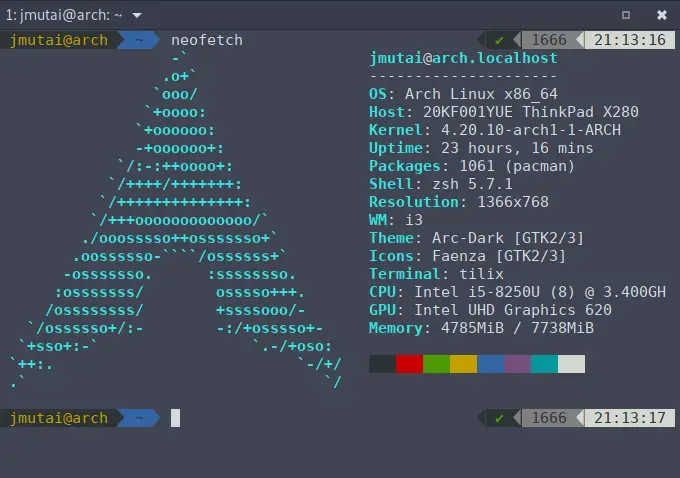
The same three kinds of query, run back to back on the Fedora VM, look like this in a terminal:

System details live under the sys subcommands, which replaced the old single sys table:
sys host | select name os_version kernel_version hostnameA one-row record prints as a two-column key and value table.
╭────────────────┬───────────────────────╮
│ name           │ Fedora Linux          │
│ os_version     │ 45                    │
│ kernel_version │ 7.2.7-300.fc45.x86_64 │
│ hostname       │ f45-01                │
╰────────────────┴───────────────────────╯
Text files and the output of external tools turn into tables with lines, split column and detect columns. This counts which login shells the accounts in /etc/passwd use:
open /etc/passwd | lines | split column ":" user pw uid gid comment home shell | get shell | uniq --count | sort-by count --reverseMost system accounts have nologin, and only three can log in with Bash:
╭───┬───────────────────┬───────╮
│ # │       value       │ count │
├───┼───────────────────┼───────┤
│ 0 │ /usr/sbin/nologin │    19 │
│ 1 │ /sbin/nologin     │     3 │
│ 2 │ /bin/bash         │     3 │
│ 3 │ /sbin/halt        │     1 │
│ 4 │ /sbin/shutdown    │     1 │
│ 5 │ /bin/sync         │     1 │
╰───┴───────────────────┴───────╯
For df, add --guess to detect columns. Without it, the header Mounted on splits into two columns and where Mounted == "/" fails with Cannot find column 'Mounted':
df -h | detect columns --guess | where "Mounted on" == "/"With the guess mode, the header stays intact and the filter matches the root filesystem:
╭───┬────────────┬──────┬──────┬───────┬──────┬────────────╮
│ # │ Filesystem │ Size │ Used │ Avail │ Use% │ Mounted on │
├───┼────────────┼──────┼──────┼───────┼──────┼────────────┤
│ 0 │ /dev/sda3  │ 20G  │ 1.4G │ 19G   │ 7%   │ /          │
╰───┴────────────┴──────┴──────┴───────┴──────┴────────────╯
Prefix an external program with ^ when a Nu built-in has the same name, for example ^ls -la runs GNU ls instead of Nu’s.
Query CSV, JSON and YAML files
open reads a file by its extension and hands back a table, which is where Nushell earns its place next to jq and yq. One query language then covers CSV, JSON, YAML and TOML, so you stop switching tools per format. Create a small inventory to try it on:
vim servers.csvPaste these rows and save.
name,role,cpu,ram_gb
web01,nginx,4,8
web02,nginx,4,8
db01,postgres,8,32
cache01,redis,2,4
Nushell infers the column types, so numeric comparisons and sorting work straight away:
open servers.csv | where ram_gb > 4 | sort-by ram_gb --reverseThe 4 GB cache host drops out and the database server sorts to the top:
╭───┬───────┬──────────┬─────┬────────╮
│ # │ name  │   role   │ cpu │ ram_gb │
├───┼───────┼──────────┼─────┼────────┤
│ 0 │ db01  │ postgres │   8 │     32 │
│ 1 │ web02 │ nginx    │   4 │      8 │
│ 2 │ web01 │ nginx    │   4 │      8 │
╰───┴───────┴──────────┴─────┴────────╯
Run open servers.csv | describe to see the inferred types, which came back as table<name: string, role: string, cpu: int, ram_gb: int>. Aggregates take one more pipe, and open servers.csv | get ram_gb | math sum returned 52. Converting between formats is a pipe too. Save the table as JSON, then read it back, double the RAM on the Nginx hosts and print the result as YAML:
open servers.csv | to json | save -f servers.json
open servers.json | where role == nginx | update ram_gb {|r| $r.ram_gb * 2 } | to yaml
Only the two web servers come through, each with the new value.
- name: web01
  role: nginx
  cpu: 4
  ram_gb: 16
- name: web02
  role: nginx
  cpu: 4
  ram_gb: 16
Remote JSON works the same way through http get, which parses the response for you. http get https://api.github.com/repos/nushell/nushell/releases/latest | select tag_name published_at returned the current tag and its publish date as a two-row record, with no jq involved.
Register the bundled plugins
The packages install five plugins under /usr/libexec/nushell and register them during install, but they register them for root only. As a normal user on Ubuntu 24.04 we got empty list from plugin list, while sudo nu -c "plugin list" showed all five loaded. Register them for your own account:
nu -c 'ls /usr/libexec/nushell/nu_plugin_* | each {|p| plugin add $p.name } | ignore'Open a new Nu session and check the list with plugin list | select name version status. All five should show as loaded:
╭───┬─────────┬─────────┬────────╮
│ # │  name   │ version │ status │
├───┼─────────┼─────────┼────────┤
│ 0 │ formats │ 0.116.1 │ loaded │
│ 1 │ gstat   │ 0.116.1 │ loaded │
│ 2 │ inc     │ 0.116.1 │ loaded │
│ 3 │ polars  │ 0.116.1 │ loaded │
│ 4 │ query   │ 0.116.1 │ loaded │
╰───┴─────────┴─────────┴────────╯
formats adds readers such as from ini, from eml and from ics, gstat summarises a Git repository, and polars gives you dataframes for files too big for a plain table. Plugins are tied to the Nu version, so run the same one-liner again after each apt upgrade or dnf upgrade that brings a new release, because the package only re-registers them for root. For a tarball install, point the command at the directory you copied the five plugin binaries into.
Make Nu your login shell
Try Nu for a few days from inside your current shell before you switch. It is not POSIX, so a script or tool that assumes it can run sh syntax in your login shell will break. Scripts with a #!/bin/bash line are safe, because the kernel starts the interpreter named on that line, and the trouble is limited to commands typed into the login shell or sent to it over SSH.
Keep your current SSH session open until you have tested a fresh login from a second terminal, so a mistake never leaves you without a working shell. chsh expects the shell to be listed in /etc/shells. The .deb adds it for you; on Fedora, or for a tarball install, add the path that command -v nu reports. Run this command and the next one from Bash, not from a Nu prompt, because they use POSIX syntax that Nu doesn’t understand:
command -v nu | sudo tee -a /etc/shellsChange the shell with sudo. A plain chsh asks for your account password, and on cloud images where the password is locked and you log in with a key, it fails with chsh: Authentication failure, which is what our Fedora 45 VM returned:
sudo chsh -s "$(command -v nu)" "$USER"After we switched the josphat account on Fedora 45, this is what changed for that account:
- New SSH logins started in Nu
- Commands passed over SSH ran through Nu as well
scpkept working, because sshd launches the SFTP server throughnu -cand Nu starts it without printing anything
The risk is any automation that sends POSIX syntax over SSH, because Nu now parses the remote command. We found out the hard way: a Bash loop we sent to the Fedora box over SSH, while its account still had Nu as the login shell, died on the first redirection:
Error: nu::parser::shell_outerr

  x The '2>&1' shell operation is 'out+err>' in Nushell.
  help: Nushell redirection will write all of stdout before stderr.
Wrap such commands in bash -c '...', or better, keep Ansible and other automation users on Bash and switch only your own interactive account.
A syntax error in config.nu doesn’t lock you out. When we broke the file on purpose, the next login printed nu::parser::unclosed_delimiter with the line number and then started Nu with its defaults. If you would rather fix things from Bash, ssh -t user@host bash gives you one, because Nu runs that command string without loading your config. To go back for good from a Nu prompt, run sudo chsh -s /bin/bash $env.USER. Nu doesn’t expand "$USER" inside plain double quotes, so the Bash form fails there with chsh: user "$USER" does not exist., which is what we got when we tried it. The one case these don’t cover is a missing nu binary, for example after removing the package while it is still your login shell, which needs root or console access to undo.
Notes for macOS
We did not test macOS for this guide, but three things differ there according to the Nushell docs, and the last two break a Linux step if you copy it as-is:
- Install with
brew install nushell - The config lives in
~/Library/Application Support/nushell, so open it withconfig nurather than the Linux path - Homebrew puts
nuunder/opt/homebrew/binon Apple Silicon, so usecommand -v nufor the/etc/shellsandchshlines
Nu’s own open also hides the macOS open command. The docs fix it with two aliases in config.nu, in this order: alias nu-open = open, then alias open = ^open.
Fix old Nushell commands that no longer work
Most broken Nushell snippets come from tutorials written before a rename, so the error usually names a command that still exists under another name. This table maps the ones we hit on the current release, and the sections after it show the exact errors:
| Old form | Current form | What happens on the old form |
|---|---|---|
fetch URL | http get URL | Error: removed command |
let-env FOO = "x" | $env.FOO = "x" | Parse error |
sys | sys host, sys mem and the other subcommands | Prints help only |
$nu.home-path, $nu.temp-path | $nu.home-dir, $nu.temp-dir | Column not found |
str upcase, str downcase | str uppercase, str lowercase | Works with a deprecation warning |
Fix the deprecation warnings too, because each one turns into an error once the old name is removed in a later release.
Error: Removed command: fetch
fetch became http get, and Nu now says so in the error:
Error: nu::shell::removed_command

  x Removed command: fetch
   ,-[source:1:1]
 1 | fetch https://api.github.com/repos/nushell/nushell/releases/latest
   : ^^|^^
   :   `-- 'fetch' has been removed from Nushell. Please use 'http get' instead.
Replace fetch with http get. The flags for headers and authentication moved with it, so check help http get for the current names.
Error: Assignment operations require a variable (let-env)
let-env EDITOR = "vim" fails with nu::parser::assignment_requires_variable, because let-env was removed. Assign to the environment directly with $env.EDITOR = "vim", which is also the form to use in config.nu.
sys prints help instead of a table
Bare sys now only prints You must use one of the following subcommands. Use sys host, sys cpu, sys mem, sys disks, sys net, sys temp or sys users for the part you need.
Cannot find column ‘home-path’
Paths on the $nu record were renamed, so $nu.home-path now fails with nu::shell::column_not_found. Use $nu.home-dir, and $nu.temp-dir in place of $nu.temp-path.
Warning: str upcase was deprecated
Some commands still run but print a deprecation warning first. "hello" | str upcase returned HELLO after a warning that names the replacement, str uppercase, and str downcase became str lowercase the same way. Fix these before they become errors in a later release. Nushell publishes a post for each release on its blog with every breaking change, and with a release every six weeks it’s worth a skim before each upgrade.
If you came to Nu from Zsh, the Zsh and Oh My Zsh setup covers the shell you’re comparing it against, and our roundup of Linux and macOS shells puts Nu next to Fish and the rest. The grep, awk and sed comparison shows the text tools that Nu’s tables replace, which is handy when you still need them on a box without Nu.




ssh-add and ssh-agent auto run with Nu shell?
Nu Shell does not auto-start ssh-agent the way bash or zsh do with profile scripts. You can add this to your Nu config (
~/.config/nushell/config.nu):if (pgrep ssh-agent | is-empty) { ssh-agent -s | lines | each { |line| let parts = ($line | split column "=" | get column1 column2); load-env {($parts.0): $parts.1} } }Or the simpler approach: start ssh-agent in your login shell (bash/zsh) before launching Nu, and the environment variables will carry over.