Most people learn one of grep, awk and sed well and force it through every job. That is how, instead of reaching for the right tool, a sed expression ends up doing what cut does in a fraction of the time. On a 2-million-line access log we timed the same extractions in all three, and the spread was wider than you’d guess: pulling the client IP column took 0.18 seconds with cut, 0.55 with awk, 2.8 with sed and 10 with grep -o.
This grep vs awk vs sed guide shows when to use each tool, with every example run against three sample files you create first. It covers grep pattern matching, awk columns and totals, sed stream editing, pipelines, mawk versus gawk, and the speed test. Every command below was run on Ubuntu 26.04 with GNU grep 3.12, GNU sed 4.9, gawk 5.3.2 and mawk 1.3.4 in October 2026.
Choose grep vs awk vs sed for the job
Pick the tool by the question you’re asking of the text, not by which one you know best. Each of the three is fast and readable at its own job and clumsy at the other two, because each was built around one model of the input. grep answers “which lines match?”, awk answers “what is in field 3 of the lines that match, and what do they add up to?”, and sed answers “change this text as it streams past”. When a job needs two of those answers, a short pipeline beats one clever command in any single tool.
| Tool | Best for | Reads input as | Typical output | Reach for something else when |
|---|---|---|---|---|
| grep | Finding lines that match a pattern | Lines | Matching lines, counts, file names | You need a column or a sum |
| awk | Columns, conditions, totals, group-by | Records split into fields | Computed or reformatted data | The job is one plain substitution |
| sed | Find and replace, deleting or inserting lines | Lines | The edited text | You need arithmetic or per-field logic |
The last column matters more than the first. grep can extract with -o, sed can print columns with capture groups, and awk can do substitutions with gsub(), but each of those is the slow or awkward path, as the benchmark further down shows in numbers. On our 2-million-line log, grep -o took 10 seconds for a job awk finished in 0.55, so the wrong choice is not a style problem once the files get big.
Create the sample files
Every example works against three files: an Apache-style access log, an employee CSV and an INI config. The IPs come from the documentation and private ranges, so nothing here points at a real host. Make a scratch directory first, because a few later commands edit files in place:
mkdir -p ~/textlab && cd ~/textlabCreate the access log first. It uses printf with one quoted argument per line rather than a heredoc, because a heredoc pasted from a web page breaks as soon as the closing marker picks up a stray space. The single quotes also stop your shell from expanding anything inside the log lines:
printf '%s\n' \
'203.0.113.10 - admin [17/Oct/2026:10:15:32 +0000] "GET /dashboard HTTP/1.1" 200 5432' \
'198.51.100.55 - - [17/Oct/2026:10:15:33 +0000] "POST /api/login HTTP/1.1" 401 128' \
'203.0.113.10 - admin [17/Oct/2026:10:15:34 +0000] "GET /api/users HTTP/1.1" 200 2048' \
'10.0.1.22 - - [17/Oct/2026:10:15:35 +0000] "GET /images/logo.png HTTP/1.1" 304 0' \
'198.51.100.55 - - [17/Oct/2026:10:15:36 +0000] "GET /admin/config HTTP/1.1" 403 256' \
'203.0.113.10 - admin [17/Oct/2026:10:15:37 +0000] "GET /api/reports HTTP/1.1" 200 8192' \
'10.0.1.22 - - [17/Oct/2026:10:15:38 +0000] "DELETE /api/users/5 HTTP/1.1" 500 512' \
'198.51.100.55 - - [17/Oct/2026:10:15:39 +0000] "GET /dashboard HTTP/1.1" 200 5432' > access.log
Next, create the employee CSV. It has a header row, which several of the awk examples skip on purpose, so you can see what happens with and without it.
printf '%s\n' \
'id,name,department,salary,city' \
'1,Alice Johnson,Engineering,95000,Portland' \
'2,Bob Smith,Marketing,72000,Seattle' \
'3,Carol Davis,Engineering,102000,Portland' \
'4,Dan Wilson,Sales,68000,Denver' \
'5,Eve Martinez,Engineering,98000,Seattle' \
'6,Frank Brown,Marketing,75000,Portland' \
'7,Grace Lee,Sales,71000,Denver' \
'8,Hank Taylor,Engineering,110000,Seattle' > employees.csv
The config file has three sections separated by blank lines, the shape most INI files you meet on a server take.
printf '%s\n' \
'[database]' 'host = 10.0.1.100' 'port = 5432' 'name = appdb' 'user = appuser' 'password = ChangeMe123' '' \
'[redis]' 'host = 10.0.1.101' 'port = 6379' 'maxmemory = 256mb' '' \
'[app]' 'debug = false' 'workers = 4' 'log_level = info' 'secret_key = replace-me' > config.ini
Confirm all three exist with the right line counts before you go further.
wc -l access.log employees.csv config.iniYou should see 8, 9 and 17 lines. If a count is off, a quote got lost in the paste, so delete that file and paste its block again. Every output block in this guide assumes these exact files, because a single extra line shifts the line numbers that later sed examples print.
   8 access.log
   9 employees.csv
  17 config.ini
  34 total
With the files in place, every output block from here on should match what you see.
Check which awk you have
On Ubuntu, awk is a symlink managed by update-alternatives, and it does not always point at GNU awk. mawk is the package Ubuntu marks as required, so a minimal image or a container ships mawk only. Our Ubuntu 26.04 server VM also had gawk installed (the server seed pulls it in through bcache-tools), and gawk wins the alternatives priority 10 to 5:
readlink -f "$(command -v awk)"On our VM the link resolves to gawk.
/usr/bin/gawkThe difference shows up in three places later in this guide:
- group-by output comes out in a different order
- a bad field separator fails with a different error
- mawk matched or beat gawk on every timed awk job
If you want GNU behaviour everywhere, install gawk with sudo apt install gawk and call gawk by name in scripts, so they don’t depend on whichever awk a host happens to link. GNU-only features such as gensub(), asort(), --csv and PROCINFO don’t exist in mawk, and a script that uses them breaks the day it runs on a minimal container image instead of the server you wrote it on. Some fail loudly. gensub() is the easy one to test:
mawk -F, 'NR>1 {print gensub(/ /, ".", "g", $2)}' employees.csvmawk stops before reading a line and exits with status 2, while the same program under gawk prints Alice.Johnson, Bob.Smith and so on:
mawk: line 2: function gensub never definedOthers fail silently, which is worse, as the group-by example later shows with PROCINFO.
Find text with grep
grep reads line by line and prints every line that matches. It is the fastest of the three at that one job because it never splits a line into fields, and it’s the right first tool whenever the question is “does this appear, and where?” It also stops early when you only ask for a yes or no (grep -q), which is why shell scripts use it as a test in if statements. The GNU grep manual documents every flag; the ones below cover most daily use.
Run a basic search
A plain search prints every whole line that contains the pattern anywhere, which is both its strength and the trap you’re about to see:
grep "admin" access.logWe expected three lines because the admin user made three requests, but four came back:
203.0.113.10 - admin [17/Oct/2026:10:15:32 +0000] "GET /dashboard HTTP/1.1" 200 5432
203.0.113.10 - admin [17/Oct/2026:10:15:34 +0000] "GET /api/users HTTP/1.1" 200 2048
198.51.100.55 - - [17/Oct/2026:10:15:36 +0000] "GET /admin/config HTTP/1.1" 403 256
203.0.113.10 - admin [17/Oct/2026:10:15:37 +0000] "GET /api/reports HTTP/1.1" 200 8192
The third line matched on the URL /admin/config, not on the user field. grep has no idea what a column is, so when a term can appear in more than one field, either anchor the pattern (" admin " with the spaces) or switch to awk and test the field directly. On real logs this is the most common reason a grep count looks too high.
Use case-insensitive, inverted and counted matches
-i ignores case, so your lowercase pattern still finds the GET requests.
grep -i "get" access.logSix of the eight lines are GET requests, and -i caught them even though the log writes the method in capitals. On logs where case varies between sources, this flag saves you from writing [Gg][Ee][Tt] patterns by hand:
203.0.113.10 - admin [17/Oct/2026:10:15:32 +0000] "GET /dashboard HTTP/1.1" 200 5432
203.0.113.10 - admin [17/Oct/2026:10:15:34 +0000] "GET /api/users HTTP/1.1" 200 2048
10.0.1.22 - - [17/Oct/2026:10:15:35 +0000] "GET /images/logo.png HTTP/1.1" 304 0
198.51.100.55 - - [17/Oct/2026:10:15:36 +0000] "GET /admin/config HTTP/1.1" 403 256
203.0.113.10 - admin [17/Oct/2026:10:15:37 +0000] "GET /api/reports HTTP/1.1" 200 8192
198.51.100.55 - - [17/Oct/2026:10:15:39 +0000] "GET /dashboard HTTP/1.1" 200 5432
-v inverts the match, which looks like a quick way for you to see everything that was not a 200.
grep -v "200" access.logThe 401, 304, 403 and 500 responses remain, so on this file the shortcut looks correct:
198.51.100.55 - - [17/Oct/2026:10:15:33 +0000] "POST /api/login HTTP/1.1" 401 128
10.0.1.22 - - [17/Oct/2026:10:15:35 +0000] "GET /images/logo.png HTTP/1.1" 304 0
198.51.100.55 - - [17/Oct/2026:10:15:36 +0000] "GET /admin/config HTTP/1.1" 403 256
10.0.1.22 - - [17/Oct/2026:10:15:38 +0000] "DELETE /api/users/5 HTTP/1.1" 500 512
That worked here, but it is fragile: a response size of 2000 bytes or a timestamp in the year 2000 would also contain “200” and vanish from the result. For status codes, the awk field test later in this guide is the correct tool. -c counts matching lines and -n numbers them:
grep -n "203.0.113.10" access.logThe prefix before each colon is the line number, so you can jump straight to it with vim +6 access.log or sed -n '6p'. Use -c instead when only the count matters, because it skips printing the lines and is easier to compare in a script. Here are the numbered matches.
1:203.0.113.10 - admin [17/Oct/2026:10:15:32 +0000] "GET /dashboard HTTP/1.1" 200 5432
3:203.0.113.10 - admin [17/Oct/2026:10:15:34 +0000] "GET /api/users HTTP/1.1" 200 2048
6:203.0.113.10 - admin [17/Oct/2026:10:15:37 +0000] "GET /api/reports HTTP/1.1" 200 8192
A dot in a grep pattern means “any character”, so 203.0.113.10 would also match 203a0b113c10. It doesn’t matter on this file, but when you search for IPs or version strings in real logs, add -F to treat the pattern as a fixed string. The same pattern also matches 203.0.113.100, so wrap it with -w when you mean exactly one host.
Get only the matching text
-o prints only the part that matched, and -E turns on extended regex so {3} and | work without backslashes. A bare [0-9]{3} pattern would also catch three-digit response sizes, because grep cannot tell one number from another. Anchoring on the closing quote of the request keeps the pattern on the status field:
grep -oE '" [0-9]{3} ' access.log | grep -oE '[0-9]{3}'The first grep keeps the quote and spaces in its match because they anchor the pattern to the status field, so the second grep strips them back to bare numbers ready for sort | uniq -c:
200
401
200
304
403
200
500
200
Alternation with | finds either method in one pass, which is cheaper than two greps because the file is read once.
grep -E "POST|DELETE" access.logBoth requests that changed data show up, and both failed. That is worth alerting on in a real log, because failing writes usually mean an auth or backend problem rather than a typo in a URL. Here the 401 is a login failure and the 500 is the server breaking on a delete:
198.51.100.55 - - [17/Oct/2026:10:15:33 +0000] "POST /api/login HTTP/1.1" 401 128
10.0.1.22 - - [17/Oct/2026:10:15:38 +0000] "DELETE /api/users/5 HTTP/1.1" 500 512
-P switches to Perl-compatible regex, which adds \d, lookaheads and lookbehinds. Here it pulls the leading IP address from each line, so you get a clean list of clients without the rest of the request. Note that -P is a GNU extension, so don’t rely on it in scripts that also run on BSD or busybox grep.
grep -oP '^\d+\.\d+\.\d+\.\d+' access.logEach request’s client address prints on its own line, in log order. Pipe it through sort -u if you only want the distinct clients, because the same address repeats once per request.
203.0.113.10
198.51.100.55
203.0.113.10
10.0.1.22
198.51.100.55
203.0.113.10
10.0.1.22
198.51.100.55
That works, but keep it for small inputs. On the 2-million-line log, grep -o was the slowest way we measured to pull the first column, because it runs the regex engine across every byte instead of splitting on a delimiter. awk or cut does the same job in a fraction of the time, as the benchmark section shows.
Get context around a match
An error line on its own rarely tells you what happened. -B1 -A1 prints one line before and one after each match, and -C2 is shorthand for two lines on both sides. When matches sit close together, grep merges their context instead of repeating lines, and it separates groups with --:
grep -B1 -A1 "500" access.logThe failed DELETE sits between two normal requests from other clients, so in this case the neighbours rule out a general outage. On a busy server the lines around an error are often unrelated, which is why -C works best on logs already filtered to one client or one request ID:
203.0.113.10 - admin [17/Oct/2026:10:15:37 +0000] "GET /api/reports HTTP/1.1" 200 8192
10.0.1.22 - - [17/Oct/2026:10:15:38 +0000] "DELETE /api/users/5 HTTP/1.1" 500 512
198.51.100.55 - - [17/Oct/2026:10:15:39 +0000] "GET /dashboard HTTP/1.1" 200 5432
For systemd services the same idea applies to the journal, and journalctl has its own filters that are faster than piping everything into grep; the journalctl filtering guide covers them.
List matching files and whole words
-r searches every file under a directory, which is how you find the file that sets a value when you only know the value. Run it against /etc/ssh as a normal user and you get the matches plus a permission error for each private host key:
grep -r "PermitRootLogin" /etc/ssh/Both matches are comments, which tells you nothing overrides the setting in the main file. Check /etc/ssh/sshd_config.d/ before trusting that (the SSH commands cheat sheet covers sshd -T, which prints the effective value), because Ubuntu includes the drop-ins at the top of sshd_config and sshd keeps the first value it reads. The three errors come from the private host keys, which only root can read:
/etc/ssh/sshd_config:#PermitRootLogin prohibit-password
/etc/ssh/sshd_config:# the setting of "PermitRootLogin prohibit-password".
grep: /etc/ssh/ssh_host_rsa_key: Permission denied
grep: /etc/ssh/ssh_host_ecdsa_key: Permission denied
grep: /etc/ssh/ssh_host_ed25519_key: Permission denied
Add -s to silence those errors, or run it with sudo when you need the unreadable files searched too. Either way the exit code was 2, not 0, even though matches were found, which matters if a script tests grep’s return value: -s hides the messages but not the failure. -l lists only the names of files that match:
grep -rl "port" *.ini *.csv *.logTwo files match, and the second is a surprise if you only had the config in mind.
config.ini
access.log
The access log matched because /api/reports contains “port”. That kind of substring hit is why a recursive search across /etc returns pages of noise. -w restricts the match to whole words, so only real settings named port qualify:
grep -w "port" config.iniOnly the two real port settings print, because -w requires a non-word character or the line edge on both sides of the match.
port = 5432
port = 6379
grep is also the backbone of most “where is this setting” hunts across a server. When you need to filter by file age, owner or size before searching, combine it with the find command instead of grepping every file under /.
Select columns with awk
awk reads each line as a record and splits it into fields: $1 is the first, $NF the last and $0 the whole line. Whitespace is the default separator, and -F sets another. Once you think in fields, conditions and totals follow naturally, which is why awk is the right tool for anything that sounds like a spreadsheet question.
Select columns and set a delimiter
Count the space-separated fields in a log line and field 1 is the client while field 7 is the request path, because the quote before GET is part of field 6:
awk '{print $1, $7}' access.logEverything else on the line is dropped, and the comma in print $1, $7 is what puts a space between the two values:
203.0.113.10 /dashboard
198.51.100.55 /api/login
203.0.113.10 /api/users
10.0.1.22 /images/logo.png
198.51.100.55 /admin/config
203.0.113.10 /api/reports
10.0.1.22 /api/users/5
198.51.100.55 /dashboard
CSV needs -F,, and NR>1 skips the header row because NR is the current record number.
awk -F, 'NR>1 {print $2, $3}' employees.csvNames and departments come out with the header gone. Without the NR>1 test, the first line would print as “name department”, and that matters because the stray header breaks any total you compute later. The next examples keep that test for the same reason:
Alice Johnson Engineering
Bob Smith Marketing
Carol Davis Engineering
Dan Wilson Sales
Eve Martinez Engineering
Frank Brown Marketing
Grace Lee Sales
Hank Taylor Engineering
-F, only works on simple CSV. A quoted field with a comma inside it (“Smith, Jr.”) breaks the split, and for that kind of file gawk’s --csv option or a real CSV tool is safer.
Test a field value
A pattern before the braces decides which lines the action runs on, so you get filtering and printing in one program. These are the employees earning more than 90,000.
awk -F, 'NR>1 && $4 > 90000 {print $2, $4}' employees.csvFour people pass the test. awk treats $4 as a number here because the field looks numeric and it is compared with a number, so 102000 ranks above 98000 instead of below it as text would:
Alice Johnson 95000
Carol Davis 102000
Eve Martinez 98000
Hank Taylor 110000
The same idea fixes the fragile grep -v "200" from earlier, since nothing else on the line can match a field test by accident:
awk '$9 != 200 {print $1, $7, $9}' access.logEvery request that did not return 200 is listed with client, path and status, and this version stays correct on a real log where response sizes and timestamps contain the digits 200:
198.51.100.55 /api/login 401
10.0.1.22 /images/logo.png 304
198.51.100.55 /admin/config 403
10.0.1.22 /api/users/5 500
That field test is the habit to build for logs, because it keeps working when the data around the field changes.
Add up, average and group a column
The END block runs once after the last line, which is where you put totals and averages.
awk -F, 'NR>1 {sum += $4; count++} END {printf "Employees: %d\nAverage salary: $%.2f\n", count, sum/count}' employees.csvBoth numbers come out of a single pass over the file, so awk never holds more than one line in memory and the same command works on a 10 GB export:
Employees: 8
Average salary: $86375.00
Associative arrays turn that into a group-by. Each department name becomes a key in two arrays, one for the running total and one for the headcount, so the END block can divide them. This is the job where awk has no real competitor among the three, because neither grep nor sed can do arithmetic:
awk -F, 'NR>1 {sum[$3]+=$4; count[$3]++} END {for (dept in sum) printf "%s: $%.2f (%d employees)\n", dept, sum[dept]/count[dept], count[dept]}' employees.csvgawk printed the departments in this order on our run:
Marketing: $73500.00 (2 employees)
Sales: $69500.00 (2 employees)
Engineering: $101250.00 (4 employees)
mawk printed the same three lines as Marketing, Engineering, Sales. Neither is wrong, because awk does not define the order of for (key in array). If the order matters, pipe the output through sort, or in gawk set PROCINFO["sorted_in"] in a BEGIN block. mawk accepts the same program but ignores the setting: it printed the unsorted Marketing, Engineering, Sales order and exited 0, so only sort is portable. Under gawk:
gawk -F, 'BEGIN{PROCINFO["sorted_in"]="@ind_str_asc"} NR>1 {sum[$3]+=$4; count[$3]++} END {for (dept in sum) printf "%s: $%.2f (%d employees)\n", dept, sum[dept]/count[dept], count[dept]}' employees.csvNow the keys come out alphabetically on every run, so diffing two reports from different days makes sense:
Engineering: $101250.00 (4 employees)
Marketing: $73500.00 (2 employees)
Sales: $69500.00 (2 employees)
Sorting is the safe default for any report that a person or a diff tool will read twice.
Use built-in variables and string functions
NR is the record number and NF the number of fields on the line, which makes NF a cheap way to spot malformed rows. $NF always gives the last field, however many there are, so it keeps working when someone adds a column in the middle. You’ll use it most on ls -l and df output, where the name you want is always last:
awk -F, 'NR>1 {print $2, $NF}' employees.csvEach name pairs with the city in the last column. If a row is missing a field, $NF silently picks up the wrong value, so awk -F, 'NF != 5' is a quick test for broken rows before you trust any report. On this file it prints nothing, because every row has five fields.
Alice Johnson Portland
Bob Smith Seattle
Carol Davis Portland
Dan Wilson Denver
Eve Martinez Seattle
Frank Brown Portland
Grace Lee Denver
Hank Taylor Seattle
String functions save a trip through tr or cut, so a report can be shaped in the same pass that selects it. This prints the department in capitals, the length of the name and its first five characters:
awk -F, 'NR>1 {print toupper($3), length($2), substr($2,1,5)}' employees.csvlength counts the space in the name, so “Hank Taylor” is 11 characters and “Alice Johnson” is 13:
ENGINEERING 13 Alice
MARKETING 9 Bob S
ENGINEERING 11 Carol
SALES 10 Dan W
ENGINEERING 12 Eve M
MARKETING 11 Frank
SALES 9 Grace
ENGINEERING 11 Hank
printf gives you aligned columns, which is handy for reports you paste into a ticket or an email.
awk -F, 'NR>1 {printf "%-15s %-12s $%9.2f\n", $2, $3, $4}' employees.csvThe widths in the format string line every row up, because %-15s pads the name to 15 characters and %9.2f right-aligns the salary in 9:
Alice Johnson   Engineering  $ 95000.00
Bob Smith       Marketing    $ 72000.00
Carol Davis     Engineering  $102000.00
Dan Wilson      Sales        $ 68000.00
Eve Martinez    Engineering  $ 98000.00
Frank Brown     Marketing    $ 75000.00
Grace Lee       Sales        $ 71000.00
Hank Taylor     Engineering  $110000.00
Most ad hoc reports need nothing fancier than these few format specifiers.
Set more than one field separator
-F takes a regular expression, so a bracket expression splits on several characters at once. This splits each log line on [ and : to get the date and the hour. The doubled backslash looks excessive, but single quotes pass \\[ to awk unchanged and awk’s own string handling reduces it to \[, an escaped bracket inside the class:
awk -F'[\\[:]' '{print $2, $3}' access.logEvery request in the sample happened in the same hour, so field 3 is 10 on all eight lines. On a full day of logs, the same split piped into sort | uniq -c gives you requests per hour, which is often the first thing you want after an incident.
17/Oct/2026 10
17/Oct/2026 10
17/Oct/2026 10
17/Oct/2026 10
17/Oct/2026 10
17/Oct/2026 10
17/Oct/2026 10
17/Oct/2026 10
The escaped bracket is required. Write the shorter -F'[[:]' instead and gawk reads [: as the start of a character class like [:digit:], then gives up. This is the error you get:
awk: fatal: invalid regexp: Unmatched [, [^, [:, [., or [=: /[[:]/mawk rejects the same separator with regular expression compile failed (bad class -- [], [^] or [). Both exit with status 2 and print nothing, so a cron job built on that one-liner quietly produces an empty report. Keep the backslashes, and make scripts check awk’s exit status.
Edit text streams with sed
sed applies editing commands to each line as it passes through and prints the result. By default it never touches the file, which makes it safe to experiment with, since only -i writes changes back. That split is the whole workflow we’d recommend: build the expression against stdout until the output is right, then add -i.bak and run it once against the real file. The GNU sed manual lists every command, and substitution, deletion, printing ranges and insertion cover nearly all real use.
Replace text
s/old/new/g replaces every match on each line; without g, only the first match per line changes:
sed 's/admin/root/g' access.logLook at line five. The URL changed too, because sed has no idea which part of the line is the user field, and a global replace across a real log would rewrite paths you never meant to touch:
203.0.113.10 - root [17/Oct/2026:10:15:32 +0000] "GET /dashboard HTTP/1.1" 200 5432
198.51.100.55 - - [17/Oct/2026:10:15:33 +0000] "POST /api/login HTTP/1.1" 401 128
203.0.113.10 - root [17/Oct/2026:10:15:34 +0000] "GET /api/users HTTP/1.1" 200 2048
10.0.1.22 - - [17/Oct/2026:10:15:35 +0000] "GET /images/logo.png HTTP/1.1" 304 0
198.51.100.55 - - [17/Oct/2026:10:15:36 +0000] "GET /root/config HTTP/1.1" 403 256
203.0.113.10 - root [17/Oct/2026:10:15:37 +0000] "GET /api/reports HTTP/1.1" 200 8192
10.0.1.22 - - [17/Oct/2026:10:15:38 +0000] "DELETE /api/users/5 HTTP/1.1" 500 512
198.51.100.55 - - [17/Oct/2026:10:15:39 +0000] "GET /dashboard HTTP/1.1" 200 5432
Make your pattern specific enough to hit only the user field, here by including the spaces around it.
sed 's/ admin / root /' access.logNow /admin/config survives and only the user column changes. On free-form text you’ll often need anchors like ^ or the surrounding characters to make a substitution this precise. Always run the substitution without -i first and read the output, because that dry run costs nothing.
203.0.113.10 - root [17/Oct/2026:10:15:32 +0000] "GET /dashboard HTTP/1.1" 200 5432
198.51.100.55 - - [17/Oct/2026:10:15:33 +0000] "POST /api/login HTTP/1.1" 401 128
203.0.113.10 - root [17/Oct/2026:10:15:34 +0000] "GET /api/users HTTP/1.1" 200 2048
10.0.1.22 - - [17/Oct/2026:10:15:35 +0000] "GET /images/logo.png HTTP/1.1" 304 0
198.51.100.55 - - [17/Oct/2026:10:15:36 +0000] "GET /admin/config HTTP/1.1" 403 256
203.0.113.10 - root [17/Oct/2026:10:15:37 +0000] "GET /api/reports HTTP/1.1" 200 8192
10.0.1.22 - - [17/Oct/2026:10:15:38 +0000] "DELETE /api/users/5 HTTP/1.1" 500 512
198.51.100.55 - - [17/Oct/2026:10:15:39 +0000] "GET /dashboard HTTP/1.1" 200 5432
Once a substitution prints exactly what you want, it is ready to be applied to the file itself.
Edit a file in place, with a backup
-i writes the result back to the file. Give it a suffix (-i.bak) and sed keeps the original next to the edited copy, because that backup is your undo before you run sed against anything under /etc, and before you restart the service that reads the file. Work on a copy here so the later examples still see the original config:
cp config.ini config_test.ini
sed -i.bak 's/workers = 4/workers = 8/' config_test.ini
grep workers config_test.ini config_test.ini.bak
The new value is in the file and the old one is in the backup, so recovery is one mv away if the edit went wrong:
config_test.ini:workers = 8
config_test.ini.bak:workers = 4
GNU sed accepts a bare -i, but BSD sed on macOS treats the next argument as the suffix, so sed -i 's/a/b/' file fails there. sed -i.bak works on both, which is one more reason to use it.
Delete and print lines
d deletes the lines an address selects, and you can chain several commands with ;. This strips the section headers and the blank lines, leaving only the settings. Nothing is removed from the file itself, because without -i sed only prints:
sed '/^\[/d; /^$/d' config.iniTwelve key and value lines remain, which is the fastest way to read what a long, heavily commented config actually sets.
host = 10.0.1.100
port = 5432
name = appdb
user = appuser
password = ChangeMe123
host = 10.0.1.101
port = 6379
maxmemory = 256mb
debug = false
workers = 4
log_level = info
secret_key = replace-me
Delete by pattern rather than by line number when you mean a specific setting. sed '/^password/d' config.ini removes the password line wherever it sits, while sed '5d' removes whatever happens to be on line 5, which in this file is user = appuser, not the password. Line numbers shift every time someone edits the file, so a numbered delete in a script is a bug waiting for the next change.
-n turns off sed’s automatic printing, so p prints only what you ask for. Lines 2 to 4 of the CSV are the first three employees:
sed -n '2,4p' employees.csvLine 1 is the header, so the range starts at Alice. Without -n, sed would print every line once and lines 2 to 4 a second time:
1,Alice Johnson,Engineering,95000,Portland
2,Bob Smith,Marketing,72000,Seattle
3,Carol Davis,Engineering,102000,Portland
Line ranges like this are handy for sampling the top of a large CSV before you write a filter for it.
Add lines before or after a match
i\ inserts text before the addressed line and a\ appends after it. Appending a timeout under every port setting is a one-liner, so you don’t need to know where each section starts. Combine it with -i.bak once the printed result looks right:
sed '/^port/a\timeout = 30' config.iniBoth port lines get the new setting directly beneath them, because the address /^port/ matches twice and a\ runs once per match. Text on the same line as a\ is a GNU extension; BSD and macOS sed want a backslash and a newline before the text.
[database]
host = 10.0.1.100
port = 5432
timeout = 30
name = appdb
user = appuser
password = ChangeMe123

[redis]
host = 10.0.1.101
port = 6379
timeout = 30
maxmemory = 256mb

[app]
debug = false
workers = 4
log_level = info
secret_key = replace-me
Run the same address with -i.bak once the preview looks right.
Use capture groups to reorder text
With -E, parentheses capture text and \1, \2 refer back to it. Swapping first and last names takes one substitution, and -n with the p flag prints only lines where the substitution happened. Basic regex treats bare parentheses as literal characters, so without -E you would have to write every group as \( and \), which is where most sed one-liners become unreadable:
sed -E -n 's/^[0-9]+,([A-Za-z]+) ([A-Za-z]+),.*/\2, \1/p' employees.csvEvery employee comes out as “Last, First”, and the header is gone because ^[0-9]+, needs a numeric id at the start of the line:
Johnson, Alice
Smith, Bob
Davis, Carol
Wilson, Dan
Martinez, Eve
Brown, Frank
Lee, Grace
Taylor, Hank
Capture groups are also how you reformat dates, swap key and value order, or wrap values in quotes.
Select one section of a config
An address range /start/,/end/ selects everything between two patterns, including both ends. Ending the range at the blank line after [redis] is cleaner than ending at the next header, because you don’t need a second sed to delete that header afterwards. Print just the redis section with the blank-line form:
sed -n '/^\[redis\]/,/^$/p' config.iniThe section prints with its trailing blank line, because the end address is part of the range:
[redis]
host = 10.0.1.101
port = 6379
maxmemory = 256mb
That only works when sections are separated by blank lines. If yours are not, end the range at the next header with /^\[redis\]/,/^\[/p and pipe through sed '$d' to drop that header line.
Build pipelines with grep, awk and sed
Pipelines let each tool do the part it is good at: grep narrows the input, awk picks fields and computes, sed rewrites. Four patterns cover most of what you’ll write:
- count by a field:
awkto extract, thensort | uniq -c | sort -rn - filter then extract:
grepto cut the input down,awkto print the fields - reshape names:
awkto select,sedto rewrite,awkagain to format - convert a config: one awk program that tracks state across lines
Counting requests per client is the classic first one, and you’ll write it more often than any other pipeline.
awk '{print $1}' access.log | sort | uniq -c | sort -rnTwo clients tie on three requests each. uniq -c only counts adjacent duplicates, so the first sort is not optional. The final sort -rn puts the busiest client on top:
      3 203.0.113.10
      3 198.51.100.55
      2 10.0.1.22
To list only the 4xx and 5xx errors with their details, filter with grep and extract with awk:
grep -E '" (4[0-9]{2}|5[0-9]{2}) ' access.log | awk '{print $1, $7, $9}'The 304 is excluded because it’s a cache response, not an error. The quote in the pattern keeps a response size like 4096 from matching, since sizes follow the status rather than the closing quote:
198.51.100.55 /api/login 401
198.51.100.55 /admin/config 403
10.0.1.22 /api/users/5 500
Turning the Engineering team into email addresses uses all three stages:
awk -F, 'NR>1 && $3=="Engineering" {print $2}' employees.csv | sed 's/ /./g' | awk '{print tolower($0) "@example.com"}'awk selects and extracts, sed swaps spaces for dots, and the second awk lowercases and adds the domain:
[email protected]
[email protected]
[email protected]
[email protected]
The INI-to-environment conversion is where a pipeline stops being the right answer. The common version, grep -E "^[a-z]" config.ini | sed 's/ = /=/' | awk '{print "export " toupper($0)}', uppercases the values as well as the names (so the password becomes CHANGEME123) and exports HOST twice, once per section. A single awk program that remembers the current section fixes both:
awk -F' = ' '/^\[/{gsub(/[][]/,""); sec=toupper($0); next} NF==2 {print "export " sec "_" toupper($1) "=\"" $2 "\""}' config.iniEvery variable carries its section prefix, the values keep their case, and each value is wrapped in double quotes, so a value with a space still loads as one string:
export DATABASE_HOST="10.0.1.100"
export DATABASE_PORT="5432"
export DATABASE_NAME="appdb"
export DATABASE_USER="appuser"
export DATABASE_PASSWORD="ChangeMe123"
export REDIS_HOST="10.0.1.101"
export REDIS_PORT="6379"
export REDIS_MAXMEMORY="256mb"
export APP_DEBUG="false"
export APP_WORKERS="4"
export APP_LOG_LEVEL="info"
export APP_SECRET_KEY="replace-me"
Load the variables into your current shell with process substitution, then read a few back to confirm:
source <(awk -F' = ' '/^\[/{gsub(/[][]/,""); sec=toupper($0); next} NF==2 {print "export " sec "_" toupper($1) "=\"" $2 "\""}' config.ini)
echo "$DATABASE_HOST $REDIS_PORT $APP_LOG_LEVEL"
The three values come back from the environment. Values that contain $, a backtick or a double quote would still be expanded by the shell, so only source config files you trust:
10.0.1.100 6379 infoOnce one-liners like this start growing into scripts with functions and error handling, a good book pays for itself quickly; our list of Bash scripting books has the ones we’d hand to someone moving from pipelines to real scripts.
Test grep, awk and sed speed
On files of a few thousand lines all three finish before you can blink, so pick by readability. Speed starts to matter on logs of hundreds of megabytes, so we generated a 158 MB access log of 2,000,000 lines on the test VM (2 vCPUs, 2 GB RAM, Ubuntu 26.04) and timed the same four jobs with each tool. Each figure is the best of three runs after the file was already in the page cache, with output piped to wc -l or sort so terminal drawing did not count.
The generator is gawk with a fixed random seed, so you get the same 2,000,000 lines we did; mawk’s random generator gives different lines from the same seed. Run it in the scratch directory, because it writes 158 MB:
gawk 'BEGIN{srand(42); split("GET GET GET GET POST DELETE PUT",m," "); split("200 200 200 200 200 304 401 403 404 500",s," "); split("/dashboard /api/login /api/users /api/reports /images/logo.png /admin/config",u," "); for(i=1;i<=2000000;i++){ip="10.0." int(rand()*250) "." int(rand()*250); printf "%s - - [17/Oct/2026:10:%02d:%02d +0000] \"%s %s HTTP/1.1\" %s %d\n", ip, int(rand()*60), int(rand()*60), m[int(rand()*7)+1], u[int(rand()*6)+1], s[int(rand()*10)+1], int(rand()*9000)}}' > big.logThen time any command you want to compare against it. This one times the grep count.
time grep -c '" 500 ' big.logThese are the timings we measured, in seconds, best of three runs for each cell.
| Job | grep | sed | mawk | gawk | Other |
|---|---|---|---|---|---|
| Count lines with status 500 | 0.19 (grep -c) | 0.40 (sed -n + wc -l) | 0.55 | 0.76 | |
| Print the client IP column | 10.05 (grep -oE) | 2.80 (s/ .*//) | 0.55 | 0.55 | 0.18 (cut) |
| Replace every GET with FETCH | 0.75 (s///g) | 0.43 (gsub) | 1.20 (gsub) | ||
| Count requests per status code | 2.53 (grep -o + sort + uniq -c) | 0.43 | 0.72 |
All tools returned the same answers (200,453 lines with a 500, 2,000,000 IPs). Three results are worth acting on. grep is fastest when the job is “find or count lines”, by roughly three times over awk. For column extraction, cut beats everything when the delimiter is a single character, awk is the flexible runner-up, and both grep -o and sed are poor choices because they run a regex engine over every byte instead of splitting on a delimiter. And mawk matched or beat gawk on every awk job, almost three times faster on the substitution, so on a box where awk points to gawk you can call mawk explicitly for heavy one-off crunching.
The locale made a bigger difference than the tool on the slow jobs. Our server image runs in C.UTF-8, while desktops usually use a locale such as en_US.UTF-8, and any UTF-8 locale makes grep and sed handle multibyte characters. Forcing the byte-oriented C locale cut both down sharply on this ASCII-only log:
| Command | C.UTF-8 | LC_ALL=C |
|---|---|---|
grep -oE '^[^ ]+' big.log | 10.10 s | 3.50 s |
sed 's/ .*//' big.log | 2.81 s | 1.04 s |
The simple grep -c with a fixed pattern did not change (0.19 seconds either way), because GNU grep already takes a fast path for literal strings. Use LC_ALL=C for regex-heavy passes over logs you know are ASCII. Leave it off for text with non-English characters, since the C locale treats each byte of a multibyte character separately and character classes stop matching the way you expect.

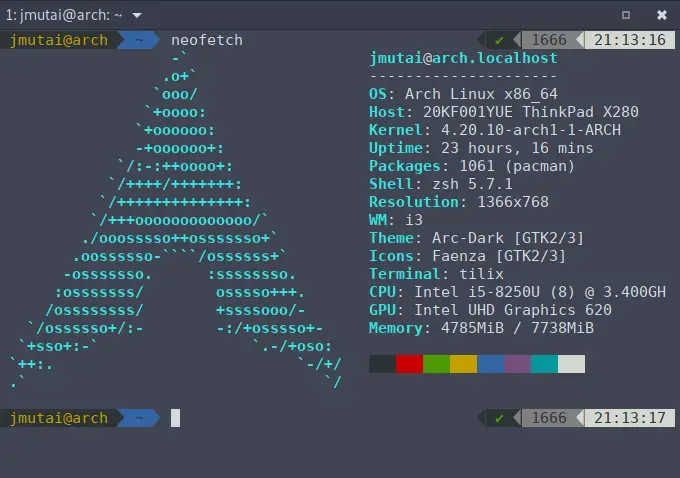
That screenshot is the same VM showing the tool versions and the column-extraction timings from the first table. Your absolute numbers will differ with CPU and disk, but the order held on every run we made, so it is the ranking to trust rather than the seconds.
grep, awk and sed quick reference
These are the forms used above, in the order you’re most likely to need them. The generic rows are templates; each form is used with real output in the examples above.
| Task | Command |
|---|---|
| Search for a string | grep "pattern" file |
| Search for a literal string (no regex) | grep -F "10.0.1.22" file |
| Ignore case | grep -i "pattern" file |
| Exclude matching lines | grep -v "pattern" file |
| Count or number matching lines | grep -c / grep -n "pattern" file |
| Print only the match | grep -oE '[0-9]{3}' file |
| Context around a match | grep -C2 "pattern" file |
| Files that contain a match | grep -rl "pattern" /path/ |
| Whole word only | grep -w "port" file |
| Print columns | awk '{print $1, $7}' file |
| Custom delimiter, skip header | awk -F, 'NR>1 {print $2}' file |
| Filter on a field | awk '$9 != 200' file |
| Sum a column | awk '{s+=$4} END {print s}' file |
| Group by and total | awk '{a[$1]+=$2} END {for (k in a) print k, a[k]}' file |
| Last field | awk '{print $NF}' file |
| Replace text | sed 's/old/new/g' file |
| Edit in place with backup | sed -i.bak 's/old/new/' file |
| Delete matching lines | sed '/pattern/d' file |
| Print a line range | sed -n '2,4p' file |
| Append after a match | sed '/pattern/a\new line' file |
| Swap with capture groups | sed -E 's/(a) (b)/\2 \1/' file |
| Print between two patterns | sed -n '/start/,/end/p' file |
If you take one rule from the benchmark, make it this: count and find with grep, compute with awk, rewrite with sed, and reach for cut when all you need is a single column. For a deeper look at the regular expressions all three share, the LPIC-1 guide to searching text with regex walks through basic and extended syntax side by side.