A hub with two HDMI ports won’t give an M2 MacBook Air two monitors. The chip decides how many external displays you get, and no USB-C hub or Thunderbolt dock can raise that number. An M1 or M2 drives one screen, an M4 or M5 drives two, and the second HDMI port on a cheap hub just mirrors the first. So the best USB-C hub for MacBook owners depends on your chip first and on the ports you want second.
Six picks follow, sorted by port need: two displays, 2.5GbE, an SD reader and close to 100W of charging, plus the one dock that gets an M1 or M2 past its single-display limit. If you live in the terminal, our macOS keyboard shortcuts cheat sheet pairs well with a docked desk. Every spec, price and stock state below was checked against Apple support pages, maker spec sheets and live Amazon listings in October 2026.
Best USB-C hub for MacBook, by port need
You can match your need to one of these and stop reading:
- Best Thunderbolt dock for most MacBooks: CalDigit TS4. 98W charging, 2.5GbE and UHS-II SD, for about $380.
- Best dock for a Pro or Max chip with Thunderbolt 5: CalDigit TS5. Thunderbolt 5 and 140W, enough to fast charge a recent 16-inch MacBook Pro, for about $400.
- Best dual-monitor dock for an M4 or M5 MacBook Air: Plugable TBT4-UDZ. Two HDMI and two DisplayPort outputs, so no adapters, for about $290.
- Best for two monitors on an M1 or M2: Plugable UD-6950PDH. About $200 for a DisplayLink dock with 100W charging.
- Best travel hub with SD and HDMI: UGREEN Revodok Pro 9-in-1. 4K60 HDMI, SD and microSD, and 100W input, for about $45.
- Cheapest way to 2.5GbE: Plugable USBC-E2500PD. A 2.5GbE adapter with a 100W pass-through port, for about $30.
Every number has a source
Each claim in this guide traces to a source you can open yourself. The display limit for each chip comes from the Apple support page for that chip, while the count each dock reaches, and every port and wattage, comes from the spec sheet of the company that makes it. Prices and stock states come from the Amazon product API on the day we wrote this. Where a maker does not state something, such as the UHS grade of the UGREEN SD slot, the article says so instead of guessing.
A few obvious names didn’t make the list, and each for a stated reason:
- OWC Thunderbolt Go Dock: its built-in power supply makes it a great travel dock, but Amazon and OWC both listed it as unavailable.
- Kensington SD5700T: a solid Thunderbolt 4 dock, but its Ethernet port is Gigabit, and 2.5GbE was one of the needs.
- A small hub with 2.5GbE, SD, HDMI and 100W: we could not find one from a maker that publishes a full spec sheet. Every travel hub we found with HDMI, SD and 100W input was Gigabit.
A gap like that is why a separate 2.5GbE adapter is on the list. Pairing it with a cheap hub costs less than any dock, and you can leave the adapter on your desk.
The chip sets the display count
Apple caps external displays per chip, and its own MacBook Pro display support page says a hub or a daisy chain “does not increase the maximum number of displays”. Each MacBook chip supports this many, per the Apple spec and support pages:
| MacBook chip | External displays | What a dock can do |
|---|---|---|
| M1, M2 (Air and 13-inch Pro) | 1 | Only DisplayLink adds a second screen |
| M3 MacBook Air, M3 14-inch Pro | 1 with the lid open, 2 with it closed | Two screens in clamshell mode only |
| M4, M5 (Air and Pro), M6 14-inch Pro | 2 | Any Thunderbolt dock with two video paths |
| M1 Pro, M2 Pro, M3 Pro, M4 Pro | 2 | Same as above |
| M5 Pro | 3 | A Thunderbolt 5 dock |
| M1 Max, M2 Max, M3 Max, M4 Max, M5 Max | 4 | Up to four through a Thunderbolt 5 dock on the M5 Max |
| MacBook Neo (A18 Pro) | 1, up to 4K60 | A simple hub; Apple warns some won’t work |
Read the first two rows before you spend anything. An M1 or M2 owner who buys a $300 Thunderbolt dock for two monitors gets one working screen and one blank one, and no setting fixes it. The M3 rule catches people too: the second display only lights up with the lid shut, an external keyboard and mouse attached, and macOS Sonoma 14.3 or later on the Air or 14.6 or later on the Pro. From the M4 on, two screens just work with the lid open, which is why most of these picks assume an M4 or newer.
Two HDMI ports often mean mirroring
What happens when you plug two monitors into a cheap dual-HDMI hub? On Windows the hub splits one DisplayPort signal into two with MST (Multi-Stream Transport), and you get two separate desktops. macOS doesn’t support MST for extended displays. A CalDigit support page puts it bluntly: macOS “will be able to mirror monitors at best.”
So a dual-HDMI hub sold as “dual monitor” is often dual monitor on Windows only. Three things actually give a Mac two independent screens:
- A Thunderbolt dock that passes two separate DisplayPort streams, like the TS4, TS5 and TBT4-UDZ below
- Two cables, one per Thunderbolt port on the Mac, which costs only the cables if your monitors take USB-C
- A DisplayLink dock, which sends compressed video over USB and needs a driver
Only the third one gets past the chip limit in the table above. The first two still stop at the count your chip allows.
Hubs and docks compared at a glance
Each pick with the specs that decide it, and prices from Amazon in October 2026:
| Pick | Link to the Mac | Charging to the Mac | Ethernet | SD reader | Video outputs | Price band |
|---|---|---|---|---|---|---|
| CalDigit TS4 | Thunderbolt 4 | 98W | 2.5GbE | SD and microSD UHS-II | 1 DisplayPort plus Thunderbolt ports | About $380 |
| CalDigit TS5 | Thunderbolt 5 | 140W | 2.5GbE | SD and microSD UHS-II | Thunderbolt ports only | About $400 |
| Plugable TBT4-UDZ | Thunderbolt 4 | 98W | 2.5GbE | SD and microSD UHS-II | 2 HDMI, 2 DisplayPort | About $290 |
| Plugable UD-6950PDH | USB-C 10Gbps (DisplayLink) | 100W | Gigabit | SD UHS-II, microSD UHS-I | 2 HDMI or DisplayPort | About $200 |
| UGREEN Revodok Pro 9-in-1 | USB-C, 10Gbps data port | About 90W from a 100W charger | Gigabit | SD and microSD, grade not stated | 1 HDMI 4K60 | About $45 |
| Plugable USBC-E2500PD | USB-C 5Gbps | 100W pass-through, net not stated | 2.5GbE | None | None | About $30 |
Two columns decide most purchases. The charging column tells you whether a 14-inch MacBook Pro will fast charge, because Apple needs 96W for that, and only the docks with their own power brick get there. The video column tells you whether you’ll need adapters: the TS5 has no HDMI or DisplayPort at all, so monitors go on its Thunderbolt ports or through a USB-C to HDMI cable.
1. CalDigit TS4 suits most MacBooks
Buy the TS4 if your MacBook has an M4 or M5 chip and you want one cable to carry everything. It covers all four port needs in this guide from one box.
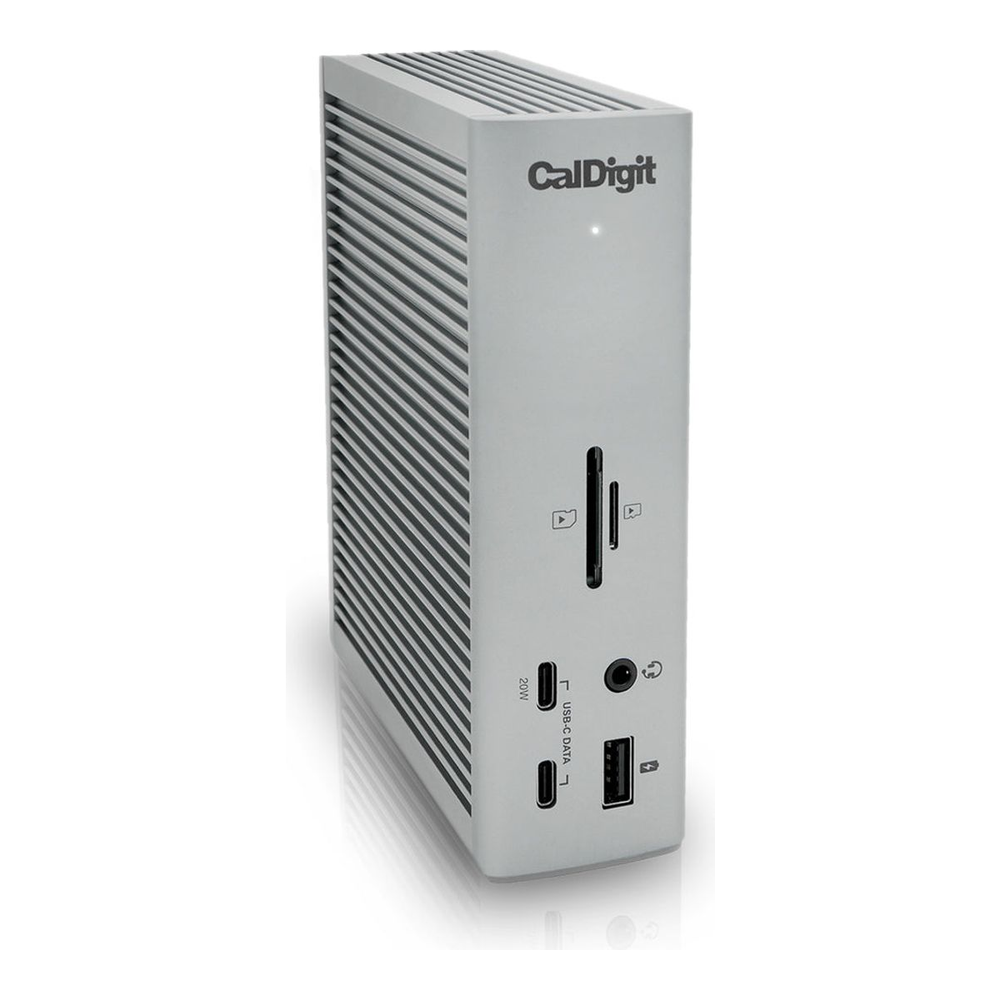
CalDigit rates it at 98W of sustained charging from a 230W power brick, which fast charges any MacBook Air and clears the 96W a 14-inch MacBook Pro needs to fast charge. You get 2.5GbE, SD and microSD readers that are both UHS-II, three USB-C and five USB-A ports at 10Gb/s, and two downstream Thunderbolt 4 ports. A 0.8 m Thunderbolt 4 cable is in the box.
For displays, the TS4 has one DisplayPort 1.4 output, and the two spare Thunderbolt ports take a USB-C monitor or a USB-C to DisplayPort cable. That gives an M4 or M5 MacBook its two screens, up to two 6K at 60Hz. CalDigit lists the limits plainly:
- M4, M5 and every Pro or Max chip: two displays
- M1, M2 and M3 base chips: one display (an M3 gets two, lid closed)
Look elsewhere if your monitors only take HDMI, because the TS4 has no HDMI port and needs an adapter per screen. Amazon also showed it as low in stock when we checked, at about $380.
2. CalDigit TS5 pays off on Pro and Max chips
The TS5 is a Thunderbolt 5 dock, and the only MacBooks with Thunderbolt 5 ports are the MacBook Pro models with an M4 Pro, M4 Max, M5 Pro or M5 Max chip. On those machines it runs at 80Gb/s, or 120Gb/s downstream with the CalDigit Bandwidth Boost mode, and it delivers 140W of charging from a 240W brick.

Apple needs 140W to fast charge a 16-inch MacBook Pro, and no Thunderbolt 4 dock here delivers more than 98W, so that one figure is the reason to buy it. Two conditions apply. Apple only fast charges a 16-inch over USB-C on the November 2023 model or later with a 240W cable, and CalDigit recommends certified 80Gb/s Thunderbolt 5 cables rated for 240W, without stating the power rating of the cable in the box. The TS5 also drives three displays on an M5 Pro and four on an M5 Max, according to the CalDigit FAQ, while an M4 Pro or M4 Max gets two. Its port list is close to the TS4 list:
- Three downstream Thunderbolt 5 ports for monitors and fast drives
- Three USB-C and one USB-A at 10Gb/s, plus one USB 2.0 port
- SD and microSD readers, both UHS-II
- 2.5GbE, and a 1 m Thunderbolt 5 cable in the box
With no HDMI or DisplayPort output, every monitor goes on a Thunderbolt port or a USB-C video cable. The dock also needs macOS Sequoia or later. On a Thunderbolt 4 MacBook, CalDigit says you get “half the performance of Thunderbolt 5”, so an M4 or M5 Air owner pays more than the TS4 costs for speed the Mac can’t use. Want 10GbE and DisplayPort 2.1 as well? The TS5 Plus adds both at a higher price.
3. Plugable TBT4-UDZ skips the adapters
For an M4 or M5 MacBook Air with two HDMI or DisplayPort monitors, get the TBT4-UDZ. It’s the only Thunderbolt dock here with HDMI outputs, and it has two DisplayPort outputs as well, so both monitors plug straight in with no adapters.

Two display groups sit on the back, each with one HDMI and one DisplayPort output, and each group drives one monitor at up to 4K 60Hz. The Plugable Mac notes match the Apple table:
- M4, M5 and every Pro or Max chip: two 4K60 monitors
- M3 base: two monitors only with the lid closed
- M1 and M2 base: one monitor
For the price, the rest of the spec sheet is strong. It charges the Mac at 98W from a 135W brick, has 2.5GbE and UHS-II SD and microSD readers, and comes with a 1 m Thunderbolt 4 cable and a vertical stand. It runs on macOS with no driver.
A Laptop Mag review flagged a front-facing host port, so the cable runs out the front of your desk, and called its microSD reader poor, despite the UHS-II rating Plugable gives it. Video is also HDMI and DisplayPort only: Plugable says USB-C and Thunderbolt monitors aren’t supported on this dock. It sells for about $290.
4. Plugable UD-6950PDH gets M1 and M2 two screens
Only one pick breaks the chip limit, and it does it with DisplayLink. The dock has its own video chip, the Mac sends it compressed frames over USB, and the dock drives two 4K 60Hz monitors from them. Plugable lists it for M1 to M5 MacBooks and the MacBook Neo, “even on Macs and Neo devices that natively support only one external display”.

DisplayLink works through software, and that software decides how your Mac behaves with the dock attached. Three things change:
- You install DisplayLink Manager from Synaptics, which macOS doesn’t ship.
- You grant it Screen and System Audio Recording permission (called Screen Recording before Sequoia). Without it, the monitors stay blank.
- Protected video stops playing. The DisplayLink support article says that once one DisplayLink screen is connected, protected content in Netflix, Disney+, Prime Video and others “becomes unavailable on all screens”, the built-in one included.
Streaming is the real cost. If you watch Netflix on the same Mac, you’ll unplug the dock to do it, while code, terminals and browsers are not affected. Its other specs are 100W of charging from a 130W brick, Gigabit Ethernet, a UHS-II SD slot and a UHS-I microSD slot. The host link is the USB-C port on the side, not the one on the front. It costs about $200, and B&H lists it at the same price.
Do you have an M4 or newer? Then skip this dock. Your Mac already drives two screens, and the TBT4-UDZ does it without the driver or the streaming restriction.
5. UGREEN Revodok Pro 9-in-1 is the bag hub
Beyond two Thunderbolt ports, MagSafe and a headphone jack, a MacBook Air has no other ports: the Apple spec pages list no HDMI and no SD slot. The Revodok Pro is the small hub that fills those gaps when you’re away from your desk.

On the hub you get an HDMI 2.0 port at up to 4K 60Hz, SD and microSD slots, Gigabit Ethernet, a 10Gbps USB-C data port and USB-A ports. A UGREEN product graphic shows 90W reaching the laptop from a 100W charger. That fast charges an Air and recharges a 14-inch Pro at a normal pace, but it won’t fast charge the Pro. Against the docks above, you give up three things:
- One external display, never two, because it isn’t DisplayLink and macOS won’t extend over a single HDMI port
- Gigabit Ethernet, not 2.5GbE
- No stated UHS grade for the SD slot, so do not count on UHS-II card speeds
A 14-inch or 16-inch MacBook Pro already has HDMI and a UHS-II SD slot built in, so this hub mostly earns its place on an Air. If you want a stated charging figure instead of a graphic, the Anker 8-in-1 hub lists “85W Max PD” for about $50, a little more than the UGREEN.
6. Plugable USBC-E2500PD adds 2.5GbE
Plug the USBC-E2500PD into the Mac and your charger into the USB-C port on its side, and you’ve gained 2.5GbE without giving up a charging port. That one trick makes a small adapter more useful than it looks.

Inside is the Realtek RTL8156B chip on a 5Gbps USB link, and macOS drives it with the network driver Apple already ships, so there’s nothing to install, although Plugable notes minor issues with that driver on macOS Big Sur through Sonoma and lower throughput on older Macs. The pass-through port is rated for 100W in. Plugable does not state how much of that reaches the Mac, so expect a little less than the charger rating. The cable is fixed and only 15 cm long, which suits a desk better than a bag.
Is 2.5GbE worth it on a laptop? Only if the other end is 2.5GbE too: a NAS, a homelab switch or a router with a 2.5GbE port. On a Gigabit network you’ll see Gigabit speeds and nothing more. At about $30, it costs less than the price gap between a Gigabit hub and any dock.
Docks lose watts before the Mac
A hub never passes on its full charger rating. The Anker spec sheet for its 555 hub says it supports 100W “minus 15W for operation”, and the UGREEN graphic shows 90W out of 100W in. A dock with its own brick avoids this, because the brick feeds both the dock and the Mac. Apple’s fast-charge numbers decide which side of that line you need:
- MacBook Air: 70W or more
- 14-inch MacBook Pro: 96W or more
- 16-inch MacBook Pro: 140W or more
A bus-powered hub on a 100W charger is fine for an Air and slow for any Pro. If you own a Pro and charge through the dock, buy one with its own power supply, and on a 16-inch with an M4 or M5 Pro or Max chip, buy the TS5.
Two more specs deserve a look: the SD grade and the Thunderbolt version. A UHS-II card in a UHS-I reader runs at UHS-I speed, which matters if you copy camera footage. A Thunderbolt 5 dock on a Thunderbolt 4 Mac works, but it runs at Thunderbolt 4 speed. If your MacBook is about to drive a desk full of screens, our monitor guide for programmers covers which panels look sharp in macOS.
Mac, port need and pick in one table
Apply the rules in order: chip first, then the port you need most.
| Your Mac | Port need | Pick | Why |
|---|---|---|---|
| M1 or M2, any model | Two monitors | Plugable UD-6950PDH | Only DisplayLink gets past the one-display limit |
| M3 Air or 14-inch Pro | Two monitors, lid open | Plugable UD-6950PDH | The second native display needs the lid closed |
| M4 or M5 Air or Pro, M6 Pro | Two monitors, HDMI or DisplayPort | Plugable TBT4-UDZ | Native outputs, no adapters, no driver |
| M4 or M5 Air or Pro, M6 Pro | One cable, 2.5GbE, UHS-II SD | CalDigit TS4 | 98W, best all-round port mix |
| M4 or M5 Pro or Max | 140W, three or four monitors on M5 | CalDigit TS5 | Thunderbolt 5 and the only 140W dock here |
| Any MacBook Air | HDMI and SD in a bag | UGREEN Revodok Pro 9-in-1 | Fills the ports the Air lacks for about $45 |
| Any MacBook | 2.5GbE only | Plugable USBC-E2500PD | 2.5GbE and pass-through charging for about $30 |
If you’re on Linux on Apple silicon instead of macOS, the display rules change again, and our guide to the best MacBook for Linux covers which models run it well. For a broader desk build around the dock, the Mac accessories guide for developers covers keyboards, mice and SSDs, and the Thunderbolt 4 dock guide for Linux covers the same CalDigit hardware from the other operating system.