The kernel jump from 6.1 to 6.12 gets the headlines, but it is rarely what breaks after you move a machine to Debian 13 Trixie. What you meet first are smaller defaults. /tmp now lives in RAM and ran out of space at 2.0 GB on our 4 GB VM, OpenSSH refuses DSA keys, last is missing, and /etc/sysctl.conf is ignored at boot. Each has a reason and a short fix, and you’ll want both before the first surprise reaches production.
This page explains what is new in Debian 13, how each change behaves on a real system, how to verify the netinst ISO, and what an in-place upgrade from Debian 12 does to a server. The screen-by-screen walkthrough lives in our Debian 13 install guide, so the installer gets only what changed. The behavior described here was checked against Debian 13.7 in October 2026 on a fresh VM in our lab, and the upgrade was replayed from an up-to-date Debian 12 system in a container on that same VM.
What ships in Debian 13 Trixie
Debian 13 moves nearly every core component up at least one major line, and the most visible jumps on a server are the kernel, the C library, systemd, OpenSSH and APT. Debian 13.0 was released on August 9, 2025, and the project has shipped a point release roughly every two months since, each one folding in security fixes rather than new features. The table puts the versions from the official release notes next to what our updated VM actually reports, because the point releases have already moved several of them past the numbers printed at launch.
| Component | Debian 12 (bookworm) | Debian 13 (trixie), release notes | Our Debian 13 VM, October 2026 |
|---|---|---|---|
| Linux kernel | 6.1 series | 6.12 series | 6.12.113 (cloud kernel) |
| GNU C library | 2.36 | 2.41 | 2.41 |
| GCC | 12.2 | 14.2 | 14.2.0 |
| systemd | 252 | 257 | 257.13 |
| APT | 2.6.1 (our Debian 12 container) | not listed | 3.0.3 |
| OpenSSH | 9.2p1 | 10.0p1 | 10.0p2 |
| OpenSSL | 3.0 | 3.5 | 3.5.7 |
| Python 3 | 3.11 | 3.13 | 3.13.5 |
| Perl | 5.36 | 5.40 | 5.40.1 |
| Nginx | 1.22 | 1.26 | 1.26.3 (our upgraded Debian 12 container) |
| PHP / PostgreSQL / MariaDB | 8.2 / 15 / 10.11 | 8.4 / 17 / 11.8 | not installed |
Read the last column as the version a new install gets today, not the one Debian launched with. One value looks newer than it is: ssh -V reports 10.0p2 while the installed package is still upstream 10.0p1, because the string comes from upstream’s own version file, so the point releases didn’t move OpenSSH. The kernel has taken well over a hundred upstream stable updates, because Debian keeps one LTS kernel series for the life of a release and pulls fixes in through point releases. A handful of commands confirms the same values on your own system.
cat /etc/debian_version
uname -r
ldd --version | head -1
systemctl --version | head -1
apt --version
ssh -V
The debian_version file carries the point release, which is the number to quote in a bug report. A plain 13 or a trixie/sid string there means the machine is tracking testing rather than stable:
13.7
6.12.113+deb13-cloud-amd64
ldd (Debian GLIBC 2.41-12+deb13u4) 2.41
systemd 257 (257.13-1~deb13u1)
apt 3.0.3 (amd64)
OpenSSH_10.0p2 Debian-7+deb13u4, OpenSSL 3.5.7 9 Jun 2026
We didn’t install a desktop for this refresh, so the desktop versions come from the release notes. The headline is KDE: Trixie is the first Debian release to ship Plasma 6, built on Qt 6 and KDE Frameworks 6, while the Qt 5 and Frameworks 5 libraries stay installed for older applications. The desktop tasks you can pick in the installer carry these versions:
- GNOME 48: the default desktop task, running on Wayland; our install guide measured it at 735 MB of RAM sitting at the login screen.
- KDE Plasma 6.3: replaces the Plasma 5.27 desktop Debian 12 shipped, with KDE Gear applications from the 25.04 series.
- Xfce 4.20: the lighter choice for older hardware and small VMs.
- LXQt 2.1: the Qt-based lightweight desktop, for machines where even Xfce feels heavy.
If you’re choosing between Trixie and another distribution for a new server rather than upgrading, our Debian, Ubuntu and Rocky Linux comparison lines the three up on support length and package age.

Every later test on this page ran on that same VM, a 2 vCPU, 4 GB cloud image with nothing installed beyond what the steps below add.
What changed for architectures and time_t
Debian 13 adds one architecture and retires or demotes four, so the hardware question is worth settling before any download. The release notes’ issues chapter spells out the status of each one:
- riscv64: officially supported for the first time, with installer images and the full archive.
- i386: no longer a regular architecture. There is no i386 kernel and no i386 installer, and what remains only runs legacy 32-bit code on an amd64 CPU, so i386 machines should not be upgraded.
- armel: Trixie is its last release, and kernel packages only cover the Raspberry Pi 1, Zero and Zero W.
- mipsel and mips64el: removed entirely; Debian’s advice is to move to other hardware.
The 64-bit time_t transition is the reason so many library packages changed name this cycle. Every architecture except i386 now uses a 64-bit time value, which keeps dates past January 2038 from overflowing. Nothing changes at runtime on amd64 and arm64, where time_t was already 64 bits wide. The packages were renamed everywhere anyway, so one source package builds the same binary names on every architecture. You see that during an upgrade as a t64 suffix on library names. Our Debian 12 container swapped libssl3 for libssl3t64 and libcurl4 for libcurl4t64, so apt reported old libraries being removed even though nothing was lost. The real risk is on 32-bit armel and armhf, where third-party software built against the old ABI has to be rebuilt.
Why /tmp now fills up at half your RAM
A fresh Debian 13 system mounts /tmp as a tmpfs, so anything written there sits in memory and the mount is capped at 50% of RAM. The mechanism is systemd’s own tmp.mount unit, which Debian now enables instead of leaving /tmp as a directory on the root disk. Faster temporary files and a /tmp that empties on every reboot are the gain; the cost is that a job which used to stream a few gigabytes through /tmp now fails once it passes half the RAM. Check how your system mounts it:
findmnt /tmp
df -h /tmp
On our 4 GB VM the mount came up as tmpfs with a 2.0 GB ceiling and no explicit size option, which means the 50% default is in force:
TARGET SOURCE FSTYPE OPTIONS
/tmp   tmpfs  tmpfs  rw,nosuid,nodev,nr_inodes=1048576,inode64
Filesystem      Size  Used Avail Use% Mounted on
tmpfs           2.0G     0  2.0G   0% /tmp
To see where that ceiling bites, we wrote a 2.5 GB file into /tmp. The write stopped at exactly 2.0 GB with dd: error writing '/tmp/big.img': No space left on device, while the root disk still had 28 GB free. That is the trap. df -h / looks healthy, so the error reads like a disk problem when it is really a memory limit. Build tools, ISO tooling and database dumps that default to /tmp are the usual victims, and so is any package that unpacks a large archive there.

In the capture you can see the tmpfs mount, the failed write and the 100% use figure on the lab VM. We tested two ways out of it, and the first is the better default on a machine with plenty of RAM. Keeping tmpfs with a size you choose preserves the speed and the clean-on-boot behavior, so start by creating a drop-in directory for the mount unit:
sudo mkdir -p /etc/systemd/system/tmp.mount.dThen open a new override file inside it:
sudo vim /etc/systemd/system/tmp.mount.d/size.confCopy the stock mount options and change only the size. The Options= line replaces the original one completely, so dropping nosuid or nodev here would quietly weaken /tmp:
[Mount]
Options=mode=1777,strictatime,nosuid,nodev,size=1G,nr_inodes=1m
Reload systemd and reboot, since remounting /tmp under running services is riskier than a clean boot:
sudo systemctl daemon-reload
sudo systemctl reboot
After the reboot our mount reported size=1048576k and df showed a 1.0 GB /tmp. If you would rather have the Debian 12 behavior back, with /tmp on disk and no size limit beyond the filesystem, mask the unit instead and reboot. We did that too, and findmnt /tmp printed nothing afterwards because /tmp had become a plain directory on /dev/sda1. sudo systemctl unmask tmp.mount and another reboot put the tmpfs back:
sudo systemctl mask tmp.mount
sudo systemctl reboot
Cleanup changed as well. A new install deletes files in /tmp 10 days after last use and files in /var/tmp after 30 days, set in /usr/lib/tmpfiles.d/tmp.conf. An upgraded system keeps the old no-expiry timers but not a disk-backed /tmp: the release notes say the tmpfs mount applies to upgraded machines too after their first reboot, unless /etc/fstab already defines /tmp. Our Debian 12 container came out of the upgrade with a new /etc/tmpfiles.d/tmp.conf holding D /tmp 1777 root root -, and deleting that file opts the machine into the new timers. Anything you park in /var/tmp for longer than a month on a fresh install will disappear, so long-lived scratch data belongs somewhere like /srv.
How APT 3 changes package sources
Trixie ships APT 3, and you notice it the first time you install anything. The old “0 upgraded, 0 newly installed” sentence is gone, replaced by a Summary block, and packages are grouped under headings such as REMOVING. Here is our cleanup run on the upgraded container, purging four libraries Debian no longer ships:
REMOVING:
  libapt-pkg6.0*  libcbor0.8*  libldap-2.5-0*  libunistring2*

Summary:
  Upgrading: 0, Installing: 0, Removing: 4, Not Upgrading: 0
  Freed space: 5893 kB
Scripts that grep apt’s human output for “newly installed” will break against that layout, which is one more reason to script against apt-get, whose output didn’t change (it still printed 0 upgraded, 0 newly installed on our VM). The bigger shift is where repositories are defined. Debian now prefers /etc/apt/sources.list.d/debian.sources in the deb822 format, one block of Key: value lines per repository. The cloud image we tested already ships that file and leaves /etc/apt/sources.list as a one-line pointer to it:
cat /etc/apt/sources.list.d/debian.sourcesEach block names its types, URIs, suites, components and the keyring that signs it, which is what makes deb822 easier to audit than one long deb line. This cloud image routes its URIs through a mirror list file instead of naming deb.debian.org directly:
Types: deb deb-src
URIs: mirror+file:///etc/apt/mirrors/debian.list
Suites: trixie trixie-updates trixie-backports
Components: main
Signed-By: /usr/share/keyrings/debian-archive-keyring.gpg

Types: deb deb-src
URIs: mirror+file:///etc/apt/mirrors/debian-security.list
Suites: trixie-security
Components: main
Signed-By: /usr/share/keyrings/debian-archive-keyring.gpg
An upgraded machine, or any system whose sources are still in the one-line style, keeps a classic sources.list, and APT 3 converts it for you with apt modernize-sources. The command lists the files it will rewrite, asks before touching anything (answer N for a dry run), writes a .sources file and keeps the original as .list.bak. On our upgraded container it turned the three-line sources.list into three deb822 blocks and filled in Signed-By on its own:
sudo apt modernize-sourcesThe prompt warns that only the signed-by and trusted options are carried over, so any other bracketed option, such as [arch=amd64] on a third-party repository, has to be moved by hand:
The following files need modernizing:
  - /etc/apt/sources.list

Modernizing will replace .list files with the new .sources format,
add Signed-By values where they can be determined automatically,
and save the old files into .list.bak files.

This command supports the 'signed-by' and 'trusted' options. If you
have specified other options inside [] brackets, please transfer them
manually to the output files; see sources.list(5) for a mapping.

For a simulation, respond N in the following prompt.
Rewrite 1 sources? [Y/n] y
Modernizing /etc/apt/sources.list...
- Writing /etc/apt/sources.list.d/debian.sources
A follow-up apt update hit all three repositories with no warnings. The release notes also suggest changing Signed-By paths from .gpg to .pgp; on Trixie debian-archive-keyring.gpg is a symlink to debian-archive-keyring.pgp, so both work today and the rename only matters if a future keyring release drops the old name. For a deeper look at the repository lines themselves, including contrib and non-free, see how to add the official Debian repositories.
What OpenSSH 10 removed: DSA keys
DSA keys no longer work at all on Debian 13, in either direction. OpenSSH had disabled DSA by default years ago but left configuration options to turn it back on; the OpenSSH in Trixie removed the code, so no option brings it back. On our VM the client could not even create one:
ssh-keygen -t dsa -f /tmp/test_dsa -N ""Four words come back, with exit status 255:
unknown key type dsaThe upgrade path is where this hurts. Before upgrading our Debian 12 container we generated a DSA key for root, and after the upgrade ssh-keygen -l -f /root/.ssh/id_dsa reported /root/.ssh/id_dsa is not a key file. The file is still there, so nothing warns you until a login or an automated rsync job fails. Search every user’s SSH directory and /etc/ssh for DSA public keys and ssh-dss lines in authorized_keys before you upgrade. The search goes by the public half, because the private key file itself didn’t match in our test:
sudo grep -rl ssh-dss /root/.ssh /home/*/.ssh /etc/sshOn the Debian 12 container it printed /root/.ssh/id_dsa.pub, plus grep: /home/*/.ssh: No such file or directory because that container has no regular users; on the Trixie VM it printed nothing. Replace every hit with an Ed25519 key (ssh-keygen -t ed25519), which worked first time on the same VM. For an old switch or appliance that only speaks DSA, the release notes point to the separate openssh-client-ssh1 package; we didn’t test that path.
One quieter SSH change rides along: sshd no longer reads ~/.pam_environment, so variables you set for SSH sessions that way need to move into ~/.bashrc or another shell startup file.
Where last, lastlog and /etc/sysctl.conf went
Three habits from older Debian releases stop working on Trixie, and all three fail quietly or with a bare “command not found”. The login history tools went because the old wtmp and lastlog files don’t have room for login times after 2038 and upstream declined to change the format, and systemd-sysctl now reads only the sysctl.d drop-in directories. Each one now behaves like this:
- last and lastb: util-linux no longer ships them, so a fresh install answers
bash: last: command not found. Installingwtmpdbbrings back alastcommand that reads a SQLite database instead of the old/var/log/wtmp. - lastlog: gone from the
loginpackage;lastlog2is the replacement, andlslogins --failedcovers most of whatlastbdid. - /etc/sysctl.conf:
systemd-sysctlno longer reads it, so settings placed there are ignored at boot. Files in/etc/sysctl.d/still work.
The wtmpdb history starts from the moment you install it, not from the machine’s first boot. On our VM the first last after installing the package failed with open_database_ro: Cannot open database (/var/log/wtmp.db): unable to open database file, because no login had been recorded yet. The next PAM login session created it (here the run0 test described below, at 06:11), and from then on SSH logins were recorded and the output looked like the old tool:
sudo apt install wtmpdb
last
Our list showed two short SSH sessions and the root session opened by a run0 test, with the start of the database on the last line:
gedion   pts/0        10.0.1.20      Sat Oct 24 06:12 - 06:12  (00:00)
gedion   pts/0        10.0.1.20      Sat Oct 24 06:12 - 06:12  (00:00)
root     pts/1                         Sat Oct 24 06:11 - still logged in

wtmpdb begins Sat Oct 24 06:11:42 2026
The sysctl change is the one most likely to cost you an evening, because nothing errors. We wrote vm.swappiness = 10 into /etc/sysctl.conf and restarted systemd-sysctl, and /proc/sys/vm/swappiness still read 60. Moving the same line into /etc/sysctl.d/90-swappiness.conf and restarting the service changed it to 10 immediately. Trixie doesn’t ship /etc/sysctl.conf at all. On our VM ls found no such file and dpkg -S /etc/sysctl.conf found no package owning it. The defaults moved to /usr/lib/sysctl.d/50-default.conf from the linux-sysctl-defaults package, which was already installed on our VM. On our upgraded container the unmodified Debian 12 file and its 99-sysctl.conf symlink were both removed. Tuning you added to that file on Debian 12 belongs in its own file under /etc/sysctl.d/ before you reboot into Trixie:
echo "vm.swappiness = 10" | sudo tee /etc/sysctl.d/90-swappiness.conf
sudo systemctl restart systemd-sysctl
cat /proc/sys/vm/swappiness
Expect the last command to print 10. A related change affects ping. Debian 12 gave it the CAP_NET_RAW capability, while Trixie’s ping has no capability and uses unprivileged ICMP sockets instead, gated by net.ipv4.ping_group_range. That value comes from linux-sysctl-defaults, and on our VM it was 0 2147483647, which lets every group ping. The release notes warn that some upgrades don’t pull that package in, which leaves non-root users unable to ping, so the post-upgrade checks below include it.
How run0 compares with sudo
run0 is on every Trixie system as a symlink to systemd-run, but it doesn’t replace sudo, which is still installed and still how the installer grants admin rights. The mechanism is different in a way that matters: sudo is a setuid binary that reads /etc/sudoers, while run0 asks systemd to start a transient service as root and lets polkit decide whether you are allowed. That means your sudoers rules don’t apply to run0. Over SSH it asked for the password on every call in our test, including a second run0 id one second after the first. We didn’t check why it didn’t reuse the first authorization.
Our cloud-image user is a good example of where that bites. It has passwordless sudo and a locked password, so sudo id worked, while run0 --no-ask-password id failed with Failed to start transient service unit: Interactive authentication required. After we gave the account a password, run0 id prompted once and ran as root:
run0 idNotice that the polkit banner names the action it is authorizing, which is a transient systemd unit rather than a sudoers rule:
==== AUTHENTICATING FOR org.freedesktop.systemd1.manage-units ====
Authentication is required to start transient unit 'run-p1057-i1357.service'.
Authenticating as: Debian (gedion)
Password:
==== AUTHENTICATION COMPLETE ====
uid=0(root) gid=0(root) groups=0(root)
We’d keep using sudo on servers, where automation depends on its rules and its logging. run0 makes more sense on a desktop, where you want a root command to run in a clean service environment instead of inheriting your shell’s variables.
Download and verify the Debian 13 netinst ISO
For almost every install, download the netinst image, because it is small and pulls current packages from the mirror during setup, so the result matches a fully updated system. Debian replaces the image at every point release, so read the current file name from the checksum list instead of typing it:
ISO_URL="https://cdimage.debian.org/debian-cd/current/amd64/iso-cd"
DEB_ISO=$(curl -s "${ISO_URL}/SHA512SUMS" | grep -oE 'debian-[0-9.]+-amd64-netinst\.iso')
echo "${DEB_ISO}"
The echo must print exactly one file name. An empty line means the mirror path moved or your network blocks cdimage.debian.org, and passing a blank name to the next step would only download an index page. Ours printed the current point release:
debian-13.7.0-amd64-netinst.isoFetch the image with its checksum list and the signature over that list. We capped curl at 4 MB/s so the download would not starve the rest of the lab network, and the 756 MB image took 3 minutes 9 seconds at that rate; drop --limit-rate 4M to download at full speed:
curl -sSLO --limit-rate 4M "${ISO_URL}/${DEB_ISO}"
curl -sSLO "${ISO_URL}/SHA512SUMS"
curl -sSLO "${ISO_URL}/SHA512SUMS.sign"
Two checks guard two different failures. The checksum catches a corrupted download, while the signature proves the checksum file came from Debian, so a tampered mirror cannot simply ship a matching checksum next to a modified image. Import the Debian CD signing key by its full fingerprint, then run both:
sha512sum -c --ignore-missing SHA512SUMS
gpg --keyserver keyring.debian.org --recv-keys DF9B9C49EAA9298432589D76DA87E80D6294BE9B
gpg --verify SHA512SUMS.sign SHA512SUMS
You want OK after the ISO name and Good signature from the Debian CD signing key. Our key had been imported by an earlier attempt, hence not changed; a first run prints imported: 1 instead:
debian-13.7.0-amd64-netinst.iso: OK
gpg: key DA87E80D6294BE9B: "Debian CD signing key <[email protected]>" not changed
gpg: Total number processed: 1
gpg:              unchanged: 1
gpg: Signature made Sat Sep 12 16:20:46 2026 UTC
gpg:                using RSA key DF9B9C49EAA9298432589D76DA87E80D6294BE9B
gpg: Good signature from "Debian CD signing key <[email protected]>" [unknown]
gpg: WARNING: This key is not certified with a trusted signature!
gpg:          There is no indication that the signature belongs to the owner.
Primary key fingerprint: DF9B 9C49 EAA9 2984 3258  9D76 DA87 E80D 6294 BE9B
The trust warning is normal because you haven’t signed Debian’s key yourself; what matters is that the fingerprint on the last line matches the one Debian publishes on its CD verification page, which we checked for this key. A FAILED from sha512sum means the image is damaged, so delete it and download again rather than writing it to a stick.
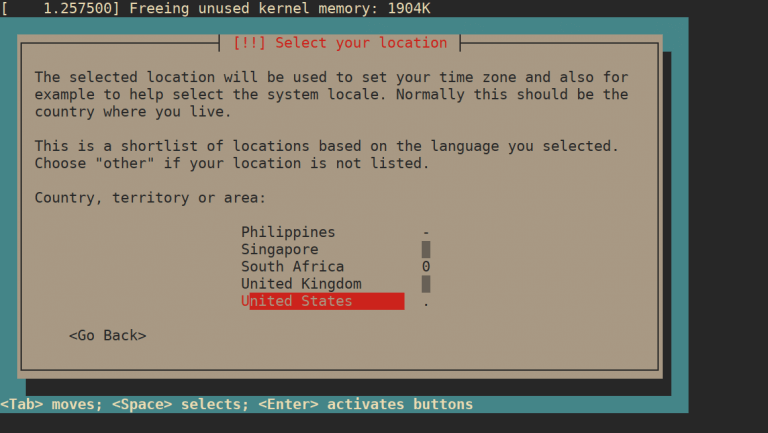
From there, write the ISO to a USB stick with dd or a graphical tool, or put it on a Ventoy stick next to other installers. The Trixie installer’s changes are mostly underneath the screens you click through:
- HTTP Boot: the installer and live images can boot over HTTP on UEFI and U-Boot firmware that supports it, so a lab can install without any USB stick.
- Btrfs rescue: rescue mode gained preliminary support for a Debian system installed to a Btrfs subvolume.
- Pure Blends: Debian Junior, Debian Science and FreedomBox can be picked directly in the installer’s software selection.
- Partitioner units: the manual partitioner now defaults to GB instead of MB when you type sizes.
The root password screen still decides how you get admin rights. Leave it empty and your first user gets sudo; set one and that user has no sudo access until you add it yourself. Every screen, along with the server versus desktop choice in tasksel, is covered with screenshots in the step-by-step Debian 13 installation, and the first hours after boot are in things to do after installing Trixie.
Upgrade from Debian 12 to Debian 13
An in-place upgrade from Debian 12 is supported and fast on a plain server. Our run moved a Debian 12 system with SSH and Nginx to Trixie in under 90 seconds of package work. Debian only supports upgrading from the release directly before it, and the upgrade chapter of the release notes assumes the machine is on the latest Debian 12 point release first. We ran it inside a systemd-nspawn container on the lab VM, so treat the timings as the APT and dpkg part only: there was no kernel, no GRUB and no initramfs to rebuild, and those add minutes on a real VM. The step-by-step version with rollback notes is in our Debian 12 to 13 upgrade guide.
Check the boot partition and the running kernel before changing any sources. The release notes ask for a /boot of at least 768 MB with about 300 MB free, because the upgrade installs a second kernel and initramfs next to the old one. A machine with encrypted filesystems also needs the systemd-cryptsetup package installed before the first reboot into Trixie. Our container had no kernel or /boot of its own, so these two checks weren’t run in our lab:
df -h /boot
uname -r
Over SSH, run the upgrade inside tmux or screen, as the release notes advise, because the upgrade replaces sshd and the C library mid-run and a dropped connection must not kill dpkg halfway. Have console access ready too (a hypervisor console or a serial terminal). We worked from the VM’s own shell, so this step wasn’t exercised in our lab. Install tmux now, while the sources still point at Debian 12, so the install doesn’t pull Trixie packages in early:
sudo apt install tmux
tmux new -s upgrade
Every command in this section uses sudo, including the tmux install above. If your Debian 12 machine was installed with a root password, its first user has no sudo rights, so run the same commands from a root shell opened with su - and drop the sudo prefix. Debian 12 systems keep their Debian repositories in one of two places. Older installs use a one-line /etc/apt/sources.list, while cloud and container images ship /etc/apt/sources.list.d/debian.sources in deb822 format and no sources.list at all. A switch that edits only one of them leaves the other machine on bookworm, so back up both locations and list the files that still name bookworm:
sudo tar -czf /root/apt-sources-bookworm.tar.gz /etc/apt/sources.list*
grep -rls bookworm /etc/apt/sources.list /etc/apt/sources.list.d/
We ran this on two fresh Debian 12 containers, one with each layout. The deb822 one printed only its .sources file, the classic one only /etc/apt/sources.list:
/etc/apt/sources.list.d/debian.sourcesThird-party repositories show up in that list too, as their own .list or .sources files. The release notes recommend removing non-Debian packages and sources before the upgrade, then adding each back once its vendor publishes a trixie suite, so comment out or move those files out of /etc/apt/sources.list.d/ now, before the next apt update. The loop below edits only the two Debian files and skips whichever one your system doesn’t have, then prints the lines that now name trixie:
for f in /etc/apt/sources.list /etc/apt/sources.list.d/debian.sources; do [ -f "$f" ] && sudo sed -i 's/bookworm/trixie/g' "$f"; done
grep -rhs trixie /etc/apt/sources.list /etc/apt/sources.list.d/
On the deb822 container the check printed the two Suites lines; the classic container printed its three deb lines with trixie in place of bookworm. An empty result means nothing was switched, so stop and look at the files before going further:
Suites: trixie trixie-updates
Suites: trixie-security
Refresh the package lists. Every InRelease line should name trixie, and both containers reported 162 upgradable packages at this point, against a fresh Debian 12 base without the extra packages of the first container:
sudo apt updateThis is the deb822 container’s output; the classic one fetched the same 13 indexes in a different order:
Get:1 http://security.debian.org/debian-security trixie-security InRelease [43.4 kB]
Get:2 http://deb.debian.org/debian trixie InRelease [140 kB]
Get:3 http://security.debian.org/debian-security trixie-security/main amd64 Packages [270 kB]
Get:4 http://deb.debian.org/debian trixie-updates InRelease [47.3 kB]
Get:5 http://deb.debian.org/debian trixie/main amd64 Packages [9678 kB]
Get:6 http://security.debian.org/debian-security trixie-security/main Translation-en [166 kB]
Get:7 http://security.debian.org/debian-security trixie-security/non-free-firmware amd64 Packages [544 B]
Get:8 http://security.debian.org/debian-security trixie-security/non-free-firmware Translation-en [352 B]
Get:9 http://deb.debian.org/debian trixie/main Translation-en [6486 kB]
Get:10 http://deb.debian.org/debian trixie/non-free-firmware amd64 Packages [6884 B]
Get:11 http://deb.debian.org/debian trixie/non-free-firmware Translation-en [4704 B]
Get:12 http://deb.debian.org/debian trixie-updates/main amd64 Packages [720 B]
Get:13 http://deb.debian.org/debian trixie-updates/main Translation-en [772 B]
Fetched 16.8 MB in 2s (8881 kB/s)
Reading package lists...
Building dependency tree...
162 packages can be upgraded. Run 'apt list --upgradable' to see them.
Until the next step starts, you can back out by restoring the saved files and running sudo apt update again:
sudo tar -xzf /root/apt-sources-bookworm.tar.gz -C /We didn’t run the restore in our lab. The archive holds the paths without their leading slash, as tar -tzf showed in both containers, so -C / puts them back in place. The upgrade itself runs in two passes, a minimal one that upgrades without adding or removing packages, then the full one:
sudo apt upgrade --without-new-pkgs
sudo apt full-upgrade
We ran both as root in the first container with DEBIAN_FRONTEND=noninteractive and dpkg’s --force-confdef and --force-confold options, so no configuration prompts appeared; on an interactive upgrade dpkg stops at each config file you changed and asks which version to keep. The table records each step of that run:
| Step | Result on our Debian 12 container | Time |
|---|---|---|
| Starting point | Latest Debian 12 point release, 190 packages, SSH and Nginx running | |
apt update against trixie | Package lists refreshed | 2.4 s |
Disk estimate (Trivial-Only) | 172 to upgrade, 29 new, 12 to remove, 69.5 MB to download, 27.9 MB more disk | |
apt upgrade --without-new-pkgs | 124 upgraded, 48 held back | 40 s |
apt full-upgrade | 48 upgraded, 29 new, 12 removed | 46 s |
Container restart (machinectl reboot) | New boot recorded in the container journal; Debian 13, systemctl is-system-running = running, no failed units, SSH and Nginx active | |
| Cleanup | 4 obsolete libraries purged, 203 packages left |
The 12 removals look alarming in the full-upgrade prompt, but every one was a library replaced by its renamed t64 successor, described earlier. Reboot once full-upgrade finishes, because the new kernel only loads at boot. Our container restarted without a kernel of its own, so on a real machine this reboot and the kernel check after it weren’t run in our lab:
sudo systemctl rebootAfter the reboot, uname -r should report a 6.12 kernel. cat /etc/debian_version alone proves nothing here, because the base-files package updates it before the reboot. Then confirm the sysctl defaults package is present, which keeps unprivileged ping working, and clear out what the upgrade left behind:
uname -r
dpkg -l linux-sysctl-defaults
sudo apt autoremove
apt list '?obsolete'
sudo apt purge '?obsolete'
sudo apt modernize-sources
Our upgraded container listed linux-sysctl-defaults as installed. If yours does not, add it with sudo apt install linux-sysctl-defaults. The ?obsolete list held the four Debian 12 libraries shown in the APT section above, and purging them freed 5.9 MB. After that first reboot /tmp is a tmpfs on the upgraded machine as well, so rerun findmnt /tmp and resize it if a job needs more room.
How long Debian 13 gets security updates
Debian 13 gets full support from the Debian security team until August 9, 2028, then Long Term Support until June 30, 2030, according to the Trixie release page and the Debian LTS wiki. Debian 12 has already left regular security support, which is the practical reason to plan the upgrade now:
| Release | Released | Regular security support ends | LTS ends |
|---|---|---|---|
| Debian 13 (trixie) | August 9, 2025 | August 9, 2028 | June 30, 2030 |
| Debian 12 (bookworm) | June 10, 2023 | July 11, 2026 (release page; the LTS wiki starts its LTS window on June 11, 2026) | June 30, 2028 |
LTS is narrower than regular support: it is run by a separate team and may cover fewer architectures, so a Debian 12 server is now on a slower track for fixes. Debian 13 machines stay on the full track for almost two more years, and a fresh install today lands on the current point release automatically.
Upgrade messages that look worse than they are
Our upgrade finished cleanly, yet its logs held three messages that would make most people stop and investigate. Each one has a known cause, and none of them needed a fix.
E: Trivial Only specified but this is not a trivial operation.
This is the expected result of the disk space check the release notes recommend, apt -o APT::Get::Trivial-Only=true full-upgrade. The option tells apt to stop before anything beyond a trivial change, so a release upgrade always ends with this error. It prints the numbers you wanted first, which on our container were 69.5 MB to download and 27.9 MB of extra disk. Read the two size lines above the error and carry on.
dpkg: warning: unable to delete old directory ‘/lib/init’: Directory not empty
We counted 31 of these across the two upgrade passes, mostly for old directories under /lib. They come from the final stage of the merged-/usr transition, where packages now ship their files under /usr/lib and dpkg tries to remove the old /lib directories it used to own. The release notes say these warnings can be safely ignored, and our container booted with no failed units afterwards.
systemctl: error while loading shared libraries: libcrypto.so.3
We saw it once in the full upgrade, while openssh-server was being unpacked. The log shows the order: dpkg removed libssl3, the next maintainer script called systemctl, and only then was libssl3t64 unpacked. For those few seconds no libcrypto.so.3 existed, so that one call failed. The full upgrade still exited 0, and after the container rebooted ssh was active and systemctl --failed listed nothing. If you see it, let the upgrade finish, then check systemctl --failed before rebooting; a unit that is still failed at that point is a real problem worth reading the journal for.