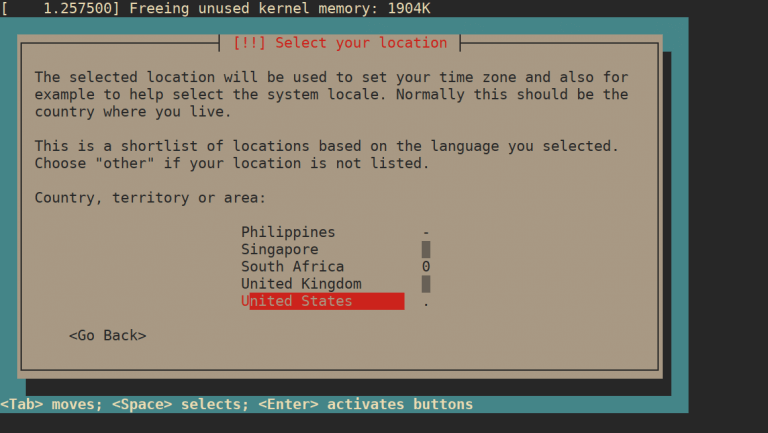
Install Debian from the DVD without picking a network mirror and you end up with exactly one repository, the disc. Every apt update then stops on the cdrom line, and any package that is not on the DVD fails with “Unable to locate package”. Until you point apt at the official Debian repositories, you can’t patch the box or even install htop.
This guide builds a working Debian sources.list from the official repositories (main, updates and security) and explains which components to enable for firmware and non-free tools. It also converts an old one-line file to the deb822 debian.sources format and adds backports for when you need a newer kernel. Every command below was run on a Debian 13 (trixie) VM with apt 3.0.3, and the Debian 12 parts on a Debian 12.15 container, in October 2026.
Fix a DVD-only Debian sources.list
To reproduce the broken state, we left only the DVD line from the installer in /etc/apt/sources.list on a Debian 13 VM and ran an update. apt cannot read a disc that is not mounted and registered. It ignores InRelease, errors on Release and refuses the whole repository, and because that was the only source, the package index stays empty and installs fail too.

If your output matches this, don’t reach for apt-cdrom even though apt suggests it. That command only helps when you want to keep installing from the disc, and a DVD never receives security updates, so you would still be running unpatched packages. Replace the source instead.
Error: “The repository ‘cdrom://…’ does not have a Release file”
apt prints this line for any cdrom repository it cannot read, and it is what most people search for after a DVD install. The full message on our Debian 13 VM was:
Error: The repository 'cdrom://[Debian GNU/Linux 13.4.0 _Trixie_ - Official amd64 DVD Binary-1 with firmware 20260314-11:37] trixie Release' does not have a Release file.You’ll also see E: Unable to locate package htop when you try to install anything. Both messages disappear once the network repositories below are in place and the DVD line is gone, because apt then has a readable Release file for every suite it knows about.
Write debian.sources on Debian 13
Debian 13 reads repositories from deb822 files in /etc/apt/sources.list.d/, and that is the format we’d use on any new trixie install because each repository is a readable block with its signing key named explicitly. Every file in this guide is written with printf piped to tee, because a DVD install often has no full vim and you can’t install an editor until the repositories work.
If sudo isn’t installed (you set a root password during installation), run su - first and drop sudo from each command.
Move the DVD-only file out of the way first, so apt stops trying the disc and you keep a copy you can restore:
sudo mv /etc/apt/sources.list /root/sources.list.dvdThe new file uses HTTPS mirrors, and apt needs the ca-certificates package to verify them. Check that it’s installed before the first update.
dpkg -l ca-certificates | tail -1An ii at the start of the line means it’s installed and you can carry on. Our Debian 12 container showed un (not installed), which broke HTTPS there, as the Debian 12 section shows. We didn’t test a Debian 13 system without it, so if you see un, write http:// in both URIs lines below and follow the same HTTP-first bootstrap. Now write the repository file in one command:
printf "%s\n" "Types: deb" "URIs: https://deb.debian.org/debian" "Suites: trixie trixie-updates" "Components: main contrib non-free non-free-firmware" "Signed-By: /usr/share/keyrings/debian-archive-keyring.gpg" "" "Types: deb" "URIs: https://security.debian.org/debian-security" "Suites: trixie-security" "Components: main contrib non-free non-free-firmware" "Signed-By: /usr/share/keyrings/debian-archive-keyring.gpg" | sudo tee /etc/apt/sources.list.d/debian.sourcestee echoes what it wrote, so you can check the two stanzas on screen. The first covers the main archive plus trixie-updates, and the second covers security updates, which live on a separate host.
Types: deb
URIs: https://deb.debian.org/debian
Suites: trixie trixie-updates
Components: main contrib non-free non-free-firmware
Signed-By: /usr/share/keyrings/debian-archive-keyring.gpg

Types: deb
URIs: https://security.debian.org/debian-security
Suites: trixie-security
Components: main contrib non-free non-free-firmware
Signed-By: /usr/share/keyrings/debian-archive-keyring.gpg
Every Debian install already has the keyring named in Signed-By, from the debian-archive-keyring package, so there is no key to download and apt can verify each index against it straight away. The name debian.sources is a convention, since any file ending in .sources in that directory is read. Refresh the index.
sudo apt updateA healthy result fetches an InRelease file from each suite (trixie, trixie-updates and trixie-security), then the package lists for every component you enabled. Each suite is listed separately, so you can see at a glance whether the security host answered:
Get:1 https://security.debian.org/debian-security trixie-security InRelease [43.4 kB]
Get:2 https://deb.debian.org/debian trixie InRelease [140 kB]
Get:3 https://deb.debian.org/debian trixie-updates InRelease [47.3 kB]
Get:4 https://security.debian.org/debian-security trixie-security/main amd64 Packages [269 kB]
Get:5 https://deb.debian.org/debian trixie/main amd64 Packages [9678 kB]
Get:6 https://security.debian.org/debian-security trixie-security/main Translation-en [166 kB]
Get:7 https://security.debian.org/debian-security trixie-security/contrib amd64 Packages [3152 B]
Get:8 https://security.debian.org/debian-security trixie-security/contrib Translation-en [2564 B]
Get:9 https://security.debian.org/debian-security trixie-security/non-free-firmware amd64 Packages [544 B]
Get:10 https://security.debian.org/debian-security trixie-security/non-free-firmware Translation-en [352 B]
Get:11 https://deb.debian.org/debian trixie/main Translation-en [6486 kB]
Get:12 https://deb.debian.org/debian trixie/contrib amd64 Packages [53.9 kB]
Get:13 https://deb.debian.org/debian trixie/contrib Translation-en [49.6 kB]
Get:14 https://deb.debian.org/debian trixie/non-free amd64 Packages [100 kB]
Get:15 https://deb.debian.org/debian trixie/non-free Translation-en [67.1 kB]
Get:16 https://deb.debian.org/debian trixie/non-free-firmware amd64 Packages [6884 B]
Get:17 https://deb.debian.org/debian trixie/non-free-firmware Translation-en [4704 B]
Get:18 https://deb.debian.org/debian trixie-updates/main amd64 Packages [4412 B]
Get:19 https://deb.debian.org/debian trixie-updates/main Translation-en [2496 B]
Fetched 17.1 MB in 2s (11.3 MB/s)
Reading package lists...
Building dependency tree...
Reading state information...
98 packages can be upgraded. Run 'apt list --upgradable' to see them.
Those 98 upgradable packages are the point of the exercise, because they had been waiting behind the DVD entry. If any suite shows Err instead of Get, check the codename spelling in Suites first, because a typo there fails only that block while the rest succeed. A box behind a corporate proxy that times out on every line needs apt’s proxy settings before any of this works; the system-wide proxy guide for Debian covers that. From here, apply the pending upgrades and carry on with the post-install tasks for Debian 13.
Choose the components you need
Components decide which licence classes of software apt can see, and leaving one out produces the same “Unable to locate package” error as a missing repository. We enable all four on desktops and on servers with real hardware, because the firmware and CPU microcode packages sit outside main:
main: free software, the Debian archive propercontrib: free packages that depend on something non-freenon-free: non-free tools such as unrarnon-free-firmware: firmware and microcode blobs
Check where apt finds three packages that live outside main, because a missing component shows up here long before it breaks an install. Each one should show a candidate version and a 500 line naming its component:
apt-cache policy firmware-misc-nonfree unrar intel-microcode | grep -E "^[a-z]|Candidate|500 "On our VM, firmware and microcode came from non-free-firmware and unrar from non-free, with the microcode fix also offered from the security suite. Security fixes for microcode land in trixie-security, so they only reach you if that stanza is present.
firmware-misc-nonfree:
  Candidate: 20250410-2
        500 https://deb.debian.org/debian trixie/non-free-firmware amd64 Packages
unrar:
  Candidate: 1:7.1.8-1
        500 https://deb.debian.org/debian trixie/non-free amd64 Packages
intel-microcode:
  Candidate: 3.20251111.1~deb13u1
        500 https://deb.debian.org/debian trixie/non-free-firmware amd64 Packages
        500 https://security.debian.org/debian-security trixie-security/non-free-firmware amd64 Packages
A Candidate: (none) line means the component that carries the package is missing from Components. A VM or container that never touches firmware can run on main alone, which is how the official debian:12 container image shipped in our test. On bare metal you’ll want non-free-firmware so Wi-Fi, GPU and microcode updates arrive with everything else.
Keep one format, not both
The classic one-line /etc/apt/sources.list still works on Debian 13, and plenty of older guides and in-place upgrades leave you with one. This is the three-line equivalent of the deb822 file above, as we wrote it on the VM:
printf "%s\n" "deb https://deb.debian.org/debian trixie main contrib non-free non-free-firmware" "deb https://deb.debian.org/debian trixie-updates main contrib non-free non-free-firmware" "deb https://security.debian.org/debian-security trixie-security main contrib non-free non-free-firmware" | sudo tee /etc/apt/sources.list >/dev/nullEach line carries the type, mirror, suite and components on one row. That is compact, so it suits a quick fix from a console, but any extra options such as a signing key have to go in square brackets on the same line. Debian 13’s apt has a modernize-sources command that converts such a file to deb822, adds Signed-By where it can work out the key, and keeps the original as a .bak.
Run it only when no debian.sources exists yet, because the converter writes into that same filename. In our test it appended to an existing file instead of replacing it, which leaves duplicates (covered below). If you wrote debian.sources earlier in this guide, move it aside first, as we did:
sudo mv /etc/apt/sources.list.d/debian.sources /root/debian.sources.mine
sudo apt modernize-sources
apt lists the files it will touch and asks before writing anything, so answer y at the prompt.
The following files need modernizing:
  - /etc/apt/sources.list

Modernizing will replace .list files with the new .sources format,
add Signed-By values where they can be determined automatically,
and save the old files into .list.bak files.

This command supports the 'signed-by' and 'trusted' options. If you
have specified other options inside [] brackets, please transfer them
manually to the output files; see sources.list(5) for a mapping.

For a simulation, respond N in the following prompt.
Rewrite 1 sources? [Y/n] y
Modernizing /etc/apt/sources.list...
- Writing /etc/apt/sources.list.d/debian.sources
You end up with one stanza per original line, each tagged Modernized from /etc/apt/sources.list, and the old file saved as /etc/apt/sources.list.bak. Functionally that is the same as the hand-written file earlier, only longer, so keep whichever you prefer and delete the other copy. If you ran an in-place upgrade from Debian 12 to 13 and kept your old sources.list, this is the quickest way to move it to the new format.
Warning: “Target Packages … is configured multiple times”
Duplicates appear whenever two entries describe the same suite and component, and we produced them two ways on the VM. The first was running modernize-sources on a one-line file while the existing debian.sources was still in place. It appended a fifth stanza to that file, and apt-get update warned about the file against itself.
W: Target Packages (main/binary-amd64/Packages) is configured multiple times in /etc/apt/sources.list.d/debian.sources:1 and /etc/apt/sources.list.d/debian.sources:5
W: Target Packages (main/binary-all/Packages) is configured multiple times in /etc/apt/sources.list.d/debian.sources:1 and /etc/apt/sources.list.d/debian.sources:5
W: Target Translations (main/i18n/Translation-en) is configured multiple times in /etc/apt/sources.list.d/debian.sources:1 and /etc/apt/sources.list.d/debian.sources:5
The second was a /etc/apt/sources.list left next to debian.sources, which happens easily if you paste a file from an old guide. Then the warning names both files (configured multiple times in /etc/apt/sources.list:1 and /etc/apt/sources.list.d/debian.sources:1), and apt update prints the same lines with a Warning: prefix, one per component and architecture. Nothing breaks, but the noise hides real errors. Count the stanzas first, because the number tells you which case you have.
grep -c ^Types: /etc/apt/sources.list.d/debian.sources
ls /etc/apt/sources.list /etc/apt/sources.list.d/
Fix whichever case matches. Each fix leaves exactly one description of every repository:
- Extra stanza in
debian.sources: delete the appended block, or copy back your saved file - Both
sources.listanddebian.sourcespresent:sudo rm /etc/apt/sources.list - Leftover
/etc/apt/sources.list.bak: safe to delete once the update is clean
We put back the deb822 file we had copied aside before the test and removed the stray sources.list. If you followed this guide, your copy is /root/debian.sources.mine, so sudo cp /root/debian.sources.mine /etc/apt/sources.list.d/debian.sources does the same. With only debian.sources left, apt-get update printed no W:, E: or N: lines at all. If the warning names a file you did not create, it usually came from a tool or an old guide, so check its contents before deleting it.
Add the official repositories on Debian 12
Debian 12 (bookworm) takes the same deb822 file with the codename swapped, and its apt 2.6.1 read it without complaint in our container. Conversion is manual there, because bookworm’s apt has no modernize-sources command and answers E: Invalid operation modernize-sources. The bigger trap is HTTPS: a minimal Debian 12 install without ca-certificates cannot verify the mirrors, so the first update fails as shown below.
Error: “Certificate verification failed: The certificate is NOT trusted”
Our Debian 12 container had no ca-certificates package, so pointing it straight at https:// mirrors failed on every suite:
W: Failed to fetch https://deb.debian.org/debian/dists/bookworm/InRelease  Certificate verification failed: The certificate is NOT trusted. The certificate issuer is unknown.  Could not handshake: Error in the certificate verification. [IP: 146.75.122.132 443]
W: Failed to fetch https://deb.debian.org/debian/dists/bookworm-updates/InRelease  Certificate verification failed: The certificate is NOT trusted. The certificate issuer is unknown.  Could not handshake: Error in the certificate verification. [IP: 146.75.122.132 443]
W: Failed to fetch https://security.debian.org/debian-security/dists/bookworm-security/InRelease  Certificate verification failed: The certificate is NOT trusted. The certificate issuer is unknown.  Could not handshake: Error in the certificate verification. [IP: 151.101.2.132 443]
W: Some index files failed to download. They have been ignored, or old ones used instead.
Fixing it is a chicken-and-egg problem, since the package that fixes it has to come from a mirror apt cannot reach yet. Package integrity does not depend on TLS, because apt checks every index against the Signed-By keyring, so it is safe to bootstrap over plain HTTP. This order worked in our container:
- Write
debian.sourceswithhttp://URIs - Run
apt-get updateand installca-certificates - Switch the URIs to
https://and update again
Write the file on the Debian 12 machine. If the container image or an earlier attempt already left a debian.sources there, this replaces it rather than adding a second file, because two files naming the same suites trigger the duplicate warnings shown earlier. It also drops the Components: main line the official debian:12 image ships with:
printf "%s\n" "Types: deb" "URIs: http://deb.debian.org/debian" "Suites: bookworm bookworm-updates" "Components: main contrib non-free non-free-firmware" "Signed-By: /usr/share/keyrings/debian-archive-keyring.gpg" "" "Types: deb" "URIs: http://security.debian.org/debian-security" "Suites: bookworm-security" "Components: main contrib non-free non-free-firmware" "Signed-By: /usr/share/keyrings/debian-archive-keyring.gpg" | sudo tee /etc/apt/sources.list.d/debian.sourcesWe started the bookworm file on HTTP, and tee echoes it back.
Types: deb
URIs: http://deb.debian.org/debian
Suites: bookworm bookworm-updates
Components: main contrib non-free non-free-firmware
Signed-By: /usr/share/keyrings/debian-archive-keyring.gpg

Types: deb
URIs: http://security.debian.org/debian-security
Suites: bookworm-security
Components: main contrib non-free non-free-firmware
Signed-By: /usr/share/keyrings/debian-archive-keyring.gpg
Update over HTTP, install the CA bundle, then flip every URI to HTTPS in one pass. The sed only changes the URIs lines, because those are the only places http:// appears in the file. Any other repository files you keep under /etc/apt/sources.list.d/ are left alone, so check them separately:
sudo apt-get update
sudo apt-get install -y ca-certificates
sudo sed -i 's#http://#https://#g' /etc/apt/sources.list.d/debian.sources
sudo apt-get update
Over HTTPS, the second update fetched with no certificate warnings (Hit:3 https://deb.debian.org/debian bookworm-updates InRelease), and firmware-misc-nonfree resolved to 20230210-5 from bookworm’s non-free-firmware. If dpkg -l ca-certificates | tail -1 already shows ii on your machine (ours showed un, not installed), skip the HTTP step and write the HTTPS file directly. We ran only the deb822 file on Debian 12. The one-line format from the previous section works the same way with bookworm in place of trixie, but we didn’t run that variant on 12.
Enable backports only when you need them
Backports rebuild newer versions of selected packages for the stable release. You’d add it for one reason, usually a kernel new enough for recent hardware like the Realtek RTL8127 10GbE cards, not to make the whole system newer. Append a third stanza to debian.sources. The leading empty string writes the blank line that separates it from the security block, and tee -a appends instead of overwriting:
printf "%s\n" "" "Types: deb" "URIs: https://deb.debian.org/debian" "Suites: trixie-backports" "Components: main contrib non-free non-free-firmware" "Signed-By: /usr/share/keyrings/debian-archive-keyring.gpg" | sudo tee -a /etc/apt/sources.list.d/debian.sources >/dev/nullIt uses the same keyring as the rest, because backports are signed by the Debian archive key. The official backports instructions put the same stanza in its own /etc/apt/sources.list.d/debian-backports.sources file instead, which makes it easy to switch off later by deleting one file. We appended it, and didn’t test the separate-file layout, but apt reads both the same way.
After sudo apt update, the backports suite gets a priority of 100 against 500 for the main archive, which is why enabling it changes nothing on its own. List every kernel version apt can now see:
apt list -a linux-image-amd64On our VM, the backports kernel was a full major line ahead of stable, while the installed kernel was still behind the security update.

A simulated install shows the low priority at work. A plain install still picks the security kernel, and only -t trixie-backports pulls the newer one:
apt-get -s install -t trixie-backports linux-image-amd64 | grep -E "^Inst" | head -3Without -t the same simulation installs 6.12.113-1 from Debian-Security. With it, apt plans the backports kernel and its linux-base dependency:
Inst linux-base [4.12.1] (4.17~bpo13+1 Debian Backports:stable-backports [all])
Inst linux-base-7.2.6+deb13-amd64 (7.2.6-1~bpo13+1 Debian Backports:stable-backports [amd64])
Inst linux-binary-7.2.6+deb13-amd64 (7.2.6-1~bpo13+1 Debian Backports:stable-backports [amd64])
Because of that opt-in behaviour, we’re comfortable leaving backports enabled on servers, since nothing moves until you name the suite. The trade-off is support: the same instructions describe backports as best-effort, with security notices on their own mailing list (debian-backports-announce) rather than the main one. Pull in only the package that needs it, and subscribe to that list if it’s a kernel.
Compare Debian 13 and Debian 12 sources
Most of what changes between the two releases is the codename, but a few behaviours differ enough to break a copied file. We saw these differences on each.
| Item | Debian 13 (trixie) | Debian 12 (bookworm) |
|---|---|---|
| Suites | trixie, trixie-updates, trixie-security | bookworm, bookworm-updates, bookworm-security |
| Backports suite | trixie-backports | bookworm-backports (not tested) |
| deb822 debian.sources | Works | Works |
| apt modernize-sources | Converts .list to .sources, appends if the file exists | Invalid operation |
| non-free-firmware component | Yes (firmware-misc-nonfree 20250410-2) | Yes (firmware-misc-nonfree 20230210-5) |
| apt version | 3.0.3 | 2.6.1 |
| HTTPS without ca-certificates | Not tested | Fails with certificate verification error |
| Official debian:12 image components | Not tested | main only |
Read the table as a checklist when you copy a sources file between machines. The codename has to match the release you are running, because apt pulls packages from whatever release the Suites line names. A trixie file copied onto a bookworm box would start offering it the next release’s packages. On Debian 12, start from plain HTTP if you aren’t sure the CA bundle is present. For the full field list (Architectures, Enabled, deb-src), the sources.list(5) man page is the reference. If you also run Kali, its repository lines are different again, so use the separate Kali sources.list guide rather than these Debian ones.
If you’re reinstalling anyway, picking a network mirror in the Debian installer avoids the DVD-only state altogether, because the installer then writes the network repositories for you.