Do you really need a monitor, a keyboard and a cart to fix a server that stopped answering SSH? A USB crash cart adapter says no. It sits between your laptop and the dead machine, takes the video output in, and sends keyboard and mouse back out over USB. Your laptop becomes the console, so you get the BIOS, the GRUB menu and the kernel panic on your own screen with no network on the target at all.
What changed is the price and the platform story. For a decade the default pick was the StarTech NOTECONS02, at around $530, for a device that only takes VGA. The Openterface Mini-KVM and the Sipeed NanoKVM-USB now do HDMI for roughly a quarter of that, and both ship open-source Linux clients. This guide compares the three families on video input, Linux client software, keyboard handling and the setup a Linux laptop needs before it can drive one. We checked every listing, datasheet and release page again in October 2026, and we loaded the NanoKVM-USB web app in Chromium on an Ubuntu 26.04 LTS machine the same day.
The verdicts
Each pick links to its full section below. Prices are the Amazon listings we saw on the day of writing, so treat them as bands and check the live price before you buy.
| Award | Pick | Why it wins | Approx. price |
|---|---|---|---|
| Best for Linux laptops | Openterface Mini-KVM | 4K HDMI input, native Qt app with .deb, .rpm and AppImage builds, published udev rules | $129, listed with a future ship date, check on Amazon |
| Best budget, nothing to install | Sipeed NanoKVM-USB | Runs in desktop Chrome through Web Serial, HDMI loop-out | $60 to $70, $70 kit or $60 kit on Amazon |
| Best for VGA-only legacy gear | StarTech NOTECONS02 | Native VGA up to 1920×1200, file transfer and video capture, two-year warranty | $530, check on Amazon |
| Best for field techs who drop things | StarTech NOTECONS02X | Same published specs in a rubber housing | $580, check on Amazon |
If the machines you service have HDMI and your laptop runs Linux, the choice is between the first two. Buy from the StarTech pair only when the target has nothing but a VGA port, or when your procurement team will only buy from a big-name vendor.
How we picked
We did not have these four adapters on the bench, so nothing below is a latency or picture-quality measurement of our own. Every spec comes from the maker: the Openterface product page and its Openterface_QT repository, the Sipeed wiki and NanoKVM-USB repository, and the StarTech datasheet PDFs. Amazon prices and stock came from the Amazon product API, and the review counts came from the live US listings. Where an independent review measured something, we cite it by name.
What we could test was the Linux client side, because that is where these products differ most. We checked the current release pages for both open-source apps and read their install docs line by line. We also confirmed which USB IDs the Openterface udev rule targets, and opened the NanoKVM-USB web app in Chromium on Ubuntu 26.04 LTS to see what a Linux browser exposes to it. The ranking weighs four things: video input (HDMI or VGA), how the Linux laptop runs the client, keyboard and text handling in the BIOS, and price.
At a glance
Only the specs that change the decision made it into this table. Capture is what reaches your laptop over USB, and it is often lower than what the device accepts on its input.
| Adapter | Target video | Capture to laptop | Link | Linux client | Approx. price |
|---|---|---|---|---|---|
| Openterface Mini-KVM | HDMI up to 4K30 (VGA via add-on cable) | 1080p30, under 140ms | USB-C | Native Qt app (.deb, .rpm, AppImage) | $129 |
| Sipeed NanoKVM-USB | HDMI up to 4K30, 4K30 loop-out | 1080p (README) or 2K30 (wiki) | USB 3.0 | Chrome web app or Electron desktop app | $60 to $70 |
| StarTech NOTECONS02 | VGA only | Up to 1920×1200 at 60Hz | USB 2.0 mini-B | StarTech client, Linux listed, no Linux install steps | $530 |
| StarTech NOTECONS02X | VGA only | Up to 1920×1200 at 60Hz | USB 2.0 mini-B | Same as NOTECONS02 | $580 |
Read the second and third columns together. A 4K input on the Openterface and the NanoKVM-USB means the device will accept a 4K signal from a modern GPU without blanking, but your laptop still receives a scaled stream. For a BIOS screen or a text console that is plenty. It is also far better than a VGA adapter that cannot see an HDMI-only mini PC at all.
1. Openterface Mini-KVM
For a Linux laptop, we would pack the Mini-KVM. It is the only adapter here whose Linux client is a native app with distro packages and documented permissions.

Openterface rates the input at up to 3840×2160 at 30Hz over HDMI, with a 1080p at 30Hz stream to the laptop and under 140ms of latency. The body is 61 x 53 x 13.5 mm and about 48 g, powered from the USB-C port on the laptop, and the target needs no software. VGA targets work only through the Openterface VGA-to-HDMI add-on cable, so budget for it if your rack still has old Supermicro boards. A comparison table on the Sipeed wiki lists the Mini-KVM at 1080p60, but we use the 1080p30 figure from the maker.
Two hardware features matter in a real recovery. With the switchable USB 2.0 Type-A port, you plug a USB stick in, copy an ISO to it from the laptop, then flip it to the target and boot the installer. Text transfer sends ASCII strings as simulated keystrokes, which is how you get a 40-character LUKS passphrase into a machine that has no clipboard. Because it is keystroke typing, it is ASCII only and follows the keyboard layout the target expects.
On Linux the client is Openterface_QT, licensed AGPL-3.0. Release 0.5.32 (21 October 2026) ships amd64 and arm64 builds as .deb, .rpm and AppImage, which covers Ubuntu, Debian, Fedora, openSUSE and Arch on the laptop side. The prebuilt binaries need glibc 2.32 or newer, so Ubuntu 20.04 is out. Its udev rule targets USB IDs 534d:2109 and 1a86:7523. The usbutils ID database on our Ubuntu 26.04 machine names those as MacroSilicon and a QinHeng CH340 serial converter, which points to the design: a USB video grabber for the picture and a USB serial chip for the keyboard and mouse.
- For Linux laptops that service HDMI mini PCs, NAS boxes and SBCs
- Not for 60fps capture or laptops below glibc 2.32
- About $129 on Amazon, with a future availability date shown
Openterface also sells the newer KVM-GO, a keychain-sized unit (18 x 18 x 55 mm, 25 g) with 4K60 input, a 1080p60 default stream and a microSD slot. The HDMI version lists at about $119 on Amazon, but it had only a handful of reviews and the same future availability date. Openterface lists it as supported by the same host app. Check its docs for any different USB IDs before you copy the Mini-KVM udev rule below.
2. Sipeed NanoKVM-USB
For the least money, the NanoKVM-USB is the way into a USB KVM console. On a borrowed laptop it needs nothing installed beyond Chrome.

Sipeed specifies HDMI input and HDMI loop-out at up to 4K30, a USB 3.0 link, a switchable USB-A port, clipboard support and a 57 x 25 x 23 mm aluminium body. On capture, Sipeed contradicts itself. The GitHub README lists USB capture at 1080p60 for the standard unit and 4K60 for a Pro version. The wiki parameter table lists the standard unit at 2K30 and adds a separate “NanoKVM-USB 4K” model. Sipeed claims 50 to 100ms of latency, while the StorageReview review lists 100 to 150ms of video delay with MJPEG encoding. That review also completed a full Ubuntu Desktop install through the device from a USB drive.
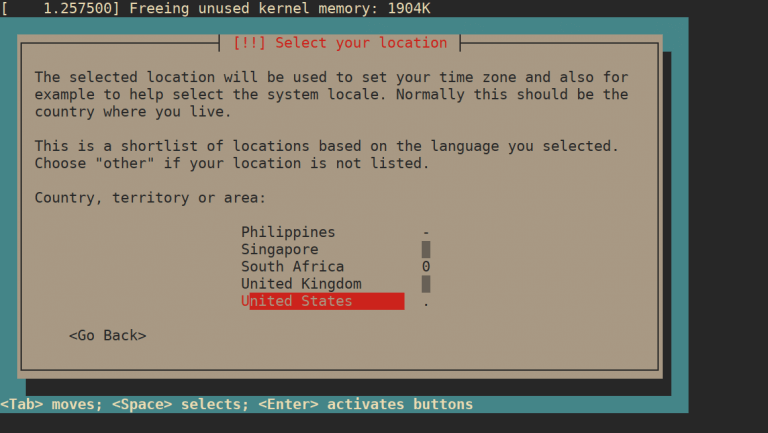
You get the client in two forms. The browser version at usbkvm.sipeed.com uses the Web Serial API for keyboard and mouse plus camera permission for the video, and Sipeed says to use desktop Chrome. When we opened it in headless Chromium 148 on Ubuntu 26.04, navigator.serial was present and the page went straight to its device picker:

Those two controls map to the two halves of the device. The video dropdown lists the UVC capture devices the browser can see, and “Select serial device” opens the Chrome port chooser for the HID side. On Linux that chooser only works if your user can open the serial device, which is the dialout step in the Linux laptop section below. The desktop app (v1.1.4, February 2026) ships as Linux .deb, .rpm and AppImage builds for x86_64 and arm64. Sipeed also offers the browser bundle for self-hosting, which helps on air-gapped sites.
- For homelabbers who want a pocket KVM under $70
- Not for Firefox users or anyone who needs a clear variant label
- About $60 to $70 for the Amazon kits, from $39.90 direct
A reseller (WayPonDEV) sells the Amazon listings, not Sipeed, and their truncated titles do not say whether the kit is the standard or the 4K60 version. The $59.99 and $69.99 prices sit closer to the Sipeed Pro pricing than to its standard pricing, so read the spec bullets on the listing before you order.
3. StarTech NOTECONS02
Most people who search for “usb crash cart adapter software” mean this device. It is still the right tool for one job: VGA-only servers.

According to the NOTECONS02 datasheet, it takes VGA input up to 1920×1200 at 60Hz through integrated 41.6 cm VGA and USB-A cables to the server. It connects to the laptop over USB 2.0 mini-B, draws power from the server-side USB and weighs 170 g. The client software adds file transfer to the server, video recording and screenshots, and no software runs on the server. Government and enterprise shops often buy it because it is TAA compliant and carries a two-year warranty.
On Linux it is weaker than the icon grid suggests. The datasheet does show Linux next to Windows and macOS. Its special notes, though, say that with a Linux target the adapter only works with US English QWERTY keyboards, and that the mouse may be limited or non-functional in some BIOS and UEFI setups. The StarTech quick start guide walks through the client install for Windows and macOS only, and we found no Linux install procedure. Since the client is a download from StarTech rather than a kernel driver, test it on your own laptop before you depend on it in a data center.
- For Windows or macOS laptops on VGA-only servers, kiosks and ATMs
- Not for HDMI-only targets or Linux laptops
- About $530 on Amazon, in stock, 231 reviews
StarTech also sells NOTECONS02 bundles with HDMI-to-VGA or DisplayPort-to-VGA converters, at around $540 to $550. These still capture VGA, so the picture goes through an extra conversion step. You also pay four times the price of an HDMI-native adapter.
4. StarTech NOTECONS02X
On paper the NOTECONS02X is a NOTECONS02 in a rubber shell, since every published spec except weight matches. The only reason to pay extra is that your adapter lives in a tool bag.

Video, ports and software match the NOTECONS02: VGA up to 1920×1200 at 60Hz, USB 2.0 to the laptop and the same client. The housing adds weight (244 g against 170 g) and protection against drops and cable strain. Its quick start guide lists Windows XP to 11, Windows Server 2008 R2 to 2022 and macOS 10.9 to 15 as client systems. It also lists Linux 2.6 and up on LTS versions with glibc 2.18 or newer, but again documents only the Windows and macOS install.
- For field engineers who carry one adapter between sites
- Not for a single server room, where the plain NOTECONS02 does the job
- About $580 on Amazon, low stock
At about $580 this is the most expensive pick in the guide by a wide margin. For that money you could buy an Openterface Mini-KVM, its VGA add-on cable and a NanoKVM-USB as a spare, and still have change.
Prepare the Linux laptop and crash cart software
People skip this step, and it bites at 2 a.m. A USB crash cart adapter shows up on Linux as a video capture device plus a serial or HID device, and a normal user often cannot open the serial side. Do this setup at your desk, before the day you need the adapter.
Start by checking glibc, because the Openterface packages refuse to run below 2.32. The last command counts whether your user is already in dialout:
grep PRETTY /etc/os-release; ldd --version | head -1; id -nG | grep -cw dialoutOn our Ubuntu 26.04 LTS machine glibc is far above the floor, but the last line is the real finding. A count of 0 means the user is not in dialout, so neither app could open the serial port yet:
PRETTY_NAME="Ubuntu 26.04 LTS"
ldd (Ubuntu GLIBC 2.43-2ubuntu2.4) 2.43
0
For the Openterface Mini-KVM, the Openterface_QT README installs a udev rule that tags both USB devices for the logged-in user. It then adds the user to the dialout and video groups. These commands come from the install section of the project README; on Arch, use uucp instead of dialout:
sudo usermod -a -G dialout,video $USER
echo 'SUBSYSTEM=="usb", ATTRS{idVendor}=="534d", ATTRS{idProduct}=="2109", TAG+="uaccess"
SUBSYSTEM=="hidraw", ATTRS{idVendor}=="534d", ATTRS{idProduct}=="2109", TAG+="uaccess"
SUBSYSTEM=="ttyUSB", ATTRS{idVendor}=="1a86", ATTRS{idProduct}=="7523", TAG+="uaccess"
SUBSYSTEM=="usb", ATTRS{idVendor}=="1a86", ATTRS{idProduct}=="7523", TAG+="uaccess"' | sudo tee /etc/udev/rules.d/51-openterface.rules
sudo udevadm control --reload-rules
sudo udevadm trigger
One line in that rule matches nothing on current kernels: USB serial ports belong to the tty subsystem, not ttyUSB, so serial access really comes from the dialout group. The project’s install-release.sh script writes the same lines plus SUBSYSTEM=="tty" entries and two more QinHeng IDs, so read it and copy those lines if your adapter reports a different ID in lsusb.
Next, download the package for your distro from the Openterface_QT releases page. On Ubuntu and Debian, installing the .deb through apt pulls in its system library dependencies, then openterfaceQT starts the app (use the .rpm with dnf on Fedora):
sudo apt install ./openterfaceQT_Linux_amd64.deb
openterfaceQT
We prefer this manual route over piping the install script to bash, because you can see exactly what lands in /etc/udev/rules.d before anything runs as root.
For the NanoKVM-USB, Sipeed documents the serial group under its desktop app, and the browser app opens the same serial device, so it needs the same access. On Arch, the group is uucp instead:
sudo usermod -a -G dialout $USERGroup changes only apply to new login sessions. Log out and back in, then run id -nG again and confirm that dialout is listed. If you skip the re-login, the video may appear while the keyboard and mouse do nothing, which looks exactly like a broken adapter. On Ubuntu desktops the brltty braille daemon can also grab the CH340 serial chip, and the Openterface install script suggests removing the brltty package if the mouse and keyboard still do not work.
What to look for in a USB crash cart adapter
Most bad purchases in this category come from matching the wrong port or the wrong client model, not from picture quality. Check these before you order:
- Target video port: HDMI, VGA or DisplayPort
- Capture resolution to the laptop, not only input resolution
- Client model: native app, browser app or vendor download
- Keyboard layout and text paste support
- A switchable USB port for installer media
- USB 2.0 or USB 3.0 link
Your video port decides the shortlist on its own. Mini PCs, NUCs and most homelab boards are HDMI or DisplayPort only, which rules out the NOTECONS line unless you add a converter. Many 2010-era 1U servers are VGA only, which rules out the HDMI adapters unless you add the Openterface cable. Count the ports on the machines you actually service, not the ones you plan to buy.
On Linux, the client model matters more than anywhere else. A native app with distro packages, like Openterface_QT, survives a locked-down laptop with no Chrome. A browser app, like the NanoKVM-USB web client, needs nothing installed but ties you to Chromium-based browsers and their Web Serial support. A vendor download that only documents Windows and macOS, like the StarTech client, is a risk you should test before it becomes your only way into a server.
Keyboard handling is the last trap. A BIOS password prompt or a LUKS unlock screen has no clipboard, so text paste through simulated keystrokes saves real time. Those keystrokes follow the layout the target expects, which is why StarTech warns about non-US layouts on Linux targets. If you work on German or French keyboards, test a password with special characters before you trust any of these adapters with it. For machines you need to reach from another building, a network device from our IP-KVM roundup fits better than any USB crash cart.
Common misconceptions about USB crash carts
A few assumptions send people to the wrong product, and each one is cheaper to clear up before you buy than after.
“Any HDMI capture card can do this”
A plain capture card only brings the picture in. It sends nothing back, so you can watch a machine boot but cannot press F2 or type at a login prompt. A USB crash cart adapter adds the HID half, which on the Openterface is the CH340 serial device named in its udev rule. If you already own a capture dongle, you still need a way to type into the target.
“A crash cart adapter replaces an IP-KVM”
No, because it needs you standing next to the machine with a laptop. A server room visit or a first rackmount server on the bench suits it well, but it will not save a box in another city. For that, read our guide to recovering a headless server with an IP-KVM. Many homelabbers end up owning one of each: a network unit on the machine that matters most and a USB adapter in the bag for everything else.
“It is just a KVM switch”
A desk KVM switch shares one keyboard, mouse and monitor between computers you own, and it needs those physical peripherals. A crash cart adapter has no monitor of its own and uses your laptop as the console. If you want to share a desk setup between a workstation and a lab box, our KVM switch picks for Linux are the better fit. If you are setting up a new hypervisor through one of these adapters, the next stop is our list of things to do after installing Proxmox VE.