



Anthropic shipped a lot into the Claude app over the last 2-3 months, and some of the useful ones sit in a settings page or behind a three-dot menu you’d only find by accident. During episode 34 of One Shot Show, Dheeraj Sharma walked us through and revealed all of them.

I also asked about some features that confused me and added what I’ve seen after moving my own Claude Code work into the desktop app.
Anthropic also announced Claude Duet on October 21, but it’s still a waitlist-only preview for Pro and Max subscribers in the US, so we stayed with what you can use today.
Here’s what we covered, grouped by where you’ll find it, with what each update does, how to use it, and where we hit one, the catch.
Chat and Cowork Are Now One Box

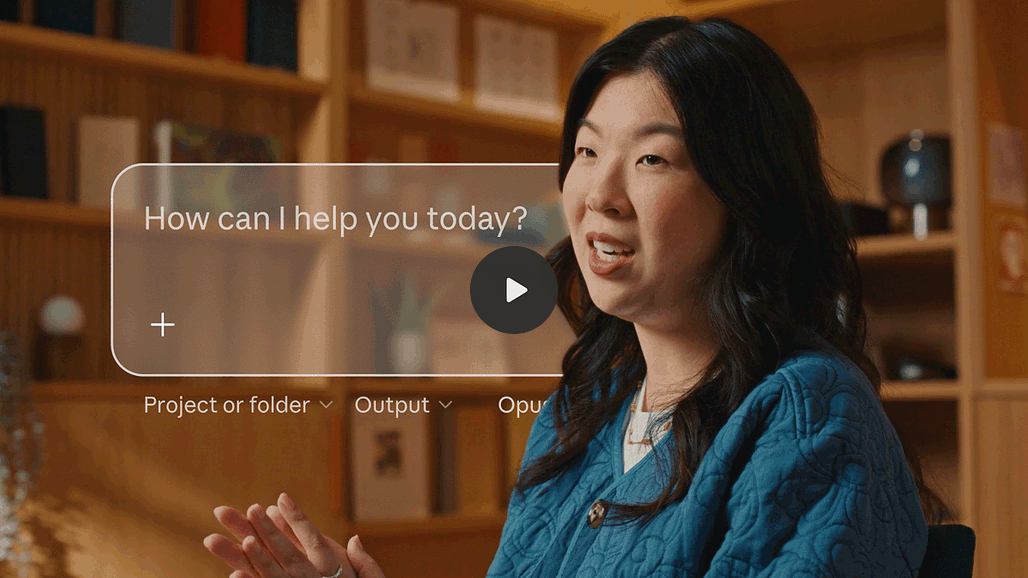
The first thing you’ll notice is that Cowork is gone as a separate option. Anthropic merged chat and Cowork into one Claude on September 16. You type into one box, and Claude decides whether your request needs a quick answer or a longer task with files, research, or a deck.
I predicted this one.
Having chat, Cowork, and Claude Code as three separate choices was hard to explain to people, and it was never obvious which one a task belonged in. Now the app has two: chat and Claude Code.
Anthropic’s help article says there’s nothing you need to turn on. The rollout is staged, so if you still see separate Chat and Cowork options, your account hasn’t moved yet. Once it moves, your old Cowork tasks show up in Recents alongside your chats, and you can’t switch back.
Set Opus 5.5 and Auto, Then Write a Goal Instead of a Long Prompt
A good default setup when using Claude is Opus 5.5 on medium effort, with permission mode set to Auto instead of Manual. I use Opus 5.5 on high effort in most cases. If you are on Pro, use Sonnet on high to extra-high effort or Opus 5.5 on medium, still with Auto, but you’ll need to be more mindful of your daily and weekly token spend.
I’ve also heard Haiku 5.5 is good, so you might want to try that as well.
The bigger change is the prompt. With current models, you usually don’t need a long system instruction. A short brief with four parts works well:
Goal: what you want made.
Context: who it’s for and anything Claude can’t find on its own. Often this is already in your files or projects, so you can skip it.
What done looks like: your success criteria. Dheeraj’s point is that Opus 5.5 uses this to know when to stop working.
Ask first: something like “Before you start, explain the task back to me in your own words and ask me questions using the ask user question tool.”
I can’t stop encouraging people to let AI interview you whenever you ask it to do something. The result can be 10x better if you take more time to figure out what you actually want to ask, as opposed to executing a vague prompt.
In the episode, a brief like this produced a 30-second promo video for a portfolio, with nothing attached and no instructions on how to make a video. Claude read the saved memory and brand guidelines, researched the portfolio, wrote a storyboard, created sound effects, proposed a concept for approval, and rendered the video with the source links it found. Not long ago, typing this into a chat box would have gotten you instructions for doing it yourself—but now Claude can execute and build it instantly.
If you haven’t saved memory or brand guidelines, put that information in the Context line.
Tasks That Don’t Need Your Files Can Finish in the Cloud
Tasks that don’t need files on your computer can now keep running in the cloud after you close your laptop. Scheduled tasks work the same way: if they don’t touch local files, they run with your computer off. You can start a task on desktop and steer it from the phone app.

The setting that allows this is "Run in the cloud," under Settings, then Capabilities.
Claude Code sessions that work on your own files are a different story, and we’ll get to that further down the line.
Claude Design Now Lives Inside Artifacts
The Design tab is still in the app, but the standalone Claude Design experience is on its way out. That’s why I couldn’t find it: it’s now behind the three-dot menu next to Design, under “Open standalone Claude Design.”
Anthropic’s October 8 announcement says the standalone site at claude.ai/design stays open until December 14. If you built design systems there, you can move them from the Artifacts page with “Migrate team design systems.” Chats and comments on standalone projects won’t carry over, and public links to those projects stop working when it closes.

The templates in the old view (mobile app, slides, document, wireframe, animation) are now just prompts. You describe what you want in the chat, and Claude picks the format.
Dheeraj showed this by building the slide deck. He picked a saved GenAI Unplugged design system, set approvals to automatic, and pasted a brief with the same goal, context, and what “done” actually means. Claude started building the deck on the right side of the screen.
I see that same layout across agents now, and ChatGPT works this way too. The output appears next to the conversation, you see right away whether you like it, and you prompt again until it’s right. The feedback loop is a lot shorter than generating a file, opening it, and coming back to explain what’s wrong.
It also makes AI less of a single-player game. Until now I’d talk to AI, get an output, and then share it with my team. With a shared artifact, the team sees the result, leaves comments, and can make changes themselves.
Build Your Design System From Websites and Brand Guideline You Already Have
A design system is what makes any AI outputs on-brand. It holds the colors, styles, and brand rules every piece you create should follow, and behind the scenes it becomes files like a design.md. It’s worth setting up before you start making decks or pages.
You don’t have to write one from scratch. Point Claude at the folder holding websites, product pages, and an existing design file, and asked it to figure out the design system. Claude noticed the published website and product pages and suggested extracting the design system from them. After a yes, Claude built the whole thing as an artifact.
I wrote “How to Build Your design.md File as Your Design System’s Source of Truth” if you want to explore more.

Make Artifacts Your Default Instead of PDFs
I’m not sure many people truly understand how to fully maximize Artifact’s real use cases. You can even generate a PDF from an Artifact.
So the workaround is: whenever you want to create a PDF, create the Artifact version first.
We spoke in more detail about Artifact in our previous session:

Here’s what you get with an artifact that a file doesn’t give you:
Sharing controls. Share with only you, with everyone, or through a private link.
Comments anywhere. People click the comment icon and select the exact part they mean. Claude helps with the selection, so you can pick a whole section, one card, or one grid.
Comments that go to Claude. Dheeraj typed or dictated a comment, sent it to Claude, and Claude fixed that spot.
Versions. You can see what changed between revisions without comparing two full files side by side.
In most cases, we ask AI to generate and edit PDFs through chat. Instead of doing that, you can first build the artifact and then edit it using the comment feature, which is often more precise than trying to describe every change in words.

Once you are satisfied with the result, you can export it as HTML, a Markdown file, or a PDF.

Separately, if you build slides inside Claude, you can export them into many more formats: PDF, PowerPoint, PNG, Canva, Gamma, Miro, etc.
Claude Code Desktop Can Now Edit Your Files
The desktop app first added a file viewer, and now you can edit files too.
Open the files pane, pick a file, switch on source view, and edit it directly. That removes one of the main reasons to keep a separate editor (e.g., VS Code) open next to Claude Code.
But there are two limits you need to know:
You can’t directly edit files inside the .claude folder. You can still add comments, and Claude makes the edit for you. This keeps people from accidentally corrupting that folder.
You have to switch to source view before editing. I asked why, since ChatGPT lets you edit in place. Dheeraj’s guess was that editing rendered markdown can break formatting, the same way it sometimes does in VS Code’s preview mode, so a toggle is the safer default for now.
Generally, there have been many updates to Claude Code; lately, it’s also getting faster.
We both remember the desktop app lagging, and prompting in the terminal felt much faster. I moved about three months ago and haven’t touched the terminal since. But Dheeraj is an old-school terminal fan since the DOS days, moved over the past month, now runs about 70% of the work in the desktop app.
One comment from a participant asked whether we’d both fully flipped from VS Code. My answer was partially. I’ve left the terminal completely, and I don’t use the VS Code extension or the CLI anymore, but I still open VS Code to browse files and folders because its file viewer is better.
Run Several Claude Code Sessions Side by Side

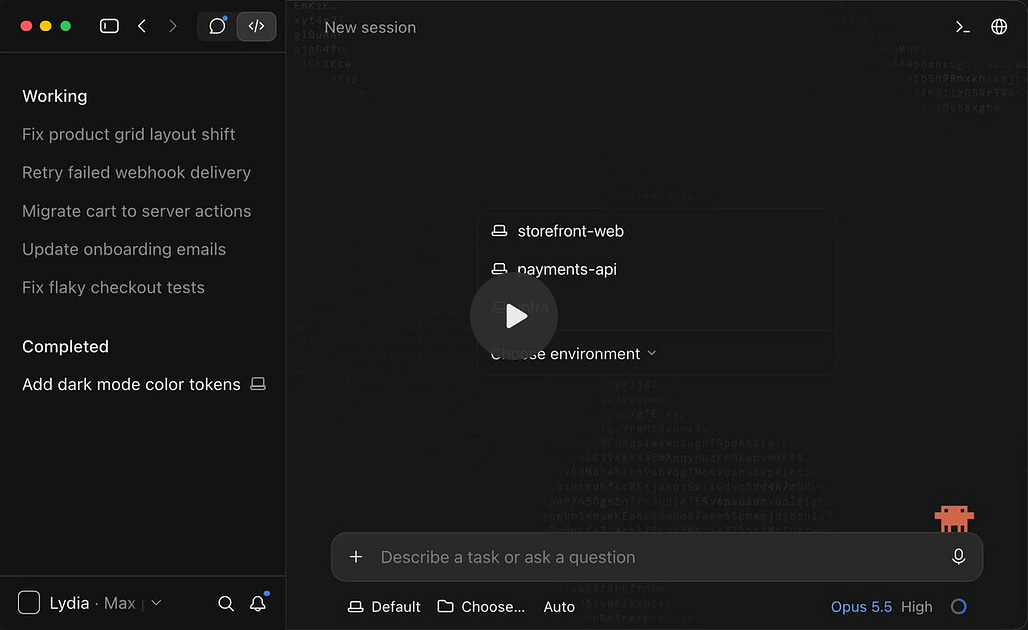
On October 14, Anthropic’s @ClaudeDevs thread announced a set of changes to the Claude Code desktop app built for running lots of sessions at once. Let’s go through each of them:
1. Nested sessions
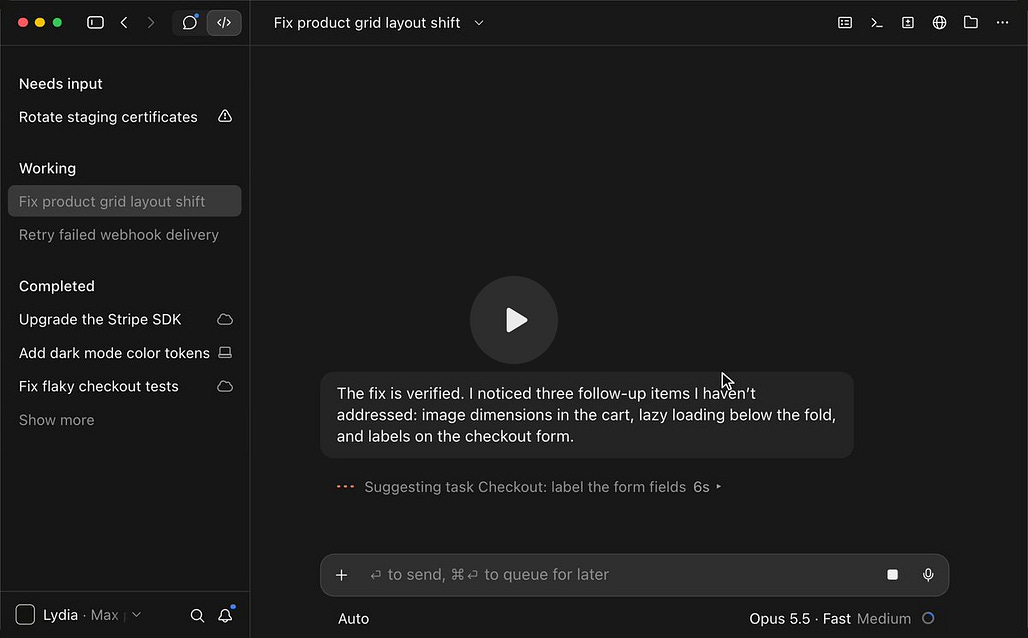
When you ask Claude to run tasks in parallel, it starts a nested session for each task. Each nested session reports its result back into your main session when it finishes, so your main thread stays readable. This used to mean opening several terminals yourself.
Try:
“I’m choosing a project management tool for my team. Compare Asana, Notion, and ClickUp on pricing, integrations, and recent reviews. Research each one in parallel, then give me a side-by-side table.”
2. Suggested follow-ups
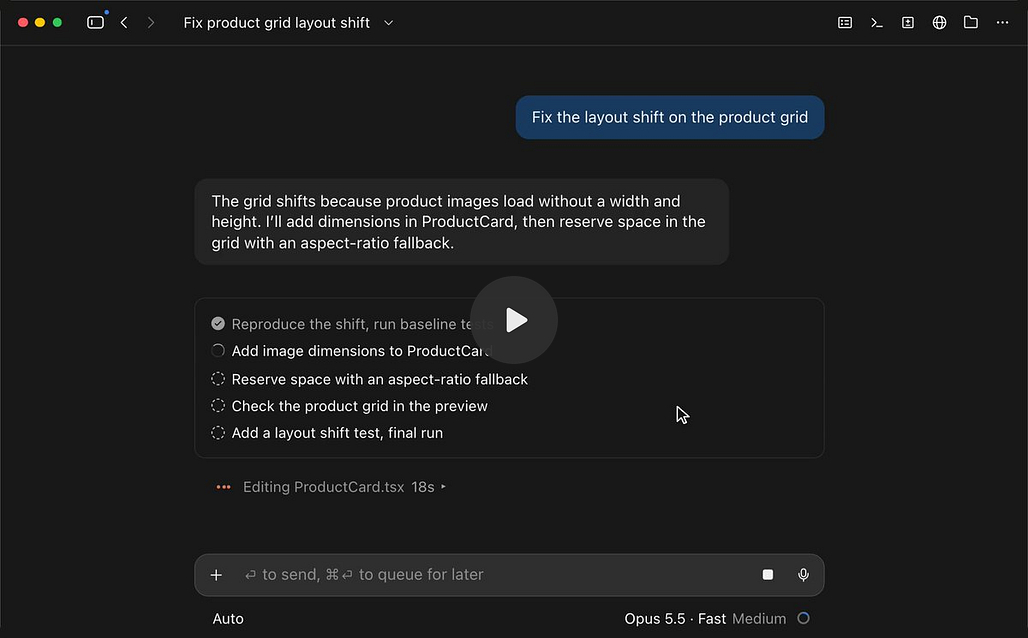
While it works, Claude can suggest follow-up work it noticed, and you can run that suggestion as its own session with one click.
Try:
Ask Claude to sort a messy folder of receipts into monthly expenses, and if it suggests a related job, like flagging subscriptions you forgot about, run that as its own session.
3. A faster new session screen and saved environments
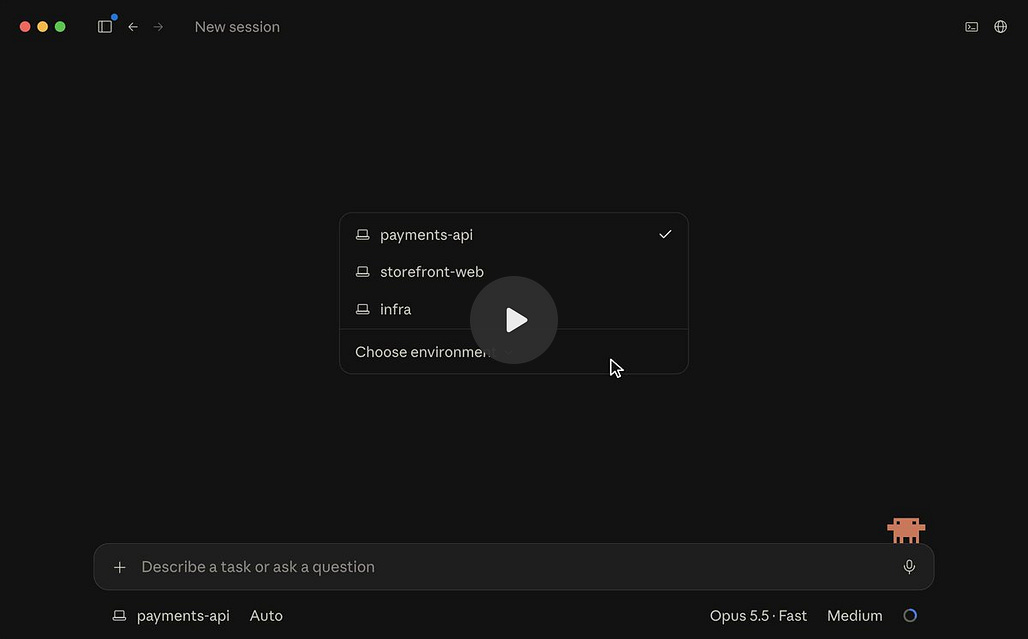
The new session screen keeps your recent folders one click away. You can also save a setup as an environment, such as a few folders, an SSH host, or the cloud, and start sessions there. If you work in git projects, you can also give each folder its own worktree, so parallel sessions each edit their own copy of the files.
Try:
Save a “Client work” environment with your proposals, meeting notes, and invoices folders, so every client session starts with the same files already in reach.
4. Seeing what each session is doing
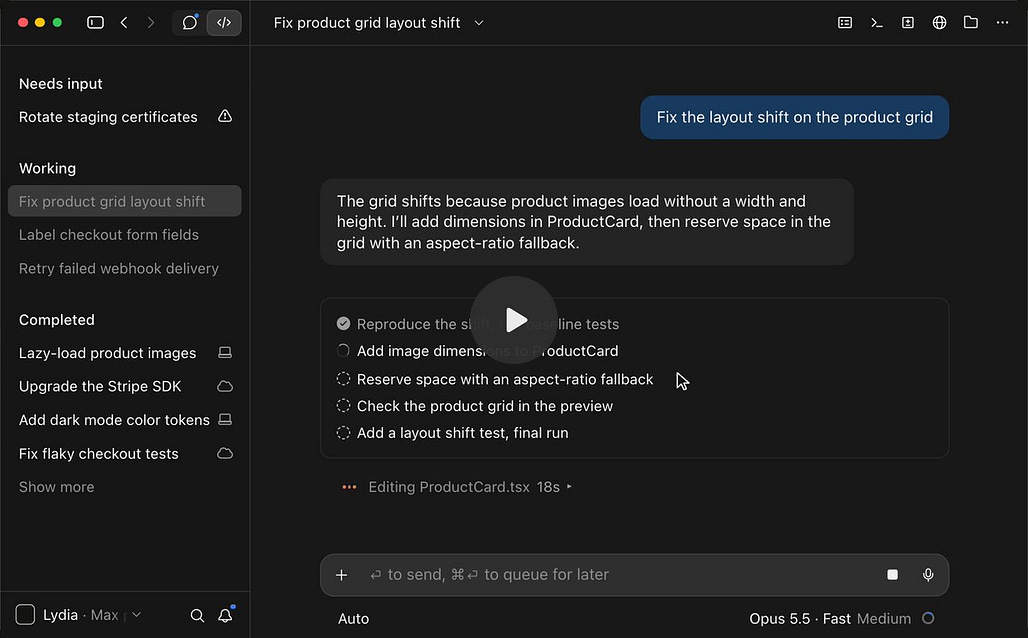
The sidebar shows which sessions are working and which ones need you. Inside a session, a live to-do list follows Claude’s plan as it goes, a recap card sums up the turn when Claude needs you, and a side rail shows where the session runs, its context, and its changes. A session can also open panes for a terminal, changed files, the browser, side chats, and background tasks.
Try:
Start three separate sessions for unrelated jobs, like prepping tomorrow’s meeting, reconciling an expense sheet, and summarizing a long report, then use the sidebar and recap cards to see which one needs you first.
An iOS Simulator and a Browser That Stays Logged In
These last Claude Code desktop updates are smaller.If you don’t build apps, the browser logins here and the Remote Control section after this are the parts most worth your time.
1. iOS simulator
If you’re building an iOS app, you can run it in a simulator inside the app before publishing. You need Xcode installed, and it’s most useful for iOS work.
2. The built-in browser keeps your logins
You can use Claude’s built-in browser to import cookies from another browser like Chrome and keep them. Log in to Substack once inside the built-in browser, and you’ll still be logged in next time. This can be helpful because now Claude can do the stuff you hate most in the browser, like filling out forms.
If you’d rather not keep logins in a browser, my suggestion is to connect 1Password and ask Claude to use your LinkedIn login from there. With 1Password for Claude, you approve each request and 1Password fills the login without sharing the password with Claude.
There are two practical uses we discussed for logged-in browser.
Job applications: most companies have their own application site, so you still log in yourself and upload your resume, and after those two steps Claude can fill in the rest from the context you’ve given it about yourself.
Scheduling social posts on LinkedIn, Instagram, or X without paying for another scheduling subscription.
Run Local Sessions From Your Phone Without Cloud Sessions
Two settings turn your phone into a remote for Claude Code on your own computer.

The first is Keep computer awake while Claude works, under Settings, then Claude Code. You can also turn it on per session from the session menu. You no longer need a separate app to stop the computer from going to sleep while it’s idle.

The second is Remote Control. In the same settings area, you can automatically connect new sessions to Remote Control, let your phone and claude.ai start sessions on this computer, and choose which folders Remote Control can reach.
Put the two together, and Claude Code keeps running on your own machine with your own local files while you steer it from your phone. Keep the machine plugged in and on, with one main folder that holds everything Claude needs to reach, and you can trigger work during a long drive or a walk. (You should still have a life.)
One caveat we didn’t cover live: Anthropic’s scheduled tasks docs say the keep-awake setting prevents idle sleep, but closing the laptop lid still puts it to sleep. If you’re using a laptop, keep the lid open, or on a Mac use closed-display mode with power, an external display, and an external keyboard and mouse.
The alternative is a cloud session. In the menu at the bottom of a new session, where saved environments live, you can pick a cloud environment instead of this computer. A cloud session keeps working with your computer off and can open a pull request for you. It works on a copy in the cloud, so it needs either a copy of your files there or a GitHub repo Claude can access.
Cloud sessions for Claude Code left research preview in September. According to BleepingComputer’s September 25 report, eligible individual Pro subscribers got $100 and Max subscribers got $250 in promotional cloud-session credits, claimable by October 7 and expiring November 4. Once the promotional balance runs out, cloud sessions count against your normal plan limits, with no separate charge for the cloud container.
That’s where my friction is.
Before every cloud session, I have to make sure the project is connected to my GitHub repo and that I’ve pushed my recent changes. For non-technical people, that means creating a GitHub account, connecting it to Claude, and learning to push files, all before the session can start. I’m not sure most people will.
So the rule of thumb from the episode: if you have a machine that can stay plugged in and awake, start with Remote Control plus keep-awake. Save cloud sessions for when you can’t keep a machine on.
Memory You Can Edit, Import, and Export

Under Settings, then Memory, you can now see the full list of what Claude remembers. Click any entry to edit or delete it, search and reference past chats, and generate memory from chats.
You can also import memory from other providers like ChatGPT and export your memory to keep a copy.
Sensitive topics stay out of memory by default. There’s an “include sensitive topics in memory” switch, and it’s off unless you change it.
Where to Start This Week
You don’t need to try all of this at once. Three ways you can start with:
Migrate your design systems before December 14 if you built any in standalone Claude Design, from the Artifacts page.
Rewrite your next big request as goal, context, done, and ask first. It’s the cheapest change on this list.
Turn on keep-awake and Remote Control if you have a machine that can stay plugged in and awake. Try starting one session from your phone before you reach for cloud sessions.
I hope you enjoy this post and find it useful!
Show Details
Show: One Shot Show
Episode: 34
Topic: Claude app and Claude Code desktop updates from the last 2-3 months
Hosts: Wyndo and Dheeraj
Timestamps
00:00 Intro
00:22 The personal agent wave: Grok Bot, Dots, Instinct, Muse, and Claude Duet
01:54 Why Cowork disappeared from the Claude app
02:58 Claude Code projects and main agents that run sub-agents
04:11 Dheeraj’s list of updates from the last two months
05:57 One Claude app and the Capabilities settings
07:36 Default setup: Opus 5.5 medium and Auto permission mode
08:22 The goal, context, done, and ask-first prompt
11:03 Demo: a 30-second portfolio video from one prompt
14:31 Closing the laptop while tasks move to the cloud
15:55 Cloud environments and cloud session credits
17:27 The Design tab and the retiring standalone Claude Design
19:19 Wyndo asks where standalone Claude Design went
22:01 Building cohort slides with a saved design system
23:41 Output on the right side and a shorter feedback loop
24:55 Sharing outputs with a team
25:24 Extracting a design system from existing pages
28:17 Artifacts instead of PDFs, Word docs, and PowerPoints
29:13 Sharing, comments, and sending comments to Claude
30:33 Claude Code desktop app updates
31:33 Giving feedback in the built-in browser
32:16 Wyndo on moving from the terminal to the desktop app
34:02 Viewing and editing files in the app
35:39 Files in the .claude folder can’t be edited directly
36:24 Wyndo asks why editing needs the source toggle
38:06 Nested sessions from a mixed prompt
39:33 Session panes: terminal, files, browser, side chats
40:06 The iOS simulator
40:57 Background tasks and keeping the computer awake
41:45 Remote Control settings and folder access
43:51 Importing 309 CLI sessions
44:54 Environments: local, cloud, SSH, and Remote Control
46:08 Wyndo on the GitHub friction behind cloud sessions
46:53 Dheeraj’s always-on dock setup
48:27 Anthropic’s speed numbers
49:06 The storage command
49:38 Wyndo asks to show browser cookie import
51:06 Wyndo on connecting 1Password
52:08 Environment variables and .env files
53:10 Automating job applications and form filling
54:16 Scheduling social posts from the browser
54:33 Memory controls
55:36 Newer models and Haiku 5.5
56:07 Duet access and Ahad
57:11 Desk asks if we’ve left VS Code
59:40 Dheeraj on moving past terminal habits
1:01:24 Next week: a guest episode on Claude Mods
Resources Mentioned
Claude app (chat and Cowork merged): One box for quick questions and longer tasks, merged September 16, 2026. Pro and Max first, more plans to follow. Former Cowork tasks appear in Recents.
Claude Code desktop app: Where most of this episode happened. Both hosts now mostly run Claude Code here instead of the terminal.
Claude Code CLI and VS Code: Dheeraj used to run Claude Code in VS Code’s integrated terminal. I no longer use the CLI or the Claude Code VS Code extension, but still use VS Code to browse files.
Claude Duet: Anthropic’s proactive agent, announced October 21, 2026. Waitlist-only research preview for Pro and Max subscribers in the US as of launch.
Grok Bot, OpenAI Dots, Meta Muse, and Instinct: Other always-on agents mentioned in the intro. We covered Dots in the previous episode.
ChatGPT and Codex: Mentioned as a comparison for chat, Work, and in-place file editing. I mostly use ChatGPT Work and rarely use Codex.
Claude Code projects: A newer feature I mentioned that not many people have yet. We didn’t demo it.
Agent orchestrators and sub-agents: My point in the intro that more tools let you talk to one main agent that deploys sub-agents for you.
Claude Mods: Likely topic for next week’s guest episode.
Opus 5.5, Sonnet, and Haiku 5.5: Dheeraj’s suggested defaults are Opus 5.5 on medium, or Sonnet on extra high on Pro. Haiku 5.5 was released October 7, 2026.
Auto permission mode and the ask user question tool: Part of Dheeraj’s default setup and prompt, plus plan mode, which Dheeraj compared the ask-first line to.
Memory and brand guidelines: Context Claude read before building the portfolio video.
Claude Design: Now part of Claude conversations and artifacts. The standalone site closes December 14, 2026.
Design systems and design.md: Brand rules Claude follows. Dheeraj’s extracted design system included a tokens JSON file, a manifest, assets, and components.
Artifacts: Hosted outputs with sharing, comments, versions, and exports.
Nested sessions: Parallel threads Claude Code can spawn from a prompt with several tasks.
Session panes: Terminal, changed files, browser, artifacts, side chats, plan, and background tasks.
Claude Code built-in browser: In-app browser with element selection, annotation, screenshots, and cookie import from another browser.
iOS simulator and Xcode: Run an iOS app inside the desktop app. Needs Xcode.
Remote Control and Keep computer awake: Settings that let you steer local sessions from your phone while your machine stays on.
Claude Code cloud sessions: Sessions that run on Anthropic’s infrastructure. Promotional credits for eligible individual subscribers were $100 on Pro and $250 on Max, expiring November 4, 2026.
SSH environments: Another place a desktop session can run.
GitHub: Needed for cloud sessions unless you copy your files to the cloud.
Claude mobile app: Used to steer and start sessions remotely.
Claude memory settings: Edit, delete, import, and export memory. Sensitive topics are off by default.
1Password for Claude: Lets Claude sign in to sites without seeing your password, through the 1Password browser extension and Claude in Chrome. As of October 2026, requires a Mac, 1Password for Mac and its browser extension, a paid Claude plan, and the Claude desktop app.
Chrome: Source browser for cookie import.
Environment variables and .env files: Dheeraj showed where to save an app’s API keys as a .env file, though wasn’t sure how Claude reads it.
Storage command: New command to help free up disk space.
Import CLI sessions: Brings terminal sessions into the desktop app.
Substack MCP: Data source named in Dheeraj’s growth dashboard prompt.
Substack, LinkedIn, Instagram, and X: Sites mentioned for logged-in browser tasks and post scheduling.
Job application sites: Where you log in and upload a resume yourself before Claude fills in the rest.
Finder and Windows Explorer: Dheeraj’s reference for expecting the file tree on the left.
Max plan (20x) and Pro plan: Plans mentioned when discussing models and credits.


