
Yes—but the useful answer depends on what you are starting with. ChatGPT Record is the documented route for a live recording in the macOS desktop app, while Voice Dictation turns one spoken prompt into editable text and ChatGPT Voice is a spoken conversation. An existing MP3 or M4A needs a separate file-transcription route; do not assume that a general chat attachment accepts every audio format.
After the words are captured, GlobalGPT gives you one workspace for turning the transcript into a summary, action list, draft, or follow-up message with different AI models. Use it when you want transcription and follow-up writing in one connected workflow.
Which ChatGPT audio feature do you need?
The right route depends on whether you are speaking a prompt, having a conversation, recording a meeting, or starting with an audio file.
| Your starting point | Best-fit route | What it does | Boundary to remember |
|---|---|---|---|
| You want to speak one prompt | Voice Dictation | Records the audio, returns editable text, and lets you correct it before sending the message. | It is an input workflow, not a saved meeting transcript. |
| You want a spoken back-and-forth | ChatGPT Voice | Lets you talk with ChatGPT and hear a spoken response in the same chat. | OpenAI says Voice transcripts are not verbatim records; Live is designed for turn-taking, not multi-speaker meeting capture. |
| You are starting a meeting on a Mac | ChatGPT Record | Records a session, transcribes while you speak, and opens generated notes. | Record runs in the macOS desktop app for Plus, Pro, Business, Enterprise, and Edu workspaces; each session is capped at 4 hours. Enterprise and Edu workspaces need owner enablement in workspace settings. |
| You already have an MP3, WAV, or M4A | File transcription tool | GlobalGPT’s current Speech to Text panel shows Upload and Record Audio controls and lists mp3, wav, and m4a. | Use the dedicated file route for MP3, WAV or M4A; standard ChatGPT chat attachments follow separate rules. |
| You need text from live audio in an app | OpenAI Realtime API | Use gpt-live-transcribe for audio arriving live. |
The current Realtime guide says this route does not return word timestamps or speaker labels. |
| You need speaker labels in a completed recording | OpenAI file API | Use gpt-4o-transcribe-diarize with diarized_json and segment start/end times. |
This is a completed-file workflow; recordings longer than 30 seconds need a chunking strategy. |
| You need word or segment timestamps, SRT or VTT | OpenAI file API | Use whisper-1 with the timestamp or subtitle output you need. |
API file limits and model choices apply to the API endpoint, not automatically to ChatGPT’s consumer interface. |
For the official definitions, compare Voice Dictation, ChatGPT Voice, and ChatGPT Record separately. For the API rows, use OpenAI’s transcription overview and Realtime transcription guide; for the no-code file route, open the GlobalGPT workspace, then enter Speech to Text.
How to use ChatGPT Record
OpenAI’s current Record guidance lists the feature for the macOS desktop app and Plus, Pro, Business, Enterprise, and Edu workspaces. Check workspace settings as well as the plan: Enterprise and Edu workspaces have Record disabled by default, so a workspace owner must enable it. The steps below follow that documented workflow.
The documented recording flow
- Open a chat in the macOS desktop app and select the Record button at the bottom of the chat.
- On first use, grant the requested microphone and system-audio permissions. If other people are being recorded, get the consent required by the laws that apply to everyone involved.
- Speak naturally while Record transcribes. Use the Stop control to pause or end the current recording; choose Resume to continue the same session.
- When finished, choose Send. OpenAI says this uploads the transcript and opens generated notes, which may appear as a canvas in the chat or as notes attached to the recording.
- Review the notes and transcript before turning them into an email, project plan, code scaffold, or another output. ChatGPT warns that its transcriptions can contain mistakes.
If you cancel with the X control, the documented choices are Upload, Delete, or Cancel. Delete removes the recording; Cancel returns to the recording window so you can resume. Do not treat Stop, Send, Upload, and Delete as interchangeable actions.
Current limit and data boundaries
- Each Record meeting session is currently capped at 4 hours (240 minutes). A session that exceeds the cap stops automatically and generates notes uploaded as a private canvas. OpenAI says limits and pricing can change.
- Record audio is used for transcription and deleted afterward; OpenAI says those audio recordings are not used to train its models.
- The transcript and canvas follow the retention settings for the conversation or workspace. If the conversation is deleted, OpenAI says they are removed within 30 days unless a legal retention exception applies.
- For personal Pro, Plus, or Free users, transcripts and canvases may be used for training when Improve the model for everyone is enabled. Business, Enterprise, and Edu workspace content is excluded from training by default.
- Record can distinguish multiple speakers. When it cannot identify a name, it may use a generic label such as Speaker 1; speakers can be renamed after the recording is created. OpenAI says Record works best in English and that accuracy in other languages can vary.
For the current rules, see OpenAI’s ChatGPT Record guidance.
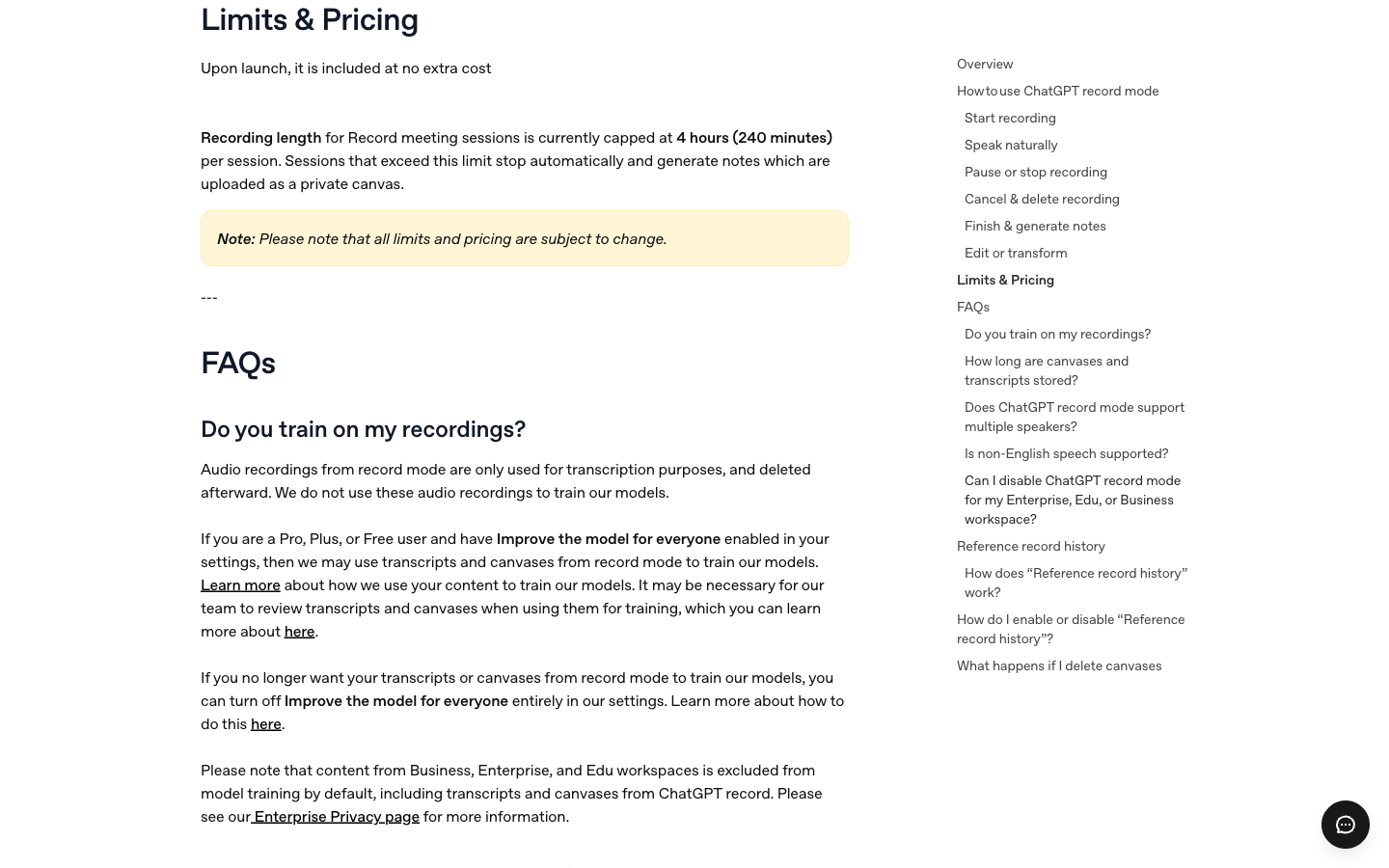
For a long meeting, allow time for breaks and transcript review. Deleting the audio does not mean the transcript and canvas are deleted too.
How to transcribe an existing MP3 or M4A file
When you already have an audio file, use a route that is built for file transcription. GlobalGPT’s current Speech to Text page offers Upload and Record Audio and lists MP3, WAV and M4A input. ChatGPT’s normal chat attachment flow has its own rules, so the dedicated file route is the practical choice when you need to submit an existing recording.

The image above is an earlier interface kept because it shows the practical upload and recording controls. Its old “6 Credits/s” and “15MB” labels are historical and should not be used as today’s price or limit. Open the current page to confirm supported formats, limits and charges before submitting a file.
- Open the GlobalGPT workspace, then open Speech to Text and choose Transcribe.
- Choose Upload for an existing file, or Record Audio when you are creating the recording in the tool.
- Confirm the format and the account cost shown in the current interface before you submit.
- Read the returned transcript, then correct names, numbers and negations before asking for a summary.
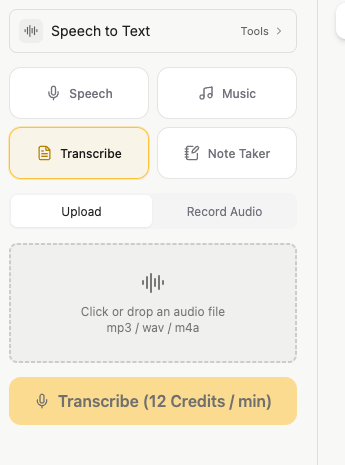
Check the current account cost before submitting the file; this screenshot shows the controls, not the result of a completed transcription test.
If your goal is to turn a recording into a usable deliverable, GlobalGPT’s workspace can sit after the transcription step: clean the text, pull out decisions and action items, then draft the email or document in the same multi-model workspace. Open the Speech to Text tool from that product entry when you are starting with an existing file.
Using the OpenAI API for transcription
If you are building an app or already use an API client, choose a transcription model by the output you need. These are OpenAI API options; ChatGPT Record, dictation, Voice and ordinary chat attachments have separate requirements.
| What you need | Model | How to choose |
|---|---|---|
| A transcript of a completed recording | gpt-transcribe |
OpenAI’s recommended starting model for recorded speech in its original language. |
| Text from audio arriving live | gpt-live-transcribe |
Use a Realtime transcription session. This model does not return word timestamps or speaker labels. |
| Speaker labels for a recording | gpt-4o-transcribe-diarize |
Request diarized_json for speaker labels and segment start/end times. Audio longer than 30 seconds requires chunking_strategy, such as auto. |
| Timestamps or subtitle files | whisper-1 |
Choose word or segment timestamps, or SRT/VTT subtitles, for captioning and editing. |
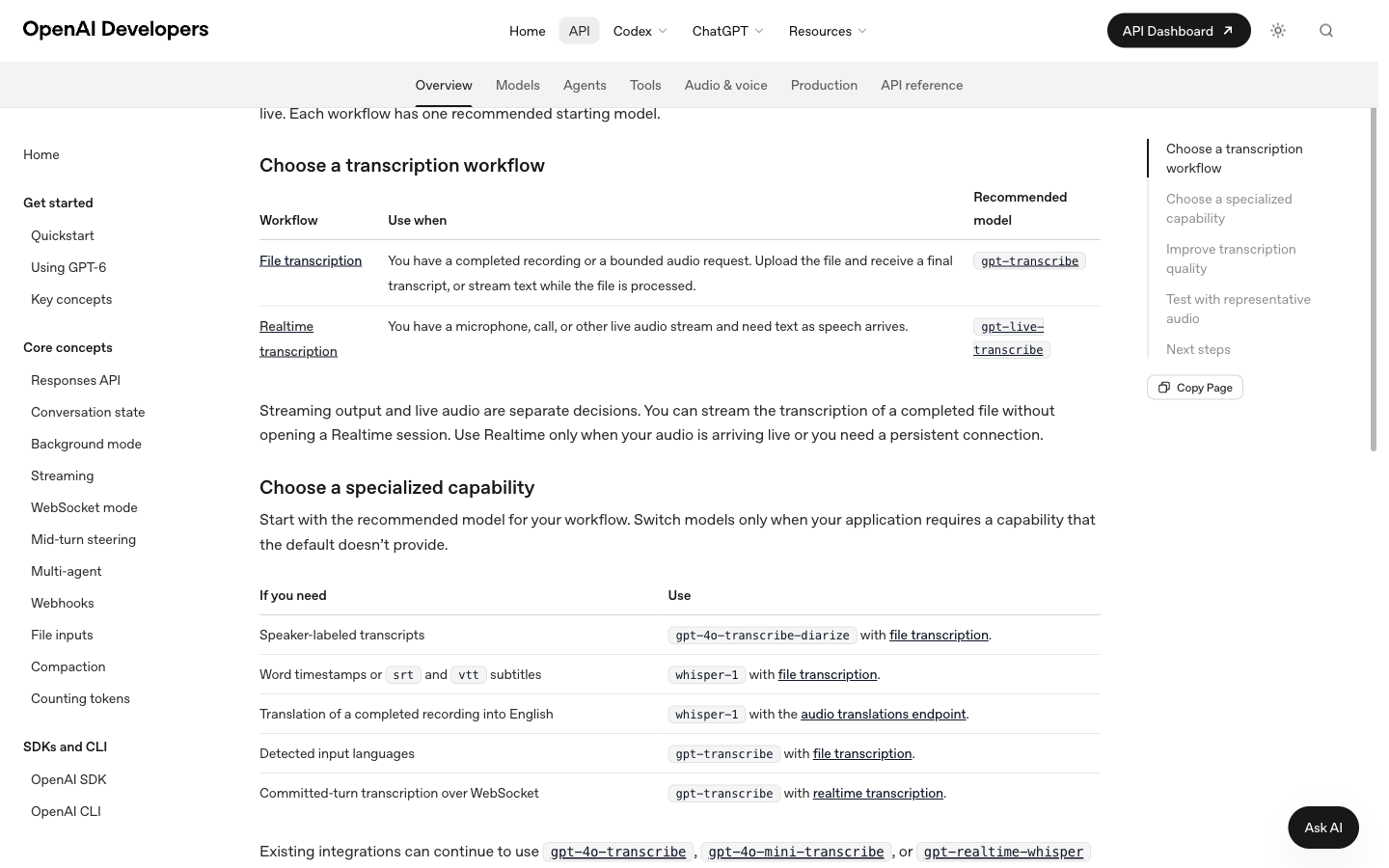
For file transcription, the API accepts uploads up to 25 MB in MP3, MP4, MPEG, MPGA, M4A, WAV or WebM format. Compress larger recordings or split them into smaller files, avoiding cuts in the middle of a sentence. Streaming a completed file’s transcript is different from sending live microphone audio.
The same workflow guide separates a few specialised outputs: use whisper-1 with the audio translations endpoint when the completed recording should become English, use gpt-transcribe when you need detected input languages or committed-turn transcription over WebSocket, and test with representative accents, noise, names, numbers and terminology before moving traffic to production.
Endpoint details: OpenAI’s transcription overview, file transcription guide and Realtime transcription guide.
What to do when transcription is unavailable
When a button or upload fails, identify which layer is unavailable before changing tools. A missing Record button, an unsupported audio format, a permission prompt and an API request error are different problems.
- Record is missing: check that you are in the macOS desktop app and that the workspace is one of the currently listed eligible types. Enterprise and Edu workspaces may need an owner to enable Record.
- The microphone or system audio is silent: review the permission granted to the desktop app and make sure the correct input is selected. Do not diagnose transcription quality from an empty recording.
- Your file is rejected: check the route’s own format, size and account rules. The API’s 25 MB and seven-format rule belongs to the API endpoint; it is not a universal ChatGPT attachment rule.
- The Voice transcript looks wrong: remember that OpenAI does not promise a verbatim Voice transcript. Use a documented recording or file route when exact wording matters.
- The API request fails: separate authentication, format, size, rate-limit and content errors before retrying. Log the request ID and status without placing private audio in a public ticket.
Check the transcript before summarizing it
A fluent summary can still contain a wrong number or an invented owner. Treat the transcript as a draft record, especially when the audio contains names, figures, multiple speakers, background noise or a language that the product says may vary in accuracy.
A quick review pass before you trust the notes
- Check every number, date, product name and person’s name against the audio.
- Search for negations such as not, never and unless; a missed short word can reverse the decision.
- Separate what someone said from what the summary infers. Keep uncertain items in a review list.
- If the recording has several speakers, confirm labels before assigning an action to a person.
Useful follow-up prompt: “Keep the transcript wording for names, numbers and negations. List any unclear phrase instead of guessing, then produce a separate action-item table with the speaker label and supporting quote.”
For a meeting, keep the source transcript next to the summary. For a lecture or interview, mark unclear sections instead of silently “repairing” them. If the next step is a public article or customer message, have a person approve the final wording.
Audio privacy depends on the route
“Audio” is not one retention rule across ChatGPT. Check which feature created the clip, how long the chat is kept, and whether you chose to share audio or other content for model improvement.
| Route | Audio handling | Text or transcript handling | Training boundary |
|---|---|---|---|
| Voice Dictation | Kept while the chat remains in history; deleting the chat deletes the associated clip within 30 days, subject to security, legal, and previously disassociated training exceptions. | The resulting text becomes an editable user message before you send it. | Consumer users may share dictation audio for model improvement; business users are excluded by default. |
| ChatGPT Record | Used for transcription and deleted afterward; OpenAI says the audio is not used to train models. | Transcript and canvas follow the conversation or workspace retention rule; deleting the conversation removes them within 30 days unless a legal exception applies. | For personal Pro, Plus, or Free users, transcript and canvas training depends on Improve the model for everyone; Business, Enterprise, and Edu content is excluded by default. |
| ChatGPT Voice | Standard audio is deleted after transcription unless you opt in to share it. Live audio and Advanced audio/video clips are deleted after 30 days, subject to security, safety, legal, and previously disassociated exceptions. | Voice is a conversation surface, and its transcript is not guaranteed to be a verbatim record. | Audio/video sharing has its own opt-in. Text and transcript training is controlled separately by Improve the model for everyone. |
| OpenAI API | Apply the retention and training terms for the API product and your implementation. | Your application decides where a transcript is stored and who can access it. | Do not copy ChatGPT Record or Voice retention language into an API privacy notice. |
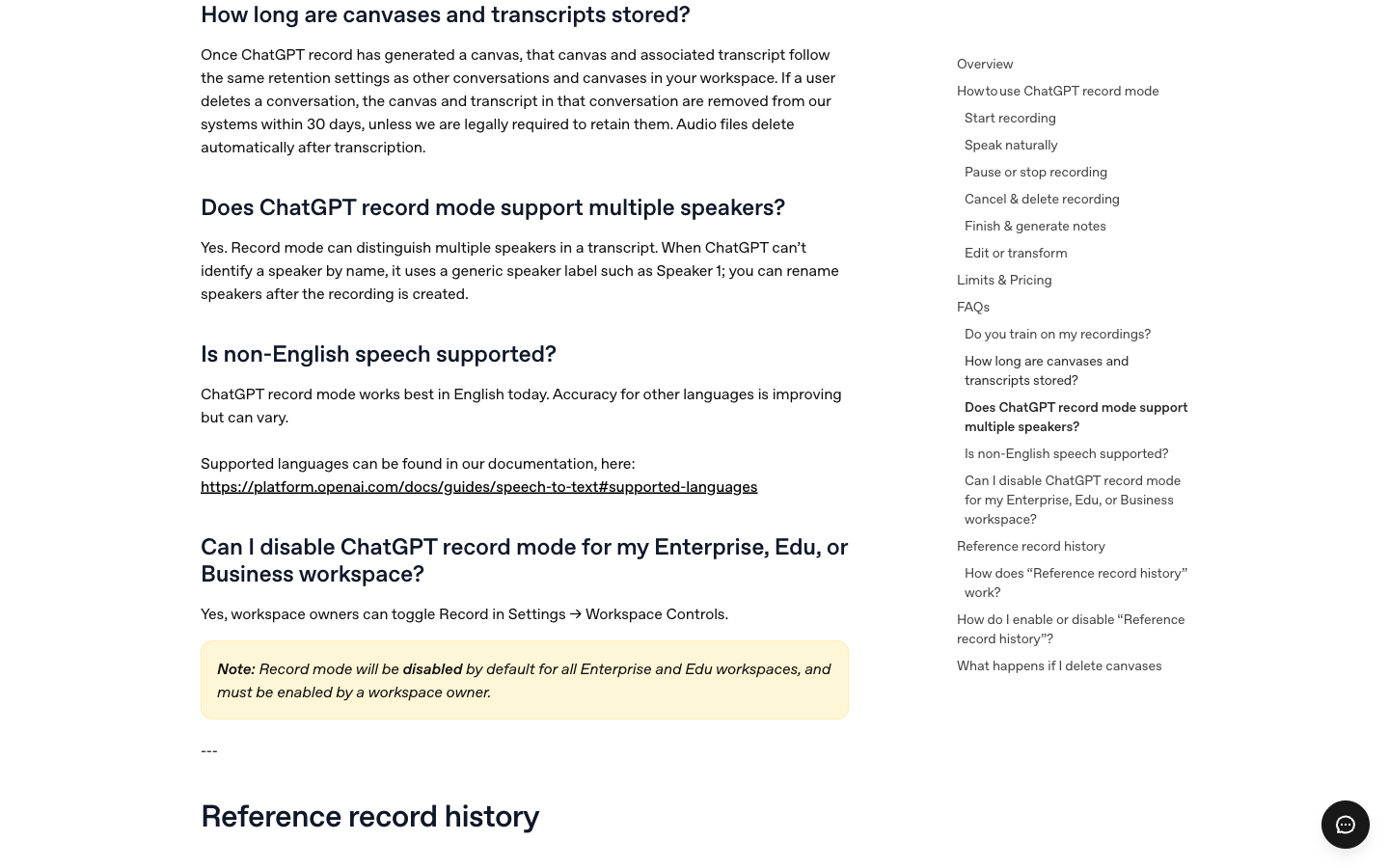
Before recording a sensitive meeting, check the workspace retention settings and obtain the required consent. A generic label such as Speaker 1 is not a verified identity or a guarantee that the transcript is accurate.
If other people are recorded, obtain the consent required by the laws that apply to everyone involved. For current wording, read the Record guidance, the Dictation FAQ, and the ChatGPT Voice guidance before recording a sensitive conversation.
Frequently asked questions
Can ChatGPT transcribe audio?
Yes, but the route matters. OpenAI documents Record for live sessions in the macOS desktop app, Dictation for turning one spoken prompt into editable text, and Voice for a spoken conversation. Those are different from a general promise that every audio attachment works in every chat.
Can ChatGPT transcribe an MP3 or M4A file?
Use a dedicated MP3/M4A transcription tool or the OpenAI file API, then bring the text into ChatGPT for editing or summarizing.
Is ChatGPT Record available on Windows?
The current Record guidance lists the macOS desktop app. If you use Windows or already have an audio file, use a dedicated file-transcription tool or the OpenAI API instead.
Does ChatGPT Record identify speakers?
OpenAI says Record can distinguish multiple speakers and may use generic labels such as Speaker 1 when it cannot identify a name. Rename labels and check the transcript before assigning tasks.
Is a ChatGPT Voice transcript exact?
No. OpenAI explicitly says Voice transcripts are not verbatim records. Voice is designed for a spoken back-and-forth; Live is not positioned as a multi-speaker meeting recorder.
How long can one ChatGPT Record session run?
The current Record guidance lists a four-hour, or 240-minute, cap per meeting session. Limits can change, so check the official page before planning a long event.
The practical answer is simple: choose Record for a documented Mac recording, Dictation for a spoken prompt, Voice for conversation, a dedicated file tool for an existing MP3 or M4A, and the API when you are building the workflow yourself. Then review the text before you let any AI turn it into decisions.