

HTML (HyperText Markup Language) is the standard markup language used to create and structure web pages. It provides the basic structure of a webpage and tells browsers how different types of content should be organized.
HTML can be used to structure content such as:
- Headings and paragraphs
- Links and images
- Lists and tables
- Forms
- Audio and video
HTML Basic Document Structure
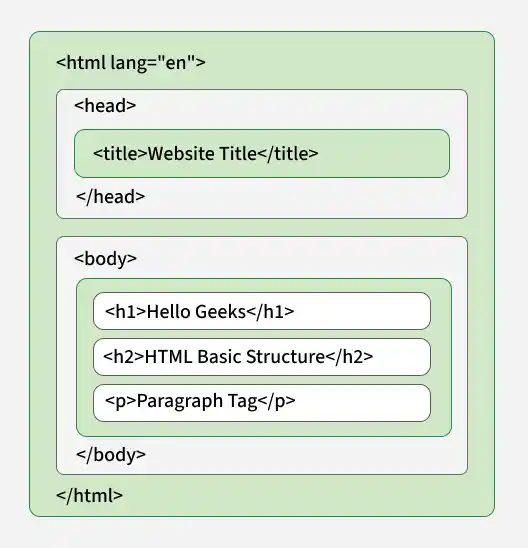
Every HTML document follows a basic structure. A typical HTML page contains the following elements:
- <!DOCTYPE html>: Declares that the document uses HTML5.
- <html>: The root element that contains the entire HTML document.
- <head>: <head> contains metadata and other information about the webpage.
- <title>: <title> defines the title displayed in the browser tab.
- <body>: <body> contains the visible content of the webpage.
<!DOCTYPE html>
<html lang="en">

<head>
    <meta charset="UTF-8">
    <meta name="viewport"
          content="width=device-width, initial-scale=1.0">
    <title>HTML Basics</title>
</head>

<body>
    <h1>Welcome to HTML</h1>
    <p>This is a simple HTML webpage.</p>
</body>

</html>
HTML Headings
HTML heading tags are used to define the hierarchy and structure of content on a webpage. HTML provides six levels of headings, ranging from <h1> to <h6>.
Syntax:
<h1>Heading 1</h1>
<h2>Heading 2</h2>
<h3>Heading 3</h3>
<h4>Heading 4</h4>
<h5>Heading 5</h5>
<h6>Heading 6</h6>
<!DOCTYPE html>
<html lang="en">

<head>
    <title>HTML Headings</title>
</head>

<body>
    <h1>Main Heading</h1>
    <h2>Subheading</h2>
    <h3>Section Heading</h3>
    <h4>Subsection Heading</h4>
    <h5>Smaller Heading</h5>
    <h6>Smallest Heading</h6>
</body>

</html>
HTML Paragraphs and Line Breaks
HTML provides the <p> tag for organizing text into paragraphs and the <br> tag for inserting line breaks within content.
HTML Paragraphs
The <p> tag is used to define a paragraph on a webpage.
Syntax:
<p>This is a paragraph.</p>Example:
<p>HTML is used to structure the content of web pages.</p>

<p>CSS is used to style HTML elements.</p>
HTML Line Breaks
The <br> tag is used to insert a line break within text. It does not require a closing tag.
Syntax:
Line 1<br>
Line 2
Example:
<p>
    HTML stands for HyperText Markup Language.<br>
    It is used to structure web pages.<br>
    CSS is used to style web pages.
</p>
HTML Horizontal Rule
The <hr> tag represents a thematic break between sections of content. Browsers typically display it as a horizontal line.
Syntax:
<hr><h2>About HTML</h2>
<p>
HTML is used to structure the content of web pages.
</p>
<hr>
<h2>About CSS</h2>
<p>
CSS is used to style and design web pages.
</p>
The <hr> element separates two related sections of content. It is an empty element and does not require a closing tag.
HTML Comments
HTML comments are notes written inside the source code that are not displayed in the browser.
Comments are commonly used to:
- Explain code
- Document sections of a webpage
- Organize complex HTML
- Temporarily disable code during testing
Single-Line Comment
<!-- This is a comment -->
Multi-Line Comment
<!--
This is a multi-line comment
that spans multiple lines.
-->
Example:
<!DOCTYPE html>
<html lang="en">

<head>
    <title>HTML Comments</title>
</head>

<body>

    <!-- Main heading -->
    <h1>Welcome to GeeksforGeeks</h1>

    <!-- Introduction paragraph -->
    <p>Learn HTML, CSS, and JavaScript here.</p>

</body>

</html>
HTML Images
The <img> tag is used to embed an image in a webpage.
Unlike elements such as <p> and <h1>, the <img> tag does not have a closing tag.
Syntax:
<img src="image.jpg" alt="Description of the image">- src specifies the location or URL of the image.
- alt provides alternative text describing the image.
<img
    src="geeksforgeeks.png"
    alt="GeeksforGeeks Logo">
Setting Image Dimensions
You can specify the dimensions of an image using the width and height attributes.
<img
    src="geeksforgeeks.png"
    alt="GeeksforGeeks Logo"
    width="300"
    height="200">
View HTML Source Code
Viewing the HTML source code of a webpage can help you understand how webpages are structured.
View the Source Code of an Entire Page
To view the source code of a webpage:
- Press Ctrl + U on Windows or Linux.
- Or right-click on the webpage and select View Page Source.
This opens the HTML source code of the entire webpage in a new tab.
Inspect a Specific HTML Element
To examine the code of a particular element:
- Right-click on the element.
- Select Inspect or Inspect Element.
- The browser's Developer Tools will open.
Developer Tools allow you to examine:
- HTML structure
- CSS styles
- Element attributes
- Layout information
You can also temporarily modify HTML and CSS to see how the changes affect the webpage.
Note: Changes made through Developer Tools are temporary and disappear when the page is refreshed.
