

Docker volumes make it easy to share data between multiple containers, but managing many volumes can become difficult. Docker CLI provides commands to create, inspect, list, and remove volumes efficiently.
- Mount the same volume to multiple containers.
- Use Docker CLI to create, inspect, list, and remove volumes.
- Easily organise and maintain multiple Docker volumes.
What are Docker Volumes?
Docker volumes are the ones meant to provide a persistent storage mechanism. It is used for managing data and storing them outside the container's system ensuring it data persistence even when the container is removed or recreated.
Use Case
These are essential for maintaining data consistency and sharing the data between multiple containers. Docker volumes add features to docker for managing stateful applications in docker.
- Persistent Storage: Volumes helps in making the data persists after completing the lifecycle of a container. It allows us to retain important data even if the container is deleted or updated.
- Data Sharing: Volumes facilitates with easy sharing of data between multiple containers, facilitating communication and coordination among different services within an application.
- Performance: On Using volumes we can improve I/O operational performance compared to storing data in the container’s writable layer, as volumes are optimized for storage operations.
- Backup and Recovery: Volumes can be easily backed up and restored, making it simpler to manage and protect your data.
Commands of Docker Volumes
The following are some of the commands of docker volumes:
Purpose | Docker Command |
|---|---|
To create a docker volume | docker volume create <Name of the volume> |
To list all the docker volumes present in the docker | docker volume ls |
To inspect the docker volume | docker volume inspect <Name of the volume> |
To remove the docker volume | docker volume rm <Name of the docker volume> |
| docker volume prune |
To attach the volumes to the running in the docker container. |
|
|
|
How Does Volume Work in Docker?
Docker volumes are used to store the data which is produced by the application which is containerized in the docker All the data will be stored in the docker of the dedicated directory on the host system.
/var/lib/docker/volumesVolumes in the docker will be mounted to the particular host path of the application where the data of the application is going to the stored. This implies that since the volume is kept independently on the host and may be directly accessed with manual tools or remounted to another container, the written data will remain accessible even if the container terminates.
To know more about docker commands refer to the Docker cheat sheet.
Examples to Implement Docker Volume Commands
The following are the examples to implement docker volume commands:
1. Creating Docker Volume
- To create a Docker Volume, you can use the Volume Create command as shown below.
sudo docker volume create vol-demo

2. Mounting Volume with a Container
- After you have created a Volume, you can mount it with a Docker Container -v flag along with the Docker run command.
sudo docker run -it -v <volume-path-in-local-machine>:<dest-path-in-container> <image-name>

- To verify if the volume has been successfully mounted or not, you can move to the destination directory inside the Container.

3. Listing all the Docker Volumes
- You can list all your Docker Volumes using the Docker Volume ls command.
sudo docker volume ls

4. Inspecting Docker Volumes
- You can get the details of your Docker Volumes using the Volume Inspect Command.
sudo docker volume inspect <volume-name>

How to Removing specific Docker Volume?
For removing a specific volume in docker, execute the following docker volume rm command with specifying the volume name.
sudo docker volume rm <volume-name>

How to Removing all the Docker Volumes?
The following steps guides you on how to remove all the docker volumes:
Step 1: Remove all the Docker Volumes
- To remove all the Docker volumes together, you can use the following command. Note that before removing a Docker Volume, you need to make sure that it is not mounted to any Container.
sudo docker volume rm $(sudo docker volume ls -q)

Step 2: Verify Deleted Volumes
- To verify whether all the volumes have been deleted or not, you can use the Volume list command.
sudo docker volume ls

Advantages
The following are the advantages of Docker volumes:
- Data remains available even when containers are recreated, preventing data loss for stateful applications.
- Data from different containers remains isolated, preventing conflicts.
- Volumes can be moved between hosts and environments, making data migration easier.
- Data can be added, modified, or removed without changing the container.
How do you clean up docker volumes?
The following steps guides you on how to clean up the docker volumes:
Step 1: Firstly list all the docker volumes with the following command
docker volume ls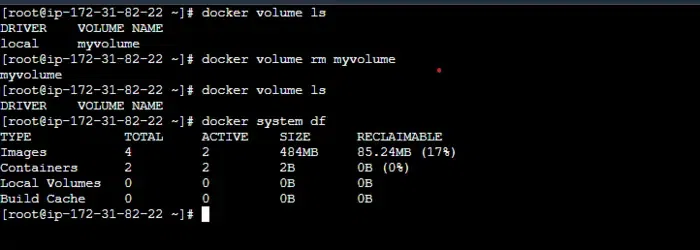
Step 2: To remove all the unused volumes with docker volume prune with the following command
docker volume prune.png)
Step 3: For removing specific volumes in the docker specify the volume name with docker volume rm command as follows
docker volume rm <volume_name>Step 4: To associated volumes with the stopped containers using following command
docker rm -v <container_id>Why to clean Docker Volumes?
The following are the reasons and advantages to clean up docker volumes:
- Unused volumes can consume significant disk space, so cleaning them helps to free up valuable storage resources.
- Removing unnecessary volumes can improve system performance by reducing clutter and ensuring that Docker operates efficiently.
- Regularly cleaning up volumes helps in better resource management, preventing the accumulation of outdated or irrelevant data.
- Old volumes might contain sensitive data that could pose security risks if not properly managed or deleted. Cleaning volumes helps mitigate such risks.
