

Docker containers run independently, which can make sharing data between containers difficult. Persistent storage is also needed because data inside a container can be lost when the container is removed.
- Allows multiple containers to access the same files or data.
- Keeps files, logs, and database records safe beyond the container's lifecycle.
- Helps different containers work together efficiently.
- Prevents important data from being lost when containers are stopped or recreated.
Methods of Sharing Data between Docker Containers
Docker provides two common ways to share data between containers: Volumes and Bind Mounts.
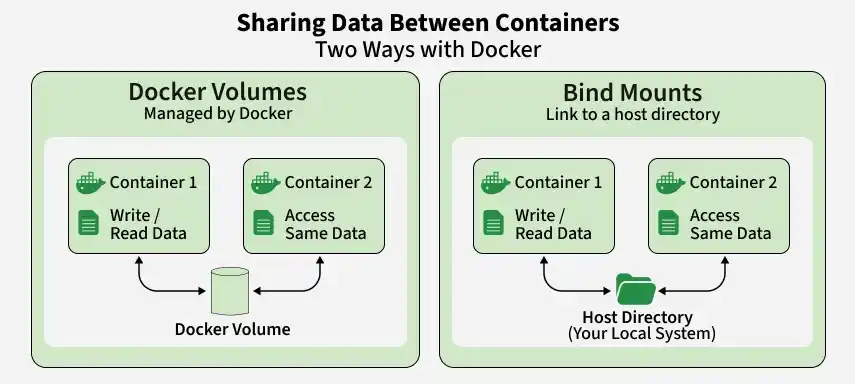
Which One Should You Use?
- Volumes: Best for most use cases, especially production. They are managed by Docker, portable, and suitable for persistent data sharing.
- Bind Mounts: Best for development when you need to sync files directly from the host, such as during live code changes.
- Recommendation: Prefer volumes for production and bind mounts when direct access to host files is required.
Method 1: Share Data Using Docker Volumes
The steps below will help you to share data using Docker Volumes:
Step 1: Create a Docker Volume
We can create a Docker Volume by using the following command
docker volume create shared-data
Step 2: Run Container A with the Volume
Mount the volume to a path inside Container A
docker run -d --name container-a -v shared-data:/data busybox sleep 3600Here, /data is the path inside the container where the volume is mounted.

Step 3: Add Data in Container A
We are putting a message inside the volume folder from Container A. This file (message.txt) is saved in /data, which is the shared volume.
docker exec container-a sh -c "echo 'Hello from A' > /data/message.txt"Step 4: Run Container B with the Same Volume
Now, you start Container B and connect it to the same volume. It will also see whatever is in /data, just like Container A.
docker run -d --name container-b -v shared-data:/data busybox sleep 3600
Step 5 : Access the Data in Container B
Inside Container B, you read the file message.txt. This shows the message written by Container A. That means sharing worked!
docker exec container-b cat /data/message.txt
Method 2: Share Data Using Bind Mounts
This method is best for sharing host directories across containers. The following are the steps you can follow to share data using bind mounts:
Step 1: Create a Directory on the Host
Make a folder on your own computer (outside Docker) and save a file in it. This folder will be shared with containers.
mkdir /tmp/shared-dataecho "Hello from host" > /tmp/shared-data/host.txtStep 2: Run Container A with Bind Mount
You start Container A and link it to your host folder. Inside the container, that folder will appear as /data.
docker run -d --name container-a -v /tmp/shared-data:/data busybox sleep 3600
Step 3: Run Container B with Same Bind Mount
Now, Container B also connects to the same host folder. Both containers are now seeing the same /tmp/shared-data content.
docker run -d --name container-b -v /tmp/shared-data:/data busybox sleep 3600
Step 4: Check Shared File in Container B
Inside Container B, you check if it can read the file placed by the host. If you see the message, the data sharing worked.
docker exec container-b cat /data/host.txtOutput:

