



Ubuntu finally retired the legacy NVIDIA driver 470 for all current Ubuntu releases! Here’s how to manually install it back for those who run Ubuntu on GeForce GT 710/730/780 etc Kepler GPUs (GeForce 700, 600, TITAN, and Tesla series).
Ubuntu announced the end of life of NVIDIA 470 driver support a few months ago. For Ubuntu 26.04, the legacy driver package is excluded in system repository. While, Ubuntu 24.04 and 22.04 have migrated the package to NVIDIA 535.

The legacy nvidia 470 driver package in launchpad build farm
In this tutorial, I’m going to show you how to install NVIDIA 470 driver in two ways:
- Option 1: Downgrade to the previous build of Ubuntu-provided 470 driver.
- Option 2: Install NVIDIA-provided driver with community patches.
Downsides
The legacy 470 driver needs to patch for being able to build on 6.14 and newer Linux Kernels (see this bug report). That’s possibly why Ubuntu decided to discontinue this driver support.
For Ubuntu 22.04 with default Kernel 6.8, it’s totally OK to downgrade to the previous build that will install the real 470 driver, but there’ll be no future updates for security fixes.
Ubuntu 24.04 may also downgrade the driver package, but it also requires to downgrade the kernel to be earlier than 6.14 due to missing patches.
For newer Kernels (6.14 and later), there’s a community maintain project that contains the patches to make NVIDIA-provided 470 driver build on Debian/Ubuntu based distributions, though it’s unofficial!
Option 1: Downgrade to the previous build of Ubuntu-provided 470 driver.
As mentioned, the latest build of NVIDIA 470 driver in Ubuntu 24.04 and 22.04 repository acts as a wrapper that will automatically download and install NVIDIA 535 driver. Thankfully, the previous build is still available and you can choose to downgrade to that build.
1. Uninstall NVIDIA 535
If you have already installed the latest nvidia 470 package update, then you have the 535 driver auto-installed on your system.
To uninstall it, press Ctrl+Alt+T to open terminal, and run command:
sudo apt --purge remove '*nvidia*470*' '*nvidia*535*'
For choice, you may replace number 470 in command to uninstall other driver series, e.g., 580, 595. When done, restart computer to apply change.
2. Downgrade Kernel (for Ubuntu 24.04 only)
For Ubuntu 24.04, run command in terminal (Ctrl+Alt+T) to install the original 6.8 Kernel:
sudo apt install linux-image-generic linux-headers-generic
or replace linux-image-generic with linux-image-6.11.0-29-generic to install the 6.11 Kernel.
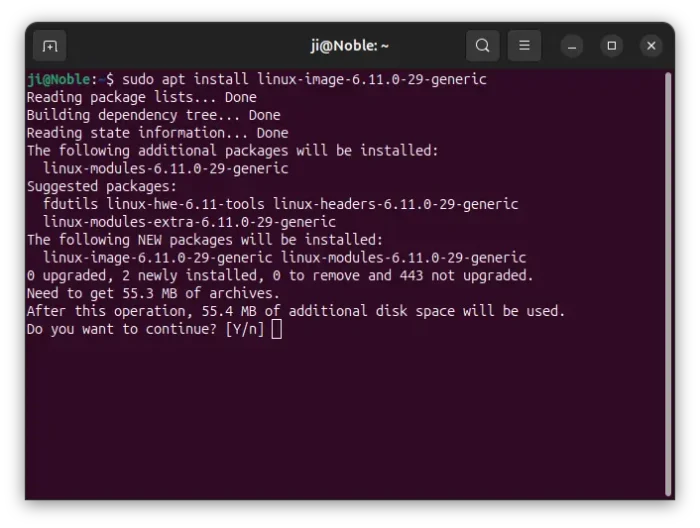
After that, restart computer and choose the 6.8 or 6.11 kernel (depends on which you installed) from “Advanced Options for Ubuntu” sub-menu in Grub boot-loader.
Finally, remove newer kernels, or it will try to build the models for these kernels when installing nvidia-470 causing errors.
sudo apt remove --autoremove linux-image-6.14.0-* linux-headers-6.14.0-* linux-image-6.17.0-* linux-headers-6.17.0-*
3. Add rule to block the latest build that auto-install NVIDIA 535.
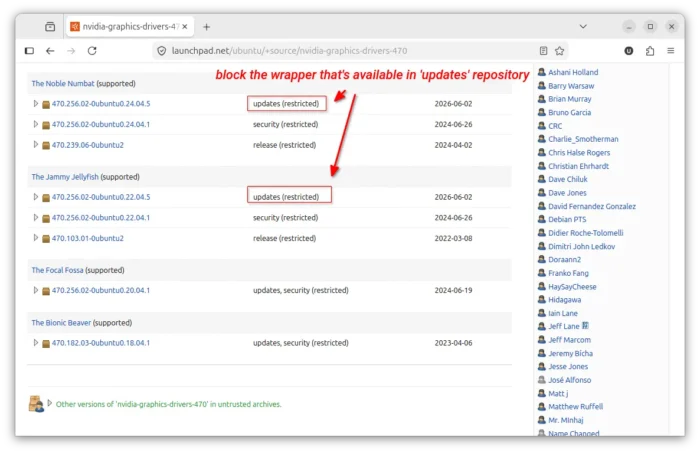
As you see via the screenshot above, the latest nvidia 470 driver update (wrapper of 535) is available in the “Updates” channel, while the previous build is in “Security” channel. To prevent auto-install nvidia 535, we need to add a rule to block the one from “Updates”.
To do so, open terminal (Ctrl+Alt+T) and run the command below to create & edit an apt rule:
sudo nano /etc/apt/preferences.d/nvidia470
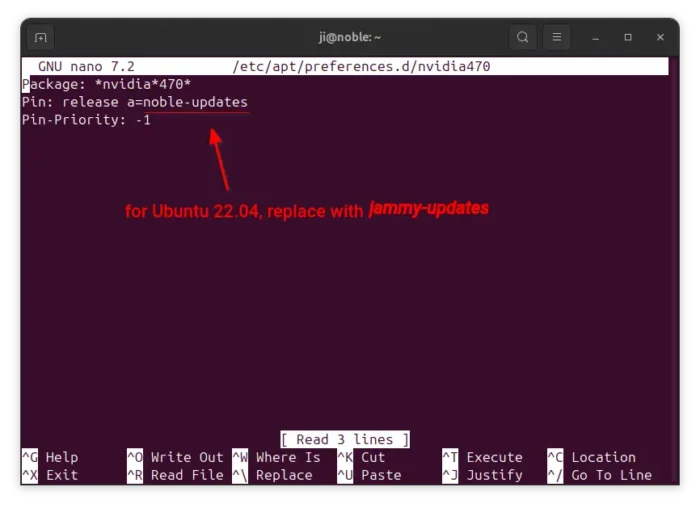
When file opens (in terminal), add the lines below to prevent installing any nvidia 470 related packages through the “updates” channel:
Package: *nvidia*470*
Pin: release a=noble-updates
Pin-Priority: -1
For Ubuntu 22.04, replace noble with jammy. Then, press Ctrl+S to save, and Ctrl+X to exit.
4. Reinstall nvidia 470 driver.
Now, run the command to refresh apt repository caches:
sudo apt update
And, run command below to show 470 driver package status:
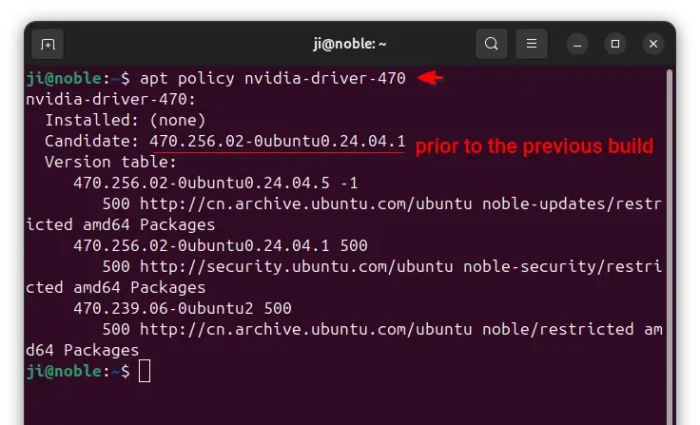
apt policy nvidia-driver-470
If everything goes well, you’ll see that the previous build is available as candidate.
Finally, run the commands below to install kernel headers (required for building kernel models) and 470 driver:
sudo apt install linux-headers-$(uname -r)
sudo apt install nvidia-driver-470
And, restart computer to apply change if everything goes well without errors.
Option 2: Install NVIDIA-provided driver with community patches.
For Ubuntu 26.04 or Ubuntu 24.04 who don’t want to downgrade Kernel, you may install the NVIDIA-provided driver (.run installer) with community patches. And, the free open-source project contains the nvidia 470 patches for Kernel 6.13 ~ 7.2.
NOTE: This option does NOT work in Ubuntu 26.04 with default GNOME Desktop as it has NO Xorg support. And, KUbuntu 26.04 needs to install plasma-session-x11 package for Xorg session.
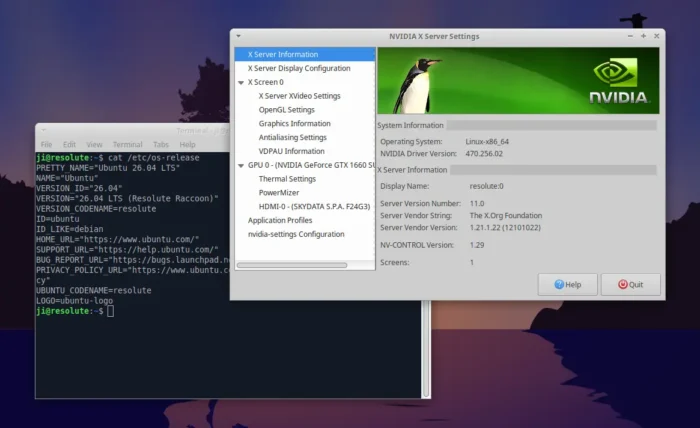
NVIDIA 470 in XUbuntu 26.04
1. First also uninstall NVIDIA 470, 535, or other versions of the proprietary drivers via first step in Option 1. And, restart computer.
2. Then, open terminal (Ctrl+Alt+T) and run command to install the dependency libraries:
sudo apt install git wget build-essential linux-headers-$(uname -r) libglvnd-dev
Then save you work, as next step will kill you desktop and run in full text console.
3. Next, press Ctrl+Alt+F3 ~ F6 to switch to TTY command console. And, input your username and password to login.
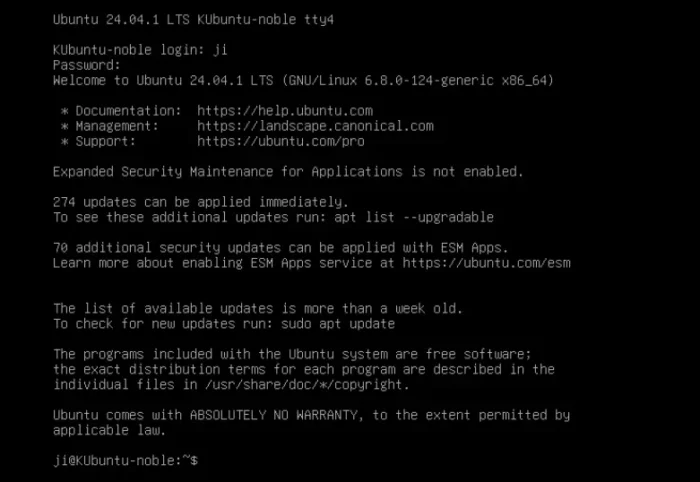
TTY command console
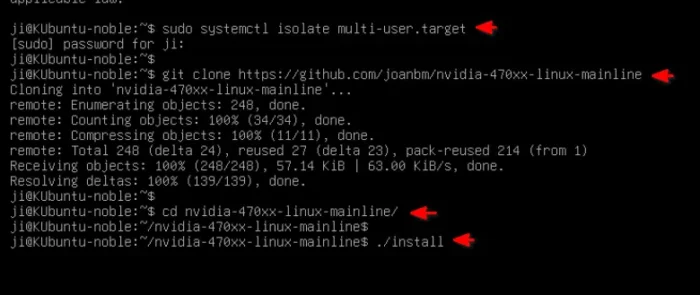
4. Now, run the command below which will kill all the graphical sessions. This is required for being able to run the NVIDIA-provided .run driver installer.
sudo systemctl isolate multi-user.target
Press Ctrl+C if the command stuck at blinking cursor.
5. Next run the command to clone the source which contains all the community patches, and the script to apply them.
git clone https://github.com/joanbm/nvidia-470xx-linux-mainline
Finally, navigate to the source folder and run install script:
cd nvidia-470xx-linux-mainline && ./install
The script will automatically download the nvidia-provided .run installer, extract and apply patches, and finally start the installer.
When the installer starts, select “Continue installation” to skip the “An alternative method of installing the NVIDIA driver was detected …” screen.
If kernel’s built-in Nouveau driver is in use, it will output error due to incompatibility. Just hit OK, then select Yes in next screen to auto-add config file to add nouveau driver into blacklist.

Finally, run reboot to reboot computer without nouveau driver and re-run step 3, step 4, step 5 (without git clone) to re-start the installer and answer yes/ok to all questions.
Uninstall:
If you installed the legacy 470 driver through the package from Ubuntu system repository, run the command below to uninstall it:
sudo apt --purge remove '*nvidia*470*'
For the driver installed through the NVIDIA-provided installer, then re-do step 3 & 4 in Option 2 to stop graphical sessions, then run the command below to uninstall:
sudo nvidia-uninstall
To un-blacklist the open-source nouveau Kernel driver, just remove the config files:
sudo rm /etc/modprobe.d/nvidia-installer-disable-nouveau.conf /usr/lib/modprobe.d/nvidia-installer-disable-nouveau.conf
Finally, restart computer to apply changes.
















Good work !
good info
sadly the ppa graphics-drivers has stopped updating their repository
the forced update from 570 -> 580 wasnt good either, but no issues with it
Option 2 works perfectly, thank you so much!
Thank you very much !
I used option 2 which allowed to get the Nvidia hardware stereo working under ubuntu 24 using xfce.
Please, tell me what am I supposed to do when kernel is updated ?
I realized that the modified nvidia driver is indeed overwritten after every bigger update. To fix the problem, you have to install dkms
sudo apt install dkms
and to modify the last line of the nvidia install script to:
$ASROOT ./nvidia-installer --dkmsthanks for the tip to install nvidia-driver-#-server
the -server still gets updates and doesnt get overridden by newer versions!
works on other versions besides the 470
nvidia-driver-470-server
in my testing there wasnt any difference in GPU graphics capability for the nvidia drivers
The server package is a simple alternative as it’s still 470 at the moment, though the 535 migration has been made into proposed repository for more than a year!
See: https://launchpad.net/ubuntu/+source/nvidia-graphics-drivers-470-server
Thanks for the guide! The final solution turned out to be a bit more complicated in my case. I managed to get everything working with the help of ChatGPT. It was surprisingly capable, although we did go down a few unnecessary rabbit holes along the way! 😄
In the end, we put together a detailed step-by-step guide documenting the entire process, including the additional fixes that were needed:
# NVIDIA GeForce GT 730 – Installing the Proprietary 470 Driver
*Kubuntu 24.04 LTS · 6.8 GA kernel · NVIDIA 470.239.06*
## 1. Objective and background
The goal is to get the older NVIDIA GeForce GT 730 graphics card working on a Fujitsu D3161-A1-based computer using the proprietary NVIDIA 470 driver.
Two problems had to be solved:
– The Kubuntu 24.04 system was already using a 7.x kernel due to HWE kernel tracking, with which the legacy NVIDIA 470 driver does not work properly.
– The newer NVIDIA 470 package available in the Ubuntu repositories is a wrapper that redirects the installation process to the NVIDIA 535 driver.
The solution is to return to the standard 6.8 GA kernel series, remove the 7.x kernels and HWE tracking packages, then install the previous NVIDIA 470.239.06 driver and fix the DKMS build error.
This procedure is based on the UbuntuHandbook guide, but the original instructions were not sufficient on their own. We had to complete the kernel downgrade separately and apply our own fix to get the NVIDIA module compilation working.
—
## 2. Removing the NVIDIA 470 and 535 packages
If the newer package that redirects installation to the 535 driver has already been installed, first remove the NVIDIA 470 and 535 packages:
“`bash
sudo apt –purge remove ‘*nvidia*470*’ ‘*nvidia*535*’
“`
The `–purge` option also removes the configuration files associated with these packages.
Then restart the computer:
“`bash
sudo reboot
“`
—
## 3. Removing HWE kernel tracking
The system had HWE meta-packages installed, which tracked the 7.x kernel series. As a result, when attempting to remove the 7.0 kernel, APT tried to install another matching unsigned kernel package.
We removed the three HWE meta-packages:
“`bash
sudo apt remove linux-generic-hwe-24.04 linux-image-generic-hwe-24.04 linux-headers-generic-hwe-24.04
“`
This disabled HWE kernel tracking. Note that this step alone does not remove the 7.x kernels already installed on the system.
—
## 4. Removing the 7.0 kernel packages
First, we checked which 7.x kernel packages were installed:
“`bash
dpkg -l ‘linux-image-7*’ ‘linux-modules-7*’ ‘linux-headers-7*’ ‘linux-tools-7*’ | grep ‘^ii’
“`
The following 7.0.0-42 packages were present:
– `linux-headers-7.0.0-42-generic`
– `linux-image-7.0.0-42-generic`
– `linux-modules-7.0.0-42-generic`
– `linux-tools-7.0.0-42-generic`
### Simulating the removal
Before actually removing anything, we simulated the operation to see which packages would be affected:
“`bash
sudo apt-get -s remove linux-headers-7.0.0-42-generic linux-image-7.0.0-42-generic linux-modules-7.0.0-42-generic linux-tools-7.0.0-42-generic
“`
The simulation indicated that six packages would be removed. In addition to the four specified packages, their associated ZFS and V4L2Loopback module packages were also scheduled for removal.
### Performing the removal
“`bash
sudo apt remove linux-headers-7.0.0-42-generic linux-image-7.0.0-42-generic linux-modules-7.0.0-42-generic linux-tools-7.0.0-42-generic
“`
The removal completed successfully. The initramfs and GRUB configuration were updated automatically.
—
## 5. Ensuring that the 6.8 GA kernel series is retained
The meta-packages required to track the standard 6.8 GA kernel series must remain installed.
Check:
“`bash
dpkg -l | grep -E ‘^ii.*linux-(generic|image-generic|headers-generic)’
“`
The following packages remained installed:
| Package | Version |
|—|—|
| `linux-headers-generic` | 6.8.0-147.147 |
| `linux-image-generic` | 6.8.0-147.147 |
These packages ensure that the system continues to follow the standard 6.8 kernel series.
**Important:** Updates for the 6.8 kernel series remain enabled. Removing HWE kernel tracking does not disable system-wide updates.
—
## 6. Checking GRUB and selecting the 6.8 kernel
We checked the default GRUB setting:
“`bash
grep GRUB_DEFAULT /etc/default/grub
“`
Result:
“`text
GRUB_DEFAULT=0
“`
Next, we checked the actual GRUB menu entries:
“`bash
sudo grep -E “menuentry ‘” /boot/grub/grub.cfg | head -10
“`
The configuration contained the following entries:
– Kubuntu
– Kubuntu, with Linux 6.8.0-147-generic
– Kubuntu, with Linux 6.8.0-147-generic (recovery mode)
The 7.x kernel was no longer listed in the GRUB menu.
After booting, check the running kernel version:
“`bash
uname -r
“`
Expected result:
“`text
6.8.0-147-generic
“`
This completes the kernel preparation.
—
## 7. Blocking the NVIDIA 470 update that redirects to driver 535
To prevent the newer NVIDIA 470 package from being installed again, we created an APT preference rule.
Open the file:
“`bash
sudo nano /etc/apt/preferences.d/nvidia470
“`
File contents:
“`text
Package: *nvidia*470*
Pin: release a=noble-updates
Pin-Priority: -1
“`
Save with `Ctrl + O`, press Enter, then exit with `Ctrl + X`.
This rule prevents matching NVIDIA 470 packages from being installed from the `noble-updates` repository. It does not block the `noble-security` repository.
Refresh the package lists:
“`bash
sudo apt update
“`
Check which NVIDIA 470 package version is available for installation:
“`bash
apt policy nvidia-driver-470
“`
The goal is to use the previous, actual 470 driver version rather than the newer wrapper package.
—
## 8. Installing the NVIDIA 470.239.06 driver
First, install the headers required for the currently running kernel:
“`bash
sudo apt install linux-headers-$(uname -r)
“`
The `uname -r` command automatically substitutes the version of the currently running kernel. In our case:
“`text
6.8.0-147-generic
“`
Next, install the driver:
“`bash
sudo apt install nvidia-driver-470
“`
According to the original guide, the installation should complete without errors at this point. However, in our case, the DKMS module compilation failed during the `objtool` check, so an additional fix was required.
—
## 9. Fixing the DKMS build error
The error occurred during the interaction between the legacy NVIDIA 470 driver and the kernel build process.
The solution was to disable the `objtool` check for the affected objects in the Kbuild file used by the NVIDIA modules.
### 9.1. Modifying the Kbuild file
Open the file:
“`bash
sudo nano /usr/src/nvidia-470.239.06/Kbuild
“`
Add the following line at the very beginning of the file:
“`make
OBJECT_FILES_NON_STANDARD := y
“`
Save with `Ctrl + O`, press Enter, then exit with `Ctrl + X`.
This setting skips the problematic `objtool` check for the relevant NVIDIA module objects. It does not globally disable kernel security mechanisms.
### 9.2. Backing up the modified file
“`bash
sudo cp /usr/src/nvidia-470.239.06/Kbuild /usr/local/src/nvidia-470-Kbuild-fixed
“`
This backup is specific to driver version 470.239.06.
### 9.3. Building the DKMS module
“`bash
sudo dkms build –force -m nvidia -v 470.239.06 -k 6.8.0-147-generic
“`
This rebuilds the NVIDIA module for the specified kernel.
### 9.4. Installing the module
“`bash
sudo dkms install -m nvidia -v 470.239.06 -k 6.8.0-147-generic
“`
This installs the successfully compiled module into the system.
### 9.5. Completing package configuration
“`bash
sudo dpkg –configure -a
“`
This completes any package configurations that were previously left unfinished. In our case, this command also successfully rebuilt and installed the NVIDIA DKMS modules.
—
## 10. Verification and reboot
### Checking DKMS status
“`bash
dkms status
“`
Expected successful result:
“`text
nvidia/470.239.06, 6.8.0-147-generic, x86_64: installed
“`
### Checking Secure Boot status
“`bash
mokutil –sb-state
“`
In our configuration:
“`text
SecureBoot disabled
“`
### Rebooting
“`bash
sudo reboot
“`
### Checking whether the NVIDIA modules are loaded
“`bash
lsmod | grep nvidia
“`
The loaded modules should include at least:
– `nvidia`
– `nvidia_modeset`
– `nvidia_drm`
– `nvidia_uvm`
### Checking the driver and GPU
“`bash
nvidia-smi
“`
The successfully installed driver version should be:
“`text
470.239.06
“`
### Verifying OpenGL rendering
If the `mesa-utils` package is not already installed:
“`bash
sudo apt install mesa-utils
“`
Then run:
“`bash
glxinfo -B | grep -E ‘OpenGL vendor|OpenGL renderer|OpenGL version’
“`
The result we obtained:
“`text
OpenGL vendor string: NVIDIA Corporation
OpenGL renderer string: NVIDIA GeForce GT 730/PCIe/SSE2
OpenGL version string: 4.6.0 NVIDIA 470.239.06
“`
This confirms that the proprietary NVIDIA driver provides OpenGL rendering, rather than nouveau or software rendering.
—
## 11. Important notes about future updates
– Stay on the 6.8 GA kernel series. Keeping the `linux-image-generic` and `linux-headers-generic` meta-packages installed ensures that updates for the 6.8 series remain available.
– Do not reinstall the HWE meta-packages, as this would resume tracking the HWE kernel series.
– Keep the APT preference rule in place to prevent the unwanted NVIDIA 470 package from returning through `noble-updates`.
– The Kbuild modification may be overwritten by a future package update.
If the Kbuild file is overwritten, the saved version can be restored:
“`bash
sudo cp /usr/local/src/nvidia-470-Kbuild-fixed /usr/src/nvidia-470.239.06/Kbuild
“`
After restoring it, rebuild and reinstall the module for the currently used kernel using the DKMS commands in Section 9.
**Important:** The saved Kbuild file was created specifically for version 470.239.06. It should not automatically be used with other NVIDIA 470.x versions.
—
## 12. Final result
The GeForce GT 730 is now working on Kubuntu 24.04 with the proprietary NVIDIA 470.239.06 driver, running on kernel 6.8.0-147-generic.
Successful operation was confirmed through several checks:
– The DKMS module compiled and installed successfully.
– The NVIDIA modules loaded correctly.
– `nvidia-smi` recognized the driver and graphics card.
– `glxinfo` reported NVIDIA Corporation as the OpenGL vendor and GeForce GT 730 as the renderer.
There was no need to use NVIDIA’s proprietary `.run` installer. The solution remained based on distribution packages and DKMS module compilation.
**The system now has a working interim configuration compatible with the legacy GT 730 graphics card, until a future hardware upgrade.**
Despite all that, the overall experience was still sluggish and clunky, and games performed much worse (and yet, between 2010 and 2020, I used nothing but Linux (mainly Debian Stable and Kubuntu LTS), and I even played Nexuiz, the Unreal Tournament games, and the original Far Cry). I gave up on it and installed Windows 10. Updated everything, removed the bloatware, tweaked the security and performance settings, installed the NVIDIA driver, AIMP, VLC, qBittorrent and my games. Everything just works.
Obviously, my outdated hardware plays a part in this, but Linux used to be famous for being able to run even on an old potato.
Conclusion: Sooner or later, I’ll have to upgrade my hardware anyway. :’-D