A switch with an empty MAC address table behaves like a hub: the first frame it ever sees gets copied out every port. Seconds later it stops doing that, because it has started learning. By reading the source address of every frame that arrives, the switch builds a table that maps each MAC to the one port it lives behind, and from then on it forwards traffic to that single port instead of all of them.
This guide walks that behavior on real Cisco switches: how learning records the source MAC and ingress port, how aging expires stale entries, and the forward-versus-flood decision. It also reads show mac address-table output line by line, including the detail that confuses people most: a host showing up in the table of a switch it isn’t directly connected to. The output comes from two Cisco IOSvL2 switches running IOS 15.2 in GNS3, first captured in June and rebuilt in October 2026 for the clearing, static-entry and lookup tests.
The IOS CLI shortcuts cover the modes and filters used here, and the switches start from the base device configuration.
What a MAC address table is
The MAC address table is the switch’s forwarding database. Each row maps a destination MAC address to the single egress port that reaches it, scoped to a VLAN. When a frame needs forwarding, the switch looks up the destination MAC in this table and sends the frame out only the port the table names. That one lookup is the difference between a switch and a hub: a hub has no table and floods every frame out every port, while a switch learns where things are and forwards selectively.
Every row carries four fields, and reading them in order tells you everything the switch knows about a host:
| Column | What it means |
|---|---|
| Vlan | The VLAN the entry belongs to. Learning is per-VLAN, so the same MAC can appear once per VLAN. |
| Mac Address | The hardware address the switch learned, in dotted-hex (for example ca01.0758.0008). |
| Type | DYNAMIC (learned from traffic, ages out) or STATIC (manually set or system, never ages). |
| Ports | The single interface behind which that MAC lives. This is the egress port for any frame sent to it. |
How MAC learning works
The switch learns from the SOURCE MAC of every incoming frame, never the destination. When a frame arrives on a port, the switch reads its source address, notes the port it came in on and the VLAN, and writes a dynamic entry: this MAC lives behind this port. If the entry already exists, the switch refreshes its timer instead of adding a duplicate. Destinations are only ever looked up, never learned, because the switch has no idea which port a destination is on until that device sends a frame of its own.
Here is SW1’s table after the two hosts in the lab exchanged traffic. H1 is wired to SW1’s Gi0/1, and H2 sits one switch away across the uplink on Gi0/0:
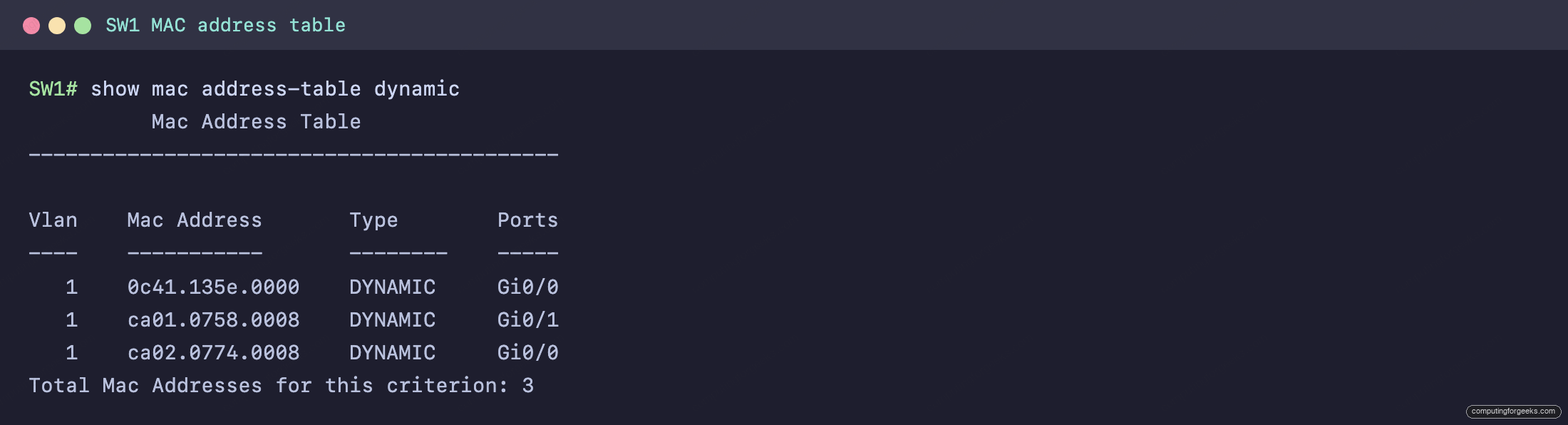
Three dynamic entries, all in VLAN 1. H1’s MAC ca01.0758.0008 sits on Gi0/1, the port it is physically plugged into. H2’s MAC ca02.0774.0008 shows up on Gi0/0, the uplink, because that is the direction H2’s frames arrive from. The third entry belongs to SW2’s Gi0/0 port, learned on the uplink from control frames SW2 sends out of that port. The switch did not need to be told any of this; it read it off the frames.
We rebuilt the same lab in October for the tests further down. Every node came up with new MAC addresses, hosts and switches alike, because the emulator generates new ones each time a device boots. The table has exactly the same shape. After a ping from H1 to H2, SW1 learned H1 on Gi0/1 and both H2 and SW2 on the uplink:
H1# ping 10.1.1.20
Type escape sequence to abort.
Sending 5, 100-byte ICMP Echos to 10.1.1.20, timeout is 2 seconds:
!!!!!
Success rate is 100 percent (5/5), round-trip min/avg/max = 16/20/24 ms

SW1# show mac address-table dynamic
          Mac Address Table
-------------------------------------------

Vlan    Mac Address       Type        Ports
----    -----------       --------    -----
   1    0ce3.60db.0000    DYNAMIC     Gi0/0
   1    ca01.0f9a.0008    DYNAMIC     Gi0/1
   1    ca02.0fb6.0008    DYNAMIC     Gi0/0
Total Mac Addresses for this criterion: 3
To pin down that third entry, we read the burned-in address of SW2’s uplink port. It matches 0ce3.60db.0000 exactly, so the entry really is the neighbor switch itself, learned from the control frames it sends out of that port:
SW2# show interfaces GigabitEthernet0/0 | include bia
  Hardware is iGbE, address is 0ce3.60db.0000 (bia 0ce3.60db.0000)
So SW1 sends anything addressed to that port out of Gi0/0, the same uplink both remote entries sit behind.
The aging timer
Dynamic entries do not live forever. Each entry carries an aging timer, 300 seconds by default, that resets every time a frame arrives from that MAC. If a host goes quiet and no frame is seen from it for the full 300 seconds, the switch removes its entry. The next frame destined for that host will then have to be flooded again until the host speaks and gets relearned. Aging keeps the table current as devices move ports or leave the network.
The default is easy to confirm, and you can lower it per VLAN when hosts move often:
show mac address-table aging-timeSW1 reports the standard global value:

To shorten it for one VLAN, as we did on SW1, set it from global configuration mode. Leave off vlan 1 to change the global value for every VLAN instead:
configure terminal
mac address-table aging-time 120 vlan 1
end
The override appears as a per-VLAN line under the global value, which doesn’t change; apart from show running-config, this is where the VLAN setting shows up:
SW1# show mac address-table aging-time
Global Aging Time:  300
Vlan    Aging Time
----    ----------
   1     120
A shorter timer drops idle entries sooner, which suits networks where devices move between ports often. The value can run from 10 seconds upward, and 0 disables aging entirely; the learning and forwarding behavior is otherwise unchanged.
How the switch forwards a known frame
When a frame’s destination MAC is already in the table, the decision is simple: forward it out the one port the table names, and nothing else. If the destination MAC maps to a DIFFERENT port than the one the frame arrived on, the switch forwards it out that port alone. This is unicast forwarding, and it is why a busy switched network does not drown every host in traffic meant for someone else.
There is one case where a known frame is not forwarded at all. If the destination MAC is on the SAME port the frame arrived on, the two devices are on the same segment and have already heard each other directly, so the switch silently drops the frame. This filtering keeps a frame from being echoed back onto the segment it came from.
Flooding: what happens when the destination is unknown
If the destination MAC is not in the table, the switch cannot know which port reaches it, so it floods: the frame goes out every port in the same VLAN except the one it arrived on. This is called unknown unicast flooding, and it is normal switch behavior, not a fault or an attack. The destination eventually replies, the switch learns its source MAC, and the next frame to that host is forwarded to a single port instead of flooded.
Two situations trigger flooding. The first is the unknown unicast above. The second is a broadcast frame, destination ffff.ffff.ffff, or a multicast that the switch has no specific forwarding state for; these are always sent out every port in the VLAN. Flooding is contained by the VLAN: a frame is only ever flooded to ports in its own VLAN, which is why VLANs shrink the flood domain. On a topology with redundant links and no spanning tree, that same flooding loops endlessly into a broadcast storm, which is exactly the problem the switching layer runs Spanning Tree Protocol to prevent.
MAC tables in a multi-switch topology
Each switch keeps its own independent table and learns only from the frames it personally sees. A host on the far side of an uplink is not learned on a port pointing at that host, because no such port exists; it is learned on the uplink, the direction its frames actually come from. This is the detail that trips people up most, and it is obvious once you see the two tables side by side.
The captures come from this lab, two switches in one VLAN with a host on each, annotated with the port each switch learns the hosts on:
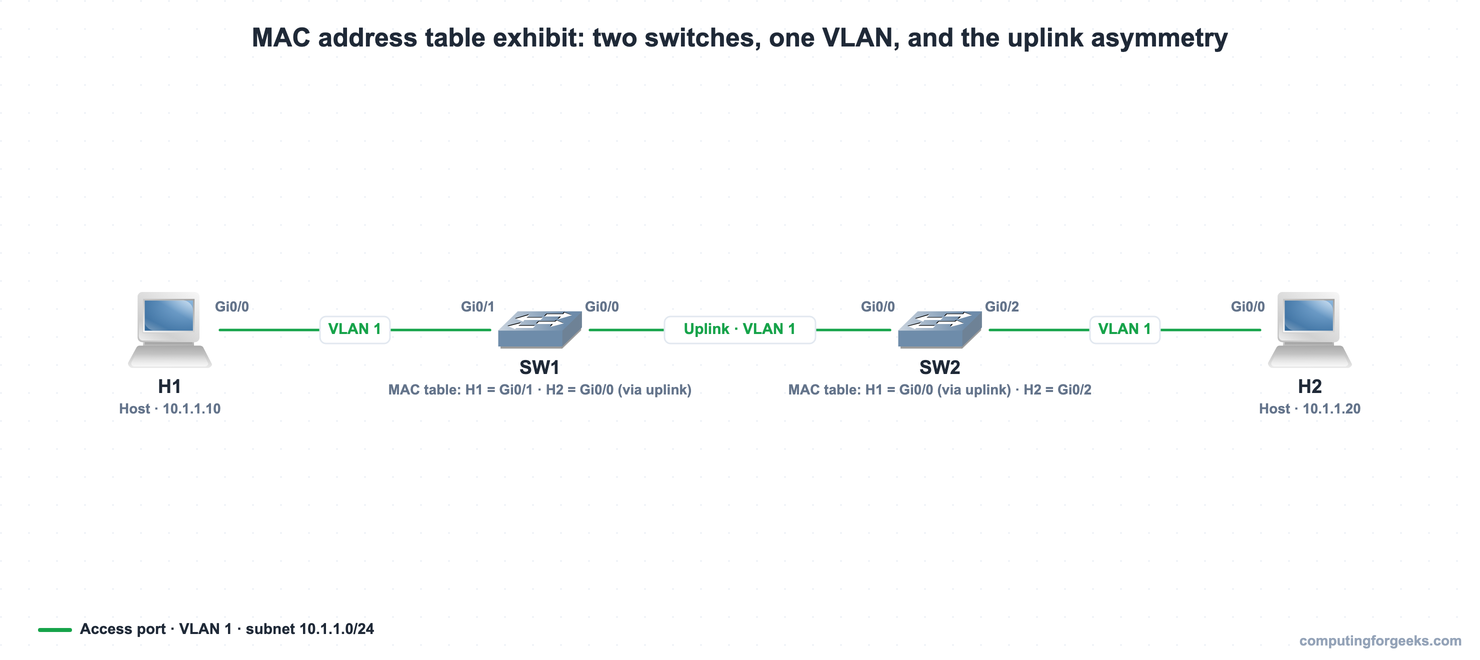
In the lab, H1 connects to SW1 on Gi0/1, H2 connects to SW2 on Gi0/2, and the two switches join on Gi0/0. Compare SW1’s June screenshot above with SW2’s, from the same June run:
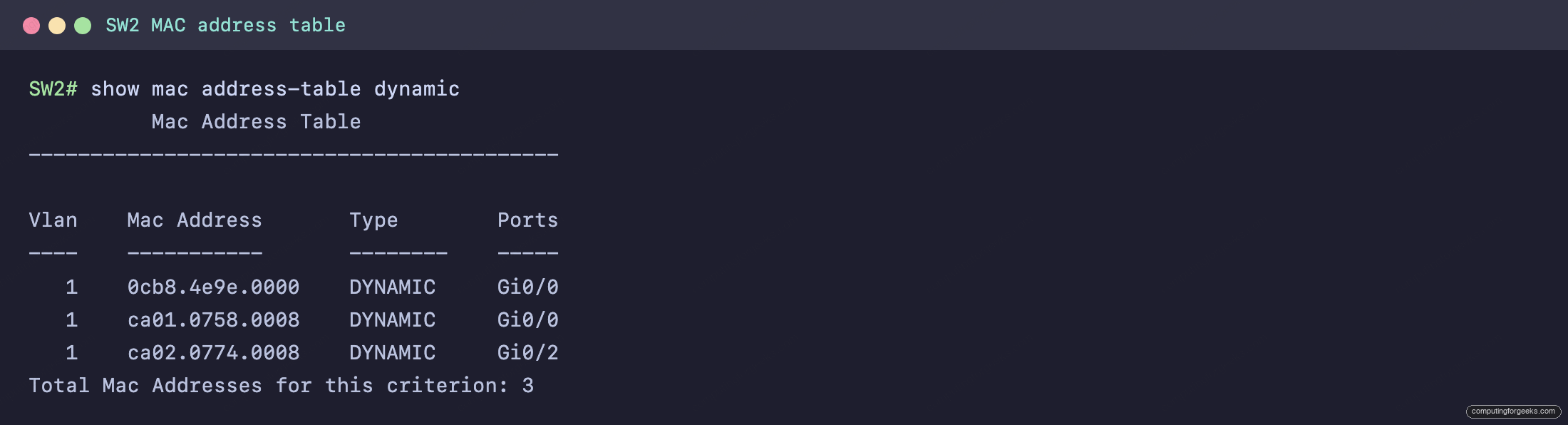
The same two host MACs appear in both tables, but on different ports. H1’s MAC ca01.0758.0008 is on SW1’s Gi0/1 (its direct port) yet on SW2’s Gi0/0 (the uplink). H2’s MAC ca02.0774.0008 is the mirror image: direct on SW2’s Gi0/2, on the uplink at SW1’s Gi0/0. Neither switch has a port that points straight at the remote host, so each learns the remote host on the link toward the other switch. Read any multi-switch table this way, in a lab exhibit or on a real network, and the answer is usually sitting in which port a MAC is associated with.
Clearing and verifying the table
Three commands cover day-to-day work with the table. The first lists the dynamic entries, the second counts them, and the third flushes the dynamic entries so you can watch them get relearned:
show mac address-table dynamic
show mac address-table count
clear mac address-table dynamic
The count is the quickest health check on a switch you don’t know, because it shows dynamic and static entries per VLAN without printing every row:
SW1# show mac address-table count

Mac Entries for Vlan 1:
---------------------------
Dynamic Address Count  : 3
Static  Address Count  : 0
Total Mac Addresses    : 3

Total Mac Address Space Available: 70152664
After a clear, the table refills as soon as traffic flows again, because learning happens on the very next frame from each source. Right after the flush, SW1 printed only the table header, with no total line at all, and a single ping from H1 brought both hosts back:
SW1# clear mac address-table dynamic

SW1# show mac address-table dynamic
          Mac Address Table
-------------------------------------------

Vlan    Mac Address       Type        Ports
----    -----------       --------    -----

H1# ping 10.1.1.20
Type escape sequence to abort.
Sending 5, 100-byte ICMP Echos to 10.1.1.20, timeout is 2 seconds:
!!!!!
Success rate is 100 percent (5/5), round-trip min/avg/max = 20/20/20 ms

SW1# show mac address-table dynamic
          Mac Address Table
-------------------------------------------

Vlan    Mac Address       Type        Ports
----    -----------       --------    -----
   1    ca01.0f9a.0008    DYNAMIC     Gi0/1
   1    ca02.0fb6.0008    DYNAMIC     Gi0/0
Total Mac Addresses for this criterion: 2
SW2’s own MAC was not back yet, which makes sense: a ping between two hosts carries no frames sourced from the switch itself. On a network with any traffic, don’t be surprised if entries are back the moment you look, since any frame a host sends relearns it.
Static entries are the exception to all of this: an address you configure by hand never ages and is not removed by clear mac address-table dynamic. We pinned a made-up MAC to Gi0/3, flushed the dynamic table, and the static entry was still there:
SW1# configure terminal
Enter configuration commands, one per line.  End with CNTL/Z.

SW1(config)# mac address-table static 0201.aaaa.0001 vlan 1 interface GigabitEthernet0/3

SW1(config)# end

SW1# show mac address-table static
          Mac Address Table
-------------------------------------------

Vlan    Mac Address       Type        Ports
----    -----------       --------    -----
   1    0201.aaaa.0001    STATIC      Gi0/3
Total Mac Addresses for this criterion: 1

SW1# clear mac address-table dynamic

SW1# show mac address-table static
          Mac Address Table
-------------------------------------------

Vlan    Mac Address       Type        Ports
----    -----------       --------    -----
   1    0201.aaaa.0001    STATIC      Gi0/3
Total Mac Addresses for this criterion: 1

SW1# show mac address-table address 0201.aaaa.0001
          Mac Address Table
-------------------------------------------

Vlan    Mac Address       Type        Ports
----    -----------       --------    -----
   1    0201.aaaa.0001    STATIC      Gi0/3
Total Mac Addresses for this criterion: 1
To narrow a busy table while troubleshooting, filter the same command by VLAN, interface, or address. Looking up one MAC tells you which port and VLAN it lives on, and filtering by the uplink shows only what the switch learned through it:
SW1# show mac address-table address ca01.0f9a.0008
          Mac Address Table
-------------------------------------------

Vlan    Mac Address       Type        Ports
----    -----------       --------    -----
   1    ca01.0f9a.0008    DYNAMIC     Gi0/1
Total Mac Addresses for this criterion: 1

SW1# show mac address-table interface GigabitEthernet0/0
          Mac Address Table
-------------------------------------------

Vlan    Mac Address       Type        Ports
----    -----------       --------    -----
   1    ca02.0fb6.0008    DYNAMIC     Gi0/0
Total Mac Addresses for this criterion: 1
On SW1 that uplink holds only H2, which is what you expect once SW2’s own entry has aged out or been cleared.
MAC table command cheat card
Keep these within reach. Every one was run on the lab switches above.
| Command | What it shows or does |
|---|---|
show mac address-table dynamic | All learned entries: VLAN, MAC, type, port |
show mac address-table count | Count of dynamic and static entries per VLAN |
show mac address-table aging-time | The current aging timer (300s default) |
show mac address-table interface Gi0/1 | Only the MACs learned behind one port |
show mac address-table address AAAA.BBBB.CCCC | Which port and VLAN one MAC lives on |
clear mac address-table dynamic | Flush all dynamic entries (statics survive) |
Practice switching concepts
Flip the cards to lock in learning, aging, and the forward-versus-flood decision, then take the quiz, which includes a multi-switch exhibit question like the ones on the Cisco CCNA 200-301 exam. If a link still acts up after this, the interface troubleshooting guide reads the counters, and the full path is in the CCNA 200-301 study roadmap.