Tables help you organize and present data clearly in rows and columns. You can create a table directly in PowerPoint or paste one from Excel or Word.
Methods to Insert Table
Method 1: Insert a Table Using the Grid
Step 1: Go to the slide where you want the table.
Step 2: On the Insert tab, click Table.

Step 3: Hover over the grid and select the number of rows and columns you need.
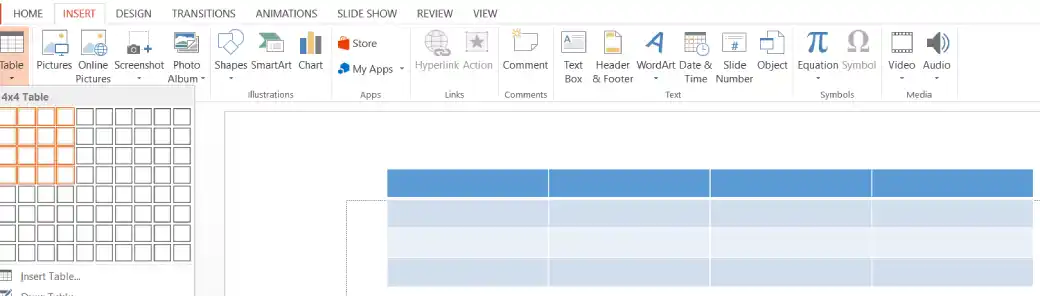
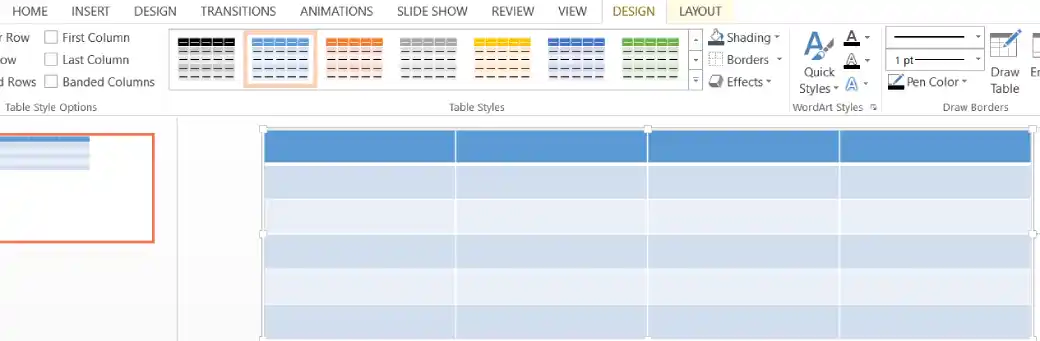
Step 4: Click to insert the table.
Method 2: Insert a Table with Exact Size
Step 1: Go to the Insert tab and go to Table.
Step 2: Click Insert Table.

Step 3: Enter the exact number of columns and rows.
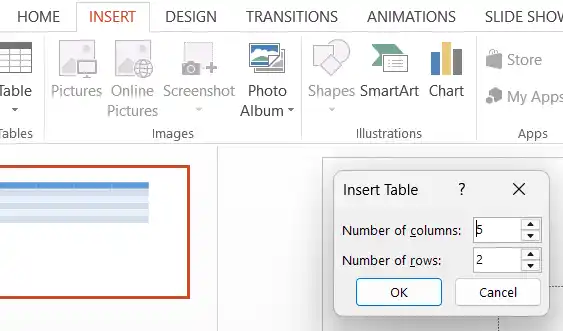
Step 4: Click OK.

Method 3: Copy a Table from Excel or Word
- In Excel or Word, select and copy the table (Ctrl + C).
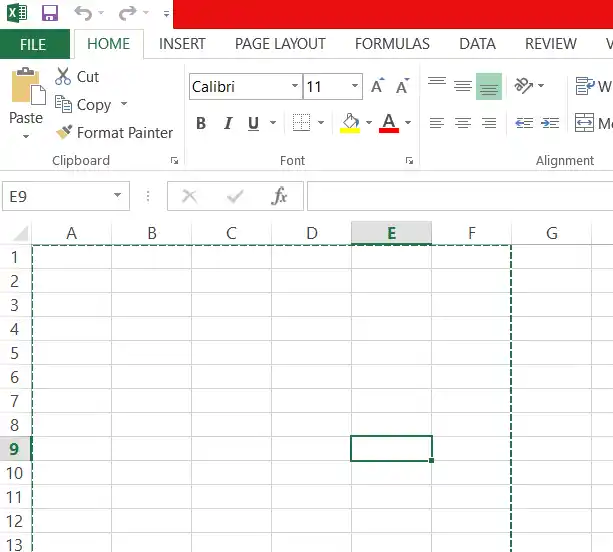
- In PowerPoint, go to the desired slide and paste (Ctrl + V).
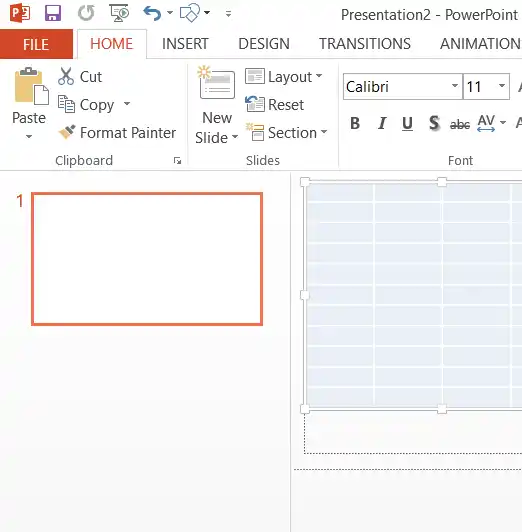
- Use Paste Options if you want to keep source formatting or embed the table.

Add Content to the Table
- Click inside any cell and start typing.

- Press Tab to move to the next cell.
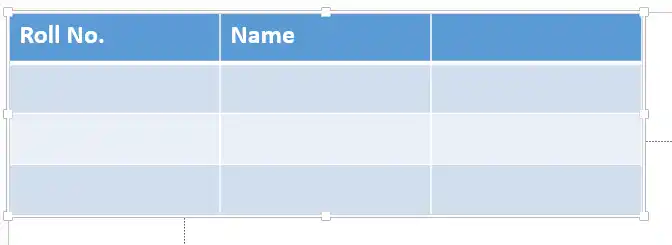
- Press Tab in the last cell of the last row to automatically add a new row.

Add or Delete Rows and Columns
Step 1: Click inside the table.
Step 2: Go to the Table Layout tab (appears when the table is selected).

Step 3: Use the options in the Rows & Columns group:
- Insert Above / Below
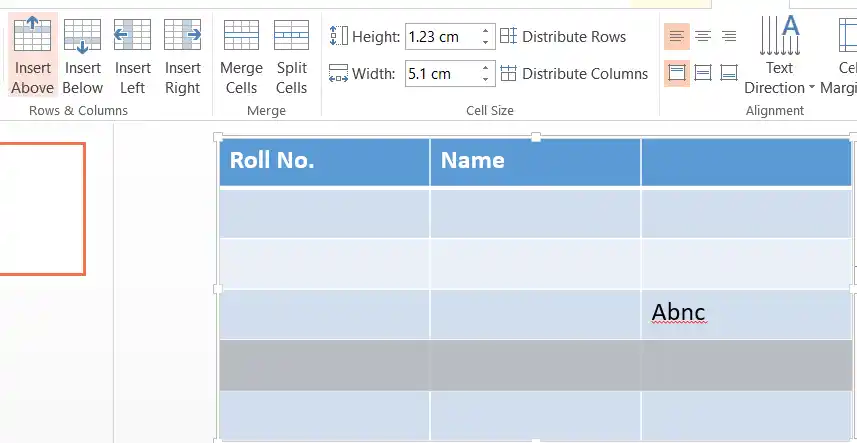
- Insert Left / Right
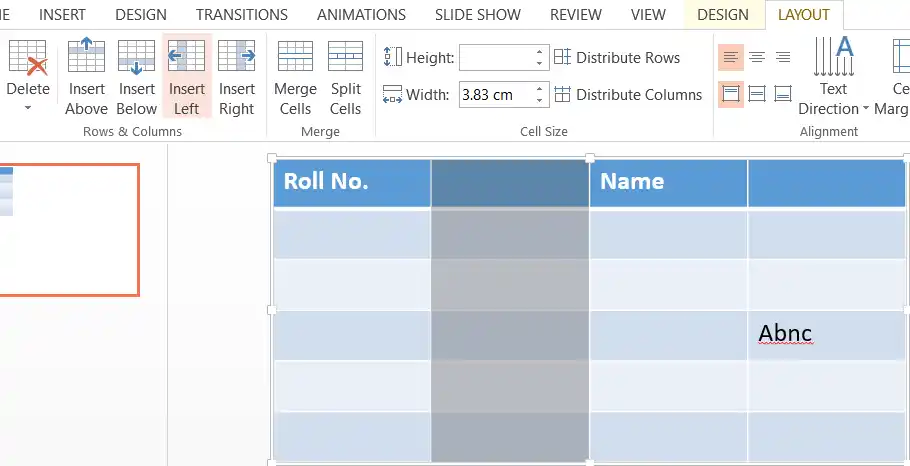
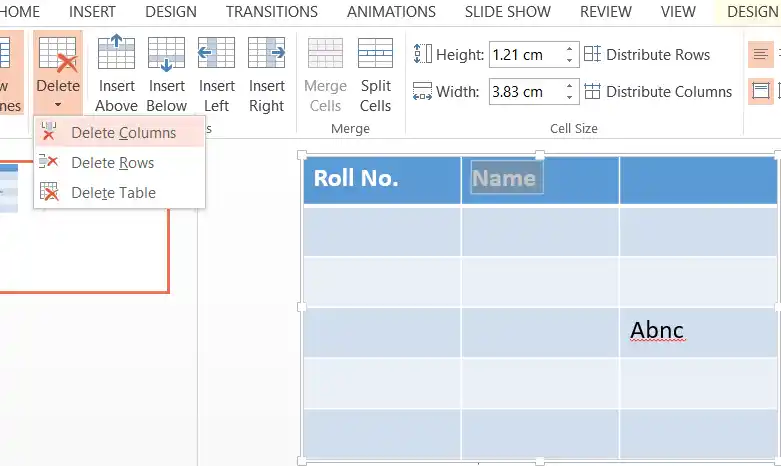
- Delete Rows, Columns, or Table