

Lynis is a highly popular, open-source security auditing and system hardening tool designed for Linux, macOS and UNIX-based systems. It performs a deep, read-only health and compliance scan to evaluate system defenses against best practices, rather than just scanning for software-specific vulnerabilities. Key Features:
- Kernel & OS Analysis: Reviews system bootloaders, kernel configuration and package integrity.
- Access Control: Audits file and directory permissions, user accounts and authentication mechanisms.
- Network & Services: Checks firewall status, SSH configurations and running network services.
- Malware Detection: Scans for indicators of compromise and rootkits.
- Extensibility: Supports custom testing profiles and plugins to tailor scans to specific infrastructures.
Core Focus & Use Cases
While standard vulnerability scanners search for known, exploitable CVEs, Lynis primarily focuses on:
- Configuration Auditing: Ensuring system settings align with security policies.
- System Hardening: Providing actionable advice to reduce the attack surface.
- Compliance: Assisting with industry regulations like PCI-DSS, HIPAA and ISO 27001.
- Security Scoring: Giving administrators an instant quantified overview of their system's security posture.
Lynis Working
Lynis operates as a sequential modular scanner. It runs through a series of automated phases to build a complete profile of your system's security posture:
- Initialization: Detects the operating system, shell environment and available system binaries.
- System Tools & Packages: Identifies installed software packages, package managers and integrity checkers.
- Boot & Kernel: Reviews bootloader security, kernel parameters and loaded kernel modules.
- Identity & Authentication: Audits user accounts, group configurations and password/authentication policies.
- Services & Daemons: Inspects running processes, critical services (like SSH, Apache, Nginx) and database settings.
- Networking & Firewall: Evaluates active network interfaces, open ports and firewall rules (like iptables, ufw or nftables).
- Storage & File Systems: Checks file permissions, mount options (e.g., noexec, nosuid) and home directories.
- Logging & Auditing: Examines the configuration of logging tools (like syslog or journald) and audit daemons.
- Reporting & Scoring: Calculates a final Hardening Index, highlights critical warnings and generates a structured report
Installing Lynis on Kali Linux
sudo apt-get install lynis
Installing Lynis on RHEL/CentOS:
sudo yum install lynisInstalling Lynis on Fedora:
sudo dnf install lynisInstall Lynis Via git clone:
$ git clone https://github.com/CISOfy/lynis
$ cd lynis
$ ls

Run Lynis: To check view all the commands available in Lynis we can execute the following,
./lynis show
We can now use Lynis to perform security audits on our system. We can view the list of commands to execute with the help of Lynis. Use the following command to list the number of commands to execute,
./lynis show commands
system audit:
/lynis audit systemNote: Adding --quick parameter will enable lynis to run without pauses and will enable us to work on other things simultaneously while it scans.
./lynis audit system --quickExploring the Reports
Lynis performs in-depth audit and reports the results in the followings ways:
- Screen Output: Displays the status of each security test using results such as OK, WARNING, FOUND, NOT FOUND, WEAK, DONE or NONE.
- Log File: Stores detailed audit information, including timestamps, failed or skipped tests, internal output, configuration suggestions and threat scores.
- Remark: The log file is overwritten after every audit, so configure log rotation to preserve previous scan results.
- Report File: Stores audit findings, system information and configuration data for comparing current and previous security assessments.

Debian Tests are also scanned which gives out more information on system installations. It also displays warnings for Debian plugins and listings of software installations if they have been installed on the system or not. Debian plugin checks for system binaries required by Debian tests.

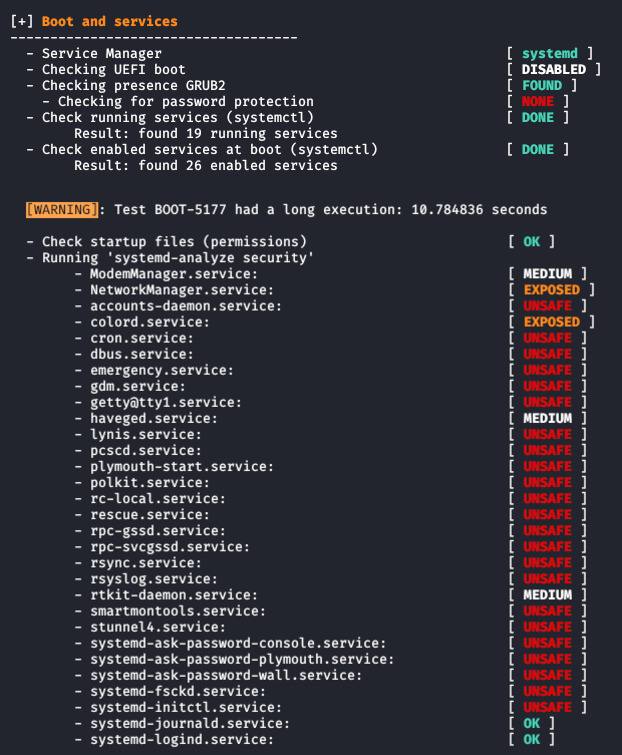
System Boot and Services are scanned and show booting and service issues present in the system.
Software firewalls Checking the iptables kernel module, used policies of iptables chains. Also verify software firewalls like CSF, UCF, etc. It checks the configuration of firewalls and local services, it collects data for further analysis.

Insecure Services here inetd is not found, the test is tagged on Lynis as it shouldn't be performing as part of an audit on your server. Scanning inet daemon status and checks configuration file when it’s disabled.

- SSH Support Scanning SSH daemon status and other tweaks of SSH on /etc/ssh/sshd_config for secure login.
- SNMP Support Checking SNMP daemon is running, daemon file location, SNMP communications.
- Databases Checking installed databases like MySQL, PostgreSQL, Oracle, DB2 & Redis and related processes, configuration files.
- LDAP Services Checking OpenLDAP instance is running or not and its configuration file.

Lynis has color-coding
- Green: which means everything works fine or is disabled
- yellow: Skipped, NOT FOUND, might have a suggestion
- Red: It shows that the particular test or scan is unsafe or needs more attention.

Memory and Processes Scan memory information from /proc/meminfo, dead processes & IO processes.

Kernel Hardening it has many tunable settings which define kernel functions and some tunables have security context. Distro may not set it by default and examination is required for each scan. the value keeps changing based on security posture. Scan sysctl key pairs with profile to verify the kernel parameters hardening.

Users, groups and Authentication Scanning admin accounts, UIDs, GIDs, /etc/passwd, sudoers & PAM files, password aging, single-user mode, failed login & umask.

Shells Scanning available shells and checking whether it's vulnerable.

File System Scans available mount points and check if mounted separately or mounted on / file system. Also checking the mount point flags and added properly. fstab file, swap partition, /proc, /tmp and /tmp sticky bit.

- Storage Scanning, if USB storage is disabled, checking USB device authorization. Also, check if firewire storage is disabled.
- NFS Scanning NFS information like rpcinfo registered programs, NFS registered versions, NFS registered protocols and NFS daemon running.

Ports and packages scanning package manager, if it's found the package manager (rpm, deb, etc) then it will query the list of installed packages and check package vulnerability, package updates. Finally, checks GPG signature for package security.

Networking Scan IPv6 enabled or not, name server configuration test, search available network interfaces, MAC addresses, network IP addresses, DHCP status.

Logging and files Scan whether syslog daemon is running or not and its configuration files.

- Banners and identification Scans copyright banner files, check issue banner file & contents & check issue.net banner file & its contents.
- Scheduled tasks Scanning cron daemon stats then it will check cronjob/crontab lists.
- Accounting Scanning accounting software information and it’s configuration files.

Security frameworks Scanning AppArmor, SELinux, grsecurity are enabled. If yes, it will check the daemon status & presence.

- File Integrity Checking file integrity to all the files.
- System tooling Checking system automation tools, fail2ban, IDS/IPS, etc.
- Malware Scanning malware related tools like chkrootkit, Rootkit Hunter, LMD & clamscan.

File Permissions scanning in this for all kind of file permissions

Scanning in phase 2 plugins is a test based on installed plugins and to install a plugin for lynis then add /etc/lynis/plugins directory. After the scanning is finished Warnings and Suggestions details are improvised for us to improve the security of the system and also to rectify any issues that are there in the system.

Lynis gives an option to get detailed information about every suggestion, it is accessed using the show details command followed by test ID number. Here, we made use of one suggestion listed among 50 suggestions,
$ ./lynis show details PHP-2376
Lynis Hardening Index is a unique index to Lynis which gives the auditor an idea of how well a system is hardened. The number is an indicator of measures taken.

Run Lynis as Custom Tests
To scan a particular test we have to list out the Test IDs. If the server doesn't run web server there is no need to test. Use tests parameter to list a number of tests in lynis.
lynis show tests
Check a particular test using the following command followed by test ID
lynis show tests ACCT-9626
lynis show tests TOOL-5190

To know the updated details of the Lynis tool and see if the tool is in the latest version, run update info to get all the details relating to Lynis Tool.
./lynis update info
If you don't get the desired result using the above logfile then run lynis with -c (check-all) parameter. To look inside the log file we use cat command and combine with grep then a list of all Test-IDs present in the log file is displayed.
$ cat /var/log/lynis.log | grep KRNL
/*Another method can be using command*/
$ ./lynis -c -Q

To run check uptime of system and checking core dumps configuration tests if you want to add more tests add Test-ID separated by space.
$ ./lynis --tests "BOOT-5202 KRNL-5820"
Run Lynis with Categories
Use --test-from-category parameter if Test-IDs is huge to deal with, Lynis runs Test-IDs that includes inside every category. Run Firewall and Kernel tests using the following command,
$ ./lynis --tests-from-category "firewalls"
Run Lynis as Cronjob
Automating lynis to run periodically and check for improvements since the previous lynis scan. To perform Cronjob using lynis then run it every month. It is important to create these related paths in script /usr/local/lynis and /var/log/lynis. To save the paths in script execute the following command:
# script is saved in text.sh and script is given below.
# You can use any editor to save the script, here editor used is Vim.
$ vim text.sh
#inside vim enter command
touch /root/Desktop/file.txt
$ chmod u+x text.sh
# this command is to execute cronjob monthly or anytime we schedule it to.
$ #!/bin/sh
 AUDITOR="AUROMATED" DATE=$(date+%Y%m%d)
 HOST=$(hostname) LOG_DIR="/var/log/lynis"
 REPORT="$LOG_DIR/report-${HOST}.${DATE}" DATA ="$LOG_DIR/report-data-${HOST}.${DATE}.txt"
 cd /usr/local/lynis
 ./lynis -c -auditor "${AUDITOR}" --cronjob > ${REPORT}
 mv /var/log/lynis-report.dat ${DATA}
 #End
$ lynis audit system --auditor "${AUDITOR}" --cronjob > ${REPORT}
# Move or save file to:
[-f /ar/log/lynis-report.dat ] then
mv /var/log/lynis-report.dat ${DATA}
fi
