A "Permission denied" error occurs when the Linux kernel’s Virtual Filesystem (VFS) rejects an access request because it fails at one of its security layers. Even if you see a single error message, any one of these independent checks can cause the denial.
- File Ownership & Permissions: Linux checks permissions in this order: Owner->Group->Others. If the matching category lacks the required r, w or x permission, access is denied.
- Directory Permissions: Every directory in the file path must have execute (x) permission; otherwise, the file cannot be accessed.
- Access Control Lists (ACLs): ACLs provide user-specific permissions that can allow or restrict access beyond standard file permissions.
- Security Frameworks: SELinux and AppArmor enforce additional security policies that can block file access even when normal permissions appear correct.

Steps to perform Fix a File Permission:
Step 1: Changing File Permission
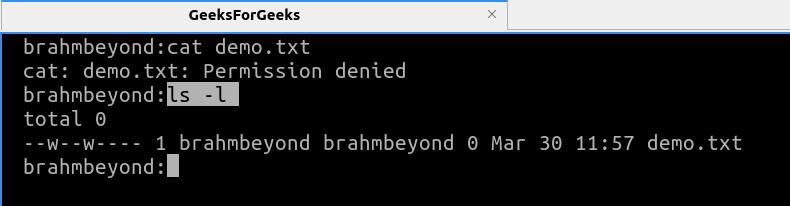
Check the file's current permissions using ls -l. If the file is not readable, grant read permission with chmod +r filename. Use sudo if administrative privileges are required. Syntax:
ls -l or ls -l filenameExample: This will list the current permissions granted to the file.
ls -lOutput:
Step 2: Read Permisson
Grant read permission using the chmod command. Specify u (owner), g (group), o (others) or a (all), followed by +r to add read permission. Syntax:
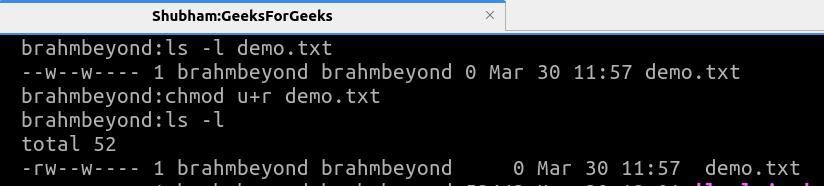
chmod [recipient]+r filenameExample: This will grant read permission to the user, others and the group.
chmod og+r demo.txt      #read permission to other and group
chmod u+r demo.txt           #read permission to user
Output:
Using sudo Command
If the file requires administrative privileges, use the sudo command to read it as the superuser. Syntax:
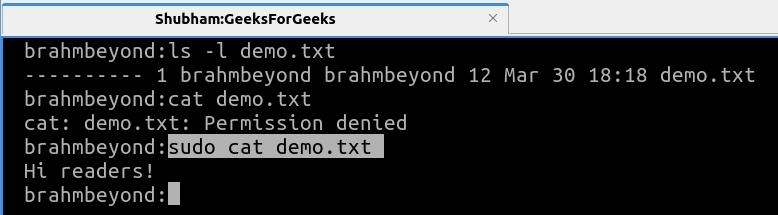
sudo cat <filename>Example: Using sudo with cat command to read demo.txt file
sudo cat demo.txtOutput:
Change file Ownership
If the file is owned by another user, change its ownership using the chown command (requires administrative privileges). Syntax:
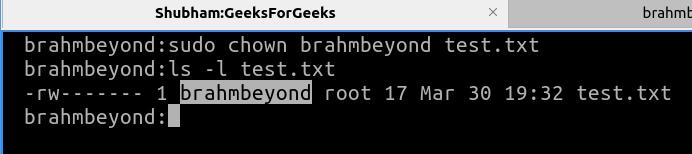
sudo chown <your_username> <filename>Example: This command will change the ownership of the file and grant read permissions to the brahmbeyond user.
sudo chown brahmbeyond test.txtOutput:
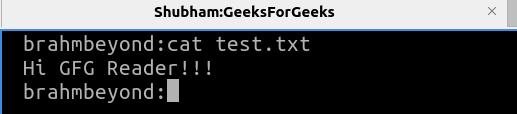
To verify and read the file after granting permission, execute the below command in the terminal to read the contents of the file. Command:
cat test.txtOutput: