

Installing Kali Linux is only the first step toward building a secure and efficient penetration testing environment. Although Kali Linux includes hundreds of security tools, a fresh installation still requires updates, repository verification, user configuration and additional system hardening before it is ready for professional use.
1. Update and Upgrade
The first task after installing Kali Linux is updating the package repository and upgrading installed packages. This ensures that the operating system receives the latest security patches, bug fixes, kernel updates and software improvements. Run the following commands:
sudo apt update
sudo apt full-upgrade -y
2. Install Essential Tools
Depending on the installation image, some penetration testing tools may not be installed. The kali-linux-default metapackage installs the standard collection of security tools recommended by the Kali Linux team.
sudo apt install kali-linux-default.png)
3. Create a Standard User Account
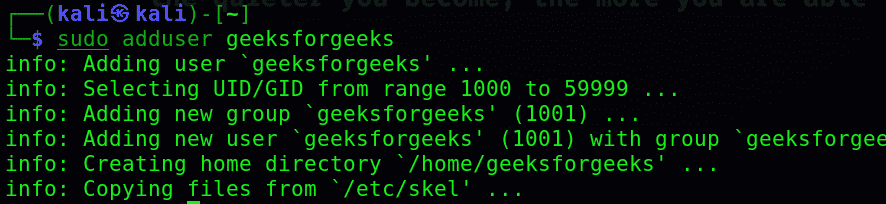
Daily activities should not be performed using the root account. A standard user with sudo privileges reduces the impact of accidental system modifications and follows Linux security best practices. Create a new user and Add the user to the sudo group:
sudo adduser username
sudo usermod -aG sudo username
4. Verify Kali Linux Repositories
Kali Linux downloads packages from its configured software repositories. Verify that your system is using the official Kali Rolling repository before installing additional software. Check the repository configuration:
cat /etc/apt/sources.listThe repository should contain:
deb http://http.kali.org/kali kali-rolling main contrib non-free non-free-firmwareIf changes are made, refresh the package database:
sudo apt update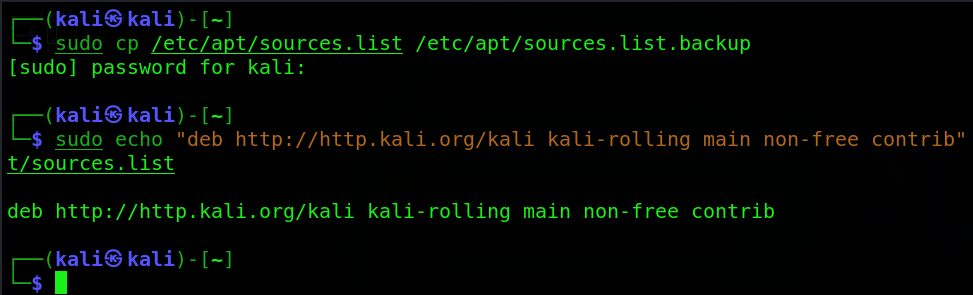
5. Configure the Keyboard Layout
If the selected keyboard layout does not match your physical keyboard, typing commands may become difficult, especially when entering special characters such as /, @, # or \. Reconfigure the keyboard layout using:
sudo dpkg-reconfigure keyboard-configuration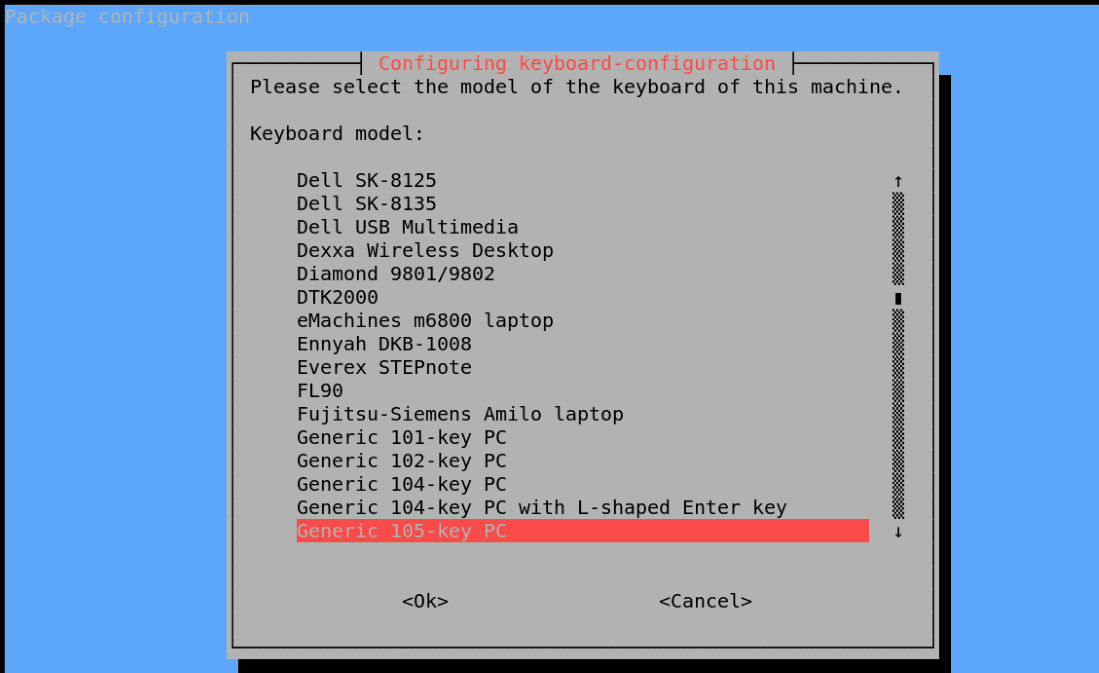
6. Enable SSH for Remote Access (Optional)
If you need to manage your Kali Linux machine remotely, install and enable the OpenSSH server. SSH (Secure Shell) provides an encrypted communication channel for securely accessing the system over a network. Install the OpenSSH server:
sudo apt install openssh-serverEnable the SSH service to start automatically at boot:
sudo systemctl enable sshStart the SSH service:
sudo systemctl start sshVerify that the service is running:
sudo systemctl status ssh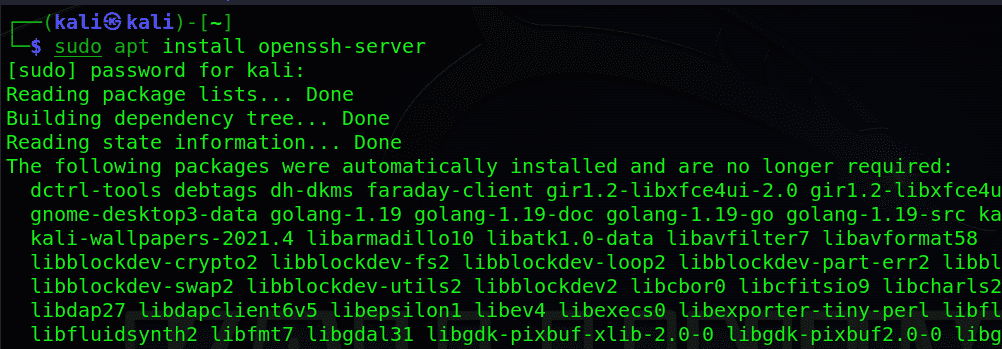
7. Configure the Firewall
Although Kali Linux is primarily used for security testing, enabling a firewall helps protect the system from unauthorized inbound network connections. Install UFW (Uncomplicated Firewall):
sudo apt install ufwSet the default firewall policies:
sudo ufw default deny incoming
sudo ufw default allow outgoing
Enable the firewall:
sudo ufw enableCheck the firewall status:
sudo ufw status verbose8. Install VPN Software
A Virtual Private Network (VPN) encrypts network traffic and secures communications over public or untrusted networks. It is particularly useful when performing remote security assessments or accessing internal laboratory environments. Install OpenVPN:
sudo apt install openvpnVerify the installation:
openvpn --version9. Install GDebiSo
Although APT is the preferred package manager, some software is distributed as standalone .deb packages. GDebi simplifies their installation by automatically resolving package dependencies. Install GDebi:
sudo apt install gdebiInstall a local package:
sudo gdebi package.deb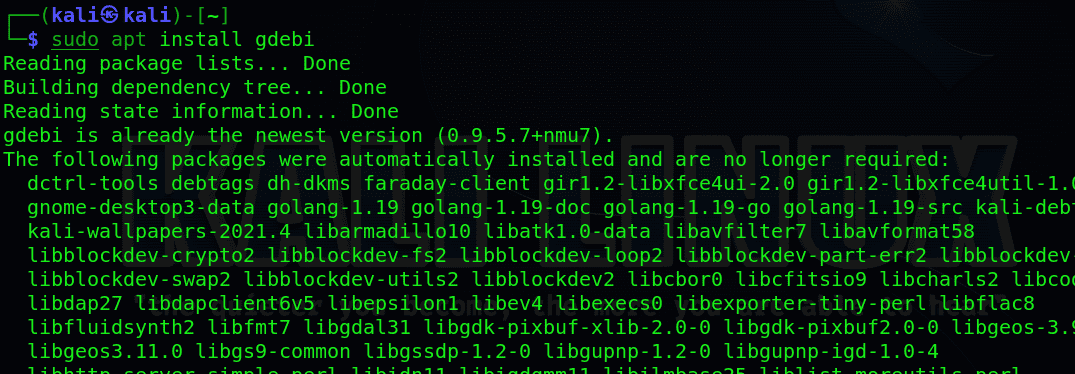
10. Install Wireshark
Wireshark is one of the most widely used network protocol analyzers. It enables users to capture, inspect and analyze network traffic for troubleshooting, protocol analysis and security investigations. Install Wireshark:
sudo apt install wiresharkAllow non-root users to capture packets:
sudo usermod -aG wireshark $USER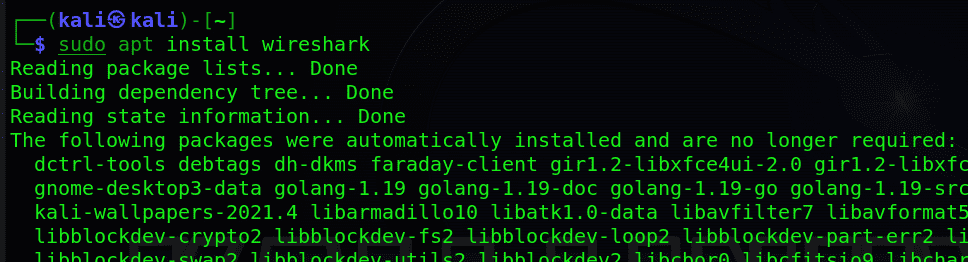
To open the Wireshark you have to run the following command:
wireshark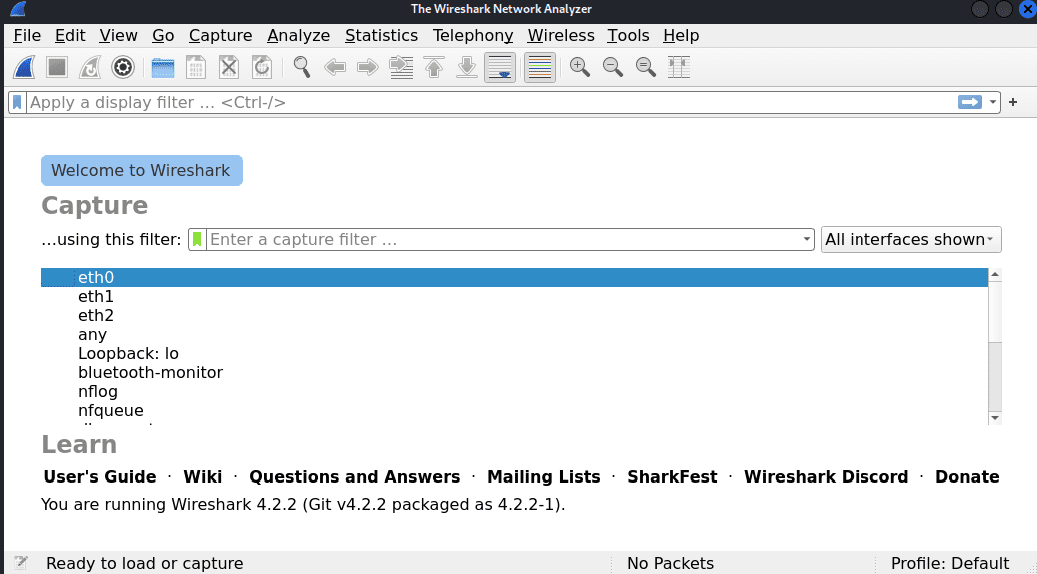
11. Optimize Power Management (For Laptops)
If you use Kali Linux on a laptop, optimizing power consumption can significantly improve battery life without affecting normal system usage. TLP is an advanced power management tool that automatically applies power-saving settings for the CPU, storage devices, USB devices and wireless adapters. Install TLP:
sudo apt install tlpEnable the service:
sudo systemctl enable tlpStart TLP:
sudo systemctl start tlpVerify its status:
sudo systemctl status tlp.png)
12. Install a Terminal Multiplexer
Penetration testing often involves running multiple commands simultaneously, such as Nmap scans, Metasploit sessions, log monitoring and SSH connections. A terminal multiplexer allows multiple terminal sessions within a single window without interrupting running processes. Install tmux:
sudo apt install tmuxLaunch tmux:
tmuxAlternatively, install Tilix, a modern terminal emulator with split-pane support:
sudo apt install tilix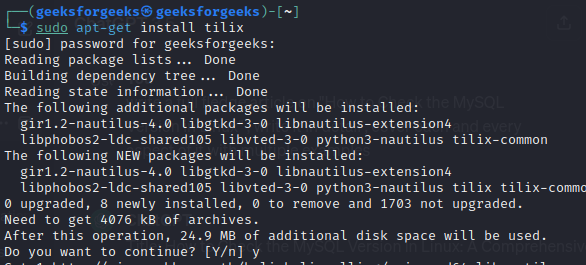
13. Install Git
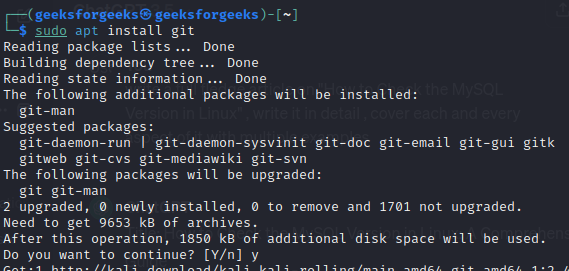
Git is a distributed version control system used to manage source code, automation scripts, configuration files and penetration testing projects. It also enables users to clone public repositories from platforms such as GitHub. Install Git:
sudo apt install gitVerify the installation:
git --versionConfigure your Git identity:
git config --global user.name "Your Name"
git config --global user.email "you@example.com"
14. Install Tor
Tor (The Onion Router) helps protect user privacy by routing Internet traffic through multiple volunteer-operated relays. It is commonly used for anonymous browsing, OSINT investigations, privacy research and accessing services that may not be directly reachable through standard Internet connections. Install Tor:
sudo apt install torStart the Tor service:
sudo systemctl enable tor
sudo systemctl start tor
Verify the installation:
tor --version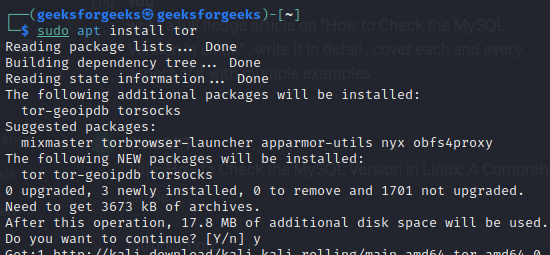
15. Install a Code Editor
Writing scripts, editing configuration files, developing automation tools and modifying source code are common tasks in Kali Linux. Installing a feature-rich code editor improves productivity and simplifies development. Install Visual Studio Code:
sudo apt install codeNote: If the code package is unavailable, first add the official Visual Studio Code repository or install VS Code from the official Microsoft package.
Verify the installation:
code --versionInstall Vim:
sudo apt install vimInstall Nano:
sudo apt install nano