

Here are the different methods used to check the radio button is selected:
1. Using Input Radio checked property
The checked property in JavaScript checks if a radio button is selected. By using document.getElementById or querySelector to get the radio button, the checked property returns true if the button is selected, and false if it is not.
<html>
<head></head>
<body>
    <h1 style="color:blue;">
        Check if a Radio Button is Selected
    </h1>

    <h3>
        Click the button to check if any radio button is selected.
    </h3>

    <form>
        <input type="radio" name="language" id="Python" value="Python"> Python<br>
        <input type="radio" name="language" id="Java" value="Java"> Java<br>
        <input type="radio" name="language" id="C++" value="C++"> C++<br><br>

        <button type="button" onclick="checkSelection()">Check Selection</button>
    </form>

    <br>

    <div id="result" style="color:green; font-size:18px; font-weight:bold;">
    </div>

    <script>
        function checkSelection() {
            if (document.getElementById('Python').checked) {
                document.getElementById("result").innerHTML =
                    "Python radio button is selected.";
            }
            else if (document.getElementById('Java').checked) {
                document.getElementById("result").innerHTML =
                    "Java radio button is selected.";
            }
            else if (document.getElementById('C++').checked) {
                document.getElementById("result").innerHTML =
                    "C++ radio button is selected.";
            }
            else {
                document.getElementById("result").innerHTML =
                    "No radio button is selected.";
            }
        }
    </script>
</body>

</html>
Output:
2. Using DOM querySelector() Method
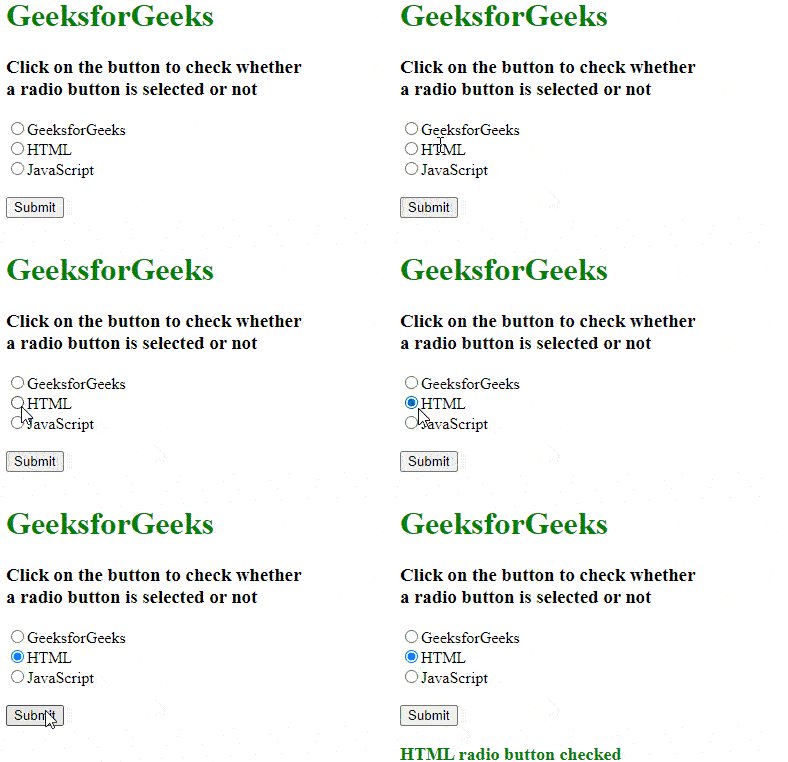
The querySelector() method in JavaScript selects the first radio button that matches a given selector. By checking the checked property of the selected element, it can be determined if the radio button is selected.
<html>
<head></head>
<body>
    <h1 style="color:green;">
        GeeksforGeeks
    </h1>
    <h3>
        Click on the button to check whether<br>
        a radio button is selected or not
    </h3>

    <form>
        <input type="radio"
               name="GFG"
               id="GFG"
               value="GeeksforGeeks">GeeksforGeeks<br>

        <input type="radio"
               name="GFG"
               id="HTML"
               value="HTML">HTML<br>

        <input type="radio"
               name="GFG"
               id="JS"
               value="JavaScript">JavaScript<br><br>

        <button type="button" onclick="display()">
            Submit
        </button>
    </form>
    <br>
    <div id="disp"
         style="color:green; font-size:18px; font-weight:bold;">
    </div>
    <script>
        function display() {
            let checkRadio = document.querySelector(
                'input[name="GFG"]:checked');

            if (checkRadio != null) {
                document.getElementById("disp").innerHTML
                    = checkRadio.value
                    + " radio button checked";
            }
            else {
                document.getElementById("disp").innerHTML
                    = "No one selected";
            }
        }
    </script>
</body>

</html>
Output:
3. Using for Loop to Check All Radio Buttons in a Group
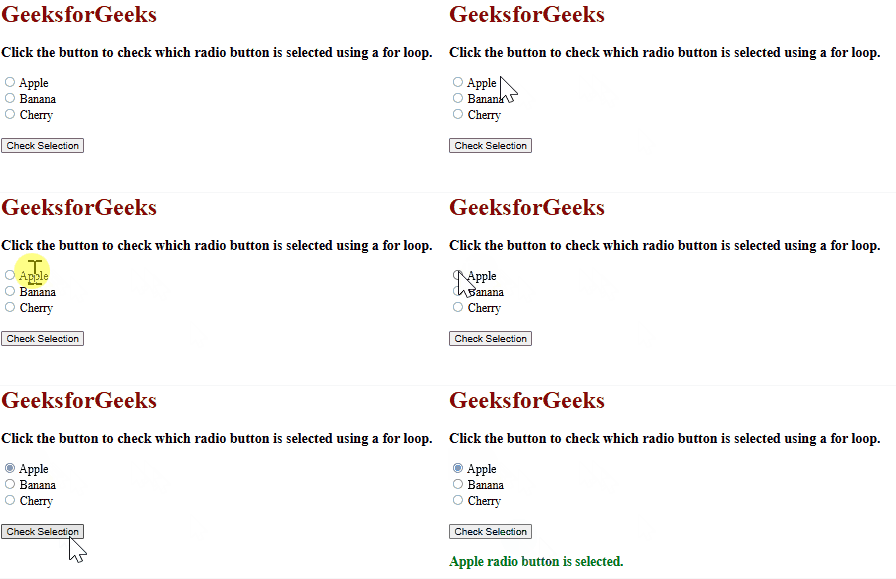
If there are multiple radio buttons in a group and it is needed to check if any of them is selected, a for loop can be used to go through all the radio buttons with the same name.
<html>
<head></head>
<body>

    <h1 style="color:darkred;">
        GeeksforGeeks
    </h1>

    <h3>
        Click the button to check which radio button is selected using a for loop.
    </h3>
    <form>
        <input type="radio" name="fruit" value="Apple" id="apple"> Apple<br>
        <input type="radio" name="fruit" value="Banana" id="banana"> Banana<br>
        <input type="radio" name="fruit" value="Cherry" id="cherry"> Cherry<br><br>

        <button type="button" onclick="checkRadio()">Check Selection</button>
    </form>
    <br>

    <div id="message" style="color:green; font-size:18px; font-weight:bold;">
    </div>

    <script>
        function checkRadio() {
            var radios = document.getElementsByName('fruit');

            for (var i = 0; i < radios.length; i++) {
                if (radios[i].checked) {
                    document.getElementById("message").innerHTML =
                        radios[i].value + " radio button is selected.";
                    return;
                }
            }
            document.getElementById("message").innerHTML = "No fruit is selected.";
        }
    </script>
</body>
</html>
Output
JavaScript is best known for web page development but it is also used in a variety of non-browser environments. You can learn JavaScript from the ground up by following this JavaScript Tutorial and JavaScript Examples.
Conclusion
Checking whether a radio button is selected can be done using various methods such as the checked property, querySelector() method, and a for loop. These approaches allow easy access and checking of radio button selections, making it simple to handle user input in forms.
