

Wireshark is a packet capture and network analysis tool that records data packets transmitted over a network interface and presents them in a human-readable format. Each captured packet contains valuable information such as source and destination addresses, protocols used, timestamps, packet size and payload details.
- Live Packet Capture: Captures packets directly from network interfaces, allowing users to observe communication as it occurs. Monitors active network traffic. Supports wired and wireless networks.
- Deep Packet Inspection: Every captured packet can be expanded to reveal protocol headers and payload information. Source IP , Destination IP, MAC addresses, Port numbers, Time stamps, etc.
- Powerful Display Filters: Wireshark includes advanced filtering capabilities that allow users to isolate specific traffic without modifying the captured data. Common Filters tcp, udp, dns, tls, icmp etc.
- Protocol Support: Wireshark can decode thousands of protocol fields across hundreds of networking protocols. Ethernet, ARP, HTTPS, SSH, SNMP, FTP etc.
- Packet Search: Large capture files may contain millions of packets. Wireshark provides search capabilities to locate packets based on Packet contents, String patterns, Protocol names, Port numbers.
- Statistics and Visualization: Wireshark provides built-in statistical tools that summarize captured traffic. I/O graphs, Flow graphs, Endpoint statistics, Conversation analysis etc.
Working of Wireshark
The captured packets are displayed in real time, allowing users to monitor, analyze and troubleshoot network communication.
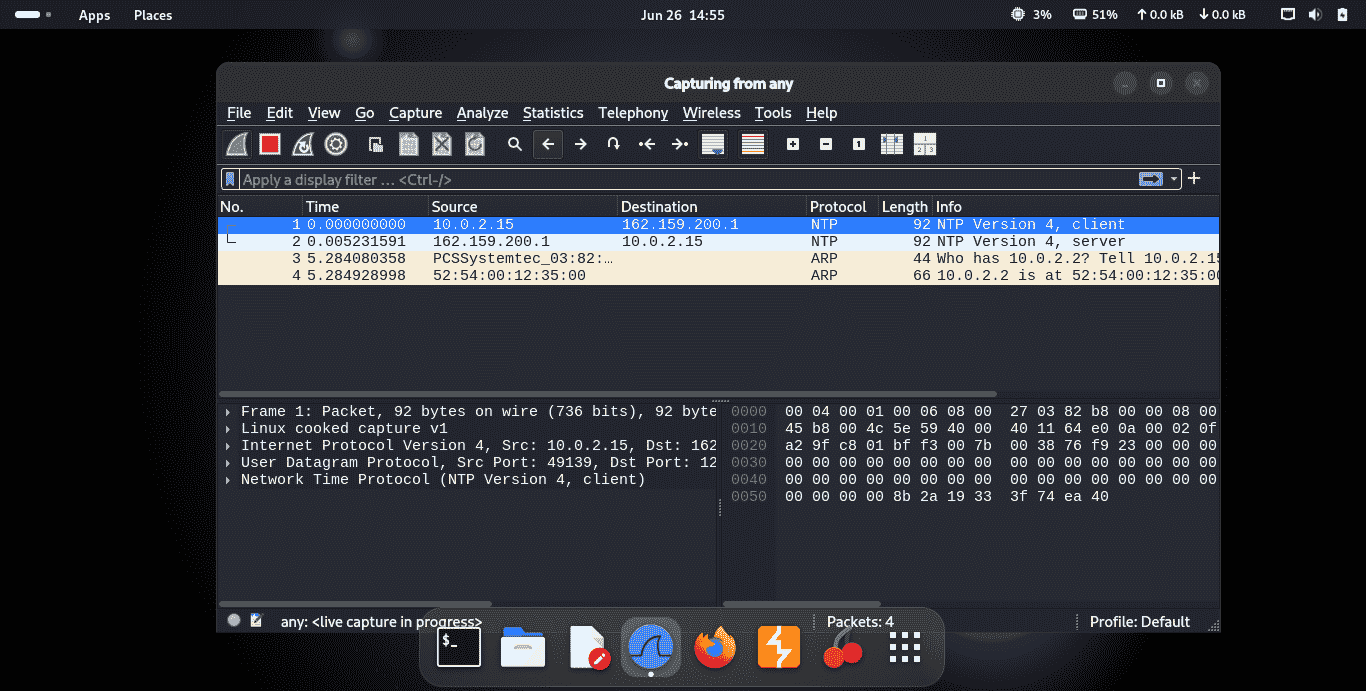
- Select a Network Interface: Choose the network interface (Ethernet, Wi-Fi or virtual adapter) that will be monitored. Wireshark captures only the traffic passing through the selected interface.
- Start Packet Capture: Click Start Capture to begin recording network packets in real time. Wireshark continuously collects packet data until the capture is manually stopped.
- Generate or Observe Network Activity: Perform activities such as browsing websites, sending emails or using network applications to generate traffic. Existing network communication can also be monitored.
- Stop the Capture: Once sufficient data has been collected, stop the capture to prevent unnecessary packet accumulation. This allows you to focus on analyzing the recorded traffic.
- Apply Filters to Isolate Relevant Packets: Use display filters to view only the packets related to a specific protocol, IP address or port number. Filtering simplifies analysis by hiding unrelated network traffic.
- Inspect Packet Details: Select an individual packet to examine its headers, protocol fields and payload information. This helps identify communication patterns, errors or suspicious network behavior.
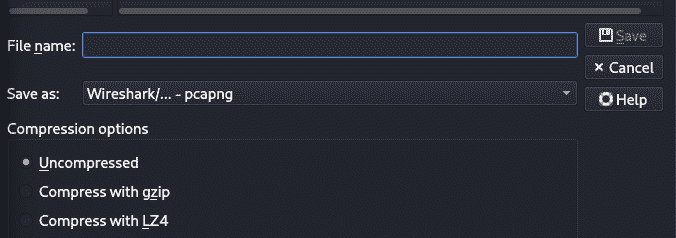
- Save the Capture for Future Analysis: Save the captured traffic in PCAP or PCAPNG format for later review or sharing with other analysts.
Components of the Wireshark Interface
The Wireshark interface is divided into three primary sections.
- Packet List Pane: Displays every captured packet with summary information such as Packet number, Capture time, Brief description, Packet length etc.
- Packet Details Pane: Provides a hierarchical breakdown of the selected packet, showing protocol headers and field values.
- Packet Bytes Pane: Displays the raw hexadecimal and ASCII representation of the packet data, enabling low-level inspection.
Practical Lab: Capturing and Analyzing Network Traffic Using Wireshark
- Objective: Learn how to capture live network traffic, apply display filters and analyze packets using Wireshark.
- Lab Requirements: Wireshark installed on Windows, Linux or macOS, Internet connection, web browser (Chrome, Firefox).
Step 1: Launch Wireshark
- Open Wireshark.
- Select the active network interface (Wi-Fi or Ethernet).
- Double-click the interface to start capturing packets.
- Wireshark begins displaying live network packets in real time.
Step 2: Generate Network Traffic
- Open your web browser.
- Visit any website, such as https://example.com.
- Refresh the page 2–3 times.
- The browser generates DNS lookups, TCP connections and HTTPS traffic, which appear in Wireshark.
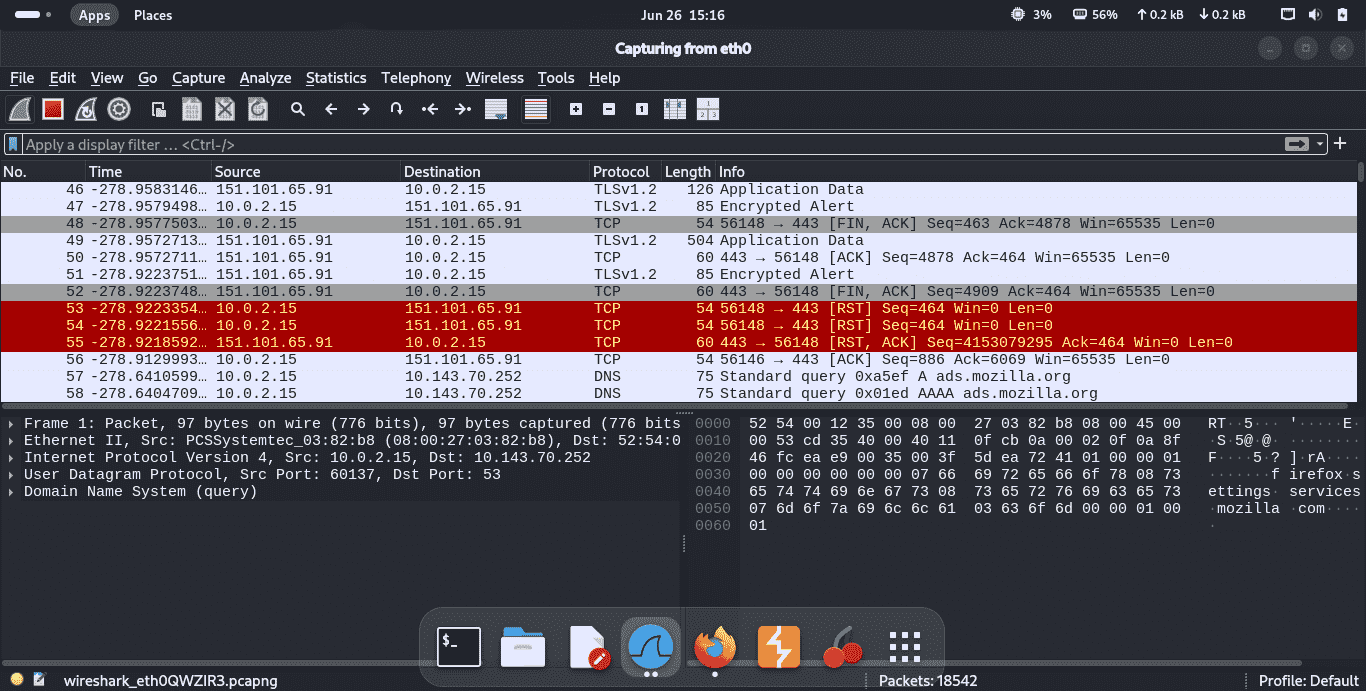
Step 3: Stop Packet Capture
- Return to Wireshark.
- Click the Stop button (red square).
- The packet capture stops and all captured packets remain available for analysis.
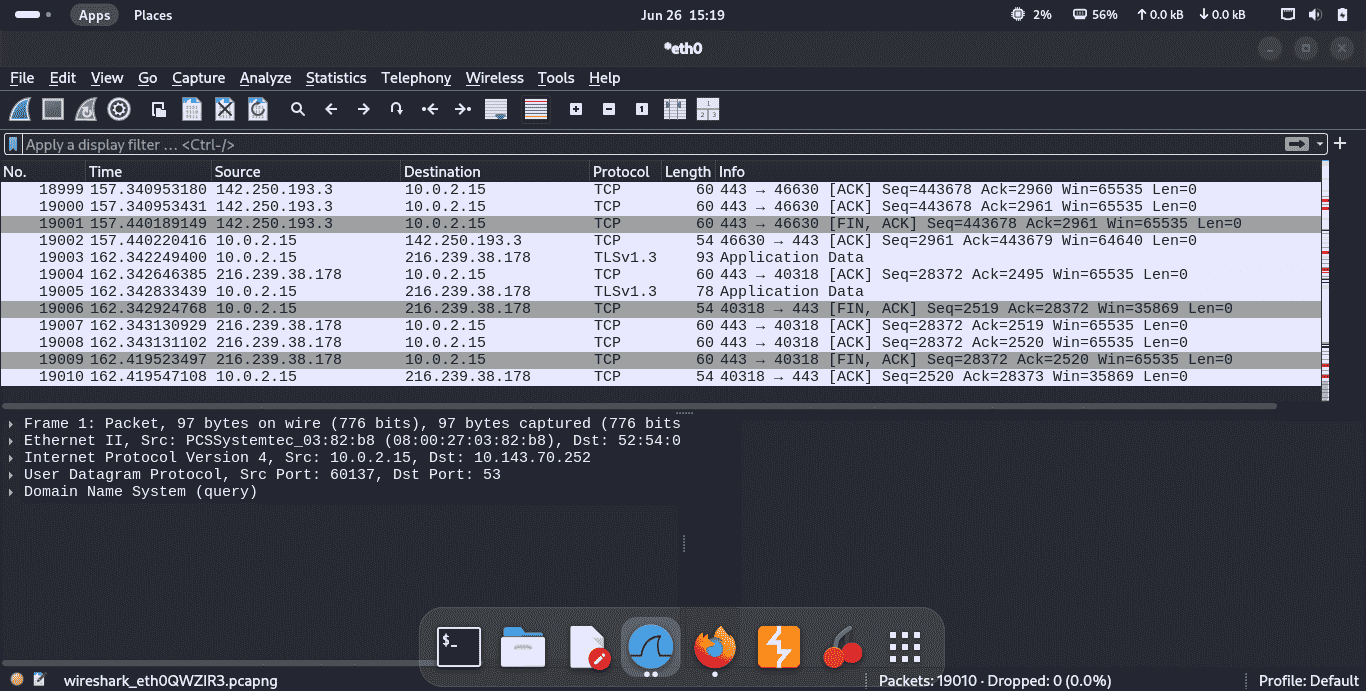
Step 4: Apply Display Filters
Enter the following filters one at a time in the Display Filter bar.
Filter | Purpose |
|---|---|
dns | View DNS query and response packets |
tcp | Display only TCP traffic |
tls | Display encrypted HTTPS traffic |
ip.addr == your_IP_address | Show packets related to your computer |
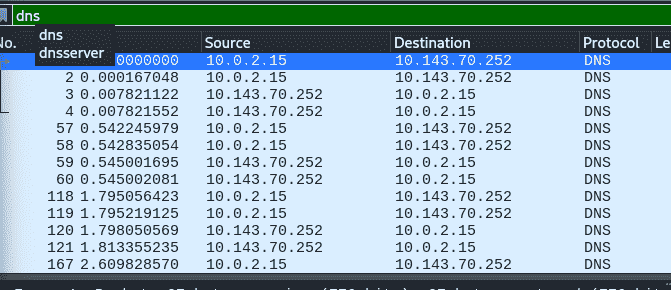
Step 5: Inspect a Packet
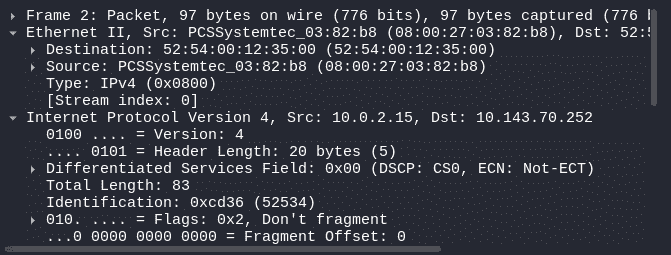
- Click any DNS packet.
- Expand the following sections: Ethernet II, Internet Protocol (IPv4/IPv6), User Datagram Protocol (UDP), Domain Name System (DNS).
- Observe: Source IP, Destination IP, Requested domain name, Requested domain name, Transaction ID.
Step 6: Save the Capture
- Select File Save As.
- Save the file as network_capture.pcapng.
- The capture can be reopened later for additional analysis.
Common Uses of Wireshark
- Network Troubleshooting: Engineers analyze packet flow to diagnose slow connections, packet loss, retransmissions and communication failures.
- Cybersecurity Monitoring: Security analysts inspect suspicious traffic to identify attacks, unauthorized access, malware communication and reconnaissance activity.
- Digital Forensics: Investigators examine recorded network captures to reconstruct events during cybersecurity incidents.
- Protocol Analysis: Developers verify that applications correctly implement networking protocols.
- Education and Training: Students use Wireshark to visualize real network communication and better understand networking concepts.
Limitations of Wireshark
- Cannot decrypt encrypted traffic without appropriate keys.
- Packet captures may become extremely large on busy networks.
- Requires networking knowledge for effective analysis.
- Cannot capture switched traffic outside the monitored interface without additional configuration.
- Primarily analyzes traffic rather than preventing attacks.
