

Model Context Protocol (MCP) is a standardized framework by Anthropic that enables AI models to connect with external tools and data sources, providing secure, scalable and real time access without custom integrations.
- Standardizes communication between AI systems and data sources.
- Enables real time access to up to date information.
- Simplifies integration with minimal setup and faster deployment.
- Supports a wide range of use cases across different industries.
Why Do We Need MCP?
Before MCP, connecting an AI application to external systems required writing unique pipelines for each target service. This approach introduced significant friction:
- Redundant Engineering: Every AI client required custom integration logic for every unique API or database.
- Context Limits & Security: Passing massive blocks of raw data into prompt context windows was inefficient and exposed credentials.
- Maintenance Complexity: Any API schema change broke downstream integrations across multiple AI tools.
MCP Architecture
MCP operates on a host-client-server pattern built on JSON-RPC 2.0:
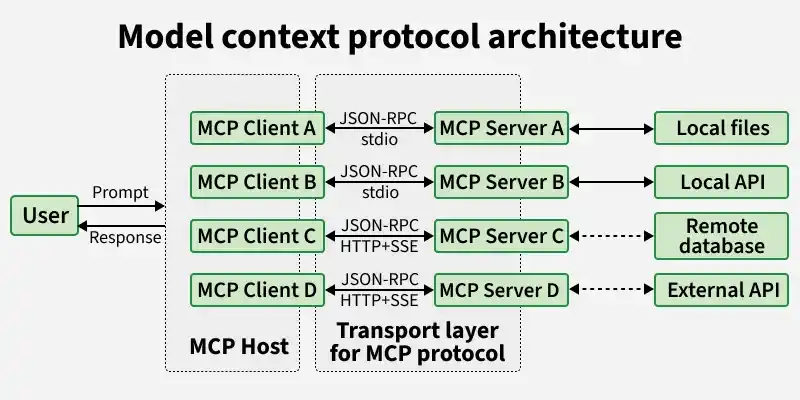
MCP is designed as a flexible system that connects AI models with external tools and data sources through three main components: servers, clients and hosts, enabling smooth and efficient interaction.
1. MCP Hosts
- Provide the interface where users interact with the AI system.
- Coordinate communication between multiple clients and servers.
- Manage workflows and ensure smooth execution of requests.
- Handle orchestration logic for end to end task processing.
2. MCP Clients
- Act as a communication bridge between the host and server.
- Convert user requests into structured protocol messages for processing.
- Maintain a 1:1 connection with servers while a host can have multiple clients.
- Manage sessions including timeouts, interruptions and reconnections.
- Handle responses, errors and ensure outputs remain contextually relevant.
3. MCP Servers
- Handle data access and actions by connecting to databases, APIs or tools.
- Process requests and return results based on client queries.
- Provide resources (data), tools (actions) and prompts (structured workflows).
- Integrate with services like GitHub, Slack and cloud platforms.
communication Mechanism
MCP supports two primary transport layers for communication:
- STDIO (Standard Input/Output): Ideal for local execution where the client spawns the server as a child process and communicates via standard I/O streams.
- SSE (Server-Sent Events) over HTTP: Designed for remote, distributed architectures where the server is hosted in the cloud.
Core Capabilities of MCP
MCP standardizes three main types of interactions:
Resources (resources/list, resources/read)
- It expose data to the AI. Think of them as file paths or database rows.
- They are identified by custom URIs (e.g., file:///logs/app.log or postgres://db/users).
- Resources can be static or dynamic.
Tools (tools/list, tools/call)
- Allow the AI to perform actions or computations.
- When a model decides to execute a tool, it sends a JSON payload matching the tool's defined JSON Schema.
- The server executes the logic and returns the result (e.g., executing a SQL query, triggering a build pipeline, or searching the web).
Prompts (prompts/list, prompts/get)
- They are reusable, parameterized templates provided by the server.
- They help structure the AI's workflow (e.g., a "Code Review" prompt that automatically fetches the latest Git diff before asking the model to review it).
Context Management in Agent Workflows
MCP helps AI agents handle different layers of context efficiently:
- Ephemeral Context: Real-time, temporary data fetched dynamically for immediate execution (e.g., active CPU metrics, current API outputs).
- Session Context: Short-term data maintained across multiple execution steps during an active conversation.
- Long-Term Memory: Persistent data stored in external databases and retrieved via MCP resource queries across distinct sessions.
Implementation
Let's build a functional Context Sharing System using MCP. We will create an MCP server that exposes a "Tool" allowing an AI to fetch a user's local system metrics (CPU and Memory usage) in real-time.
Step 1: Environment Setup
First, install the required libraries. We will use the official mcp SDK and psutil to fetch system stats.
pip install mcp[cli] asyncio psutil
Set up your project hierarchy:
mkdir mcp-system-monitor
cd mcp-system-monitor
mkdir -p src/server
touch src/server/main.py
Step 2: Creating the MCP Server
Open src/server/main.py and import the necessary modules. We will initialize the server and define our tools using decorators.
import asyncio
import psutil
from mcp.server import Server
from mcp.server.stdio import stdio_server
from mcp.types import Tool, TextContent

app = Server("System-Monitor-MCP")

@app.list_tools()
async def list_tools() -> list[Tool]:
    """
    Register the tools exposed by this server.
    """
    return [
        Tool(
            name="get_system_metrics",
            description="Fetches real-time CPU and Memory usage of the host machine.",
            inputSchema={
                "type": "object",
                "properties": {
                    "verbose": {
                        "type": "boolean",
                        "description": "If true, returns detailed memory statistics."
                    }},
                "required": []
            })]

@app.call_tool()
async def call_tool(name: str, arguments: dict) -> list[TextContent]:
    """
    Handle the execution of registered tools.
    """
    if name == "get_system_metrics":
        verbose = arguments.get("verbose", False)

        cpu_usage = psutil.cpu_percent(interval=0.5)
        memory = psutil.virtual_memory()

        if verbose:
            result = f"CPU Usage: {cpu_usage}%\nTotal Memory: {memory.total / (1024**3):.2f} GB\nAvailable Memory: {memory.available / (1024**3):.2f} GB\nMemory Used: {memory.percent}%"
        else:
            result = f"CPU: {cpu_usage}%, Mem: {memory.percent}%"

        return [TextContent(type="text", text=result)]

    raise ValueError(f"Unknown tool: {name}")

async def main():
    """
    Run the server using STDIO transport.
    """
    print("Starting System Monitor MCP Server...", flush=True)
    async with stdio_server() as (read_stream, write_stream):
        await app.run(
            read_stream,
            write_stream,
            app.create_initialization_options())
if __name__ == "__main__":
    asyncio.run(main())
Step 3: Testing with the MCP Inspector GUI
Anthropic provides an incredibly useful developer tool called the MCP Inspector to test servers without writing a custom client.
Run the inspector via the CLI, pointing it to your Python script using the STDIO transport:
npx @modelcontextprotocol/inspector python src/server/main.py
This will launch a local web server (usually at http://localhost:5173). Navigate to the URL, and you will see the Inspector GUI. Go to the Tools tab, select get_system_metrics, and execute it. You should see your system's CPU and Memory stats returned in real-time.
Step 4: Integrating with Claude Desktop
To make this server useful in a real workflow, you can connect it directly to an MCP Host like Claude Desktop.
Open the Claude Desktop configuration file:
- Mac: ~/Library/Application Support/Claude/claude_desktop_config.json
- Windows: %APPDATA%\Claude\claude_desktop_config.json
Add your new MCP server to the configuration:
{
  "mcpServers": {
    "system-monitor": {
      "command": "python",
      "args": [
        "/absolute/path/to/mcp-system-monitor/src/server/main.py"
      ]
    }
  }
}
Restart Claude Desktop. You can now prompt Claude: "What is my current CPU usage?" Claude will recognize the get_system_metrics tool, execute it via the MCP connection, and respond with your live system data.
Applications
- Workflow Automation: Connects AI with tools like Google Drive, Slack, and GitHub to automate data access and operational tasks.
- Developer Tooling: Enhances IDEs by automating tasks like bug fixes, pull request reviews, and code documentation.
- Customer Support: Integrates with CRM systems to fetch live user accounts and deliver real-time, personalized responses.
- Research & Data Aggregation: Facilitates fast-tracked research by searching, filtering, and summarizing information across multiple external sources.
- System Operations: Connects to monitoring services and local environments to fetch live metrics, system logs, and operational data.
Advantages
- Eliminates the need for custom, proprietary integrations by providing a universal protocol standard.
- Allows AI models to discover, read, and execute external tools and endpoints with low friction.
- Lets engineering teams easily plug in new data sources or servers without altering the core AI application logic.
- Ensures AI outputs rely on fresh, live external data rather than static, outdated training weights.
- Keeps sensitive credentials and API tokens on the server side rather than exposing them directly to the LLM.
Limitations
- System reliability drops if an underlying third-party service, database, or remote server goes offline.
- Real-time tool execution and multi-hop network calls add processing delay compared to direct prompt responses.
- Compromised external data sources can attempt to inject malicious instructions to manipulate model behavior.
- Managing multiple servers, transport configurations, and access permissions across large teams adds operational complexity.
