

Claude Code on the web runs the same agentic coding workflow as the terminal version, but the task executes on Anthropic-managed cloud infrastructure. A GitHub repository can be connected once, after which developers can describe a task and review the resulting branch without keeping a local terminal session open.
- Cloud sessions are asynchronous, so Claude can continue working after the browser tab is closed and the result can be reviewed later.
- The workflow connects GitHub, Claude Code, and pull-request review without requiring a local installation for the cloud session.
- A session can be started from the web or mobile app, or initiated from the Claude Code CLI with the cloud option.
Claude Code on the web as a research preview for Pro, Max, and Team users, and for Enterprise users with eligible seats. Cloud sessions use the account's existing Claude and Claude Code rate limits, and the guide does not describe a separate charge for the cloud virtual machine.
Connect GitHub
GitHub access is configured once and can be set up from the browser or from an existing Claude Code CLI session.
- Open claude.ai/code, sign in with the Anthropic account used for Claude, and follow the prompt to connect GitHub through the Claude GitHub App.
- If the GitHub CLI is already part of the local workflow, run the following command inside Claude Code to synchronize the local GitHub token with the Claude account.
- Select a repository and branch. The connected GitHub account determines which repositories the cloud session can access; repository restrictions should be managed in GitHub.
/web-setup
Start a Task
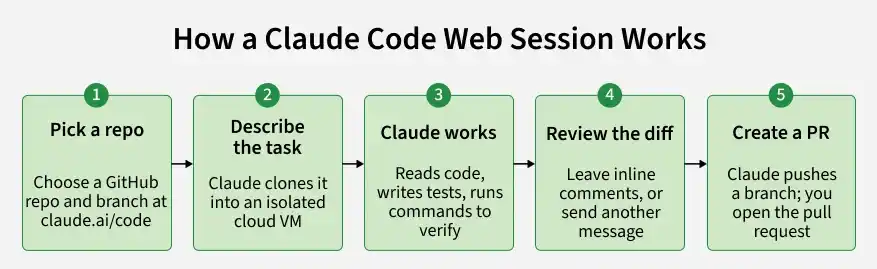
- Open claude.ai/code in the browser, or open the Code tab in the Claude mobile app.
- Use the repository selector below the input box to choose the repository and branch.
- Describe the task in plain language, just as you would when using Claude Code from the terminal.
- Submit the task. Claude clones the repository into a fresh, isolated cloud virtual machine and begins working on it.
Review the Changes
- When Claude reaches a stopping point, it pushes the work to a GitHub branch.
- The session exposes a diff with added and removed lines, and reviewers can leave inline comments on specific lines and send those comments back to Claude as the next instruction.
- The session remains open through this review cycle, so additional edits and pull-request creation can continue in the same conversation.
Cloud Session Environment
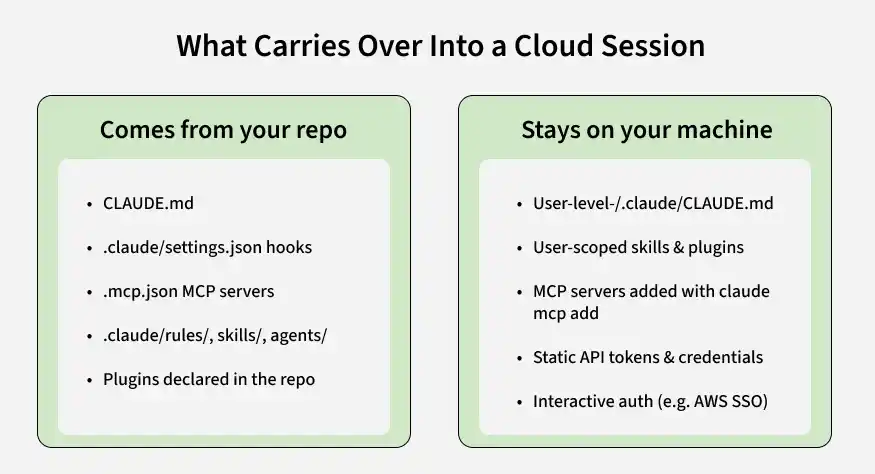
Each cloud session begins with a fresh clone of the selected repository. Project-level configuration that is committed to the repository can therefore travel with the session, whereas configuration stored only on the developer's machine does not.
- The supplied guide lists common runtimes, build tools, and databases as pre-installed, including Python, Node.js, Ruby, PHP, Java, Go, Rust, C/C++, Docker, PostgreSQL, and Redis.
- A setup script can install missing dependencies, and the resulting environment can be cached for subsequent sessions.
Move Between Web and Terminal
Web and terminal sessions can be connected when the Claude Code CLI is signed in to the same claude.ai account. This makes it possible to start long-running work remotely and later continue the session interactively from the terminal.
claude --cloud "Fix the authentication bug in src/auth/login.ts"
The --cloud option starts a new cloud session from the terminal. The task runs remotely while local work can continue, and the /tasks command can be used to inspect active cloud sessions.
claude --teleport
The --teleport command brings a cloud session into the terminal. It can open an interactive picker, or a specific session can be resumed by passing its session ID. Claude checks out the session's branch and restores the conversation history.
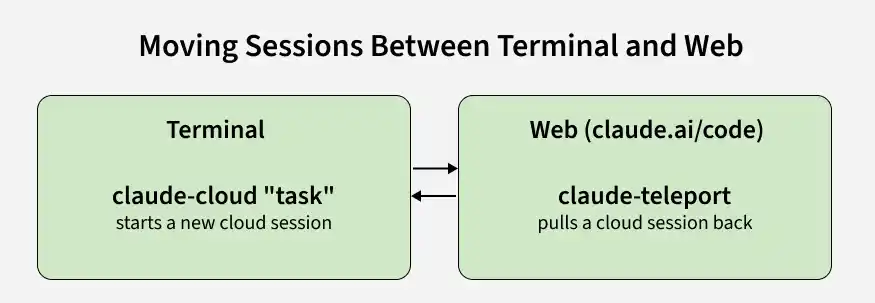
The handoff direction from the CLI is asymmetric: --cloud sends work to a cloud session, while --teleport retrieves a cloud session into the terminal.
Run Tasks in Parallel
Each cloud session runs in its own isolated virtual machine, so separate tasks can be started independently without sharing the working directory of another task.
Examples:
claude --cloud "Fix the flaky test in auth.spec.ts"
claude --cloud "Update the API documentation"
claude --cloud "Refactor the logger to use structured output"
Every command creates an independent session. The /tasks command provides a consolidated view, and a completed task can be reviewed in the web interface or brought into the terminal with --teleport.
When to Use Web sessions
- Web sessions work well for well-defined engineering tasks where the requirements are clear and Claude does not need continuous guidance during execution.
- They are useful for bug backlogs because multiple issues can be assigned to separate sessions and processed in parallel.
- They are convenient for repositories that are not stored locally because Claude can clone the repository and prepare the cloud environment.
- They support cross-device workflows, allowing a task to be started on one device and reviewed later from another.
