

Claude can work with GitHub as part of a development workflow, helping developers review code, understand repositories, work on issues, generate documentation, and automate repetitive tasks. It can support different stages of the software development process.
- Analyze pull requests for bugs, security concerns, edge cases, and maintainability issues.
- Explain functions, trace code paths, and understand unfamiliar repositories.
- Investigate bugs, suggest fixes, and create regression tests.
- Implement features across multiple files following existing project patterns.
- Summarize and categorize issues and suggest appropriate labels.
- Create or update README files, API documentation, comments, and changelogs.
- Suggest test cases, identify missing coverage, and investigate failing tests.
- Summarize pull requests, issue discussions, and repository activity.
Ways to Integrate Claude With GitHub
Claude can work with GitHub in several ways, depending on whether you need repository context, local code changes, automated reviews, or quick help while browsing. The right option depends on how much access and automation your workflow requires.
1. GitHub Integration in Claude
The GitHub integration is useful when you want Claude to work with files from your repositories without setting up a development environment. You can add repositories to a chat or project and select the specific files and folders Claude should use as context.
How to set it up
Step 1: Login to your GitHub account.
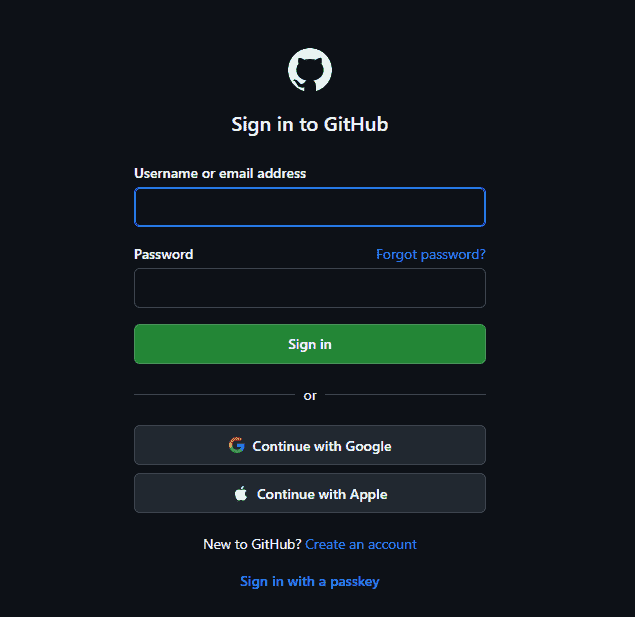
Step 2: After successful login go to
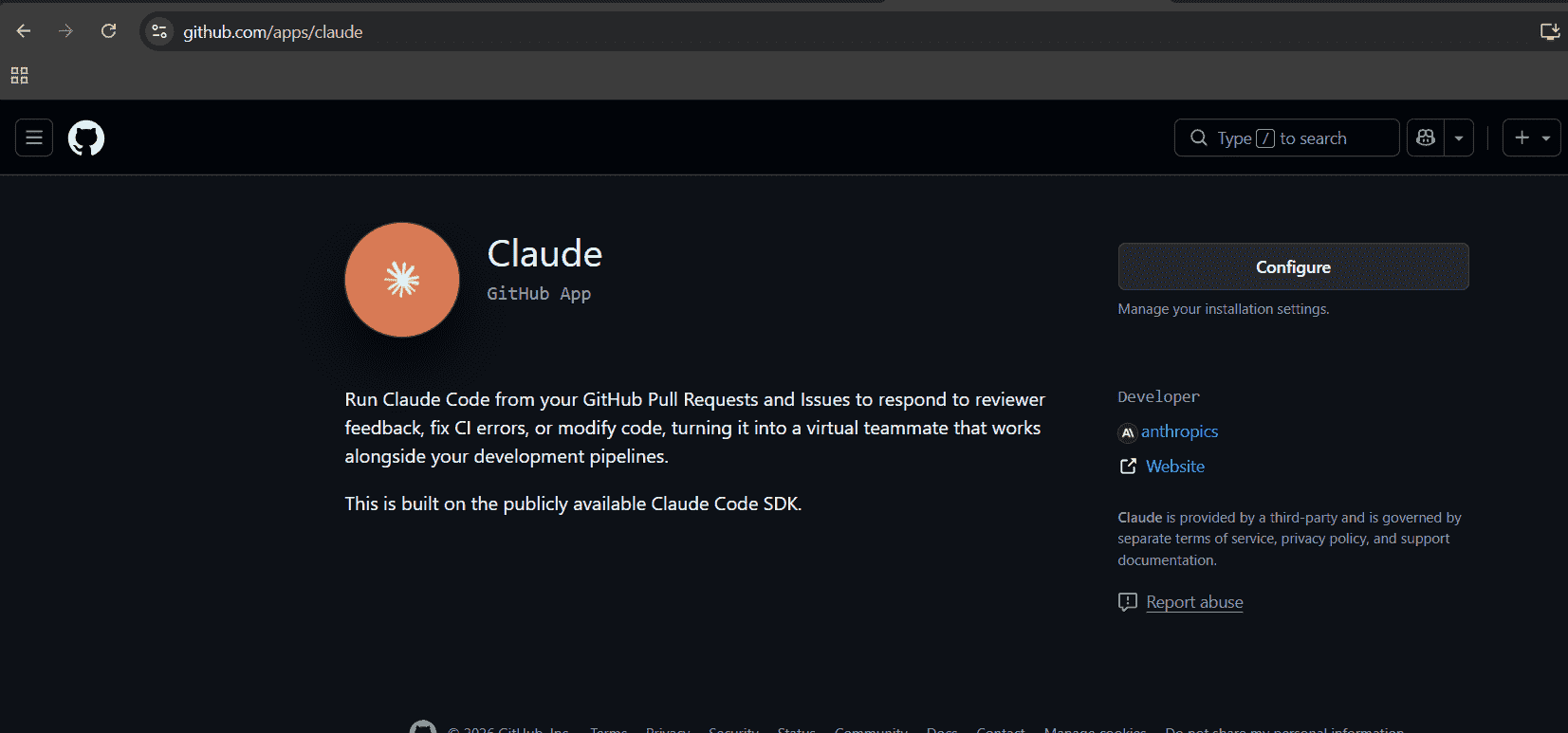
github.com/apps/claude
Step 3: This will Open a page for configuring claude with your GitHub , Click on configure.
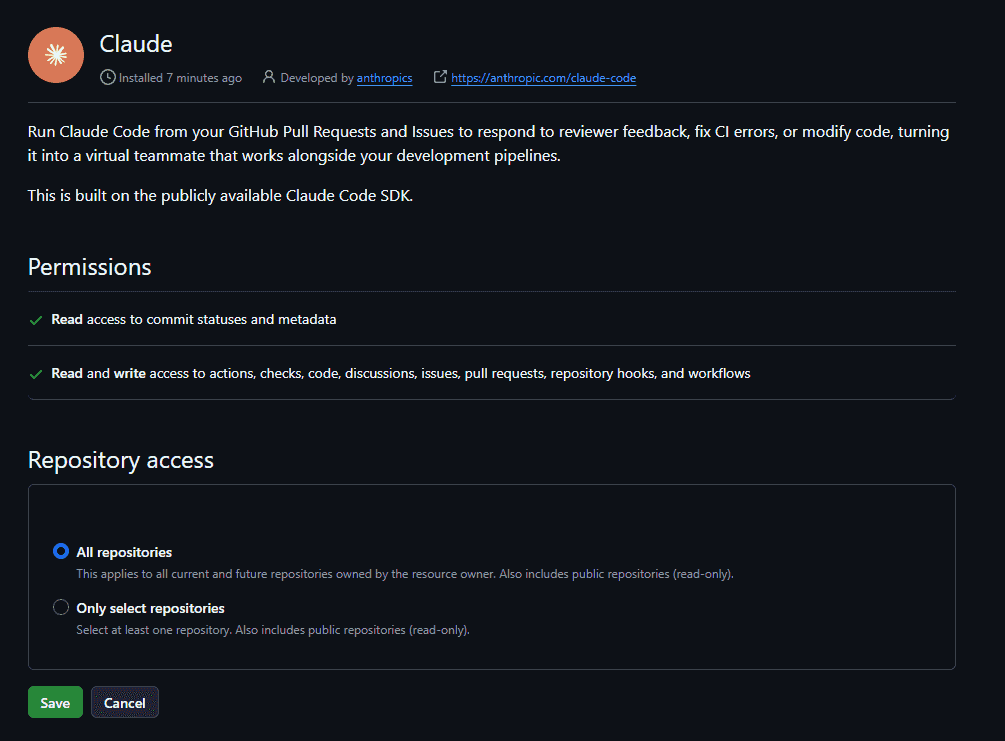
Step 5: Based on your preference, you can give Claude access to all your repositories or only specific repositories.
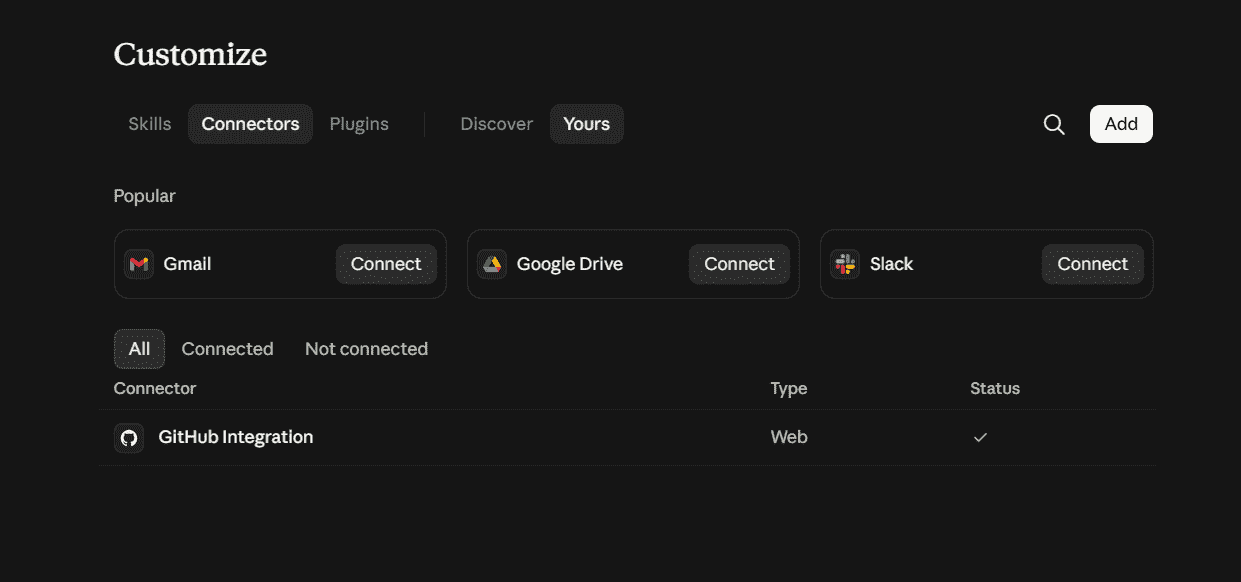
Step 5: Finally, you will be redirected to Claude, where you can see that the GitHub integration has been successfully connected to your Claude account.
What you can use it for:
- Explain unfamiliar functions or files.
- Analyze how different parts of a codebase work together.
- Find potential bugs or implementation issues.
- Suggest improvements to existing code.
- Compare multiple files or modules.
- Review documentation against the code.
- Answer questions using the repository as context.
Example prompt: "Review the authentication files in this repository and explain how login requests flow from the API endpoint to the database."
2. Claude Code
Claude Code is designed for development work directly in a local Git repository. It can inspect the codebase, modify files, run commands and tests, and work with Git and GitHub workflows.
Step 1: install and authenticate Claude Code.
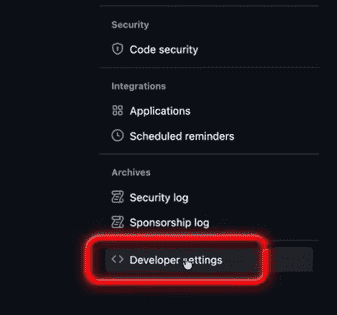
Step 2: Open GitHub Developer Settings
- Go to your GitHub account go to Settings and open Developer settings.
- Under Developer settings, select:
- Personal access tokens (classic)
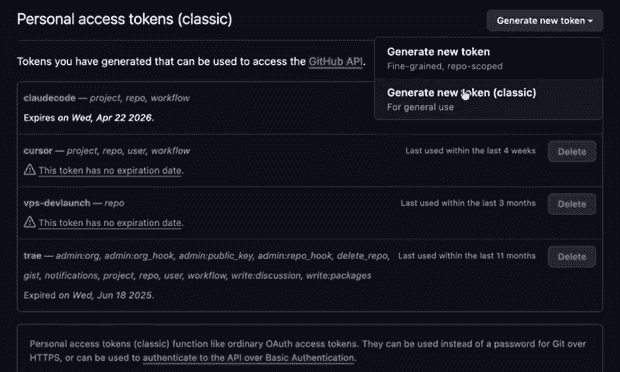
Step 3: Generate a New Token Click Generate new token and select. Generate new token (classic).
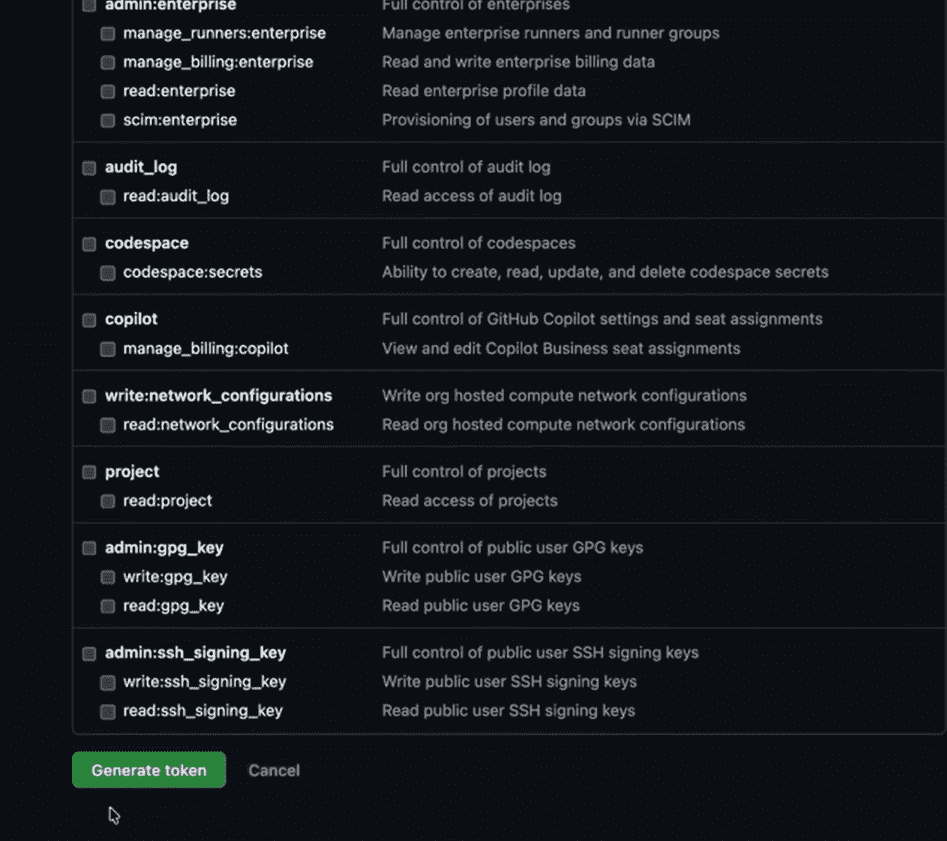
Step 4: Configure the Token
- Enter a name for the token, for example: claudecode
- Set an appropriate expiration period for the token.
- Under Select scopes, enable the permissions required for Claude Code. For repository access, select:
- repo – Full control of private repositories
- workflow – Update GitHub Actions workflows, if required
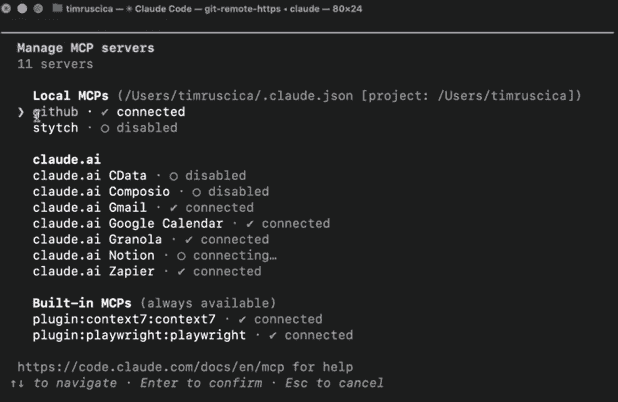
Step 5: Add GitHub MCP Server to Claude Code
claude mcp add-json github '{"type":"http","url":"https://api.githubcopilot.com/mcp","headers":{"Authorization":" YOUR_GITHUB_TOKEN"}}' --scope user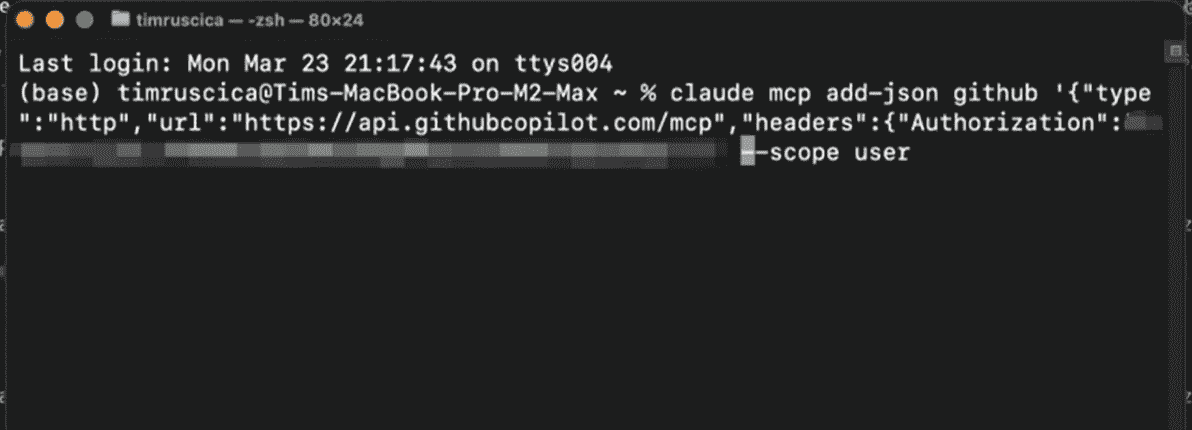
Step 6: Start Using GitHub with Claude Code
Once the GitHub MCP server is connected, Claude Code can interact with your GitHub resources according to the permissions granted to your token.
3. GitHub Actions With the Claude API
GitHub Actions gives you more control when you want to build your own Claude-powered automation.
A workflow can trigger when a pull request or issue is created, send selected information to the Claude API, process the response, and then perform an action in GitHub.
Example workflow:
- A developer opens a pull request.
- GitHub Actions starts the workflow.
- The workflow collects the relevant changes.
- The changes are sent to the Claude API.
- Claude analyzes the code according to your instructions.
- The workflow posts the result back to GitHub.
4. Claude in Chrome
Claude in Chrome is useful when you want assistance while viewing GitHub in your browser. Instead of setting up repository automation, you can use Claude alongside the GitHub page you are working on.
How to use it:
- Install the Claude in Chrome extension.
- Sign in to your Claude account.
- Open a GitHub repository, issue, pull request, or code page.
- Open Claude in the browser.
- Ask Claude about the information you are viewing.
Example prompts:
- "Explain what this pull request changes."
- "Explain this code in plain English."
- "Help me understand this merge conflict."
How to Use Claude With GitHub
Once Claude is connected to GitHub, you can use it for code reviews, development tasks, issue management, and understanding unfamiliar code. The best results come from giving Claude a clear task, relevant context, and specific requirements.
1. Review a Pull Request
Use Claude to examine a pull request for potential problems before it is merged.
Example prompt: "Review this pull request for bugs, security issues, error-handling problems, and missing test coverage."
Claude can identify potential issues, explain why they matter, and suggest possible fixes.
2. Fix a Bug or Implement a Feature
For development tasks, use Claude Code when the work requires changes to your local repository.
Example prompts: "Find the cause of this failing test, fix the issue, and add a regression test."
Claude Code can inspect the relevant files, make changes, run available tests, and prepare the changes for review.
3. Triage GitHub Issues
If a repository receives many issues, Claude can help organize them through a GitHub Actions workflow using the Claude API.
A workflow can:
- Summarize a newly opened issue.
- Classify it as a bug, feature request, or question.
- Estimate its severity.
- Suggest appropriate labels.
- Apply labels through the GitHub API.
- Route issues according to your team's workflow.
Example prompt for the workflow: "Summarize this issue in one sentence, classify it as a bug, feature request, or question, estimate its severity, and suggest appropriate labels."
4. Understand Unfamiliar Code
Claude can help you understand code you did not write, whether you are joining an existing project or exploring an open-source repository.
Ask focused questions such as:
- "What does this function do?"
- "Where is this feature implemented?"
- "How does this API request move through the application?"
- "Why is this configuration file structured this way?"
For repository-level questions, the GitHub integration or Claude Code is generally more useful because they can provide broader code context than looking at a single page.
Tips for Better Results
1. Be Specific
Avoid vague requests such as:
- "Review this function for null-handling issues and compare its error handling with the other functions in this module."
Specific instructions make the result more focused and actionable.
2. Give Claude Appropriate Access
Only provide access to the repositories and files required for the task.
- Start with the smallest required scope.
- Avoid unnecessary organization-wide access.
- Review repository and integration permissions regularly.
- Follow your organization's security policies.
3. Review Changes Before Merging
Claude can suggest or make code changes, but the final decision should remain with a human reviewer.
Before merging:
- Inspect the complete diff.
- Run relevant tests.
- Check security-sensitive changes carefully.
- Confirm the implementation matches project requirements.
- Verify that no unrelated files were modified.
4. Choose the Right Integration
Use the integration that matches the task:
- GitHub Integration: Analyze repository files and understand code.
- Claude Code: Make and test changes in a local repository.
- Claude Code Review: Review pull requests.
- GitHub Actions + Claude API: Automate custom workflows.
- Claude in Chrome: Get quick help while browsing GitHub.
5. Keep Sensitive Information Out of GitHub
Never place secrets or confidential information in prompts, issues, or pull-request comments.
Avoid sharing:
- API keys
- Passwords
- Access tokens
- Private credentials
- Sensitive customer information
Use GitHub Secrets and other approved secret-management systems for credentials instead.
Note: AI-generated reviews and code should be treated as development assistance. Always validate important findings and changes against the actual repository, tests, and project requirements.
