

Selecting a Memory-Efficient IDE: Eclipse or IntelliJ?
Need help selecting the most memory-efficient IDE?
 CORE
·
Eclipse and IntelliJ are the two competing IDEs in the industry. There are a lot of passionate discussions taking place on social media and forums to declare the winner of this race. We thought it would be a fun exercise to study which IDE utilizes memory most efficiently.
Introduction
To conduct this study, we used Eclipse Java EE Oxygen Release Milestone 2(4.7.0 M2) and IntelliJ IDEA 2018.2.4 (Ultimate Edition). Both IDEs were running on Java 8.
To conduct this study, we wanted to activate various features of the IDE. Thus, we ended up creating a simple Java project. In this project, we created a JSP page, Manager class, and a DAO class, which will write and read records from MySQL database. We were writing source code, compiling it, and running unit tests to validate the behavior. It took us 1 hour and 45 minutes to complete these tests. We conducted the exact same exercise in both Eclipse and IntelliJ IDE.
How Can you Study Memory Efficiency?
One of the best ways to study the memory behavior of an application is to analyze garbage collection activity. Garbage collection activity will clearly show us the memory utilization pattern, object creation rate, object reclamation rate, garbage collection pause time, and other memory-related details.
Analyzing Garbage Collection Activity
Garbage collection activity can be studied by enabling the garbage collection logs and using the right tools to analyze them. Garbage collection logs can be enabled by passing the following JVM arguments:
-XX:+PrintGCDetails

-XX:+PrintGCDateStamps

-Xloggc:{GC-log-file-path}
For this exercise, we used the GCeasy tool to analyze garbage collection logs.
In the folder where Eclipse is installed, there is an eclipse.ini file. Its contents look like the following:
-startup

plugins/org.eclipse.equinox.launcher_1.3.200.v20160914-0716.jar

--launcher.library

plugins/org.eclipse.equinox.launcher.win32.win32.x86_64_1.1.400.v20160914-0716

-product

org.eclipse.epp.package.jee.product

--launcher.defaultAction

openFile

-showsplash

org.eclipse.platform

--launcher.defaultAction

openFile

--launcher.appendVmargs

-vmargs

-Dosgi.requiredJavaVersion=1.8

-XX:+UseG1GC

-XX:+UseStringDeduplication

-Dosgi.requiredJavaVersion=1.8

-Xms256m

-Xmx1024m
At the bottom of this file, we added following arguments to enable garbage collection logs of the Eclipse IDE.
-XX:+PrintGCDetails

-XX:+PrintGCDateStamps

-Xloggc:D:\\my_workspace\\logs\\eclipse-gc.log
In the folder where IntelliJ is installed, you will notice the idea64.exe.vmoptions file. Its contents are shown below:
-Xms256m

-Xmx1024m

-XX:ReservedCodeCacheSize=240m

-XX:+UseConcMarkSweepGC

-XX:SoftRefLRUPolicyMSPerMB=50

-ea

-Dsun.io.useCanonCaches=false

-Djava.net.preferIPv4Stack=true

-Djdk.http.auth.tunneling.disabledSchemes=""

-XX:+HeapDumpOnOutOfMemoryError

-XX:-OmitStackTraceInFastThrow
At the bottom of this file, we added arguments to enable garbage collection logs of the IntelliJ IDE:
-XX:+PrintGCDetails

-XX:+PrintGCDateStamps

-Xloggc:D:\\my_workspace\\logs\\intellij-gc.log
By default, the IntelliJ initial heap size is kept at 128mb and the max heap size is set to 750mb. However, the Eclipse initial heap size was set to 256mb and the max heap size was set to 1024mb. Thus, to make an apples-to-apples comparison, we bumped up IntelliJ’s initial heap size to 256mb and its max heap size to 1024mb.
Memory Behavior Comparison
Once our 1 hour and 45 minutes exercise was complete, we uploaded the garbage collection log file generated by both IDEs to the GCeasy tool. Below is a detailed analysis of the reports generated by the tool. We encourage you to take a look at the report:
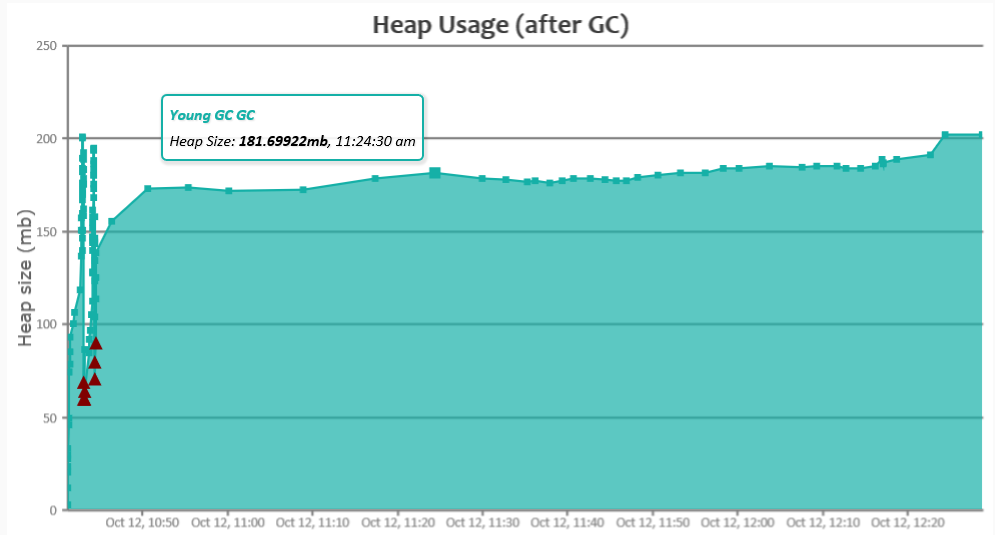
Fig: Eclipse IDE memory usage
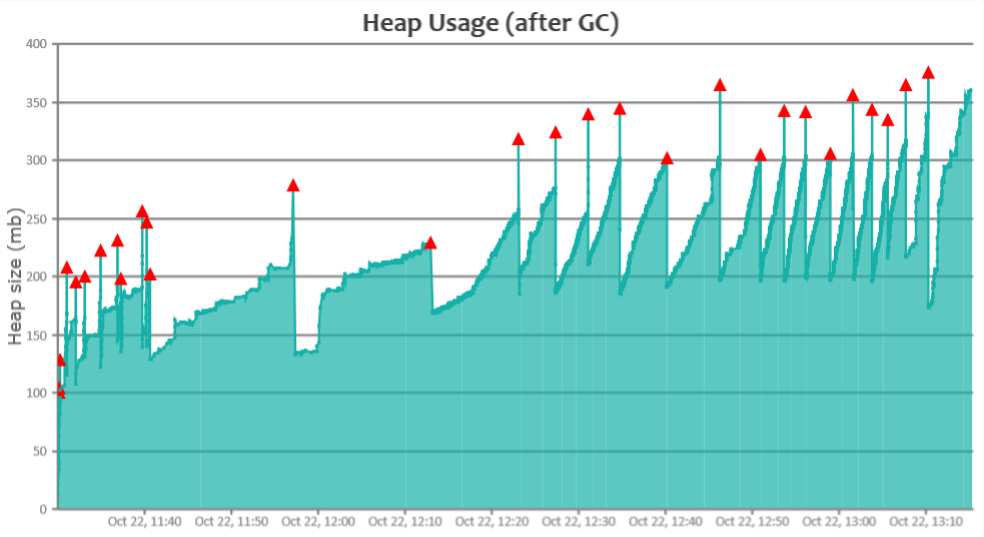
Fig: IntelliJ IDE memory usage
Below are key observations from the GC analysis report:
Object Creation Rate |
Eclipse |
IntelliJ |
Object Creation Rate |
2.41 MB/sec |
69.65 MB/sec |
Avg. GC Pause Time |
33 ms |
8 ms |
Max. GC Pause Time |
340 ms |
270 ms |
GC Throughput |
99.924% |
99.146% |
GC Algorithm |
G1 GC |
CMS GC |
Is System.gc() invoke? |
Yes |
No |
#1. Object Creation Rate
Apparently, Eclipse created a very small number of objects when compared to IntelliJ. Eclipse IDE was creating objects at the rate of 2.41 MB/sec, whereas IntelliJ was creating objects are the rate of 69.65 MB/sec (which is 29x more than Eclipse). For the entire run, Eclipse only created 15.19 GB, where IntelliJ created 430.2 GB of objects. Since more objects were created, CPU consumption was also higher when using the IntelliJ IDE.
#2. GC Pause Time
During certain phases of the garbage collection, the entire application is paused. Eclipse’s average GC pause time is 33 ms and its max GC pause time is 340 ms. On the other hand, IntelliJ’s average GC pause time is only 8 ms and max GC pause time is 270 ms. Thus, in terms of GC Pause, IntelliJ is comparatively better. Even though IntelliJ’s object creation rate is higher, however, its average pause time is comparatively better than Eclipse because of better GC tuning is done in IntelliJ.
#3. GC Throughput
Basically, GC throughput is the amount of time your application spends processing the customer’s transactions versus the amount of time your application spends in garbage collection. In our study, Eclipse throughput is 99.924 percent, whereas IntelliJ’s through is 99.146 percent. Eclipse GC throughput is better than IntelliJ’s throughput.
#4. GC Algorithm
One of the primary reasons for GC pause time is because it is influenced by the garbage collection algorithm and settings. Eclipse was configured to run with the G1 GC algorithm, whereas IntelliJ was configured to run with the CMS GC algorithm. Given that Eclipse is creating fewer objects, with proper GC tuning, we believe Eclipse GC pause time can be reduced further.
#5. System.gc() calls
Eclispe IDE is issuingSystem.gc()calls explicitly. Unless there is a necessity, it’s not recommended to issue System.gc() from the application, as it muddles with JVM GC activity. It’s unclear why the Eclipse IDE is explicitly issuing System.gc() calls.
Conclusion
Based on this study we conducted, we can say that Eclipse IDE is more memory efficient than IntelliJ because to do the same amount of work, IntelliJ is creating 29x more objects than Eclipse. On the other hand, IntelliJ’s pauses times are comparatively better than Eclipse. Of course, we believe that IDE selection shouldn’t be based on memory efficiency. It should be based on feature set, user preference, and productivity criteria.
Opinions expressed by DZone contributors are their own.
