Ubuntu’s own archive does not carry PHP 8.4. Ubuntu 24.04 ships PHP 8.3 and 22.04 ships PHP 8.1, so to install PHP 8.4 on Ubuntu you take the packages from Ondřej Surý’s PPA, which builds every supported branch. You add the PPA, install the common extensions, connect PHP to Nginx or Apache, and prove your build has the PHP2Shell fix.
Ubuntu 20.04 is no longer covered, because the PPA’s focal index is empty. The PPA has no Ubuntu 26.04 build either, so on 26.04 follow the PHP 8.5 guide for Ubuntu 26.04. Every command below was run as a sudo user on a fresh Ubuntu 24.04 system in October 2026 against the PPA’s PHP 8.4.27 build, and the install, changelog check and both web server setups also ran on 22.04.
Read what changed in PHP 8.4 before you move an application over. RHEL family servers have their own guide for PHP 8.4 on Rocky / AlmaLinux.
- PHP.Watch: https://php.watch/versions/8.4
- Laravel News: https://laravel-news.com/php-8-4-0
Step 1 – Add PHP Repository
We don’t need to build PHP 8.4 packages from source because Ondřej Surý provides pre-built packages. Before adding the repository, update the package list and install the tools add-apt-repository needs.
sudo apt update
sudo apt install -y software-properties-common gnupg2 apt-transport-https lsb-release ca-certificates
Check your release codename next, because the PPA only builds for some Ubuntu releases.
lsb_release -scA 24.04 server prints the line below, and a 22.04 server prints jammy.
nobleAnything else stops here. On focal (20.04) the PPA index holds 0 packages, and for resolute (26.04) the PPA has no Release file at all, so the next command would add a repository that gives you no PHP 8.4. On noble or jammy, add the ondrej/php PPA. The -y flag skips the ENTER prompt, and the command refreshes the package index on its own.
sudo add-apt-repository -y ppa:ondrej/phpOn 24.04 it writes a deb822 source for noble. The PPA description now says the repository is being merged into packages.sury.org, while jammy and noble are still served from here.
PPA publishes dbgsym, you may need to include 'main/debug' component
Repository: 'Types: deb
URIs: https://ppa.launchpadcontent.net/ondrej/php/ubuntu/
Suites: noble
Components: main
'
Description:
This repository is in process of being merged into https://packages.sury.org/php/;

For Ubuntu Resolute, https://packages.sury.org/php/ is the canonical way of getting PHP packages, for previous releases, I will provide a simple way how to migrate to the new repositories in upcoming weeks, you can still use this repository for Ubuntu Jammy and Ubuntu Noble.
More info: https://launchpad.net/~ondrej/+archive/ubuntu/php
Adding repository.
Confirm that APT now sees PHP 8.4 and that the candidate comes from the PPA.
apt-cache policy php8.4The candidate should be 8.4.27 or newer, served from ppa.launchpadcontent.net. On 22.04 the version string carries ubuntu22.04.1 instead.
php8.4:
  Installed: (none)
  Candidate: 8.4.27-1+ubuntu24.04.1+deb.sury.org+1
  Version table:
     8.4.27-1+ubuntu24.04.1+deb.sury.org+1 500
        500 https://ppa.launchpadcontent.net/ondrej/php/ubuntu noble/main amd64 Packages
An empty candidate or “Unable to locate package” means the PPA is not active for your release. The deb.sury.org suffix is also how you will tell a PPA build from an Ubuntu archive package later, when you check for security fixes.
Step 2 – Install PHP 8.4
With the PPA added, install PHP 8.4 and its CLI. The php8.4 package also pulls in Apache with libapache2-mod-php8.4 and starts it on port 80, which suits an Apache server. Nginx users can run the same line, because the Nginx section in Step 4 disables Apache before installing Nginx. If you would rather keep Apache off the server entirely, install php8.4-fpm php8.4-cli instead; on our 24.04 test that pulled in 10 packages and no Apache at all.
sudo apt install php8.4 php8.4-cliAccept the package list when prompted. This is the 24.04 list; the count depends on what the server already has, and our 22.04 system pulled in 36 packages.
The following additional packages will be installed:
  apache2 apache2-bin apache2-data apache2-utils libapache2-mod-php8.4
  libapr1t64 libaprutil1-dbd-sqlite3 libaprutil1-ldap libaprutil1t64 libbsd0
  libedit2 libgdbm-compat4t64 libgdbm6t64 libjansson4 liblua5.4-0
  libperl5.38t64 libsodium23 perl perl-modules-5.38 php-common php8.4-common
  php8.4-opcache php8.4-readline psmisc ssl-cert
Suggested packages:
  apache2-doc apache2-suexec-pristine | apache2-suexec-custom www-browser ufw
  php-pear gdbm-l10n perl-doc libterm-readline-gnu-perl
  | libterm-readline-perl-perl make libtap-harness-archive-perl
The following NEW packages will be installed:
  apache2 apache2-bin apache2-data apache2-utils libapache2-mod-php8.4
  libapr1t64 libaprutil1-dbd-sqlite3 libaprutil1-ldap libaprutil1t64 libbsd0
  libedit2 libgdbm-compat4t64 libgdbm6t64 libjansson4 liblua5.4-0
  libperl5.38t64 libsodium23 perl perl-modules-5.38 php-common php8.4
  php8.4-cli php8.4-common php8.4-opcache php8.4-readline psmisc ssl-cert
0 upgraded, 27 newly installed, 0 to remove and 0 not upgraded.
Need to get 16.2 MB of archives.
After the installation, verify that PHP 8.4 is installed by checking the version.
php --versionThe first line names the release and the build date. Anything older than 8.4.27 here means a build from before the October 2026 security release.
PHP 8.4.27 (cli) (built: Oct 21 2026 14:35:21) (NTS)
Copyright (c) The PHP Group
Built by Ubuntu
Zend Engine v4.4.27, Copyright (c) Zend Technologies
    with Zend OPcache v8.4.27, Copyright (c), by Zend Technologies
The version line is a quick hint, but it does not prove which security fixes the package carries, so read the changelog next.
Check the PHP2Shell fix (CVE-2026-109618 and CVE-2026-109619)
PHP2Shell is a pair of critical remote code execution bugs in PHP itself, CVE-2026-109618 and CVE-2026-109619, both rated CVSS v4.0 9.2 in PHP’s pre-announcement of 20 October and fixed upstream on 21 October 2026 in PHP 8.4.27 (and in 8.5.12, 8.3.36 and 8.2.35). The Ondřej Surý PPA already ships 8.4.27 for Ubuntu 24.04 and 22.04, so a fresh install from this guide is patched. The PHP security advisory has the details.
The package changelog is the reliable check, because it names the CVEs the build fixes.
zgrep -E 'CVE-2026-10961[89]' /usr/share/doc/php8.4-common/changelog.Debian.gzA patched build prints this line, on 24.04 and 22.04 alike. No output means your installed package is older than the fixed 8.4.27 build.
+ (CVE-2026-109618, CVE-2026-109619): Avoid state corruption viaThe changelog lives under /usr/share/doc, which minimal and container images often strip. A check that needs no documentation compares the installed package version with the fixed release instead:
dpkg --compare-versions "$(dpkg-query -W -f='${Version}' php8.4-common)" ge 8.4.27 && echo patched || echo "not patched"With the PPA build installed on 24.04, the comparison prints one word.
patchedThis works for the PPA because its builds move to the upstream release number. For a future PHP security release, swap in the new fixed version here, or the new CVE IDs in the changelog search.
A fresh install can stop here and carry on with Step 3. On an existing server where the check prints nothing, upgrade every PHP 8.4 package. The Apache module’s name starts with lib, so the glob misses it and it is named on its own. If libphp8.4-embed is installed, add it to the line for the same reason.
sudo apt update
sudo apt install --only-upgrade 'php8.4*' libapache2-mod-php8.4
APT skips anything in that list that is not installed, so the same line suits FPM and mod_php servers. Then restart the PHP handlers yourself rather than trusting the package scripts, so no worker keeps the old code in memory. try-restart restarts only units that are running, so on an Apache server one line covers mod_php and Apache with FPM:
sudo systemctl try-restart apache2 php8.4-fpmAn Nginx server needs only FPM, so leave apache2 out there. On our Nginx test server the line above also left a disabled Apache inactive, but a server that never had Apache prints Unit apache2.service not found and exits with code 5, which is noise you can skip:
sudo systemctl try-restart php8.4-fpmLong-running PHP CLI processes, such as queue workers kept alive by supervisor or a systemd unit, also hold the old code, so restart those the same way. To prove the running service is newer than the package on disk, print the last PHP 8.4 package change first. The glob reads rotated dpkg logs too.
zgrep -hE ' (install|upgrade) php8.4-(common|fpm):' /var/log/dpkg.log* | sort | tail -1Our 24.04 test server printed its install line. On a server that took the update, the line says upgrade and ends with the new version.
2026-10-22 15:59:48 install php8.4-fpm:amd64 <none> 8.4.27-1+ubuntu24.04.1+deb.sury.org+1Now read when the service you restarted came up. Swap php8.4-fpm for apache2 on a mod_php server, and read only the unit that actually serves your site, because a stopped Apache still reports its last start time.
systemctl show -p ActiveEnterTimestamp php8.4-fpmThe timestamp has to be later than the dpkg line, as it is here. An empty value (or n/a on 22.04) means that unit is not installed on your server. If the value is empty right after a restart of a unit you do have, wait a second and rerun the command.
ActiveEnterTimestamp=Thu 2026-10-22 16:01:42 UTCLast, request the version.php page from Step 5 through the web server. The PPA ships upstream 8.4.27, so the version the page reports comes from the restarted worker itself.
curl -s http://127.0.0.1/version.phpAn FPM site answers with fpm-fcgi in the second field, a mod_php site with apache2handler.
8.4.27 fpm-fcgiA server still on Ubuntu 20.04 cannot get this build at all, because its free archive PHP 7.4 has no PHP2Shell fix and the patched package comes only with Ubuntu Pro. The PHP2Shell patching guide for Ubuntu covers that Pro package and Ubuntu’s own PHP builds on the newer releases.
Without Pro, the real fix is a release upgrade in two hops, 20.04 to 22.04 and then 22.04 to 24.04; the second hop is in the Ubuntu 22.04 to 24.04 upgrade walkthrough. do-release-upgrade disables third-party sources such as this PPA, so run sudo add-apt-repository -y ppa:ondrej/php again after the last hop, then follow this guide as written.
Step 3 – Install PHP 8.4 extensions
Install the extensions most PHP applications ask for. WordPress, Laravel and Nextcloud all want database, XML, image and multibyte support, so this set covers the usual install checks before you hit them. The list also includes php8.4-fpm, the FastCGI daemon the Nginx setup uses. On an Apache server it starts as well, but Apache ignores it until you switch over in Step 4, so you lose nothing by having it there.
sudo apt install php8.4-common php8.4-fpm php8.4-mysql php8.4-xml \
php8.4-gd php8.4-mbstring php8.4-zip php8.4-bcmath php8.4-curl -y
List the active PHP modules to confirm they registered.
php -mbcmath, curl, gd, mbstring, mysqli, xml and zip should all appear next to the modules compiled into PHP. Any other extension installs the same way, as php8.4- plus its name. The intl module, for example, is one command.
sudo apt install php8.4-intlThe CLI sees a new module straight away, because every php command starts a fresh process. Web requests are different: FPM and Apache load their modules when they start, so a module you add later only reaches your site after you restart php8.4-fpm or Apache, whichever serves it. If an application still reports a missing extension that php -m lists, that restart is the step you skipped.
Step 4 – Configuring PHP
The default PHP configuration files are located in the /etc/php/8.4 directory.
ls /etc/php/8.4/Each SAPI gets its own subdirectory. apache2 comes from mod_php and fpm from Step 3.
apache2 cli fpm mods-availableThe main configuration file that controls major aspects of PHP is php.ini, and every SAPI has its own copy. The command line reads this one.
ls /etc/php/8.4/cli/php.iniChanging the CLI file has no effect on web requests, which is the usual reason a setting “does not work”. You edit the file of the SAPI that serves your site, then restart that service, since FPM and Apache read php.ini only when they start or reload. We keep site settings in the SAPI file rather than the CLI one, so cron jobs and Composer keep their own limits.
Using PHP with Nginx web server
Nginx hands PHP requests to PHP-FPM (FastCGI Process Manager), which Step 3 installed. FPM reads its own php.ini at /etc/php/8.4/fpm/php.ini, and the default pool configuration, where the worker count and the socket are set, sits next to it in /etc/php/8.4/fpm/pool.d/www.conf.
The php8.4 package started Apache on port 80, and Nginx cannot bind the port while Apache holds it. Stop and disable Apache first, then install Nginx. If you installed only php8.4-fpm php8.4-cli in Step 2, the first line just reports that apache2.service does not exist, which is harmless.
sudo systemctl disable --now apache2
sudo apt install -y nginx
Create a server block that passes .php requests to the PHP 8.4 FPM socket.
sudo vim /etc/nginx/sites-available/phpPaste this configuration. It serves /var/www/html, the same document root the test pages in Step 5 use.
server {
    listen 80 default_server;
    listen [::]:80 default_server;
    server_name _;
    root /var/www/html;
    index index.php index.html;

    location / {
        try_files $uri $uri/ =404;
    }

    location ~ \.php$ {
        include snippets/fastcgi-php.conf;
        fastcgi_pass unix:/run/php/php8.4-fpm.sock;
    }
}
Replace the default site with it, since both claim default_server, and test the configuration.
sudo rm /etc/nginx/sites-enabled/default
sudo ln -s /etc/nginx/sites-available/php /etc/nginx/sites-enabled/
sudo nginx -t
Both lines must report success before you reload, otherwise the reload keeps the old configuration.
nginx: the configuration file /etc/nginx/nginx.conf syntax is ok
nginx: configuration file /etc/nginx/nginx.conf test is successful
Reload Nginx and check that both services are running.
sudo systemctl reload nginx
systemctl is-active nginx php8.4-fpm
Two lines of active mean Nginx and FPM are serving. A failed line points to journalctl -u nginx or journalctl -u php8.4-fpm for the reason.
active
active
Nginx is ready. Set your php.ini values in FPM’s file using the Optimal configuration files section below, then move on to the Step 5 test pages. The disable --now above also keeps Apache from grabbing port 80 again after a reboot, which a plain stop would not.
Using PHP with Apache web server
Apache runs PHP inside its own workers through libapache2-mod-php8.4, which the php8.4 package already installed. On a server where you skipped that package, install the module.
sudo apt install libapache2-mod-php8.4The main configuration file that affects Apache web server when handling PHP scripts is /etc/php/8.4/apache2/php.ini.
mod_php ties Apache to the prefork MPM. Because php8.4-fpm is installed anyway, you can hand PHP to FPM and move Apache to the event MPM instead. The FPM package’s install notice names only the first part, a2enmod proxy_fcgi setenvif and a2enconf php8.4-fpm; dropping prefork for event is the extra step that makes the switch worth it. The line below enables the FPM side before it removes mod_php, and the && chain stops at the first failure, so Apache never restarts without a PHP handler.
sudo a2enmod proxy_fcgi setenvif && sudo a2enconf php8.4-fpm && sudo a2dismod php8.4 mpm_prefork && sudo a2enmod mpm_event && sudo systemctl restart apache2Confirm which MPM Apache now runs.
a2query -MThe answer should be event. A prefork answer means mod_php is still loaded, so rerun the a2dismod line and restart Apache.
eventThen ask Apache which handler runs PHP now, using the version.php page from Step 5 (create it first if you are following the Apache path for the first time):
curl -s http://127.0.0.1/version.phpThe second field changed from apache2handler to fpm-fcgi, so FPM answers the request:
8.4.27 fpm-fcgiMore on virtual hosts and FPM pools under Apache is in the PHP with Apache guide for Ubuntu and Debian.
Optimal configuration files
Below are some optimal settings for php.ini. Put them in the file of the SAPI that serves your site (apache2 or fpm), then restart Apache or php8.4-fpm. We ran this whole block in FPM’s php.ini on 24.04 and read every value back through a web request.
memory_limit = 256M
upload_max_filesize = 10M
post_max_size = 12M
max_execution_time = 60
max_input_time = 60
error_reporting = E_ALL & ~E_DEPRECATED & ~E_NOTICE
display_errors = Off
log_errors = On
error_log = /var/log/php_errors.log
session.save_path = "/var/lib/php/sessions"
disable_functions = exec,shell_exec,system,passthru
expose_php = Off
file_uploads = On
E_STRICT is no longer in the error_reporting line because PHP 8.4 deprecates the constant and E_ALL no longer includes it. PHP also cannot create /var/log/php_errors.log as www-data, and in our test the warnings quietly went to Apache’s own error log instead. Create the file with the right owner.
sudo touch /var/log/php_errors.log && sudo chown www-data:www-data /var/log/php_errors.logSet the default timezone in the same file.
date.timezone = "Africa/Nairobi"Use a name from PHP’s list of supported timezones, such as UTC, and restart the PHP handler so web requests see it.
Step 5 – Testing PHP installation
Add a test PHP script to show that PHP is working.
sudo vim /var/www/html/hello.phpAdd these lines and save the file.
<?php
// This is a comment in PHP
echo "Hello, World!";
?>
Request it through the web server from the server itself. The same URL works for Apache and for the Nginx site from Step 4.
curl -s http://127.0.0.1/hello.phpA working setup returns the greeting. If you get the PHP source back, the web server is not passing .php files to PHP, so recheck the Nginx server block or the Apache module. On our 22.04 run the very first request after systemctl reload nginx came back as raw source, most likely because the reload had not yet retired the workers serving the default site; the same request a second later went to FPM. If you see source once, repeat the request before you start debugging.
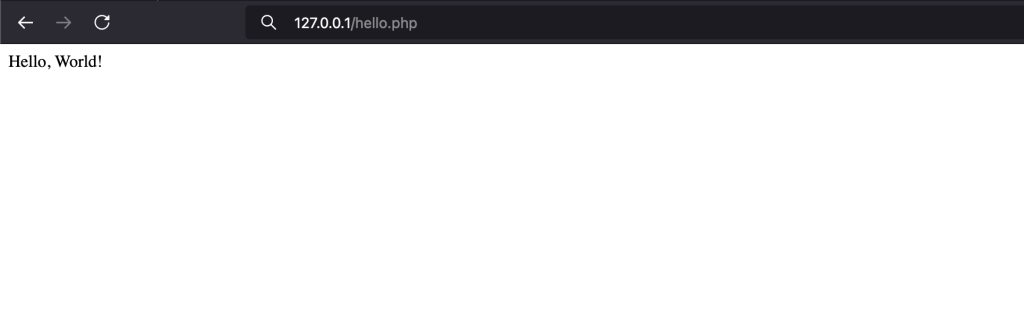
Hello, World!If you see “Hello, World!” in a browser as well, your PHP installation is working.
The PHP2Shell check in Step 2 also needs a page that reports which PHP release and handler answered the request.
sudo vim /var/www/html/version.phpAdd two lines.
<?php
echo PHP_VERSION, " ", PHP_SAPI, "\n";
Request it the same way.
curl -s http://127.0.0.1/version.phpOur 24.04 server on mod_php returned the release and the handler. Behind Nginx, or after the Apache FPM switch, the second field reads fpm-fcgi.
8.4.27 apache2handlerDelete both test pages once you have seen the result, because version.php tells anyone who asks which PHP release the server runs. The PPA had the 8.4.27 build out on the day of the PHP2Shell advisory, so keep it enabled and rerun a check after every PHP security release, with that release’s CVE IDs in the changelog search or its fixed version in the version comparison. You get the next fix the same way: apt upgrade, an explicit restart of FPM or Apache, then the timestamp and the page request to prove the running worker is new.