Passbolt’s official Docker Compose file gets a container answering in under a minute, and then you find out what it left out. It ships with a placeholder database password, a self-signed certificate and no working email, so nobody you invite will ever get the link. This guide runs Passbolt CE in Docker the way we run it on a real server. Secrets live in a .env file, Traefik sits in front with a Let’s Encrypt certificate, SMTP delivers the queued mail, and the backup gets restored once.
You’ll install Docker Engine, verify and adapt the official Passbolt Docker Compose file, create the first admin in the browser, then back up, restore and upgrade the stack. If you’d rather not run containers, the package-based Passbolt install on Ubuntu covers the apt route. Every command below was run on Ubuntu 26.04.1 LTS and Ubuntu 24.04 with Passbolt CE 5.17.0 in October 2026.
What you need
The core setup assumes a fresh server and a domain, nothing else. Email is optional at first: the admin account can be created from the terminal without it, but you need a working relay before you invite anyone else.
- Ubuntu 26.04 or 24.04 server, 2 vCPU and 2 GB RAM or more
- A DNS A record such as
passbolt.example.compointing at the server - Ports 80 and 443 reachable from the internet (any DNS provider works)
- A user with sudo and a working time sync (Passbolt’s OpenPGP checks fail on a drifting clock)
- Chrome, Firefox, Edge or Safari with the Passbolt extension on the client side
Sizing is not the problem here. With an admin logged in on our lab VM, the Passbolt container sat at 39 MiB, MariaDB at 117 MiB and Traefik at 16 MiB, and the three images take about 1.3 GB of disk. The 2 GB floor is Passbolt’s own recommendation and it leaves room for MariaDB to grow its buffer pool as the vault fills up.
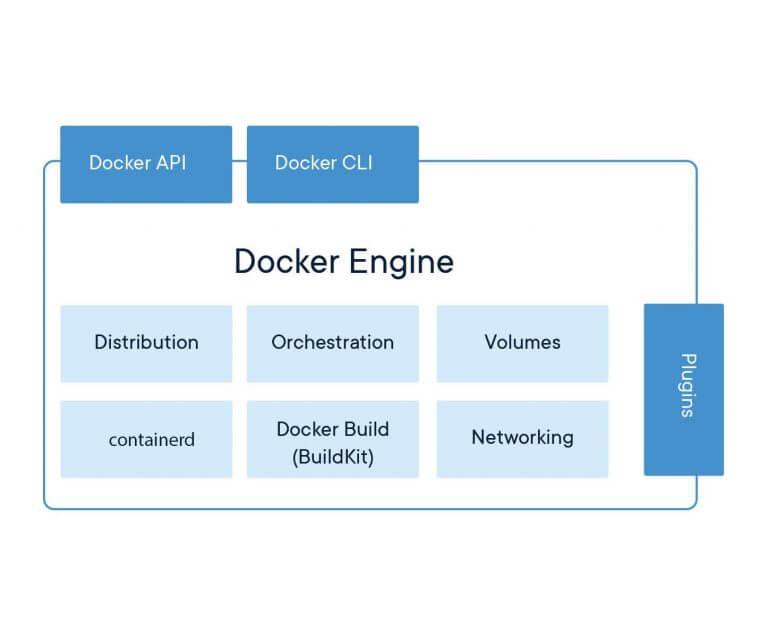
The stack has three containers. Traefik owns ports 80 and 443, gets the certificate and forwards requests to Passbolt over the internal Docker network, while MariaDB is never published at all:

Four named volumes carry everything that matters: the database, the server OpenPGP keys, the JWT keys and Traefik’s certificate store. Removing the containers loses nothing as long as those volumes stay.
Install Docker Engine and the Compose plugin
Use Docker’s own apt repository rather than Ubuntu’s docker.io package, because the Compose plugin and current Engine releases come from there. The repository already publishes a resolute suite for 26.04 next to noble, so the same commands work on both releases. The full walkthrough, including rootless mode, is in our guide to installing Docker CE on Ubuntu 26.04; the short version is below.
Add Docker’s signing key:
sudo apt update
sudo apt install -y ca-certificates curl
sudo install -m 0755 -d /etc/apt/keyrings
sudo curl -fsSL https://download.docker.com/linux/ubuntu/gpg -o /etc/apt/keyrings/docker.asc
sudo chmod a+r /etc/apt/keyrings/docker.asc
Write the repository definition. The codename comes from /etc/os-release, so the line is the same on 26.04 and 24.04:
printf 'Types: deb\nURIs: https://download.docker.com/linux/ubuntu\nSuites: %s\nComponents: stable\nSigned-By: /etc/apt/keyrings/docker.asc\n' "$(. /etc/os-release && echo "${UBUNTU_CODENAME:-$VERSION_CODENAME}")" | sudo tee /etc/apt/sources.list.d/docker.sourcesInstall Engine, the CLI and the Compose plugin, then add your user to the docker group so the rest of the guide runs without sudo:
sudo apt update
sudo apt install -y docker-ce docker-ce-cli containerd.io docker-buildx-plugin docker-compose-plugin
sudo usermod -aG docker $USER
newgrp docker
Membership in the docker group is root-equivalent on that host, which is fine for a dedicated Passbolt server and a reason not to do this on a shared box. Confirm both the daemon and the plugin answer:
docker version --format 'client {{.Client.Version}} server {{.Server.Version}}'
docker compose version
Both of our lab servers reported the same Engine and Compose builds.
client 29.9.2 server 29.9.2
Docker Compose version v5.6.1
Every command from here on uses the docker compose plugin form, with a space (our Docker Compose guide for Ubuntu 26.04 explains the plugin and the standalone binary). On a host that still has the old standalone docker-compose binary, call the plugin instead so you get the release shown above.
Download and verify the Passbolt Compose file
Start from Passbolt’s published file and check its SHA-512 sum, so you know the base you are editing is the vendor’s and not something altered in transit. Set your own domain and the address Let’s Encrypt should use for expiry notices first, because the next step writes both into the project’s .env file:
export PASSBOLT_DOMAIN="passbolt.example.com"
export ACME_EMAIL="[email protected]"
Create a project directory and pull the file plus its checksum:
mkdir -p ~/passbolt && cd ~/passbolt
curl -LO https://download.passbolt.com/ce/docker/docker-compose-ce.yaml
curl -LO https://github.com/passbolt/passbolt_docker/releases/latest/download/docker-compose-ce-SHA512SUM.txt
sha512sum -c docker-compose-ce-SHA512SUM.txt
Anything other than OK means the download is broken or tampered with, so delete it and fetch again:
docker-compose-ce.yaml: OKOn the 24.04 box the first curl printed nothing and the check then reported FAILED open or read, because that VM had a broken IPv6 route and the download never started. If you see the same, run the two curl lines again with -4. The verified file is a useful starting point, but you should not run it as is, for four reasons.
passbolt/passbolt:latest-ce, which never updates by itself and hides which release you run- the same database password,
P4ssb0lt, in two places APP_FULL_BASE_URL: https://passbolt.localwith the container’s self-signed certificate on 443- no SMTP settings, so mail goes to
localhost:25inside the container and nowhere else
The next two steps fix all four. The MariaDB 10.11 image it pins is fine to keep, since that LTS line is supported until 2028.
Create the .env file
Compose reads .env from the project directory automatically, which keeps the domain, the ACME address and a generated database password out of the YAML. The password is hex on purpose: it never needs quoting in YAML or in a shell, and nobody has to type it because only the two containers use it.
printf "PASSBOLT_DOMAIN=%s\nACME_EMAIL=%s\nDB_PASSWORD=%s\n" "${PASSBOLT_DOMAIN}" "${ACME_EMAIL}" "$(openssl rand -hex 24)" > .env
chmod 600 .env
From here on the shell exports are no longer needed: everything reads .env, so a new SSH session only has to cd ~/passbolt before any docker compose command. Treat the file as a secret and include it in your backups, because the database password inside it is the only copy.
Write the Compose file with Traefik and Let’s Encrypt
Passbolt’s documentation suggests Traefik for Let’s Encrypt in Docker, and it is the right call here: Traefik answers the HTTP-01 challenge on port 80 by itself and renews the certificate without a cron job or a stopped container. Rename the verified file and open it:
mv docker-compose-ce.yaml compose.yaml
vim compose.yaml
Replace its contents with the file below. It is the exact file the lab ran, so don’t retype the labels by hand:
services:
  db:
    image: mariadb:10.11
    restart: unless-stopped
    environment:
      MYSQL_RANDOM_ROOT_PASSWORD: "true"
      MYSQL_DATABASE: "passbolt"
      MYSQL_USER: "passbolt"
      MYSQL_PASSWORD: "${DB_PASSWORD}"
    volumes:
      - database_volume:/var/lib/mysql

  passbolt:
    # pin: https://hub.docker.com/r/passbolt/passbolt/tags
    image: passbolt/passbolt:5.17.0-1-ce
    restart: unless-stopped
    depends_on:
      - db
    environment:
      APP_FULL_BASE_URL: "https://${PASSBOLT_DOMAIN}"
      DATASOURCES_DEFAULT_HOST: "db"
      DATASOURCES_DEFAULT_USERNAME: "passbolt"
      DATASOURCES_DEFAULT_PASSWORD: "${DB_PASSWORD}"
      DATASOURCES_DEFAULT_DATABASE: "passbolt"
      PASSBOLT_SSL_FORCE: "true"
      EMAIL_DEFAULT_FROM_NAME: "Passbolt"
      EMAIL_DEFAULT_FROM: "${MAIL_FROM:-passbolt@localhost}"
      EMAIL_TRANSPORT_DEFAULT_HOST: "${SMTP_HOST:-localhost}"
      EMAIL_TRANSPORT_DEFAULT_PORT: "${SMTP_PORT:-25}"
      EMAIL_TRANSPORT_DEFAULT_USERNAME: "${SMTP_USER:-}"
      EMAIL_TRANSPORT_DEFAULT_PASSWORD: "${SMTP_PASSWORD:-}"
      EMAIL_TRANSPORT_DEFAULT_TLS: "${SMTP_TLS:-}"
      PASSBOLT_SECURITY_SMTP_SETTINGS_ENDPOINTS_DISABLED: "true"
    volumes:
      - gpg_volume:/etc/passbolt/gpg
      - jwt_volume:/etc/passbolt/jwt
    command:
      [
        "/usr/bin/wait-for.sh",
        "-t",
        "0",
        "db:3306",
        "--",
        "/docker-entrypoint.sh",
      ]
    labels:
      traefik.enable: "true"
      traefik.http.routers.passbolt.rule: "Host(`${PASSBOLT_DOMAIN}`)"
      traefik.http.routers.passbolt.entrypoints: "websecure"
      traefik.http.routers.passbolt.tls.certresolver: "letsencrypt"
      traefik.http.routers.passbolt.middlewares: "passbolt-headers"
      traefik.http.services.passbolt.loadbalancer.server.port: "443"
      traefik.http.services.passbolt.loadbalancer.server.scheme: "https"
      traefik.http.middlewares.passbolt-headers.headers.stsSeconds: "31536000"
      traefik.http.middlewares.passbolt-headers.headers.frameDeny: "true"
      traefik.http.middlewares.passbolt-headers.headers.contentTypeNosniff: "true"
      traefik.http.middlewares.passbolt-headers.headers.referrerPolicy: "same-origin"

  traefik:
    # pin: https://github.com/traefik/traefik/releases
    image: traefik:v3.7.16
    restart: unless-stopped
    command:
      - "--global.sendanonymoususage=false"
      - "--providers.docker=true"
      - "--providers.docker.exposedbydefault=false"
      - "--entrypoints.web.address=:80"
      - "--entrypoints.web.http.redirections.entrypoint.to=websecure"
      - "--entrypoints.web.http.redirections.entrypoint.scheme=https"
      - "--entrypoints.websecure.address=:443"
      - "--serverstransport.insecureskipverify=true"
      - "--certificatesresolvers.letsencrypt.acme.email=${ACME_EMAIL}"
      - "--certificatesresolvers.letsencrypt.acme.storage=/letsencrypt/acme.json"
      - "--certificatesresolvers.letsencrypt.acme.caserver=${ACME_CA_SERVER:-https://acme-v02.api.letsencrypt.org/directory}"
      - "--certificatesresolvers.letsencrypt.acme.keytype=EC256"
      - "--certificatesresolvers.letsencrypt.acme.httpchallenge.entrypoint=web"
    ports:
      - 80:80
      - 443:443
    volumes:
      - /var/run/docker.sock:/var/run/docker.sock:ro
      - acme_volume:/letsencrypt

volumes:
  database_volume:
  gpg_volume:
  jwt_volume:
  acme_volume:
Most lines carry over from Passbolt’s file. Each line we changed exists because the default broke something in testing, and you’ll hit the same problems if you keep them.
- Traefik forwards to the container’s own HTTPS port (443, scheme
https) and skips verifying its self-signed certificate PASSBOLT_SSL_FORCE: "true"turns the healthcheck’s “force SSL” FAIL into a PASSEMAIL_TRANSPORT_DEFAULT_TLSdefaults to empty, never to the stringfalseexposedbydefault=falsekeeps Traefik from building a route to MariaDB- both images are pinned to a tag, with the release page in the comment
The first two belong together. Passbolt’s force-SSL check reads the scheme of the request it receives, not Traefik’s X-Forwarded-Proto header. When we pointed Traefik at plain port 80 with force-SSL on, every request looped back to the same URL with a 302, and PASSBOLT_SECURITY_PROXIES_ACTIVE did not change that. Hopping to 443 inside the Docker network makes the scheme https end to end. The insecureskipverify flag is global and turns off certificate checks for every HTTPS backend Traefik proxies to; in this stack Passbolt is the only one, and the browser still sees the Let’s Encrypt certificate. The ACME_CA_SERVER variable is optional. Leave it out for production, or set it to Let’s Encrypt staging (https://acme-staging-v02.api.letsencrypt.org/directory) in .env while you test, so failed attempts don’t count against production rate limits.
Check that Compose parses the file and fills in every variable before you start anything:
docker compose config --quiet && echo OKA missing .env shows up here as a warning that DB_PASSWORD is not set. Fix that now, because MariaDB only reads its password on the first start and changing it later means wiping the volume.
Start Passbolt in Docker
The first start pulls the three images, creates the volumes and runs Passbolt’s installer inside the container, which generates the server OpenPGP key and builds the schema:
docker compose up -dOn the 26.04 lab VM the command returned after 46 seconds, pulls included, and the installer inside the container took another 22 seconds to finish its migrations. Watch for the end of it in the logs:
docker compose logs passbolt | grep -E "All Done|installation success"Two lines confirm the schema and the keyring are in place.
passbolt-1  | All Done. Took 21.7435s
passbolt-1  | Passbolt installation success! Enjoy! ☮
Now confirm that Traefik obtained a real certificate rather than serving its fallback one. If you are in a new SSH session, load the domain from .env first with export $(grep ^PASSBOLT_DOMAIN= .env):
echo | openssl s_client -connect ${PASSBOLT_DOMAIN}:443 -servername ${PASSBOLT_DOMAIN} 2>/dev/null | openssl x509 -noout -issuer -datesA Let’s Encrypt issuer means you’re done. If the issuer reads CN=TRAEFIK DEFAULT CERT, the challenge failed, almost always because port 80 isn’t reachable from the internet or the A record points elsewhere, and docker compose logs traefik names the reason. The lab server has no public port 80, so its ACME server was Pebble, Let’s Encrypt’s test CA, set through ACME_CA_SERVER. Pebble still made a real HTTP-01 request to Traefik and issued a 90-day certificate for the domain within a second. Plain HTTP now redirects:
curl -sI http://${PASSBOLT_DOMAIN}/ | head -2Traefik answers port 80 itself and sends your browser to HTTPS.
HTTP/1.1 308 Permanent Redirect
Location: https://passbolt.example.com/
A plain GET gets a 301 instead of the 308 above, and browsers treat both the same way.
Run the Passbolt healthcheck in the container
The healthcheck is the fastest way to prove the keys, database, mail settings and certificate all line up. It has to run as www-data with /etc/environment sourced, because that is where the image’s entrypoint writes the server key fingerprint:
docker compose exec passbolt su -s /bin/bash -c "source /etc/environment && /usr/share/php/passbolt/bin/cake passbolt healthcheck" www-dataThe lab stack finished with 63 PASS lines and no errors. The services were up and the summary checks were clean:

If you leave out the source /etc/environment part, the same healthcheck reports 7 GPG errors, starting with The server OpenPGP key is not set, even though Passbolt itself is fine. A few WARN lines stay on a healthy Docker install, and you don’t need to act on any of them.
- NTP information not found: the container can’t see the host’s
timedatectl; check the host instead passbolt.phpmissing: expected, the image is configured with environment variables- SMTP settings source is env variables: also expected with this Compose file
- host availability (MX) checking disabled, and some notifications disabled by default
The SSL section deserves a second look. With a real Let’s Encrypt certificate it passes, because the container trusts the public CAs. With a certificate from an internal CA it shows three SSL WARN lines, which only mean the container doesn’t trust your CA, not that browsers will complain.
Create the first admin account
Passbolt has no default login. You register the first administrator from the CLI, and the command prints a one-time setup link, so this step works before any email is configured. Use a real address for the account, since it becomes the login name and the target of future notifications:
docker compose exec passbolt su -m -c "/usr/share/php/passbolt/bin/cake passbolt register_user -u [email protected] -f Wanjiru -l Kamau -r admin" -s /bin/sh www-dataThe last lines hold the link. It is tied to this user and expires, so open it soon.
User saved successfully.
To start registration follow the link provided in your mailbox or here:
https://passbolt.example.com/setup/start/03da1aec-1501-4cf4-84ca-28636ef27368/6bd515d0-851e-4c6d-9973-2ffc1d545df3
Open the link in the browser you’ll use Passbolt from. Without the extension you get this page, with a Download extension button for your browser:

Install the extension, then click Refresh to detect extension. In the lab the page still asked for the extension after installing it, and one more reload of the tab fixed that. The next screen asks for the passphrase that protects your private key. It is the one secret you can’t recover through Passbolt, so pick something long that you can type:

Passbolt then downloads a recovery kit, an .asc file holding your private key. Keep it outside the vault (a printed copy in a safe works), because if you lose both the kit and the browser profile, nobody can decrypt your passwords, including the server admin:

Tick the box confirming you stored it and continue. The last step is the security token, a colour and three characters shown every time the extension asks for your passphrase. A page that asks for your passphrase without your token is not Passbolt, which makes the token a cheap anti-phishing check:

Click Next and your empty vault opens. To check that encryption works end to end, choose Create > Password and save a first entry. The generator button next to the password field produces a strong value:

Clicking Create brings up the passphrase prompt with your security token. Once you confirm it, the entry is encrypted in the browser and only ciphertext reaches the server:

That is the core setup: a working Passbolt over HTTPS with one admin and a saved secret. Everything after this point is either optional (email, access limits, your own certificate) or about keeping the stack alive (backup, restore, upgrade).
Send email through your SMTP relay (optional)
Invitations, account recovery and share notifications all go through email, so you need this before adding a second user. Passbolt doesn’t send mail during the request. It queues messages in the database, and a cron job inside the container sends the queue once a minute. Add your relay’s values to .env. Port 587 relays usually want STARTTLS, which is SMTP_TLS=true, and a relay without TLS should leave that line out completely. Implicit TLS on port 465 is different again: CakePHP expects an ssl:// prefix on the host (SMTP_HOST=ssl://smtp.example.com) and no SMTP_TLS, which this lab did not test.
printf "[email protected]\nSMTP_HOST=smtp.example.com\nSMTP_PORT=587\[email protected]\nSMTP_PASSWORD=your-smtp-password\nSMTP_TLS=true\n" >> .envRecreate the Passbolt container so it picks up the new environment, then send a test message:
docker compose up -d
docker compose exec passbolt su -s /bin/bash -c "source /etc/environment && /usr/share/php/passbolt/bin/cake passbolt send_test_email [email protected]" www-data
The command prints the whole SMTP conversation and ends with a clear verdict.
[250] 2.0.0 Ok: queued as 18AD79w7w5Lu0v7R599sgc
 QUIT
The message has been successfully sent!
Do not stop at the test email, because it does not use the same code path as the queue. In the lab, which relayed to a Mailpit container without TLS, the test passed while EMAIL_TRANSPORT_DEFAULT_TLS was the string "false", yet the queued welcome email failed four times with a TLS error. The string reads as true to the queue sender. With the variable empty, a new user’s welcome email left the queue 57 seconds after register_user. The STARTTLS path on port 587 was not part of the lab test, so watch the queue after your first invite:
docker compose exec -T db sh -c 'mariadb -u"$MYSQL_USER" -p"$MYSQL_PASSWORD" "$MYSQL_DATABASE" -e "SELECT email, subject, sent, send_tries, error FROM email_queue"'A row with sent at 1 has been delivered. A row stuck at 0 with an error keeps the relay’s reason, which is far more useful than the container logs.
Restrict access to Passbolt (UFW does not)
Docker writes its own iptables rules for published ports, and they sit in front of UFW’s. On the 26.04 VM, with UFW enabled and only OpenSSH allowed, another machine on the LAN still got a 200 from port 443 and a redirect from port 80. UFW is still worth turning on for SSH and anything that isn’t a container, so enable it as you normally would (our UFW setup for Ubuntu 26.04 covers that), but don’t expect it to limit who reaches Passbolt. The UFW commands reference has the rule syntax for everything else on the host.
If only an office network or VPN should reach the vault, enforce it in Traefik. Add a second middleware to the passbolt service labels and list it on the router:
      traefik.http.routers.passbolt.middlewares: "passbolt-headers,passbolt-allow"
      traefik.http.middlewares.passbolt-allow.ipallowlist.sourcerange: "10.0.0.0/8,192.168.1.0/24"
The first line replaces the existing middlewares label rather than adding a duplicate. After docker compose up -d, a client outside the listed ranges gets a 403. That works because Docker keeps the real client address through its NAT, which the lab confirmed: with only 10.0.0.0/8 listed, a 192.168.1.x client got 403, and adding its subnet turned that into 200. Keep port 80 open to the world if you use Let’s Encrypt, since the HTTP-01 challenge and renewals arrive there. The allowlist only covers the HTTPS router, so renewals keep working. The lab only tested IPv4 clients. Traefik is also published on IPv6, and on a default IPv4-only Docker network those clients can reach it through Docker’s proxy with a bridge address as their source, so test the allowlist from an IPv6 address too and never add the Docker bridge range to it.
Use your own certificate instead of Let’s Encrypt
A Passbolt server on a private network often can’t pass an HTTP-01 challenge, and many teams already have an internal CA. In that case Traefik isn’t needed at all: the Passbolt image terminates TLS itself when you mount a certificate and key at the paths it expects. This route was tested on the Ubuntu 24.04 VM with a certificate from a lab CA. Put the full chain and an unencrypted key in a certs directory next to compose.yaml:
mkdir -p certs
cp /path/to/fullchain.pem certs/cert.pem
cp /path/to/privkey.pem certs/key.pem
chmod 600 certs/key.pem
In compose.yaml, delete the whole traefik service, the acme_volume line and the labels block of the passbolt service. Then give Passbolt the two certificate mounts and its own published ports, so the service ends like this:
    volumes:
      - gpg_volume:/etc/passbolt/gpg
      - jwt_volume:/etc/passbolt/jwt
      - ./certs/cert.pem:/etc/ssl/certs/certificate.crt:ro
      - ./certs/key.pem:/etc/ssl/certs/certificate.key:ro
    command:
      [
        "/usr/bin/wait-for.sh",
        "-t",
        "0",
        "db:3306",
        "--",
        "/docker-entrypoint.sh",
      ]
    ports:
      - 80:80
      - 443:443
Those mount paths are for the standard image. The rootless -non-root tags, which this lab did not test, read /etc/passbolt/certs/certificate.crt and .key and listen on 8080 and 4433, so their ports become 80:8080 and 443:4433. They run as www-data (UID 33), so the key must be readable by that UID, and the su ... www-data wrappers in this guide become plain bin/cake calls. With the container terminating TLS itself, PASSBOLT_SSL_FORCE works without any trick: on the 24.04 box, plain HTTP answered with a 302 to HTTPS and the served certificate showed the lab CA as issuer. Traefik can also get Let’s Encrypt certificates through a DNS-01 challenge for servers without a public port 80, using the DNS provider plugins listed in Traefik’s ACME documentation, but that variant was not part of this lab.
Back up Passbolt in Docker
A Passbolt backup needs two things that only work together: the database dump and the server’s OpenPGP key pair. A dump without the key that encrypted it is useless, and so is the key without the data. Keep .env and compose.yaml with them, so a restore runs the same image tags and settings. Lock the backup directory down, because the private server key lives in it:
mkdir -m 700 -p ~/passbolt-backup
docker compose exec -T db bash -c 'mariadb-dump -u${MYSQL_USER} -p${MYSQL_PASSWORD} ${MYSQL_DATABASE}' > ~/passbolt-backup/passbolt-db.sql
docker compose cp passbolt:/etc/passbolt/gpg/serverkey_private.asc ~/passbolt-backup/
docker compose cp passbolt:/etc/passbolt/gpg/serverkey.asc ~/passbolt-backup/
cp .env compose.yaml ~/passbolt-backup/
tar -czf ~/passbolt-backup-$(date +%F).tar.gz -C ~ passbolt-backup
chmod 600 ~/passbolt-backup-*.tar.gz
The single quotes matter: they make ${MYSQL_USER} and friends expand inside the database container, where those variables exist. The -T flag matters too, because a pseudo-terminal adds carriage returns that ruin the dump. A small vault gives you a small archive.
-rw------- 1 josphat josphat 31854 Oct 21 13:40 /home/josphat/passbolt-backup-2026-10-21.tar.gzOur lab dump was 127,815 bytes for two users and one secret. Copy the tarball off the server (another host, object storage, anything that doesn’t die with this disk). Each user’s own private key is not in it, which is why the recovery kit from the setup step matters just as much.
Restore the backup on a new server
A backup you never restored is a guess, so we restored this one from the 26.04 server onto the 24.04 server under the same domain. The order matters. The Passbolt entrypoint runs a fresh install whenever it finds an empty database. So the dump has to be in MariaDB, and the old server key in place, before Passbolt starts for the first time. On the new server, install Docker as above and point the domain’s A record at it before the first docker compose up, because Traefik requests a fresh certificate there (the ACME volume is not in the backup). Then copy the archive over, unpack it and put the files in a project directory:
tar -xzf ~/passbolt-backup-*.tar.gz -C ~
mkdir -p ~/passbolt && cp ~/passbolt-backup/.env ~/passbolt-backup/compose.yaml ~/passbolt/
cd ~/passbolt
Start only MariaDB and wait until it accepts connections. Use the image’s own healthcheck.sh for that, not mariadb-admin ping:
docker compose up -d db
until docker compose exec -T db healthcheck.sh --connect --innodb_initialized; do sleep 3; done
The first restore attempt used mariadb-admin ping, which already answers while MariaDB runs its first-boot setup on a local socket. The import then failed with ERROR 1045 (28000): Access denied for user 'passbolt'@'localhost', and Passbolt went on to do a fresh install over the empty database. healthcheck.sh --connect waits for the real server. Import the dump next:
docker compose exec -T db bash -c 'mariadb -u${MYSQL_USER} -p${MYSQL_PASSWORD} ${MYSQL_DATABASE}' < ~/passbolt-backup/passbolt-db.sqlCreate the Passbolt container without starting it, copy the old server keys into its volume, then start the stack:
docker compose create passbolt
docker compose cp ~/passbolt-backup/serverkey_private.asc passbolt:/etc/passbolt/gpg/serverkey_private.asc
docker compose cp ~/passbolt-backup/serverkey.asc passbolt:/etc/passbolt/gpg/serverkey.asc
docker compose up -d
The logs tell you whether the restore took. The entrypoint should import the old key and run migrations, not the installer:
passbolt-1  | gpg: key 68DC43C3179E674A: secret key imported
passbolt-1  | Installing passbolt
passbolt-1  | Running migrations
passbolt-1  | All Done. Took 0.0077s
Installing passbolt always prints, because the entrypoint tries the installer first and falls back to migrations when it finds existing tables. The line that means trouble is Install the schema and default data: the import didn’t happen, so stop, run docker compose down -v (which deletes the new, empty volumes) and start the restore again. Copied files keep your host user’s UID and a world-readable mode, so hand the server keys back to www-data and tighten them:
docker compose exec passbolt chown www-data:www-data /etc/passbolt/gpg/serverkey.asc /etc/passbolt/gpg/serverkey_private.asc
docker compose exec passbolt chmod 440 /etc/passbolt/gpg/serverkey.asc /etc/passbolt/gpg/serverkey_private.asc
Passbolt’s own migration guide does the same. The key files the entrypoint generates on a fresh install are mode 664 as well, so the two commands are worth running on the first server too, and the healthcheck still passed after a restart with the keys at 440. On the 24.04 server, the restored stack’s healthcheck passed with The server key fingerprint matches, and the original admin signed in from the same browser profile with the original passphrase:

The saved password decrypted normally. Do not try to check the data with SQL, because resource names live in encrypted metadata, so SELECT name FROM resources returns NULL on a perfectly good restore.
Upgrade the Passbolt Docker image
Upgrading means changing the pinned tag and recreating the container, and the entrypoint runs the database migrations by itself on start. Take a backup first, then check the Passbolt tags on Docker Hub for the release you want. The 24.04 lab stack started one release behind, and the healthcheck flagged it straight away with This installation is not up to date. Edit the image: line of the passbolt service and put the new tag there:
vim compose.yamlIn the lab that meant moving from the previous release to the current one:
    # was: image: passbolt/passbolt:5.16.0-1-ce
    image: passbolt/passbolt:5.17.0-1-ce
Pull the image and recreate the container. Only Passbolt restarts, while MariaDB and Traefik keep running:
docker compose pull passbolt
docker compose up -d
The log shows each migration it applied, and moving up one release took three migrations and an eighth of a second.
passbolt-1  |  == 20260909120000 V5170AddWebauthnCredentialsTable: migrated 0.0327s
passbolt-1  |  == 20260930120000 V5170AddUsersUsernameIndex: migrated 0.0369s
passbolt-1  |  == 20260930120100 V5170AddScimEntriesScimNameIndex: migrated 0.0442s
passbolt-1  | All Done. Took 0.1225s
Run the healthcheck again and look for Using latest passbolt version and The database schema is up to date. Read the release notes before a major-version jump, since that is where Passbolt announces breaking changes. Upgrading the MariaDB image is a separate job. Passbolt’s docs suggest running mariadb-upgrade -u root -p in the database container after a major bump, but this Compose file generates a random root password you never see, so add MARIADB_AUTO_UPGRADE: "1" to the db service environment instead and let the official image run the upgrade at start. That path was not part of the lab, so take a backup first.
Errors from the lab and what fixed them
We hit each of these while building the stack above. The exact message is what you will search for, so it heads each entry.
ERR_TOO_MANY_REDIRECTS after setting PASSBOLT_SSL_FORCE
With Traefik forwarding to the container’s port 80, every request came back as a 302 to the same HTTPS URL, and curl gave up with Maximum (5) redirects followed. Passbolt checks the scheme of the request it receives, and that hop is plain HTTP. Either forward to port 443 with scheme https, as the Compose file above does, or drop PASSBOLT_SSL_FORCE and let Traefik’s redirect do the work.
“SMTP server did not accept the connection or trying to connect to non TLS SMTP server using TLS.”
This error showed up in the email_queue table even though send_test_email succeeded. EMAIL_TRANSPORT_DEFAULT_TLS was set to the string false, which the queue sender treats as on. Leave the variable empty for a relay without TLS. A message that has failed four times stays unsent, so trigger a fresh notification once the setting is fixed.
[FAIL] The server OpenPGP key is not set
The healthcheck reports this, and 6 related GPG failures, when it runs without the fingerprint variable. The application is healthy. Run the healthcheck with source /etc/environment && in front, as shown earlier, and the GPG section passes.
ERROR 1045 (28000): Access denied for user ‘passbolt’@’localhost’
This appeared during a restore, because the import ran while MariaDB was still creating the passbolt user on first boot. Wait with healthcheck.sh --connect --innodb_initialized. If Passbolt has already started and installed a fresh schema, remove the volumes with docker compose down -v and repeat the restore from the start.
Traefik serves “TRAEFIK DEFAULT CERT”
The certificate request failed, and Traefik falls back to a self-signed certificate while it keeps retrying. Check that the A record resolves to this server from outside, that port 80 reaches it through any cloud firewall or router, and that ACME_EMAIL is a real address. Then read docker compose logs traefik for the ACME error. After a fix, docker compose restart traefik triggers a new attempt straight away.